Introduction
In this project, you will learn how to use Element UI, a popular Vue.js UI library, to build a form component and integrate it into a web application.
👀 Preview
🎯 Tasks
In this project, you will learn:
- How to understand the initial code structure and file organization
- How to identify and fix the issue that is causing the form to disappear
- How to ensure the form is displayed correctly in the web application
🏆 Achievements
After completing this project, you will be able to:
- Use Element UI to create form components in a Vue.js application
- Troubleshoot and fix issues related to the integration of UI components
- Understand the importance of properly including and referencing external libraries in a web application
Set Up the Project Structure
In this step, you will set up the project files and structure. Follow the steps below to complete this step:
Open the project folder. The directory structure is as follows:
├── element-ui-2.15.10
│   ├── index.css
│   └── index.js
├── index.html
├── js
│   ├── http-vue-loader.js
│   └── vue.min.js
└── myform.vue
Where:
index.htmlis the main page.myform.vueis the encapsulated form component file.jsis the folder for storing Vue.js related files.element-ui-2.15.10is the folder for storing element-ui files.
Click on Go Live button in the bottom right corner of WebIDE, to run the project.
Next, open the "Web 8080" on the top of the VM and manually refresh the page to see the following effect in your browser:

The form component myform in the initial code is not displayed in the browser.
Identify the Issue
In this step, you will learn about the initial code provided for the project while identifying the problem that caused the form to disappear.
- Open the
index.htmlfile. This is the main HTML file that serves as the entry point for the application. - Examine the code in
index.html. You can see that it includes the necessary Vue.js and Element UI files, and it also includes a reference to themyform.vuecomponent. - Open the
myform.vuefile. This is the Vue component that contains the form you need to display. - Understand the structure of the
myform.vuefile. It includes the necessary HTML, JavaScript, and CSS for the form component. - Observe that the form is not being displayed in the browser, even though it is referenced in the
index.htmlfile. - Carefully review the
index.htmlfile again. - Notice that the
element-ui-2.15.10/index.jsfile does not haveindex.htmlintroduced.
Fix the Issue
In this step, you will fix the issue and ensure that the form is displayed correctly.
- Open the
index.htmlfile. - Add the introduction of the
element-ui-2.15.10/index.jsfile at the bottom inside the<head>.
<!doctype html>
<html lang="en">
  <head>
    <meta charset="UTF-8" />
    <meta http-equiv="X-UA-Compatible" content="IE=edge" />
    <meta name="viewport" content="width=device-width, initial-scale=1.0" />
    <title>Vanished Into Thin Air</title>
    <script src="./js/vue.min.js"></script>
    <script src="./js/http-vue-loader.js"></script>
    <!-- element-ui style -->
    <link rel="stylesheet" href="./element-ui-2.15.10/index.css" />

    <!-- TODO: element-ui js -->
    <script src="./element-ui-2.15.10/index.js"></script>
  </head>
  <!-- ... -->
</html>
- Save the changes to the
index.htmlfile. - Refresh the browser to see the updated page.
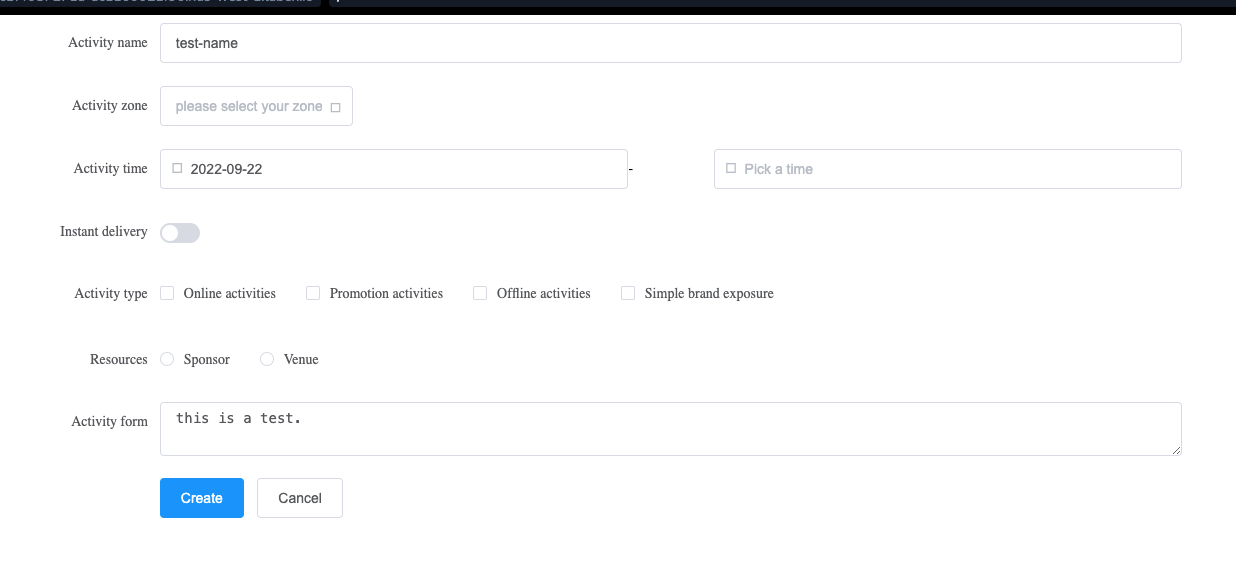
- Ensure that the form is displayed as expected, as shown in the image below:
Congratulations! You have successfully fixed the issue and displayed the form correctly.
Summary
Congratulations! You have completed this project. You can practice more labs in LabEx to improve your skills.