



Introduction
Welcome to the HTML Links lab! Hyperlinks are the foundation of the World Wide Web, allowing users to navigate between pages and resources. In HTML, links are created using the <a> (anchor) tag.
In this lab, you will learn the essential skills for creating and managing links. You will start by creating a basic external link, then learn how to make it open in a new browser tab. After that, you will create an internal link that jumps to another section on the same page. Finally, you'll add a tooltip to a link for better user experience.
You will be working with an index.html file in the WebIDE. You can see your changes live by switching to the "Web 8080" tab in the LabEx interface.
Let's get started!
Add a tag with href attribute for external link
In this step, you will create your first hyperlink. The <a> tag, which stands for "anchor", is used to define a hyperlink. The most important attribute of the <a> element is href, which specifies the link's destination URL.
Let's add a link to the LabEx website.
First, open the index.html file from the file explorer on the left side of the WebIDE.
Now, find the <h2>Section 1</h2> element and add the following <a> tag inside the <p> tag right after it.
<a href="https://labex.io">Visit LabEx</a>
Your index.html file's body should now look like this. Note the new link inside the first section.
<body>
  <h1>Welcome to the HTML Links Lab</h1>
  <p>
    This page will be used to practice creating different kinds of HTML links.
  </p>

  <nav>
    <!-- Navigation links will be added here -->
  </nav>

  <div class="section">
    <h2>Section 1</h2>
    <p>
      <a href="https://labex.io">Visit LabEx</a>
    </p>
  </div>

  <div class="section">
    <h2>Section 2</h2>
    <p>
      This is the section we will link to from the top of the page. It is placed
      far down to demonstrate the page jump effect.
    </p>
  </div>
</body>
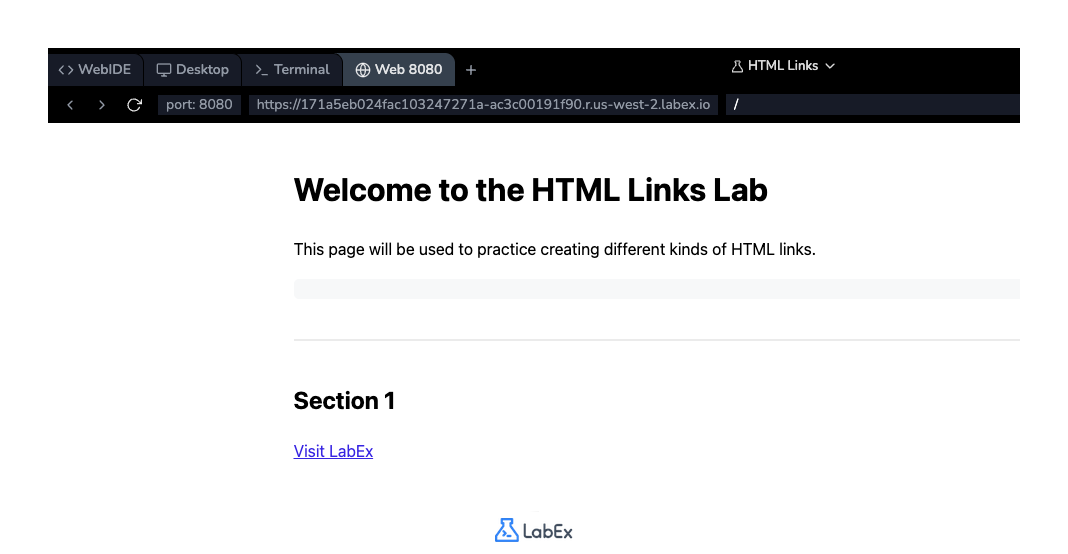
After adding the code, save the file (Ctrl+S or Cmd+S). Then, switch to the "Web 8080" tab to see your new link. Clicking it will take you to the LabEx homepage.
Set target attribute to _blank for new tab
In this step, you will learn how to make a link open in a new browser tab. By default, links open in the same tab. To change this behavior, we use the target attribute.
Setting target="_blank" instructs the browser to open the linked document in a new tab or window. This is a common practice for external links, as it keeps the user on your website while allowing them to visit the external resource.
Let's modify the link you created in the previous step. Add the target="_blank" attribute to the <a> tag.
<a href="https://labex.io" target="_blank">Visit LabEx</a>
Your updated index.html file's first section should now contain this modified link:
<div class="section">
  <h2>Section 1</h2>
  <p>
    <a href="https://labex.io" target="_blank">Visit LabEx</a>
  </p>
</div>
Save the file and switch to the "Web 8080" tab. Now, when you click the "Visit LabEx" link, it should open in a new browser tab, leaving your lab environment tab open.
Create internal link with href to id anchor
In this step, we'll create an internal link, also known as a "page anchor" or a "jump link". These links allow users to jump to a specific part of the same page, which is very useful for long documents.
To create an internal link, you set the href attribute to a hash symbol (#) followed by the id of the element you want to link to. For example, href="#section-name".
Let's add a link inside the <nav> element at the top of our page that will jump to "Section 2".
Add the following line inside the <nav> tag:
<a href="#section2">Jump to Section 2</a>
Your index.html file's navigation area should now look like this:
<nav>
  <!-- Navigation links will be added here -->
  <a href="#section2">Jump to Section 2</a>
</nav>
Save the file and check the "Web 8080" tab. You will see the new link at the top. If you click it now, nothing will happen because we haven't defined the destination anchor yet. We will do that in the next step.
Add id attribute to element for anchoring
In the previous step, you created a link pointing to #section2. Now, you need to create the destination for that link. This is done by using the id attribute.
The id attribute provides a unique identifier for an HTML element on a page. The value of the id must be unique within the HTML document. Our internal link href="#section2" will look for an element with id="section2".
Let's add this id to the <h2> tag for Section 2. Find the following line:
<h2>Section 2</h2>
And modify it to include the id attribute:
<h2 id="section2">Section 2</h2>
Your updated index.html file's second section should now look like this:
<div class="section">
  <h2 id="section2">Section 2</h2>
  <p>
    This is the section we will link to from the top of the page. It is placed
    far down to demonstrate the page jump effect.
  </p>
</div>
Save the file and go back to the "Web 8080" tab. Click the "Jump to Section 2" link at the top of the page. The browser should now scroll down smoothly to the "Section 2" heading.
Use title attribute for link tooltip
In this final step, you'll learn how to add a tooltip to a link. A tooltip provides extra, non-essential information and typically appears when a user hovers their mouse over an element. This can improve accessibility and user experience.
We can add a tooltip to any element, including a link, using the global title attribute.
Let's add a descriptive title to our external link to LabEx. Find the link you created in the first two steps and add a title attribute to it.
<a href="https://labex.io" target="_blank" title="Go to the LabEx homepage"
  >Visit LabEx</a
>
Your final index.html file should now contain all the elements we've added throughout this lab. The first section will look like this:
<div class="section">
  <h2>Section 1</h2>
  <p>
    <a href="https://labex.io" target="_blank" title="Go to the LabEx homepage"
      >Visit LabEx</a
    >
  </p>
</div>
Save the file one last time. Go to the "Web 8080" tab and hover your mouse over the "Visit LabEx" link. A small box should appear with the text "Go to the LabEx homepage".
Summary
Congratulations on completing the lab! You have learned the fundamentals of creating and customizing links in HTML.
In this lab, you practiced how to:
- Use the
<a>tag with thehrefattribute to create external links. - Use the
target="_blank"attribute to open links in a new tab. - Create internal page anchors using
href="#id"for navigation within a single page. - Use the
idattribute to define the destination for an internal link. - Add informative tooltips to your links with the
titleattribute for a better user experience.
These skills are essential for building navigable and user-friendly websites. Keep practicing to become more proficient in HTML!


