
Introduction
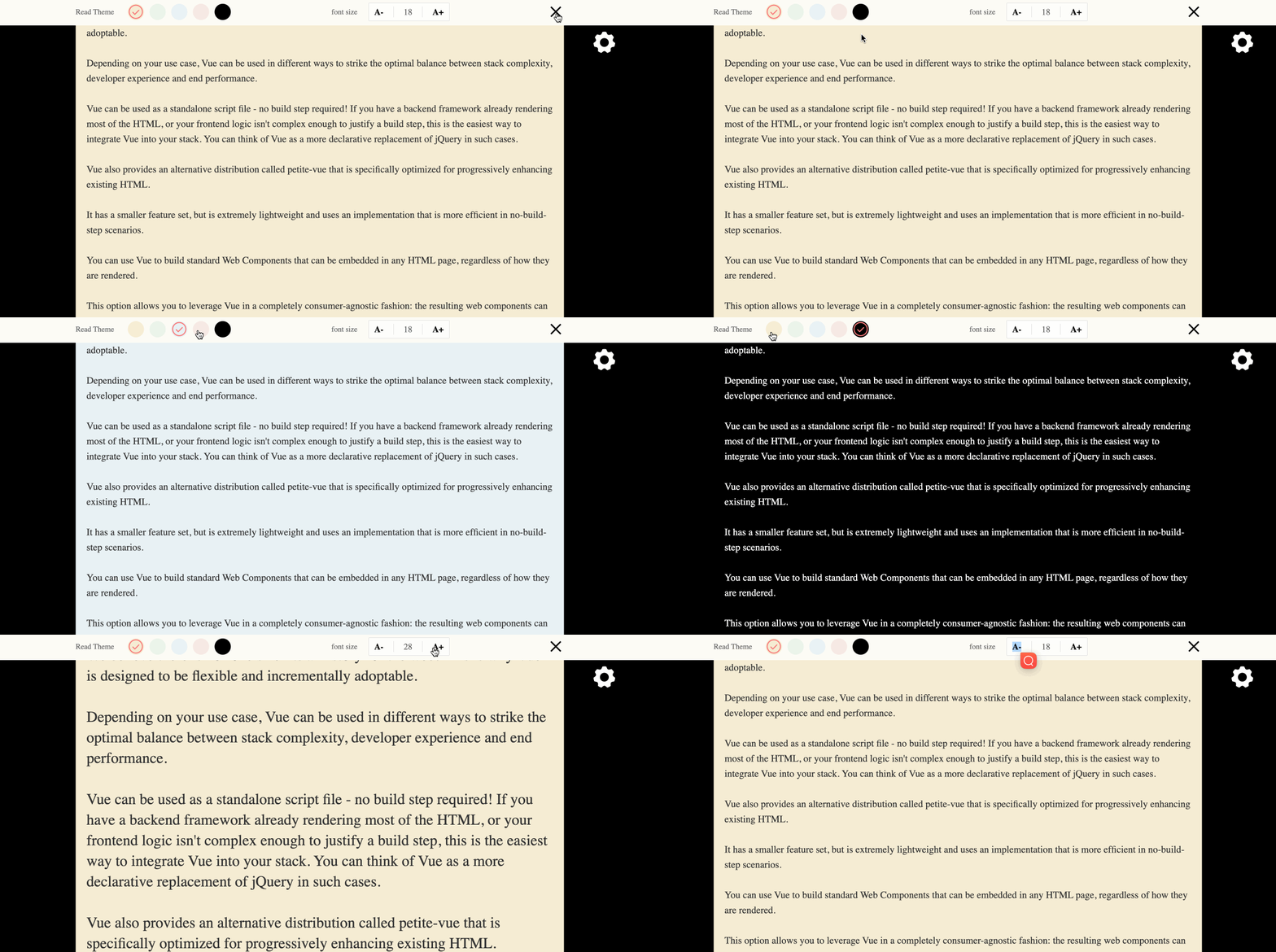
In this project, you will learn how to build a simple e-book reader using Vue 2.x. The e-book reader will allow users to toggle the visibility of the header toolbar, set the reading theme, and adjust the font size of the text content.
👀 Preview
🎯 Tasks
In this project, you will learn:
- How to implement the toggle of the header toolbar's visibility
- How to implement the setting of the reading theme
- How to implement the setting of the font size
🏆 Achievements
After completing this project, you will be able to:
- Use Vue.js to create interactive user interfaces
- Handle user interactions and update the UI accordingly
- Dynamically style elements based on user preferences
- Ensure the application remains responsive and accessible
Implement the Toggle of the Header Toolbar’s Visibility
To get started, look at the directory structure of the files on the left as follows:
├── index.html
├── css
└── js
    └── vue.js
Where:
index.htmlis the main page and the next file you need to modify.cssis the folder for style files.js/vue.jsis the Vue 2.x file.
Next you do everything in the index.html file.
In this step, you will learn how to implement the toggle of the header toolbar's visibility. Follow the steps below to complete this step:
- Open the
index.htmlfile, define the variableisShowToolsin data underel: "#app"to control the display of the header toolbar, with a default value oftrueto show the header toolbar.
data: {
  isShowTools: true,
  // ...
}
- Wrap the header toolbar content (the
<div class="header">element) in a<transition>element with thev-ifdirective, binding it to theisShowToolsdata property. This will ensure that the header toolbar is only visible whenisShowToolsistrue.
<transition v-if="isShowTools" name="fade">
  <div class="header">
    <!-- header toolbar content -->
  </div>
</transition>
- In the
index.htmlfile, locate the<a>element with the classiconfont icon-setting. This element is used to toggle the visibility of the header toolbar. - Add a
@clickdirective to the<a>element, and bind it to ashowToolsmethod in the Vue instance. This method will toggle theisShowToolsdata property, which controls the visibility of the header toolbar.
<a @click="showTools" class="iconfont icon-setting"></a>
- In the Vue instance, add the
showToolsmethod to themethodsobject. This method should toggle the value of theisShowToolsdata property.
methods: {
  showTools() {
    this.isShowTools = !this.isShowTools;
  },
}
- Add a
closeicon to the header toolbar, and bind a@clickdirective to theshowToolsmethod to allow the user to close the header toolbar.
<li class="container">
  <a @click="showTools" class="iconfont icon-close"></a>
</li>
Implement the Setting of the Reading Theme
In this step, you will learn how to implement the setting of the reading theme. Follow the steps below to complete this step:
- Define the variable
isActiveColorin the data underel: "#app"and set the default value to0, i.e. the default background color is the first selected color. In theindex.htmlfile, locate the<div class="right" id="setBG">element. This is where the circular color blocks for the reading theme will be displayed.
data: {
  isActiveColor: 0,
  // ...
}
- Use a
v-fordirective to loop through thebgListdata property, which contains the list of theme colors. For each color, create an<a>element with a@clickdirective that calls thechangeColormethod, passing the current index as an argument.
<div class="right" id="setBG">
  <a
    @click="changeColor(index)"
    v-for="(item,index) in bgList"
    :style="{'background-color':item}"
    :class="{'iconfont':true,'icon-selected':index==isActiveColor}"
  ></a>
</div>
- In the Vue instance, add the
changeColormethod to themethodsobject. This method should update theisActiveColordata property with the index of the selected color block.
methods: {
  changeColor(value) {
    this.isActiveColor = value;
  },
}
- In the
<p>element with the classtext-content, use the:styledirective to dynamically set the background color and font color based on the selected theme color.
<p
  class="text-content"
  :style="{
    'background-color': `${bgList[isActiveColor]}`,
    'color': isActiveColor === 4 ? '#ffffff' : '#333333'
  }"
>
  <!-- content -->
</p>
Implement the Setting of the Font Size
In this step, you will learn how to implement the setting of the font size. Follow the steps below to complete this step:
- Define the variable "fontSize" in data under
el: "#app"and set the default value to "18". In theindex.htmlfile, locate the<div class="set-font">element. This is where the font size controls will be displayed.
data: {
  fontSize: 18,
  // ...
}
- Locate
<span class="lang">18</span>and change 18 to thefontSizevariable.
<span class="lang">{{ fontSize }}</span>
- Add
@clickdirectives to the "A-" and "A+" buttons, binding them to theupdateFontSizemethod in the Vue instance. Pass a boolean value to indicate whether the font size should be increased or decreased.
<a @click="updateFontSize(false)" class="prev">A-</a>
<a @click="updateFontSize(true)" class="next">A+</a>
- In the Vue instance, add the
updateFontSizemethod to themethodsobject. This method should update thefontSizedata property, ensuring that the font size stays within the range of 12px to 48px.
methods: {
  updateFontSize(flag) {
    if (flag) {
      if (this.fontSize < 48) {
        this.fontSize += 2;
      }
    } else {
      if (this.fontSize > 12) {
        this.fontSize -= 2;
      }
    }
  }
}
- In the
<p>element with the classtext-content, use the:styledirective to dynamically set the font size and line height based on thefontSizedata property.
<p
  class="text-content"
  :style="{
    'background-color': `${bgList[isActiveColor]}`,
    'color': isActiveColor === 4 ? '#ffffff' : '#333333',
    'font-size': `${fontSize}px`,
    'line-height': `${fontSize + 10}px`
  }"
>
  <!-- content -->
</p>
By following these steps, you have completed the implementation of the e-book reader features, including the toggle of the header toolbar's visibility, the setting of the reading theme, and the setting of the font size.
Next, click on Go Live button in the bottom right corner of WebIDE, to run the project. Open "Web 8080" on the top of the VM and refresh it manually and you will see the page.
Summary
Congratulations! You have completed this project. You can practice more labs in LabEx to improve your skills.