Introduction
In this project, you will learn how to implement a portal-like functionality on a web page. The portal feature allows users to quickly locate and navigate to their desired content on a long webpage.
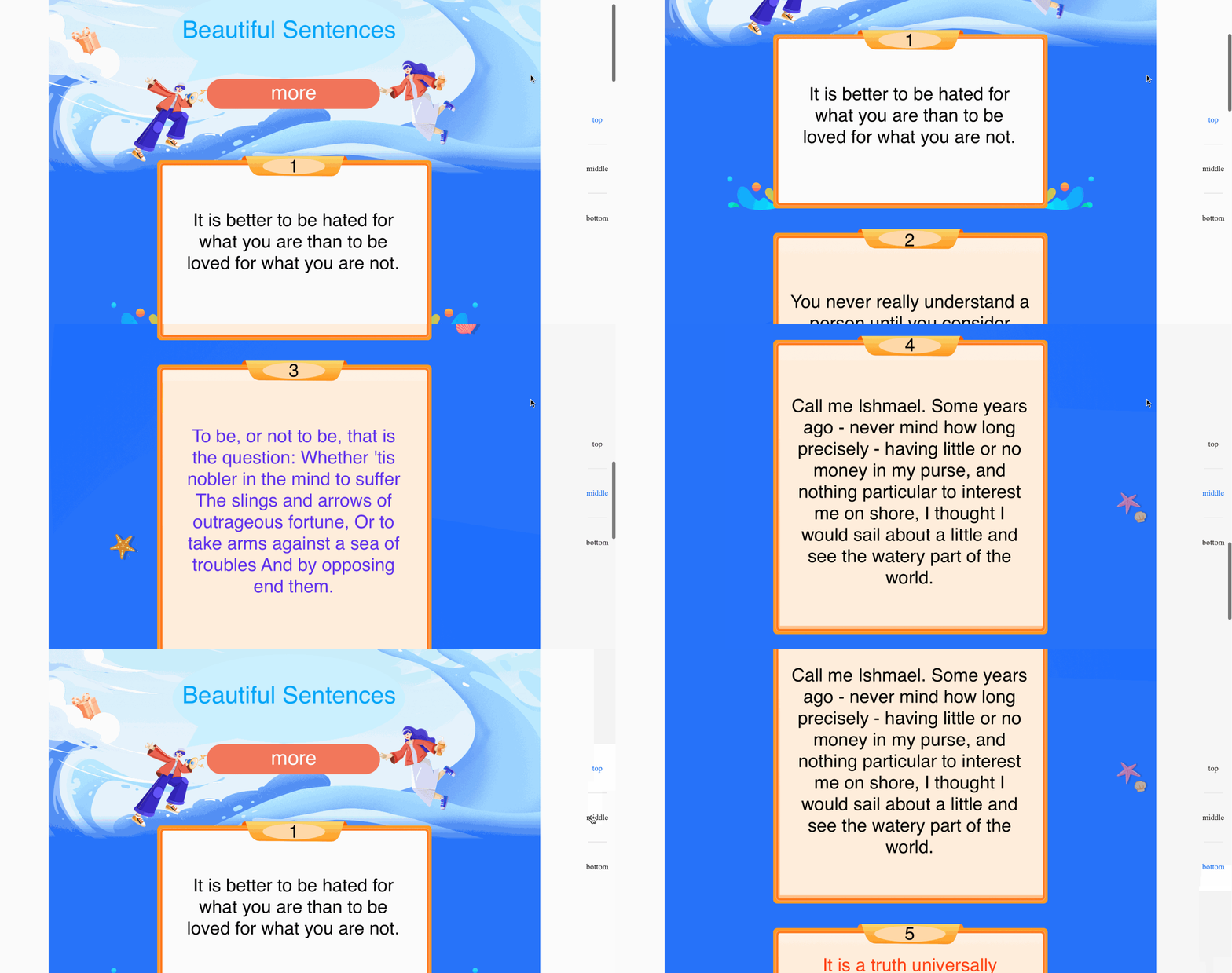
👀 Preview
🎯 Tasks
In this project, you will learn:
- How to set up the project files and structure
- How to implement the portal functionality using JavaScript and jQuery
- How to ensure the side buttons change color based on the user's scroll position
🏆 Achievements
After completing this project, you will be able to:
- Structure and set up a web development project
- Use JavaScript and jQuery to manipulate the DOM and handle user interactions
- Implement a portal-like feature to enhance the user experience on a long webpage
Set Up the Project Structure
In this step, you will set up the project files and structure. Follow the steps below to complete this step:
- Open the project folder. The directory structure is as follows:
├── index.html
├── css
├── images
└── js
    ├── index.js
    └── jquery-3.6.0.min.js
In this structure:
index.htmlis the main page.cssis the folder for style files.imagesis the folder for image resources.js/index.jsis the JS file that needs to be completed.js/jquery-3.6.0.min.jsis the jQuery library file.
Click on the Go Live button in the bottom right corner of WebIDE to run the project.
Open "Web 8080" on the top of the VM and manually refresh it to see the page.
Implement the Portal Functionality
In this step, you will complete the code in the js/index.js file to implement the function of the portal.
- Add the following code to the
js/index.jsfile:
$(window).scroll(function () {
  // When the page scrolls to the specified range, the corresponding side buttons change color.
  let top = scrollY;
  $("#lift a").removeClass("active-color");
  if (top >= 0 && top < 960) {
    $("#lift a:nth-of-type(1)").addClass("active-color");
  } else if (top >= 960 && top <= 1920) {
    $("#lift a:nth-of-type(2)").addClass("active-color");
  } else {
    $("#lift a:nth-of-type(3)").addClass("active-color");
  }
});

function toFunction(scrollTopVal) {
  // Click the button to scroll to the specified position.
  window.scrollTo(0, scrollTopVal);
}
- Explanation:
- The
$(window).scroll()function is used to detect the scroll position of the page. - When the page scrolls to the specified range, the corresponding side button is given an active style (
.active-color), and the styles of the other buttons are set to default (.default-color). - The
toFunction()function is used to scroll the page to the specified position when the user clicks on the side buttons.
- The
Test the Portal Functionality
- Go back to the browser and refresh the page.
- Click on the top, middle, or bottom button on the side of the page, and observe the page scrolling to the corresponding range.
- Verify that the corresponding side button is given an active style (
.active-color) when the page scrolls to the specified range.
The final result is shown below:
Congratulations! You have successfully implemented the portal functionality in your project.
Summary
Congratulations! You have completed this project. You can practice more labs in LabEx to improve your skills.