Introduction
In this project, you will learn how to convert and format table data to be displayed in a user-friendly way. This is a common task that frontend developers often encounter when working with data from the backend.
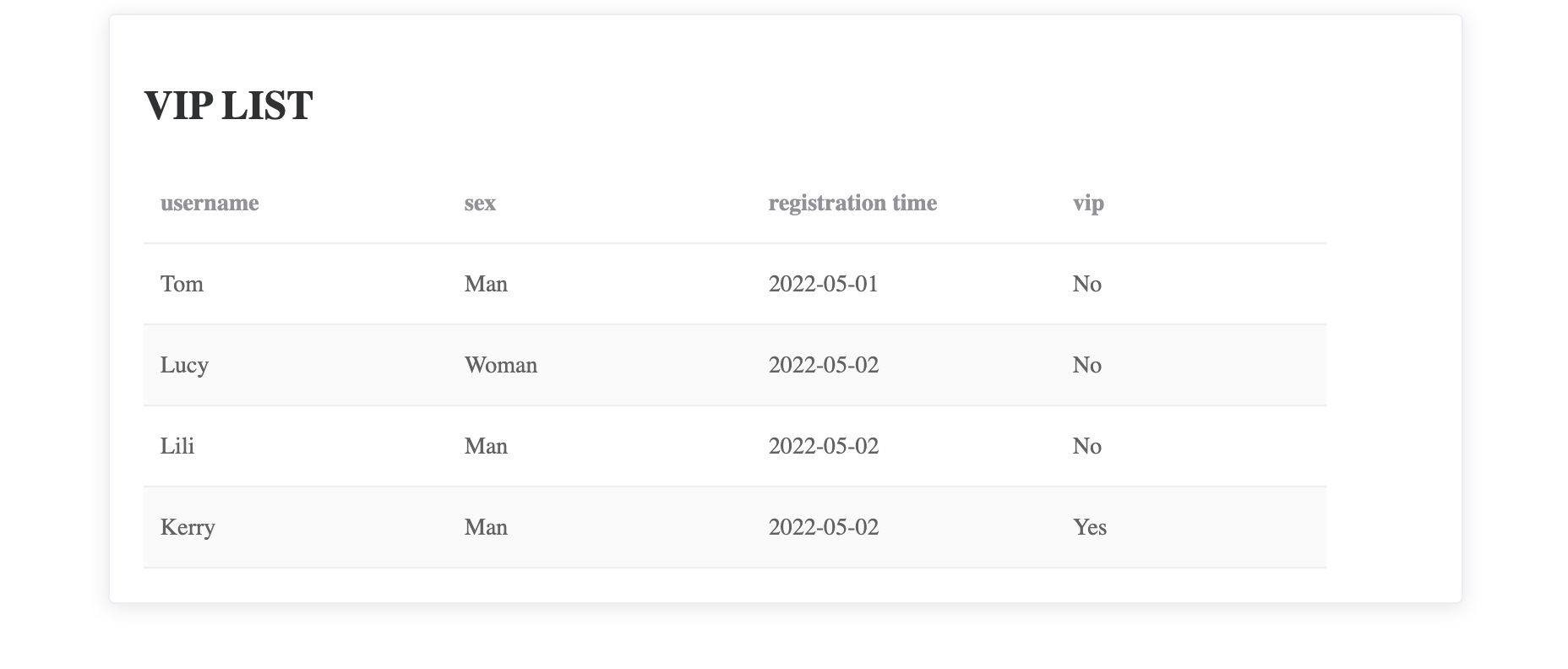
👀 Preview
🎯 Tasks
In this project, you will learn:
- How to send an HTTP request to fetch data from a JSON file
- How to format the data to match the required format for display
- How to render the formatted data in an HTML table using Vue.js and Element UI
🏆 Achievements
After completing this project, you will be able to:
- Use
axiosto send HTTP requests and fetch data - Manipulate and transform data to the desired format
- Integrate Vue.js and Element UI to create a responsive and visually appealing table component
Set Up the Project Structure
In this step, you will set up the project files and structure. Follow the steps below to complete this step:
Open the project folder. The directory structure is as follows:
├── axios.min.js
├── element-ui.css
├── element-ui.js
├── fetchTableData.json
├── index.html
└── vue.js
Click on Go Live button in the bottom right corner of WebIDE, to run the project.
Next, open "Web 8080" on the top of the VM and refresh it manually and you will see the page.
Send a Request To Fetch the Data
In this step, you will learn how to send an HTTP request to fetch the data from the fetchTableData.json file.
- Open the
index.htmlfile in the code editor. - In the
<script>section, add a newgetTableData()method to themethodsin the Vue instance. - Inside the
getTableData()method, use theaxios.get()function to send a GET request to thefetchTableData.jsonfile:
methods: {
  getTableData() {
    axios.get("./fetchTableData.json").then((response) => {
      // TODO: Format the data and assign it to tableData
    });
  }
}
- Call the
getTableDatafunction in themountedof the Vue instance.
mounted() {
  this.getTableData();
},
Format the Data
In this step, you will learn how to format the data to the required format and assign it to the tableData property.
- Open the
index.htmlfile in the code editor. - In the
<script>section, locate thegetTableData()method inside the Vue instance. - Inside the success callback of the
then()method in thegetTableData()function, get thedataproperty from the response object:
getTableData() {
   axios.get("./fetchTableData.json").then((response) => {
      let resData = response.data.data;
   });
}
Loop through the
resDataarray and format the data according to the requirements:- For the
datetimefield, convert the format fromYYYYMMDDtoYYYY-MM-DD. - For the
sexfield, convert the value from1to"Man"and0to"Woman". - For the
vipfield, convert the value from1to"Yes"and0to"No".
Here's the code to format the data:
getTableData() { axios.get("./fetchTableData.json").then((response) => { let resData = response.data.data; resData.forEach((item) => { item.datetime = `${item.datetime.substring(0, 4)}-${item.datetime.substring(4, 6)}-${item.datetime.substring(6)}`; item.sex = item.sex ? "Man" : "Woman"; item.vip = item.vip ? "Yes" : "No"; }); }); }- For the
After formatting the data, assign the
resDataarray to thetableDataproperty:getTableData() { axios.get("./fetchTableData.json").then((response) => { // ... this.tableData = resData; }); }
Now, the data is formatted and assigned to the tableData property, which will be used to render the table in the HTML.
The final effect is as follows:
Summary
Congratulations! You have completed this project. You can practice more labs in LabEx to improve your skills.