




Introduction
In this lab, you will learn the fundamental CSS properties used to style HTML tables. By default, HTML tables are plain and can be difficult to read. With CSS, you can transform a basic table into a well-structured, visually appealing, and easy-to-understand data presentation.
We will start with a basic HTML table and progressively apply styles to it. You will learn how to manage borders, add spacing, style the header, and align text within the cells.
The necessary index.html file has already been created for you. Your task will be to write CSS code in the styles.css file to style the table. You can preview your changes in real-time in the "Web 8080" tab of your workspace.
Set border-collapse collapse on table
In this step, we will begin styling our table. By default, HTML table cells have their own individual borders, which can result in a "double border" look that appears thick and outdated. The border-collapse property controls whether table borders are separated or collapsed into a single border.
We will set border-collapse to collapse to create clean, single-line borders.
First, open the styles.css file from the file explorer on the left. Add the following CSS rule to the file.
table {
  border-collapse: collapse;
}
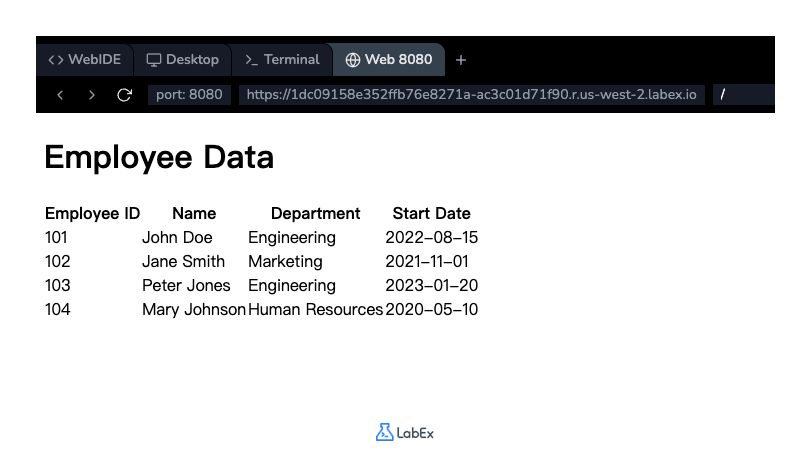
After adding the code, save the file. While you won't see borders yet, this property is essential for the next step. You can switch to the "Web 8080" tab to see the live preview, although the visual change will be minimal at this stage.
Apply border 1px solid black to th and td
Now that we've set the table to use a collapsed border model, let's add the actual borders to the header cells (th) and data cells (td). We can target both elements at once using a comma-separated selector.
In this step, you will add a 1px solid black border to every cell in the table.
Add the following CSS rule to your styles.css file, below the existing table rule.
th,
td {
  border: 1px solid black;
}
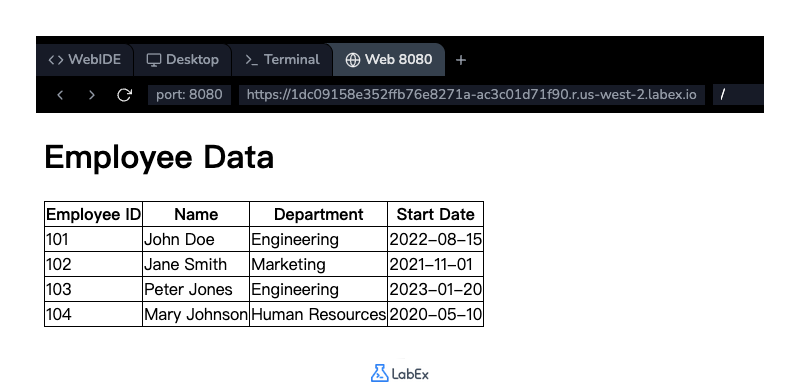
Save the file and switch to the "Web 8080" tab. You should now see a clean, single-line border around each table cell.
Use padding 8px on table cells
The table now has borders, but the content inside the cells is touching the edges, which looks crowded. We can use the padding property to add space between the content and the cell border, improving readability.
In this step, you will add 8px of padding to all table cells.
Modify the existing th, td rule in styles.css to include the padding property.
th,
td {
  border: 1px solid black;
  padding: 8px;
}
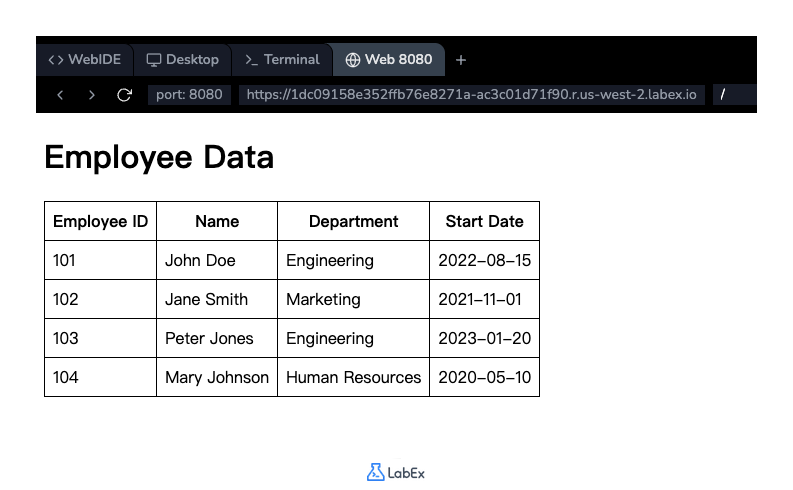
After saving the file, check the "Web 8080" tab again. You will notice that the cells are now larger, and the text has comfortable spacing around it.
Add background-color to table header row
To make the table header stand out from the data rows, it's a common practice to give it a different background color. This visually separates the column titles from the content.
In this step, you will add a light gray background color to the header cells (th).
Add a new CSS rule targeting only the th elements in styles.css.
th {
  background-color: #f2f2f2;
}
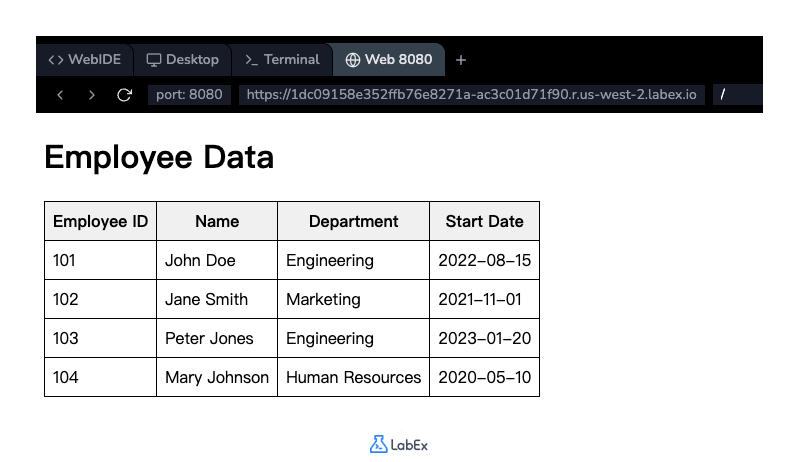
Save the file and view the result in the "Web 8080" tab. The header row of your table should now have a distinct background color, making it easy to identify.
Implement text-align left for data cells
Text alignment is crucial for table readability. By default, header cells (th) are center-aligned, while data cells (td) are left-aligned. While left-alignment is the default for td elements, explicitly setting it is good practice for ensuring consistent rendering across all browsers.
In this step, you will explicitly set the text alignment for data cells to the left.
Add a new CSS rule for the td selector in your styles.css file.
td {
  text-align: left;
}
Save the file. Since this is the default behavior, you may not see a visual change in the "Web 8080" tab, but your stylesheet is now more robust and explicit about the intended design. This completes the basic styling of our table.
Summary
Congratulations on completing the lab! You have successfully transformed a plain HTML table into a styled, professional-looking one using fundamental CSS properties.
In this lab, you learned how to:
- Use
border-collapse: collapse;to create clean, single borders for a table. - Apply a
borderto table header (th) and data (td) cells. - Add internal spacing to cells using the
paddingproperty. - Differentiate the table header by setting a
background-color. - Control the horizontal alignment of text within cells using
text-align.
These skills are essential for presenting tabular data effectively on the web.


