
Introduction
Welcome to your first CSS lab! CSS, which stands for Cascading Style Sheets, is the language we use to style an HTML document. It describes how HTML elements should be displayed on screen, on paper, or in other media.
There are three ways to include CSS in an HTML document: inline, internal, and external. The most common and recommended method is to use an external stylesheet. This approach separates your content (HTML) from your presentation (CSS), making your code cleaner, easier to maintain, and reusable across multiple pages.
In this lab, you will learn the fundamental process of styling a webpage using an external stylesheet. You will:
- Create a new CSS file.
- Link that CSS file to an existing HTML document.
- Write a basic CSS rule to change the font of the entire page.
- View your changes in a live web browser.
Let's get started!
Create an external CSS file named styles.css
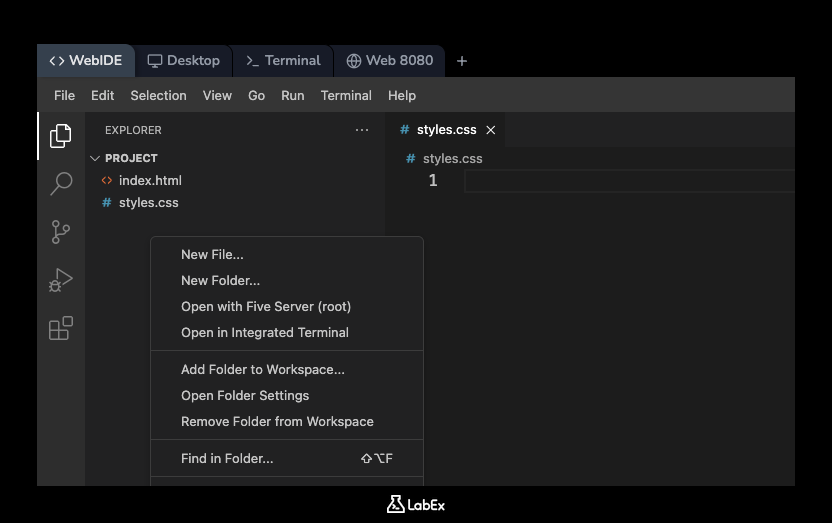
In this step, you will create a dedicated file to hold all of your CSS rules. This is known as an external stylesheet. The setup script has already created an index.html file for you. Now, you need to create the CSS file that will style it.
Using the file explorer in the left-hand panel of the WebIDE:
- Right-click on the empty space within the
projectfolder area. - Select "New File" from the context menu.
- A new input box will appear. Type
styles.cssand press Enter.
You should now see a new, empty file named styles.css in your file explorer. This is where you will write your CSS code in the upcoming steps.
Link the CSS file to an HTML document using link tag
In this step, you will connect your styles.css file to your index.html file. Simply creating the CSS file is not enough; you must explicitly tell the HTML document to use it. This is done using the <link> tag.
The <link> tag is placed inside the <head> section of your HTML document. It requires two important attributes:
rel="stylesheet": This tells the browser that the linked file is a stylesheet.href="styles.css": This specifies the path to the CSS file.
Now, let's add it to your HTML.
- Open the
index.htmlfile from the file explorer. - Inside the
<head>section, add the following line:
<link rel="stylesheet" href="styles.css" />
After adding the line, your index.html file should look like this:
<!DOCTYPE html>
<html lang="en">
  <head>
    <meta charset="UTF-8" />
    <meta name="viewport" content="width=device-width, initial-scale=1.0" />
    <title>My First CSS Page</title>
    <link rel="stylesheet" href="styles.css" />
  </head>
  <body>
    <h1>Hello, World!</h1>
    <p>This is a paragraph. We will style this page with CSS.</p>
  </body>
</html>
Make sure to save the file (Ctrl+S or File > Save).
Add a basic selector for body element
In this step, you will write your first CSS rule. A CSS rule consists of a selector and a declaration block. The selector points to the HTML element you want to style. The declaration block (inside curly braces {}) contains one or more declarations, which are the actual styles to be applied.
We will start by targeting the <body> element. Styling the <body> is a common practice for setting default styles, like background color and font, for the entire page.
- Open your
styles.cssfile. It should still be empty. - Type the following code to create a rule for the
bodyelement:
body {
}
This code selects the <body> element and prepares an empty declaration block (the curly braces) where we will add style properties in the next step.
Set font-family property on body selector
In this step, you will add a style declaration to your body rule. A declaration is a property-value pair (e.g., property: value;) that defines a specific style.
We will use the font-family property to change the typeface of the text on the page. By applying it to the body, all text elements inside the body (like <h1> and <p>) will inherit this font. It's good practice to provide a "font stack"—a list of fonts separated by commas. The browser will try the first font, and if it's not available, it will try the next one, and so on.
- Make sure your
styles.cssfile is open. - Inside the curly braces of the
bodyselector, add thefont-familyproperty.
font-family: Arial, sans-serif;
Your complete styles.css file should now look like this:
body {
  font-family: Arial, sans-serif;
}
This rule tells the browser to render all text within the <body> using the Arial font. If Arial is not installed on the user's system, it will fall back to the system's default sans-serif font.
Save files and refresh browser to see changes
In this final step, you will see the result of your work. After writing code, you need to save your files and then view the changes in the browser.
- Ensure both
index.htmlandstyles.cssare saved. You can use theCtrl+Skeyboard shortcut or go toFile > Savein the menu. - Navigate to the Web 8080 tab located at the top of the LabEx interface. This tab displays the output of the web server running in your environment.
- You may need to refresh the browser tab to see the latest changes.
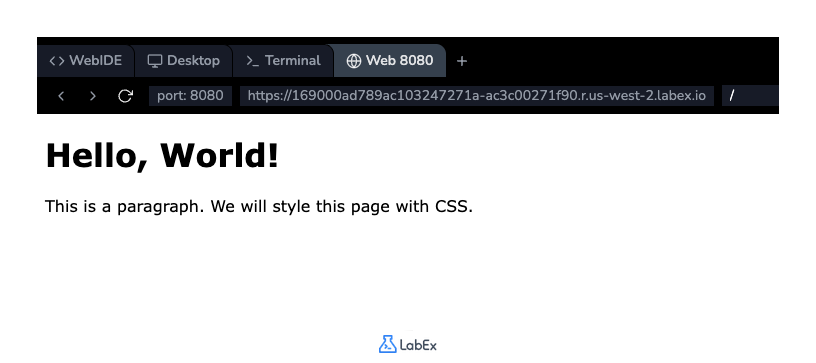
Observe the text on the page. It should now be displayed in the Arial font (or a similar sans-serif font), which is different from the default serif font (like Times New Roman) that browsers typically use. The change might be subtle, but it confirms that your external stylesheet is correctly linked and applied.
Feel free to experiment! Try changing Arial to Verdana or Georgia in your styles.css file, save it, and refresh the Web 8080 tab to see the font change instantly.
Summary
Congratulations! You have successfully completed this lab and taken your first step into the world of CSS.
In this lab, you learned the fundamental and most important method for styling web pages:
- How to create an external CSS file (
styles.css). - How to link the CSS file to an HTML document using the
<link>tag in the<head>section. - How to write a basic CSS rule using an element selector (
body). - How to apply a style using a property and value (
font-family: Arial, sans-serif;).
This foundation of separating structure (HTML) from presentation (CSS) is a core principle of modern web development. You are now ready to explore more advanced CSS selectors, properties, and concepts like the box model, layout, and responsive design.