Introduction
Welcome to the CSS Colors and Backgrounds lab! In web design, colors and backgrounds are fundamental for creating visually appealing and user-friendly websites. They help set the tone, improve readability, and guide the user's attention.
In this lab, you will get hands-on experience with some of the most common CSS properties used to control the appearance of elements. You will learn how to set background colors, apply text colors, use background images, and control how those images are displayed. We will cover the following properties: background-color, color, background-image, background-repeat, and background-position.
By the end of this lab, you will have a solid understanding of how to style the colors and backgrounds of your web pages.
Set background-color property using hex code
In this step, you will learn how to change the background color of the entire page. We will use the background-color property and a hexadecimal (hex) color code. Hex codes are a common way to represent colors in web development, starting with a # followed by six characters (0-9, a-f).
First, you need to edit the styles.css file. You can find this file in the file explorer on the left side of the WebIDE.
- Click on the
styles.cssfile to open it in the editor. - Add the following CSS rule to set the background color for the
<body>element. This will apply the style to the entire page.
body {
  background-color: #f0f8ff;
}
This rule selects the body element and sets its background color to a light blue shade known as "AliceBlue".
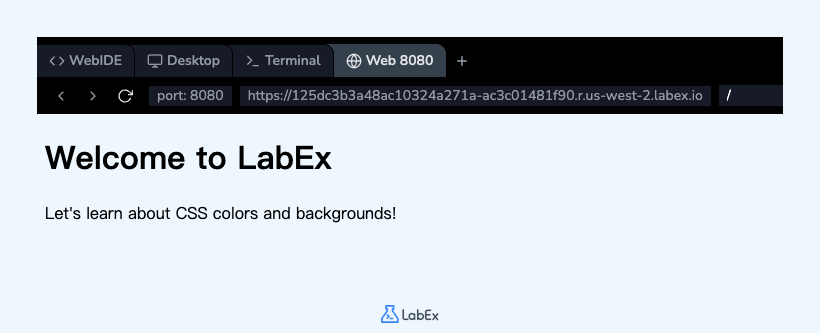
After adding the code, save the file (you can use Ctrl+S or Cmd+S). To see your changes, click on the Web 8080 tab at the top of the interface. You should see the page's background change from white to light blue.
Apply color property with RGB values
Now that you've set the background color, let's change the color of the main heading text. We'll use the color property, which sets the color of an element's text content. For this, we will use the rgb() color format.
The rgb() function defines a color using its Red, Green, and Blue components, with each value ranging from 0 to 255.
Continue editing the styles.css file.
- Add a new CSS rule to target the
<h1>element. - Inside this rule, set the
colorproperty to a dark gray usingrgb(60, 60, 60).
Add the following code to your styles.css file:
h1 {
  color: rgb(60, 60, 60);
}
Save the file and switch to the Web 8080 tab to preview your changes. The "Welcome to LabEx" heading should now be dark gray, making it stand out against the light blue background.
Use background-image property with url
In addition to solid colors, CSS allows you to use images as backgrounds. The background-image property is used for this purpose. You specify the image path using the url() function.
In this step, you will add a background image to the body of the page. The setup script has already created an image file named labex.svg in your project directory.
- Go back to your
styles.cssfile. - Modify the existing
bodyrule to add thebackground-imageproperty.
Add the following line inside the body selector's curly braces:
body {
  background-color: #f0f8ff;
  background-image: url("labex.svg");
}
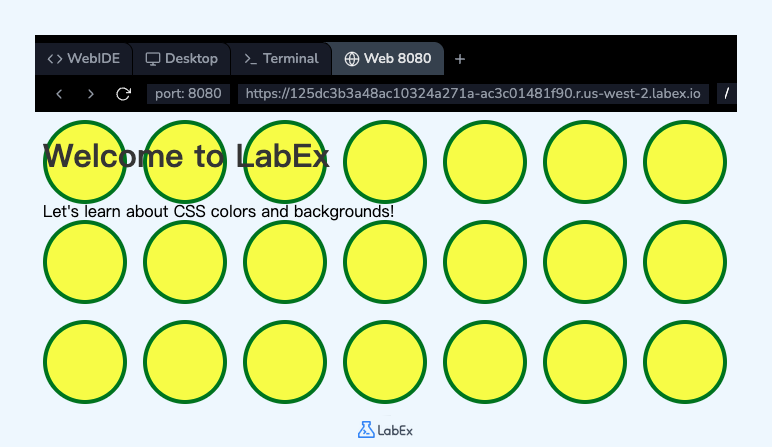
After saving the file, check the Web 8080 tab. You will notice that the image (labex.svg) appears on the page. By default, background images repeat both horizontally and vertically to fill the entire element. In the next step, we will learn how to control this behavior.
Implement background-repeat property no-repeat
As you saw in the previous step, background images repeat by default. The background-repeat property gives you control over this behavior. It can take several values, including repeat (the default), repeat-x (repeat horizontally), repeat-y (repeat vertically), and no-repeat.
In this step, you will prevent the background image from repeating.
- Continue editing the
bodyrule in yourstyles.cssfile. - Add the
background-repeatproperty and set its value tono-repeat.
Your body rule should now look like this:
body {
  background-color: #f0f8ff;
  background-image: url("labex.svg");
  background-repeat: no-repeat;
}
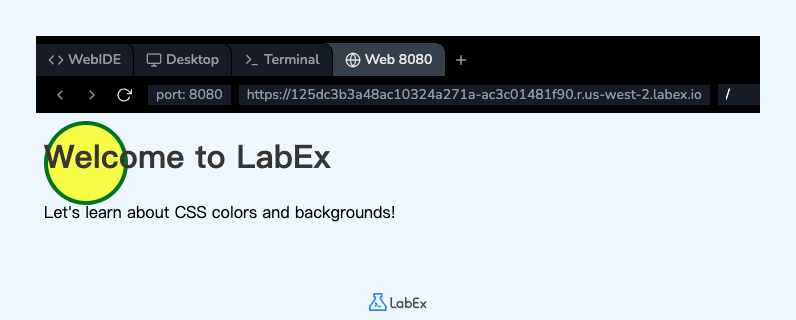
Save the file and refresh the Web 8080 tab. You will now see only a single instance of the background image, located at the top-left corner of the page.
Add background-position property center
Currently, the single background image is positioned at the top-left corner of the page. You can change its position using the background-position property. This property accepts values like left, right, top, bottom, and center, as well as specific length or percentage values.
For this final step, you will center the background image both horizontally and vertically.
- In your
styles.cssfile, add thebackground-positionproperty to thebodyrule. - Set its value to
center.
The complete body rule will now be:
body {
  background-color: #f0f8ff;
  background-image: url("labex.svg");
  background-repeat: no-repeat;
  background-position: center;
}
Save your changes and view the result in the Web 8080 tab. The background image should now be perfectly centered on the page.
Summary
Congratulations on completing the lab! You have successfully learned how to style the colors and backgrounds of a web page using fundamental CSS properties.
In this lab, you practiced:
- Setting a page's background color with
background-colorand a hex code. - Changing text color with the
colorproperty and anrgb()value. - Adding a
background-imageusing theurl()function. - Controlling image tiling with
background-repeat: no-repeat;. - Positioning a background image with
background-position: center;.
These properties are essential tools for any web developer. Feel free to experiment further by changing the values or trying different images to see what you can create.