




Introduction
Welcome to your first lab on scikit-learn! Scikit-learn is one of the most popular and powerful open-source machine learning libraries for Python. It provides a wide range of tools for data mining and data analysis, built on top of NumPy, SciPy, and matplotlib.
Before starting this course, you should have basic Python programming skills and ensure that Python is properly configured in your system PATH. If you haven't learned Python yet, you can start from our Python Learning Path. Additionally, you should have NumPy and Pandas installed as they are essential prerequisites for scikit-learn operations. If you need to learn these libraries, you can explore our NumPy Learning Path and Pandas Learning Path.
In this lab, you will learn the fundamental steps to get started with scikit-learn in the LabEx environment. We will walk through verifying the installation, importing modules, and loading one of scikit-learn's built-in datasets. This will confirm that your environment is correctly configured for future machine learning experiments.
Install scikit-learn using pip install scikit-learn
In this step, we will discuss how to install the scikit-learn library. In a typical Python environment on your local machine, you would use pip, the package installer for Python, to install new libraries. The command to install scikit-learn is:
pip install scikit-learn
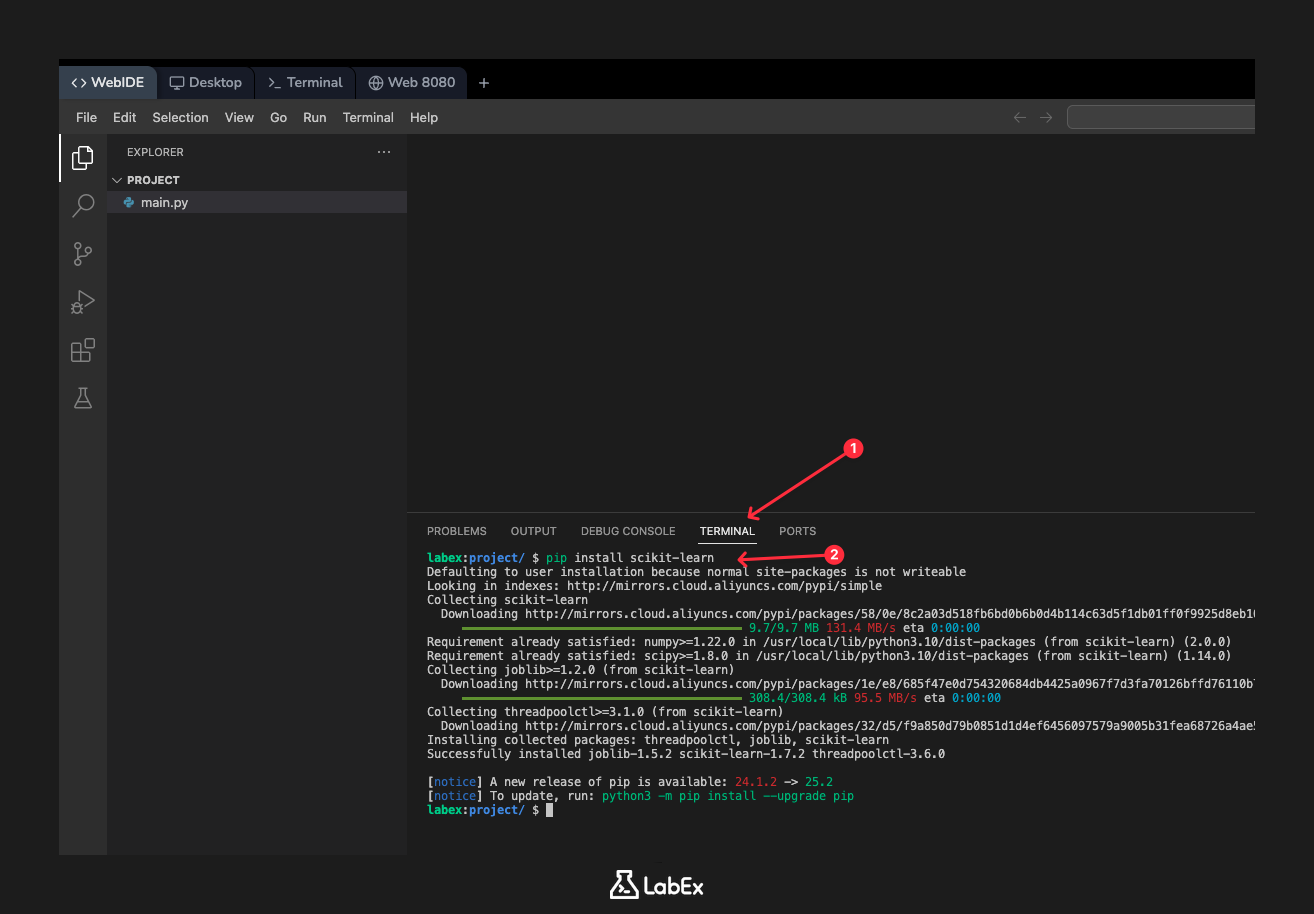
However, to make your learning experience smoother, the LabEx environment comes with scikit-learn and its dependencies pre-installed. Therefore, you do not need to run the installation command here. We are showing it for your reference, so you know how to set up scikit-learn on your own computer.
Let's move on to the next step to start using the library.
Import scikit-learn as from sklearn import datasets
In this step, you will write your first line of Python code to interact with the scikit-learn library. Before you can use any functions or objects from a library in Python, you must first import it into your script.
Scikit-learn includes a module called datasets which contains utilities to load and fetch popular reference datasets. We will import this module to use it in a later step.
First, locate the main.py file in the file explorer on the left side of your WebIDE. Click on it to open it in the editor. Now, add the following line of code to the main.py file:
from sklearn import datasets
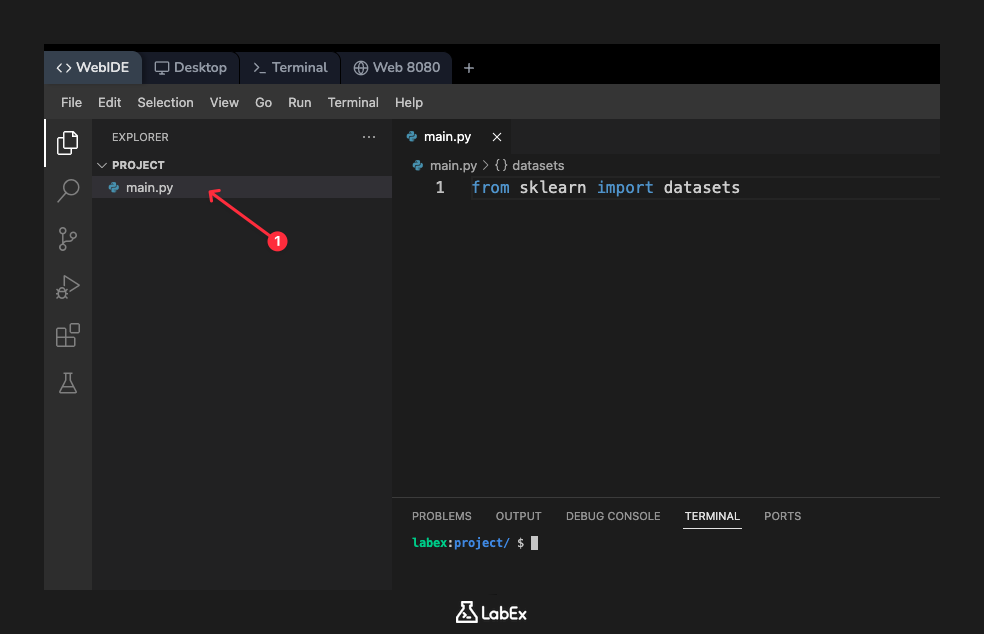
This line tells Python to find the sklearn library and import the datasets module from it, making its functions available for us to use. After adding the code, save the file. We will add more code and run the script in the upcoming steps.
Verify installation with sklearn.version
In this step, we will verify that scikit-learn is properly installed and accessible by checking its version number. This is a common practice to ensure a library is correctly set up in your environment. Every scikit-learn installation has a special attribute __version__ that holds this information.
Let's add code to our main.py file to print the version. We also need to import the top-level sklearn package itself. Modify your main.py file to look like this:
import sklearn
from sklearn import datasets

print(sklearn.__version__)
Now, let's run this script. Open a terminal in your WebIDE (you can usually find a + icon or a "Terminal" menu). In the terminal, which should open in the /home/labex/project directory, execute the following command:
python3 main.py
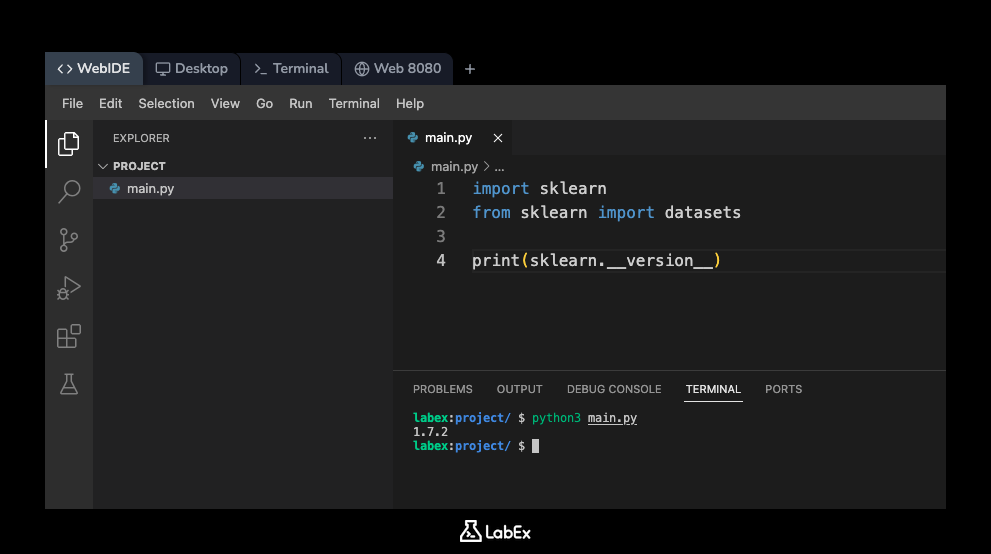
You should see the installed version of scikit-learn printed to the console. The output will look similar to this (the exact version number may vary):
1.x.x
This confirms that Python can successfully import and use the scikit-learn library.
Load sample dataset using datasets.load_iris()
In this step, we will use the datasets module we imported earlier to load a sample dataset. Scikit-learn comes with several small, standard datasets that do not require downloading from an external website. These are useful for getting started and testing algorithms.
We will load the Iris dataset, a classic and very famous dataset in the field of machine learning. It contains measurements for 150 iris flowers from three different species.
To load it, we use the datasets.load_iris() function. Let's modify the main.py file to load the dataset and store it in a variable called iris. We will also add a print statement to confirm that the dataset was loaded.
Update your main.py file with the following content:
import sklearn
from sklearn import datasets

## Load the iris dataset
iris = datasets.load_iris()

print("Iris dataset loaded successfully.")
Suggestion: You can copy the above code into your code editor, then carefully read each line of code to understand its function. If you need further explanation, you can click the "Explain Code" button 👆. You can interact with Labby for personalized help.
Save the file and run it again from the terminal:
python3 main.py
The output should now be:
Iris dataset loaded successfully.
This indicates that the load_iris() function executed without errors and the dataset is now available in the iris variable within our script.
Print dataset keys with print(iris.keys())
In this step, we will inspect the structure of the Iris dataset we just loaded. The object returned by load_iris() is a Bunch object, which is similar to a Python dictionary. It contains keys and values that describe the dataset.
To see what information is available, we can print its keys using the .keys() method. This will show us all the components of the dataset, such as the data itself, the target labels, and descriptive names.
Modify your main.py file to print the keys of the iris object. Your final script should look like this:
import sklearn
from sklearn import datasets

## Load the iris dataset
iris = datasets.load_iris()

## Print the keys of the dataset
print(iris.keys())
Save the file and run it one last time from the terminal:
python3 main.py
The output will show the different parts of the dataset object:
dict_keys(['data', 'target', 'frame', 'target_names', 'DESCR', 'feature_names', 'filename', 'data_module'])
Here's a quick breakdown of the most important keys:
data: The array containing the feature data (the flower measurements).target: The array containing the labels (the species of each flower).feature_names: The names of the features (e.g., 'sepal length (cm)').target_names: The names of the target species (e.g., 'setosa').DESCR: A full description of the dataset.
By printing these keys, you have successfully loaded and inspected a dataset, completing the basic setup process.
Summary
Congratulations! You have successfully completed this introductory lab on setting up and verifying your scikit-learn environment.
In this lab, you have learned how to:
- Understand the installation process for scikit-learn.
- Verify the library's version to confirm a successful setup.
- Import modules from the scikit-learn library.
- Load a built-in sample dataset, the Iris dataset.
- Inspect the basic structure of a scikit-learn dataset object.
You are now ready to proceed to more exciting labs where you will explore data preprocessing, model training, and evaluation using the powerful tools provided by scikit-learn.


