Introduction
In this project, you will learn how to implement a user login function using JavaScript and jQuery. This project is designed to help you develop essential front-end development skills, particularly in the area of data dynamization.
👀 Preview
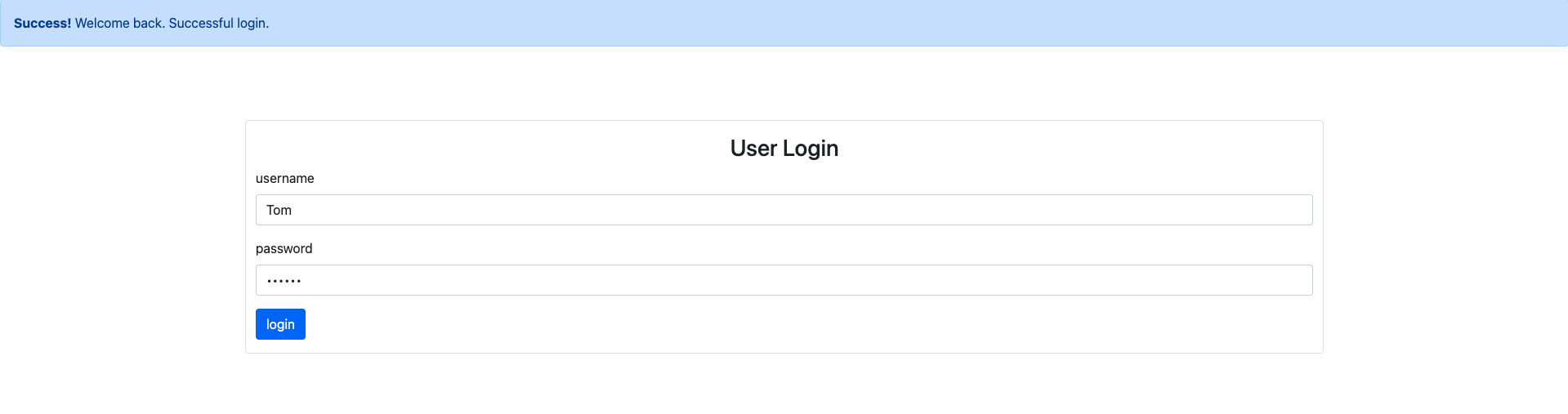
The successful results are as follows:
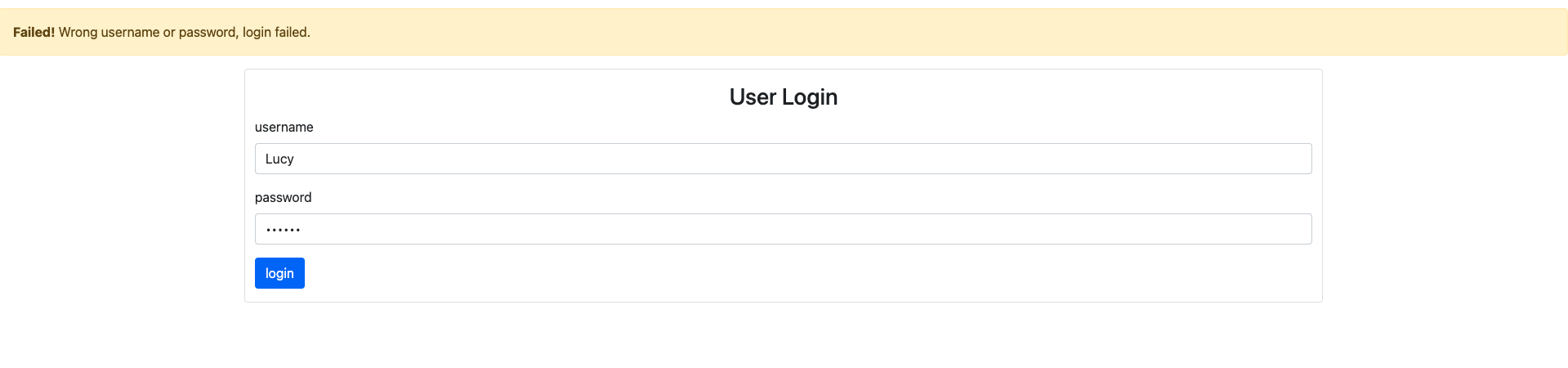
The failure effects are as follows:
🎯 Tasks
In this project, you will learn:
- How to fetch user data from a JSON file using jQuery's AJAX functionality
- How to validate the entered username and password against the user data
- How to display appropriate success or failure messages based on the login attempt
🏆 Achievements
After completing this project, you will be able to:
- Use jQuery's AJAX methods to make HTTP requests and handle responses
- Manipulate the DOM using jQuery to update the UI based on the login result
- Integrate user input with the login function and handle the login process
Set Up the Project Structure
In this step, you will set up the project files and structure. Follow the steps below to complete this step:
Open the project folder. The directory structure is as follows:
├── bootstrap.min.css ## Bootstrap file
├── index.html ## User login page
├── jQuery-3.6.0.min.js ## jQuery file
├── userlist.json  ## JSON file
├── login.js   ## JavaScript code for user login
├── index.html ## User login page
Click on Go Live button in the bottom right corner of WebIDE, to run the project.
Next, open "Web 8080" on the top of the VM and refresh it manually and you will see the page.
Fetch User Data
In this step, you will learn how to use jQuery's ajax function to fetch user data from the userlist.json file.
- Open the
login.jsfile and locate theloginfunction. - Inside the
loginfunction, add the following code to make an AJAX request to theuserlist.jsonfile:
function login(username, password) {
  // TODO
  $.ajax({
    method: "GET",
    url: "userlist.json",
    success: function (data) {
      // The user data is now available in the 'data' parameter
      console.log(data);
    }
  });
}
This code will make a GET request to the userlist.json file.
Validate User Login
In this step, you will learn how to compare the entered username and password with the user data obtained from the AJAX request.
- Inside the
successcallback function of the AJAX request, add the following code to check if the entered username and password match any of the user records:
$.ajax({
  method: "GET",
  url: "userlist.json",
  success: function (data) {
    let judge = data.userlist.some((item) => {
      return item.username == username && item.password == password;
    });
    // ...
  }
});
This code uses the some method to check if any of the user records in the data.userlist array match the entered username and password.
- After the
somemethod call, add the following code to display the appropriate success or failure message:
$.ajax({
  method: "GET",
  url: "userlist.json",
  success: function (data) {
    // ...
    if (judge) {
      $("#tip1").removeClass("fade");
      $("#tip2").addClass("fade");
    } else {
      $("#tip2").removeClass("fade");
      $("#tip1").addClass("fade");
    }
  }
});
This code uses jQuery to manipulate the visibility of the success and failure message elements on the page.
Integrate the Login Function
In this final step, you will learn how to integrate the login function with the user input elements on the page.
- Inside the
$(document).ready()function, locate the click event handler for the "login" button:
$("#btnsubmit").click(function () {
  // TODO
});
- Inside the click event handler, add the following code to get the entered username and password values, and call the
loginfunction:
$("#btnsubmit").click(function () {
  // TODO
  let username = $("#exampleInputUsername").val();
  let password = $("#exampleInputPassword").val();
  login(username, password);
});
This code retrieves the values entered by the user in the username and password input fields, and then calls the login function with these values.
- Save the
login.jsfile and refresh theindex.htmlpage in your browser. Try to enter different username and password combinations and click on theloginbutton to see the success and failure messages.
The successful results are as follows:
The failure effects are as follows:
Congratulations! You have completed the implementation of the user login function.
Summary
Congratulations! You have completed this project. You can practice more labs in LabEx to improve your skills.