Introduction
In this project, you will learn how to implement an account verification feature using a mobile phone number verification code. This feature is commonly used in many platforms nowadays to provide users with an additional layer of security and convenience when logging in.
👀 Preview
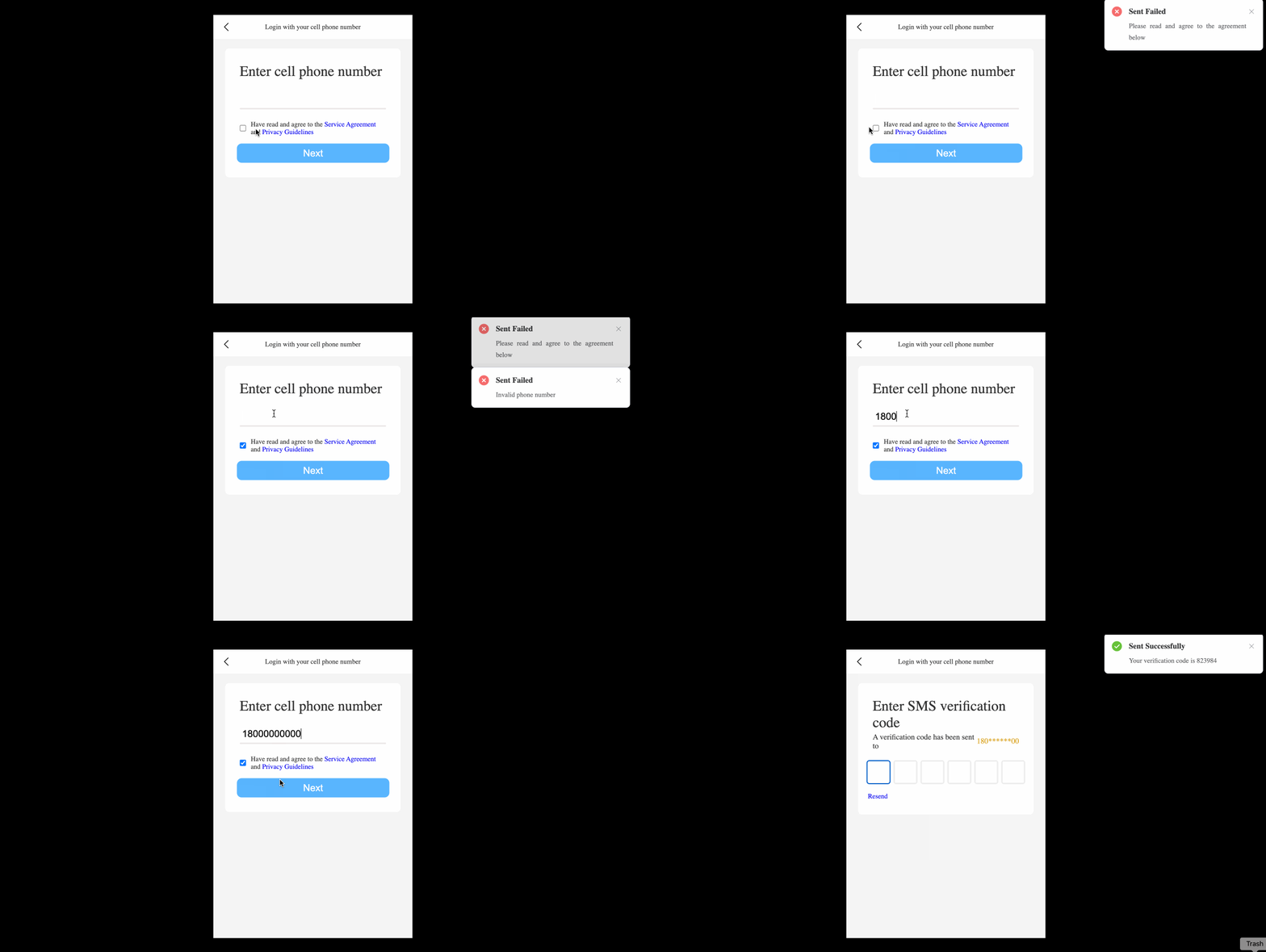
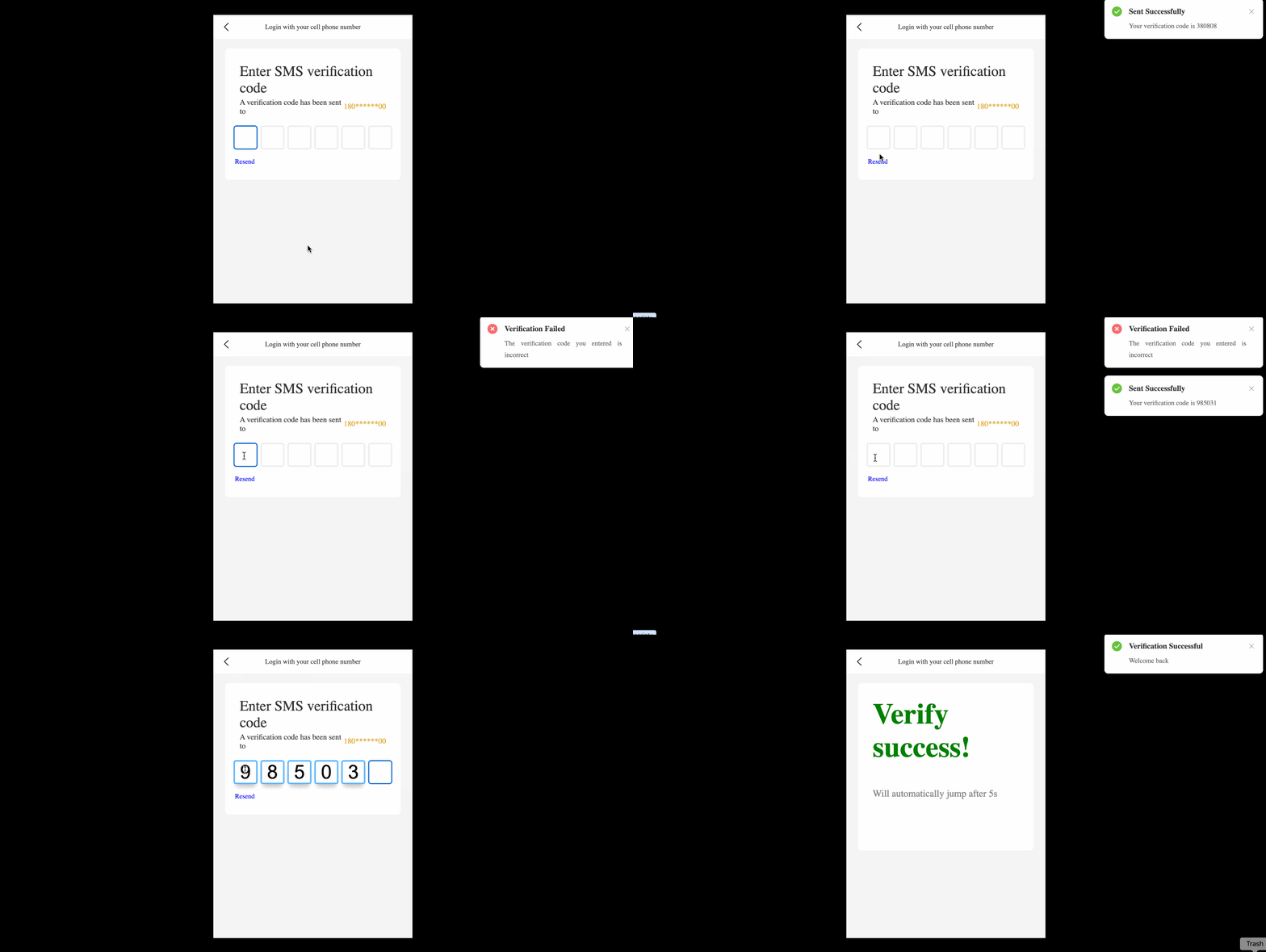
🎯 Tasks
In this project, you will learn:
- How to implement the function to send the verification code
- How to implement the function to verify the input verification code
- How to understand the usage of the
Notificationcomponent in Element Plus
🏆 Achievements
After completing this project, you will be able to:
- Handle user input and validation
- Generate and manage dynamic verification codes
- Use the
Notificationcomponent to display success and error messages - Implement component switching and state management using Vue.js and Pinia
Set Up the Project Structure
In this step, you will learn how to set up the project structure. Follow the steps below to complete this step:
Open the project folder for this project. The directory structure is as follows:
├── css
│   ├── element-plus@2.3.7
│   │   ├── index.css
│   │   └── index.full.js
│   └── index.css
├── images
│   └── arrow.png
├── index.html
└── js
    ├── index.mjs
    ├── pinia.esm-browser.js
    ├── vue3.global.js
    └── vue.esm-browser.prod.js
Among them:
cssis the folder for storing the page's referenced styles.imagesis the folder for storing the page's referenced images.jsis the folder for storing the page's referenced JavaScript files.index.htmlis the file that needs to be completed.
Click on Go Live button in the bottom right corner of WebIDE, to run the project.
Next, open "Web 8080" on the top of the VM and refresh it manually and you will see the page.
Providing Variables and Functions
In this step, we take the variables and functions needed for the subsequent steps.
- Open the
index.htmlfile in the provided project. - Locate
const { createApp, reactive, toRefs } = Vue;and add it as the following code for subsequent use.
const { createApp, reactive, toRefs, provide, inject, ref, watch } = Vue;
const { createApp, reactive, toRefs, provide, inject, ref, watch } = Vue; 3. Locate the first // TODO and add the following code:
const app = createApp({
  setup() {
    let data = reactive({
      showName: "phone"
    });
    // TODO
    const code = ref([]);
    const phoneVal = ref("");
    const createCode = function () {
      let res = "";
      function* _create() {
        let count = 0;
        while (++count <= 6) {
          yield Math.floor(Math.random() * 10);
        }
      }
      for (const iterator of _create()) {
        res += iterator;
      }
      return res;
    };
    const handlePhone = (num) => {
      let res = "";
      for (let idx in num) {
        if (idx > 2 && idx < num.length - 2) {
          res += "*";
        } else {
          res += num[idx];
        }
      }
      return res;
    };
    provide("code", code);
    provide("phoneVal", phoneVal);
    provide("createCode", createCode);
    provide("data", data);
    provide("handlePhone", handlePhone);
    return {
      ...toRefs(data)
    };
  }
});
In the above code, the createCode() function is to create the six-digit CAPTCHA and the handlePhone() function is to simply encrypt the phone number.
Implement the Function To Send the Verification Code
In this step, you will learn how to implement the function to send the verification code. Follow the steps below to complete this step:
- Open the
index.htmlfile in the provided project. - Add binding events to the
<template id="phone">section:
<!-- phone -->
<template id="phone">
  <div>
    <ul class="phone">
      <span>Enter cell phone number</span>
      <li>
        <input type="text" v-model="phoneVal" autofocus id="numberInput" />
      </li>
      <li>
        <input type="checkbox" v-model="isSure" name="" id="checkbox" />
        <span
          >Have read and agree to the
          <a href="javascript:;">Service Agreement</a>
          and
          <a href="javascript:;">Privacy Guidelines</a>
        </span>
      </li>
      <button id="btn" @click="nextStep">Next</button>
    </ul>
  </div>
</template>
<!-- phone -->
- In the
setup()function of thephonecomponent, inject the necessary variables and functions:
app.component("phone", {
  template: "#phone",
  setup() {
    // TODO
    let isSure = ref("");
    let phoneVal = inject("phoneVal");
    let code = inject("code");
    let createCode = inject("createCode");
    let data = inject("data");
    return {};
  }
});
- Implement the
verifyPhone()function to check the validity of the phone number:
function verifyPhone(num) {
  if (num.length != 11) return false;
  return num[0] == 1 && num[1] == 8;
}
- Implement the
nextStep()function to handle the click of thenextbutton, all the code for thephonecomponent is as follows:
app.component("phone", {
  template: "#phone",
  setup() {
    // TODO
    let isSure = ref("");
    let phoneVal = inject("phoneVal");
    let code = inject("code");
    let createCode = inject("createCode");
    let data = inject("data");

    function verifyPhone(num) {
      if (num.length != 11) return false;
      return num[0] == 1 && num[1] == 8;
    }

    return {
      isSure,
      phoneVal,
      nextStep() {
        if (!isSure.value)
          return ElNotification({
            title: "Sent Failed",
            message: "Please read and agree to the agreement below",
            type: "error"
          });
        if (!verifyPhone(phoneVal.value))
          return ElNotification({
            title: "Sent Failed",
            message: "Invalid phone number",
            type: "error"
          });
        code.value = createCode();
        ElNotification({
          title: "Sent Successfully",
          message: "Your verification code is " + code.value,
          type: "success"
        });
        data.showName = "check";
      }
    };
  }
});
In this function, we first check if the user has agreed to the terms and conditions. If not, we show an error notification. Then, we check the validity of the phone number using the verifyPhone() function. If the phone number is invalid, we show an error notification. If both conditions are met, we generate a random 6-digit verification code using the createCode() function, show a success notification, and switch the component to the check component.
Implement the Function To Verify the Input Verification Code
In this step, you will learn how to implement the function to verify the input verification code. Follow the steps below to complete this step:
- Open the
index.htmlfile in the provided project. - Add binding events to the
<template id="check">section:
<!-- check -->
<template id="check">
  <ul class="number">
    <span>Enter SMS verification code</span>
    <li class="hassend">
      A verification code has been sent to
      <i>{{handlePhoneVal}}</i>
    </li>
    <li class="code-container">
      <input type="number" class="code" min="0" max="9" required />
      <input type="number" class="code" min="0" max="9" required />
      <input type="number" class="code" min="0" max="9" required />
      <input type="number" class="code" min="0" max="9" required />
      <input type="number" class="code" min="0" max="9" required />
      <input type="number" class="code" min="0" max="9" required />
    </li>
    <a href="javascript:;" id="resend" @click="resentCode">Resend</a>
  </ul>
</template>
<!-- check -->
- In the
checkcomponent, add the necessary variables and functions:
app.component("check", {
  template: "#check",
  setup() {
    // TODO
    let phoneVal = inject("phoneVal"),
      handlePhoneVal = inject("handlePhone")(phoneVal.value),
      data = inject("data"),
      code = inject("code"),
      createCode = inject("createCode"),
      rVal = "";

    return {};
  }
});
- Implement the logic to handle the input of the verification code:
setTimeout(() => {
  let oCodeIptList = [...document.getElementsByClassName("code")];

  oCodeIptList[0].focus();

  oCodeIptList.map((item) => {
    item.oninput = function () {
      if (item.value) {
        item?.nextElementSibling && item?.nextElementSibling.focus();
      } else {
        item?.previousElementSibling && item?.previousElementSibling.focus();
      }
      rVal = (oCodeIptList.map((item) => item.value) + "").replaceAll(",", "");
      trackVal(rVal);
    };
  });
  function trackVal(val) {
    if (val.length >= 6) {
      if (val == code.value) {
        ElNotification({
          title: "Verification Successful",
          message: "Welcome back",
          type: "success"
        });
        data.showName = "success";
      } else {
        ElNotification({
          title: "Verification Failed",
          message: "The verification code you entered is incorrect",
          type: "error"
        });
        [...document.getElementsByClassName("code")].map(
          (item) => (item.value = "")
        );
        [...document.getElementsByClassName("code")][0].focus();
      }
    }
  }
});
In this code, we first focus on the first input field for the verification code. Then, we add an oninput event handler to each input field. When the user enters a value, the cursor will automatically jump to the next input field. When the user deletes a value, the cursor will automatically jump to the previous input field.
We also implement the trackVal() function to verify the input verification code. If the input is 6 digits and matches the generated verification code, we show a success notification and switch the component to the success component. If the input is incorrect, we clear the input fields and show an error notification.
- Implement the
resentCode()function to resend the verification code, all the code for thecheckcomponent is as follows:
app.component("check", {
  template: "#check",
  setup() {
    // TODO
    let phoneVal = inject("phoneVal"),
      handlePhoneVal = inject("handlePhone")(phoneVal.value),
      data = inject("data"),
      code = inject("code"),
      createCode = inject("createCode"),
      rVal = "";
    setTimeout(() => {
      let oCodeIptList = [...document.getElementsByClassName("code")];

      oCodeIptList[0].focus();

      oCodeIptList.map((item) => {
        item.oninput = function () {
          if (item.value) {
            item?.nextElementSibling && item?.nextElementSibling.focus();
          } else {
            item?.previousElementSibling &&
              item?.previousElementSibling.focus();
          }
          rVal = (oCodeIptList.map((item) => item.value) + "").replaceAll(
            ",",
            ""
          );
          trackVal(rVal);
        };
      });
      function trackVal(val) {
        if (val.length >= 6) {
          if (val == code.value) {
            ElNotification({
              title: "Verification Successful",
              message: "Welcome back",
              type: "success"
            });
            data.showName = "success";
          } else {
            ElNotification({
              title: "Verification Failed",
              message: "The verification code you entered is incorrect",
              type: "error"
            });
            [...document.getElementsByClassName("code")].map(
              (item) => (item.value = "")
            );
            [...document.getElementsByClassName("code")][0].focus();
          }
        }
      }
    });

    return {
      handlePhoneVal,
      resentCode() {
        code.value = createCode();
        ElNotification({
          title: "Sent Successfully",
          message: "Your verification code is " + code.value,
          type: "success"
        });
      }
    };
  }
});
This function generates a new verification code and shows a success notification.
That's it! You have now completed the implementation of the account verification feature using a mobile phone number verification code.
The final effect is as follows:
Summary
Congratulations! You have completed this project. You can practice more labs in LabEx to improve your skills.