



Introduction
GitHub Actions is a continuous integration and continuous delivery (CI/CD) platform that allows you to automate your build, test, and deployment pipeline. You can create workflows that build and test every pull request to your repository, or deploy merged pull requests to production.
A workflow is a configurable automated process that will run one or more jobs. Workflows are defined by a YAML file checked in to your repository and will run when triggered by an event in your repository, or they can be triggered manually, or at a defined schedule.
In this lab, you will learn the fundamental building blocks of a GitHub Actions workflow:
- Defining a job.
- Specifying the runner environment (e.g., Ubuntu).
- Adding steps to execute commands.
You will create a simple workflow that prints "Hello, World!" to the console. This lab builds on the repository you created in the previous labs. You will clone the github-actions-demo repository and update an existing workflow file.
Add runs-on key with ubuntu-latest in the build job
In this step, you will clone the repository and update an existing workflow file to define a job and specify the operating system it should run on.
- On your GitHub repository page for
github-actions-demo, click the green Code button. - Ensure the HTTPS tab is selected and copy the URL. It should look like
https://github.com/your-username/github-actions-demo.git. - Open the terminal in the LabEx environment. The default path is
~/project. - Use the
git clonecommand to download the repository. Replaceyour-usernamewith your actual GitHub username.
cd ~/project
git clone https://github.com/your-username/github-actions-demo.git
- Navigate into the cloned repository:
cd ~/project/github-actions-demo
- Create a new workflow file named
simple-commands.ymlin the.github/workflowsdirectory:
touch .github/workflows/simple-commands.yml
Open the file
.github/workflows/simple-commands.ymlin the WebIDE. You can find it in the file explorer on the left side.Add the following content to the file to define the workflow name, trigger, job, and runner:
name: Simple Commands
on: [push]

jobs:
  build:
    runs-on: ubuntu-latest
The runs-on keyword allows you to specify the type of machine to run the job on. GitHub provides hosted runners for Linux, Windows, and macOS. ubuntu-latest is a commonly used runner that provides a standard Ubuntu environment.
Add steps section under the build job
Now that you have defined the job environment, you need to define what the job actually does. This is done using the steps keyword.
A job contains a sequence of tasks called steps. Steps can run commands, run setup tasks, or run an action in your repository.
Instructions
- Open
.github/workflows/simple-commands.ymlin the WebIDE. - Add the
stepskeyword under thebuildjob.
Update your file to look like this:
name: Simple Commands
on: [push]

jobs:
  build:
    runs-on: ubuntu-latest
    steps:
Ensure steps: is at the same indentation level as runs-on:.
Add a step with name 'Echo Hello' and run echo "Hello, World!"
In this step, you will add multiple tasks to the steps section to execute various shell commands. This demonstrates that you can run standard Linux commands on the runner.
Instructions
- Open
.github/workflows/simple-commands.ymlin the WebIDE. - Add the following steps under the
steps:key:
steps:
  - name: Echo Hello
    run: echo "Hello, World!"

  - name: Show Date
    run: date

  - name: List Files
    run: ls -la
Your complete file should look like this:
name: Simple Commands
on: [push]

jobs:
  build:
    runs-on: ubuntu-latest
    steps:
      - name: Echo Hello
        run: echo "Hello, World!"

      - name: Show Date
        run: date

      - name: List Files
        run: ls -la
Explanation
echo "Hello, World!": Prints text to the console.date: Shows the current date and time on the runner.ls -la: Lists files in the current directory. You will notice the directory is mostly empty because we haven't checked out the code yet (we'll do that in the next lab).
Commit and push the updated workflow file
GitHub Actions workflows are part of your repository's code. To activate the workflow, you need to commit the changes and push them to GitHub.
- Ensure you are in the repository directory:
cd ~/project/github-actions-demo
- Stage the new workflow file:
git add .github/workflows/simple-commands.yml
- Commit the changes with a descriptive message:
git commit -m "Add simple commands workflow"
Example Output:
[main ... ] Add simple commands workflow
 1 file changed, 14 insertions(+)
 create mode 100644 .github/workflows/simple-commands.yml
- Push the changes to the remote repository on GitHub:
git push
Note on Authentication:
When you run git push, the WebIDE will automatically prompt you to authenticate. Follow these detailed steps:
- A popup will appear with the message: "The extension 'GitHub' wants to sign in using GitHub." Click Allow.
- A new notification will appear. Click "Copy&Continue to GitHub", then click "Open" in the next prompt.
- Log in to your GitHub account in the browser window that opens, and enter the authorization code that was copied. After confirming the authorization, the page will automatically close.
- Wait a few seconds, and you will see the terminal successfully complete the push operation.
Privacy Note: The WebIDE will request full access to your GitHub account for authentication purposes. You don't need to worry about privacy concerns - the LabEx VM will be immediately destroyed after you complete the current lab, and your credentials and authorization information will not be retained.
This authentication process does not require manual configuration of username or Personal Access Token.
Example Output:
Enumerating objects: 6, done.
Counting objects: 100% (6/6), done.
Delta compression using up to 4 threads
Compressing objects: 100% (4/4), done.
Writing objects: 100% (4/4), 447 bytes | 447.00 KiB/s, done.
Total 4 (delta 1), reused 0 (delta 0), pack-reused 0
To https://github.com/your-username/github-actions-demo.git
   abcdef1..1234567  main -> main
View workflow run logs on GitHub Actions tab
After pushing your code, the workflow will automatically trigger on GitHub. You can view the workflow run logs to see what happened.
- Visit your repository on GitHub in a web browser:
https://github.com/your-username/github-actions-demo - Click on the Actions tab at the top of the repository page.
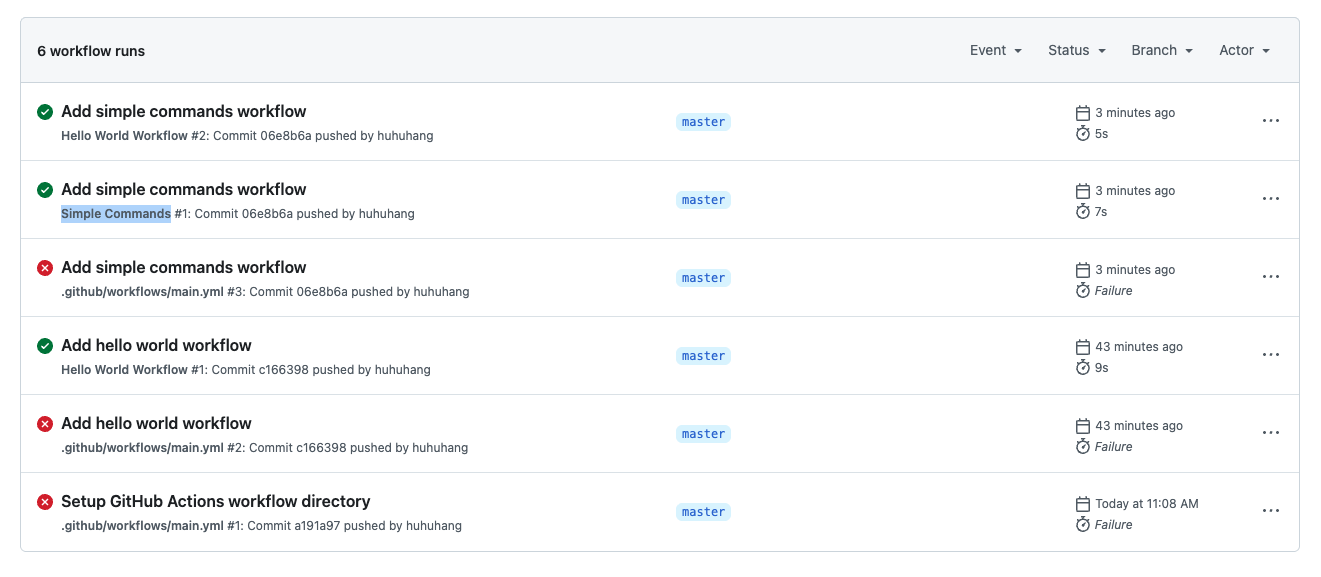
- You should see a workflow run listed, likely named "Simple Commands" or "Add simple commands workflow".
Note: When you push code, multiple Actions may be triggered if you have multiple workflow files in your repository. Please identify the correct workflow run by checking the workflow name in the left sidebar or using the workflow run list on the right side.
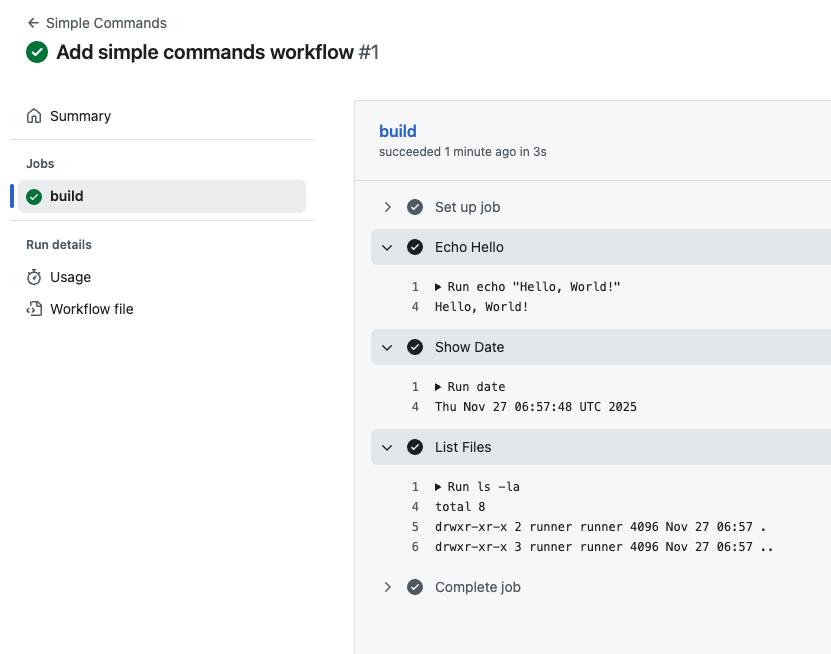
- Click on the workflow run title, then click on the build job.
- Expand the Echo Hello, Show Date, and List Files steps to see their output.
You will notice that List Files shows an empty directory (except for hidden files like . and ..), demonstrating that the runner starts with a clean slate.
Summary
In this lab, you have successfully created a GitHub Actions workflow that executes multiple shell commands. You learned how to:
- Define a Job: You created a
buildjob. - Select a Runner: You used
runs-on: ubuntu-latest. - Run Multiple Commands: You added steps to run
echo,date, andls. - Observe Runner Environment: You saw that the runner starts with an empty directory.
In the next lab, you will learn how to use the Checkout Action to access your repository files within the runner.


