


Introduction
This lab will guide you through the process of getting started with Flask, a lightweight web framework for Python. You will learn how to create a basic Flask application, run it locally, and understand the basic concepts of routing and rendering templates.
Note: You need to create the code file yourself and run it in the environment. You can preview the Flask service status on Web 5000.
Setting up Flask
To get started with Flask, you need to install it and set up a new project. Follow the instructions below:
Install Flask by running the following command in your terminal or command prompt:
pip install flaskOpen a new file and save it as
app.py.cd ~/project touch app.pyImport the Flask module and create an instance of the Flask class:
from flask import Flask

app = Flask(__name__)
Creating a Basic Route
Routes in Flask define the URL patterns for your application. Let's create a basic route that displays a "Hello, World!" message.
Add the following code to your
app.pyfile:@app.route("/") def hello_world(): return "Hello, World!"Save the file.
Running the Application
Now that you have set up your Flask application and created a basic route, let's run the application and see it in action.
In your terminal or command prompt, navigate to the directory where your
app.pyfile is located.Run the following command to start the Flask development server:
flask run --host=0.0.0.0
--host=0.0.0.0 is used to make the application publicly available. If you don't specify this, the application will only be available on your local machine.
Then, switch to the tab Web 5000 and refresh the page.
Adding HTML Templates
Flask uses Jinja2 templates to generate HTML content. Let's create a template file and render it in our route.
Create a new directory in your project called
templates.Inside the
templatesdirectory, create a new file calledindex.html.Open the
index.htmlfile and add the following HTML code:<!doctype html> <html> <head> <title>Flask Quickstart</title> </head> <body> <h1>Hello, Flask!</h1> </body> </html>Modify your
app.pyfile to render theindex.htmltemplate:from flask import render_template @app.route("/") def hello_world(): return render_template("index.html")
Running the Application Again
Now that we have added an HTML template, let's run the application again and see the rendered template.
Stop the Flask development server if it is still running (press Ctrl+C).
Run the following command to start the server again:
flask run --host=0.0.0.0
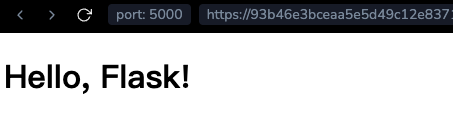
You should now see the "Hello, Flask!" message displayed in the HTML template.
Adding Dynamic Content
Flask allows us to pass dynamic content to our templates. Let's modify our route to pass a name parameter and display a personalized greeting.
Modify your
app.pyfile to accept a name parameter in the route:@app.route("/<name>") def hello(name): return render_template("index.html", name=name)Open the
index.htmlfile and modify the<h1>tag to display the personalized greeting:<h1>Hello, {{ name }}!</h1>
Running the Application Again
Let's run the application again and test the dynamic content feature.
Stop the Flask development server if it is still running (press Ctrl+C).
Run the following command to start the server again:
flask run --host=0.0.0.0Copy the URL of the tab Web 5000 and paste it into a new tab in your browser.

Append
/LabExto the end of the URL and press Enter.
Change the value of the
nameparameter in the URL and press Enter.
Summary
In this lab, you learned how to get started with Flask by setting up a new project, creating routes, rendering templates, and passing dynamic content. Flask is a powerful tool for building web applications, and this lab provides a solid foundation for further exploration and development.