
Introduction
In this challenge, we're going to play with Docker images. A Docker container image is a lightweight, self-contained, executable software package that contains everything needed to run an application: code, runtime, system tools, system libraries, and settings.
Change Docker Image
A docker image contains an image name and an image tag, where the image name comprises the repository address and the image identifier. In this subsection, we will push a docker image created by someone else into our repository.
Target
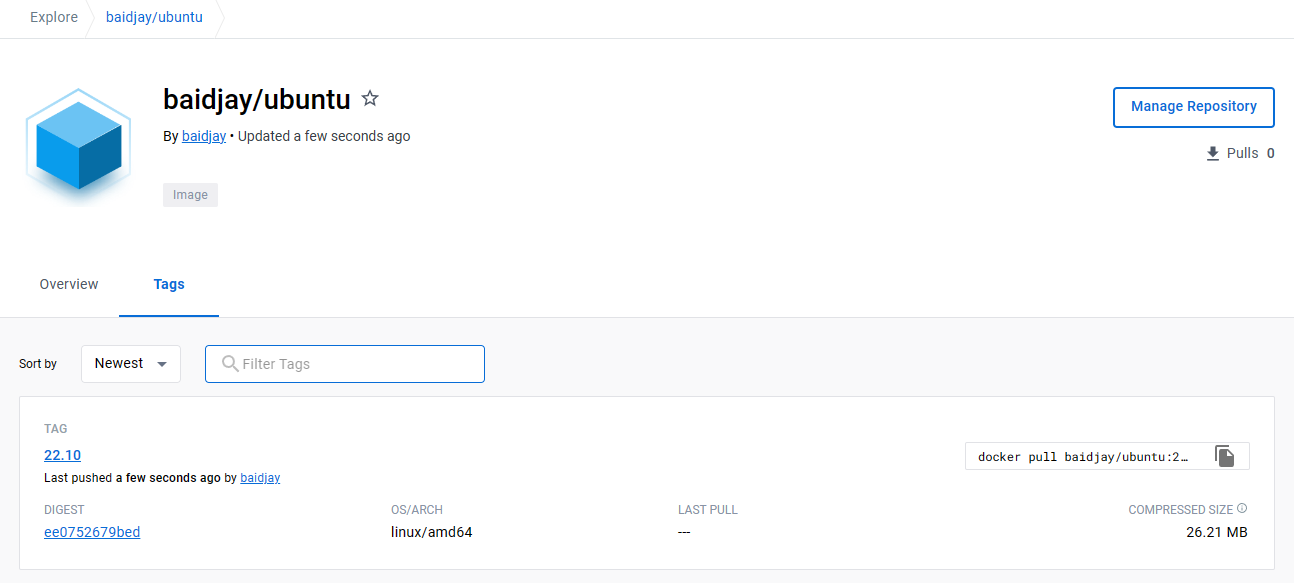
You aim to push the public ubuntu images on dockerhub to your private repository.
Result Example
Here's an example of what you should be able to accomplish by the end of this challenge:
Register yourself on
dockerhuband log in.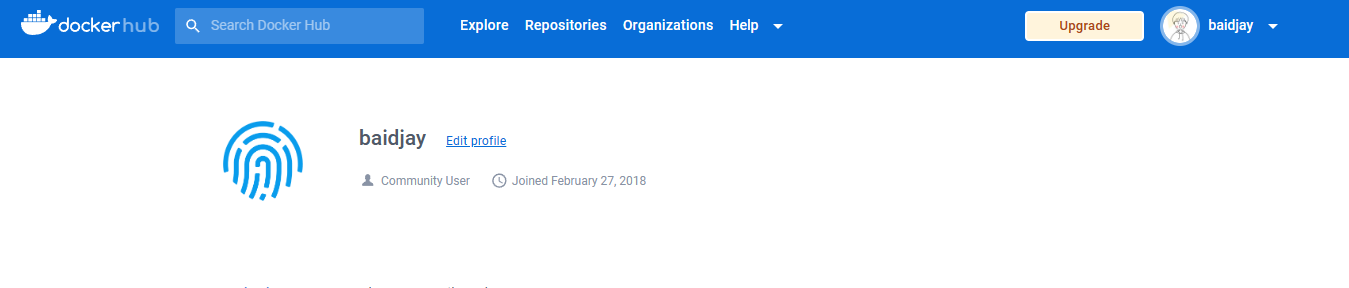
Download the
ubuntu:22.10image from the docker hub to our local server.
Change the
ubuntu:22.10image to our repository address.
Sign in to the docker hub.
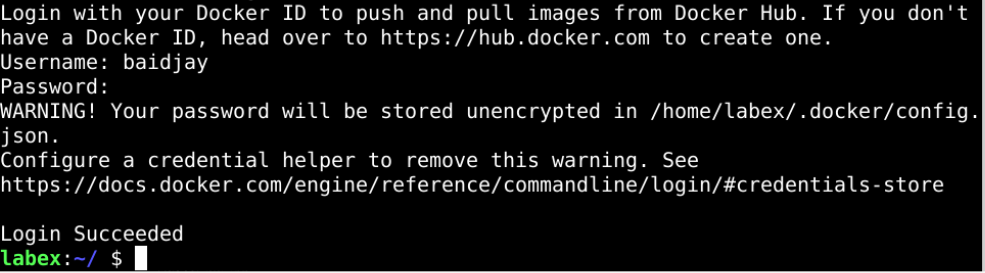
Push the image to the remote repository.
Requirements
To complete this challenge, you will need:
- Install the Docker engine.
- Have some knowledge of the Docker command line.
- A Docker image already exists that needs to be updated
Build A Web Image
We usually use the nginx to run static applications such as websites. In this section, we will build our web image.
Target
Your goal is to create a Docker container image and package a simple web application into it, then use that image to start the container and make it accessible properly.
Result Example
Here's an example of what you should be able to accomplish by the end of this challenge:
Create a new file called
index.htmlin the/home/labex/Codedirectory with the contenthello labex.
Create a new file called
Dockerfilewith the following contents
Build your web image with the format of
your_dockerhub_id/web:1.1.0.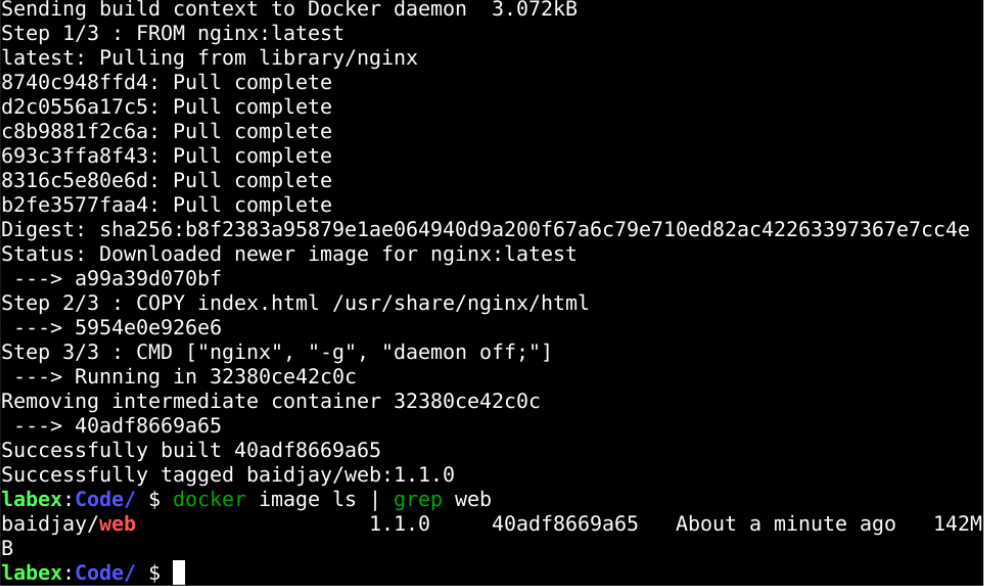
Push the created web image to the
dockerhub.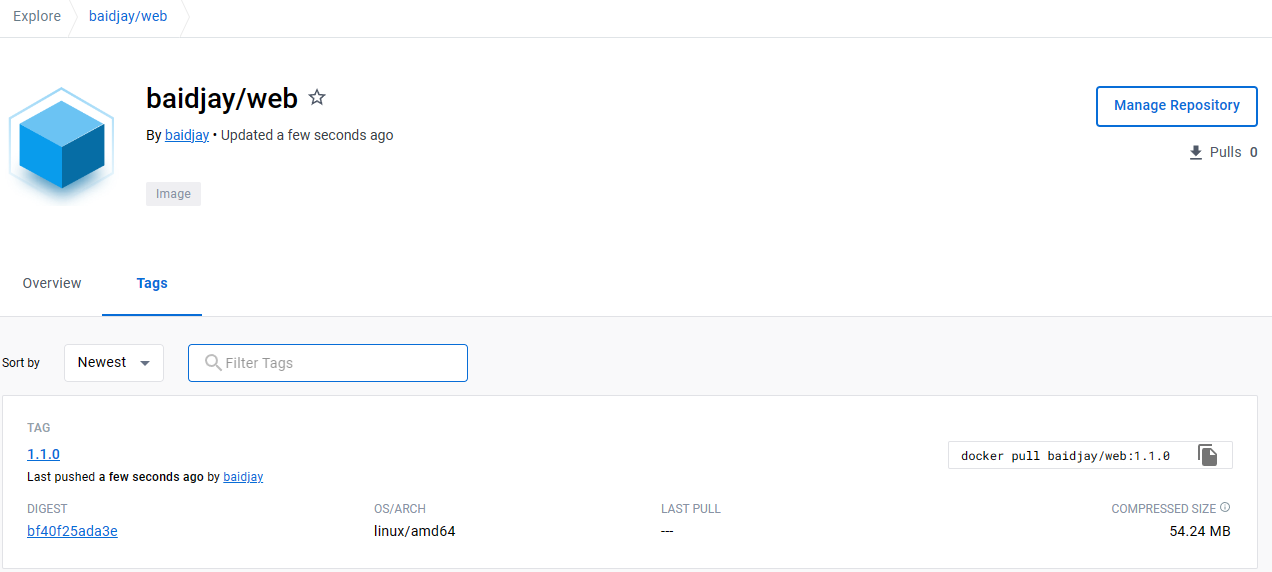
start a container called
webwithyour_dockerhub_id/web:1.1.0, and we also need to map port80to the host.
Use the
curlcommand to visithttp://127.0.0.1and check that the output ishello labex.
Requirements
To complete this challenge, you will need:
- Building with
Dockerfile - Specify the base image as
Nginx:latest - Expose port
80in theDockerfileusing the EXPOSE command - After the build is complete, make sure the container can run properly and respond to HTTP requests
Multi-stage Image Build
Creating a container image often involves two steps:
- Compile the application build.
- Create the application image.
This section will combine these two steps into one Docker file to achieve a multi-stage build.
To complete this challenge section, we have prepared a Hello World project at https://github.com/joker-bai/go-hello-world.git.
Target
Your goal is to use a multi-stage build to make a container image and use that image to start a container and have it be accessible properly.
Result Example
Here's an example of what you should be able to accomplish by the end of this challenge:
Create a
hello-worlddirectory in the/home/labex/Codedirectory.
Create a
Dockerfilein this directory with the following contents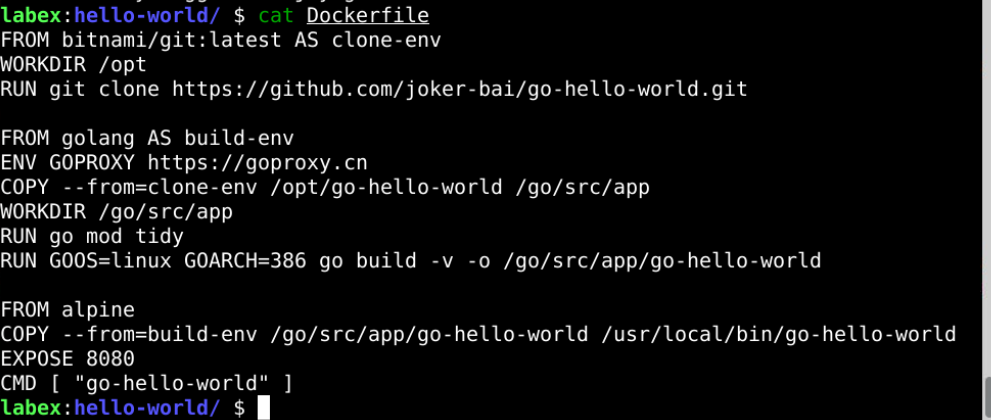
Build the docker image with the format of
your_dockerhub_id/go-hello-world:1.1.0.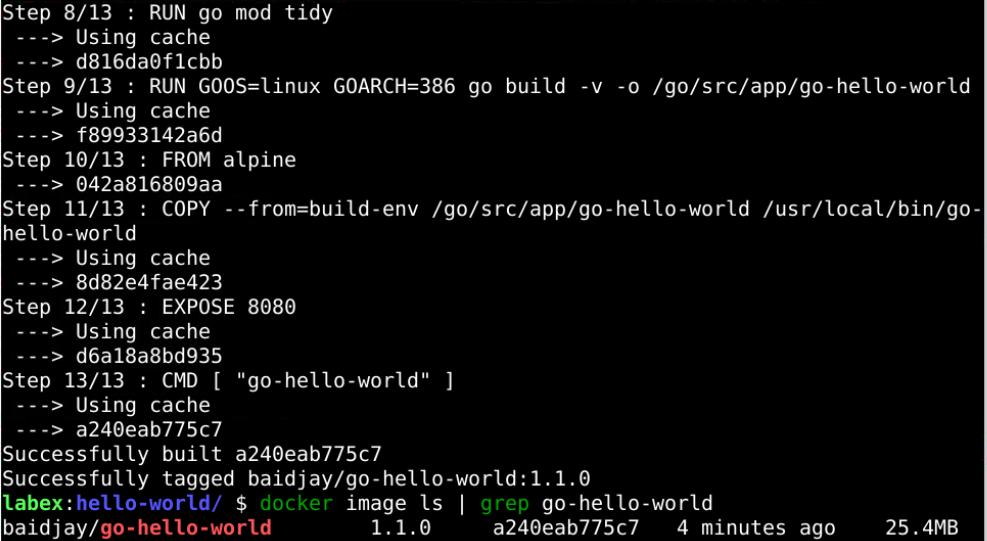
Push the image to the docker hub.
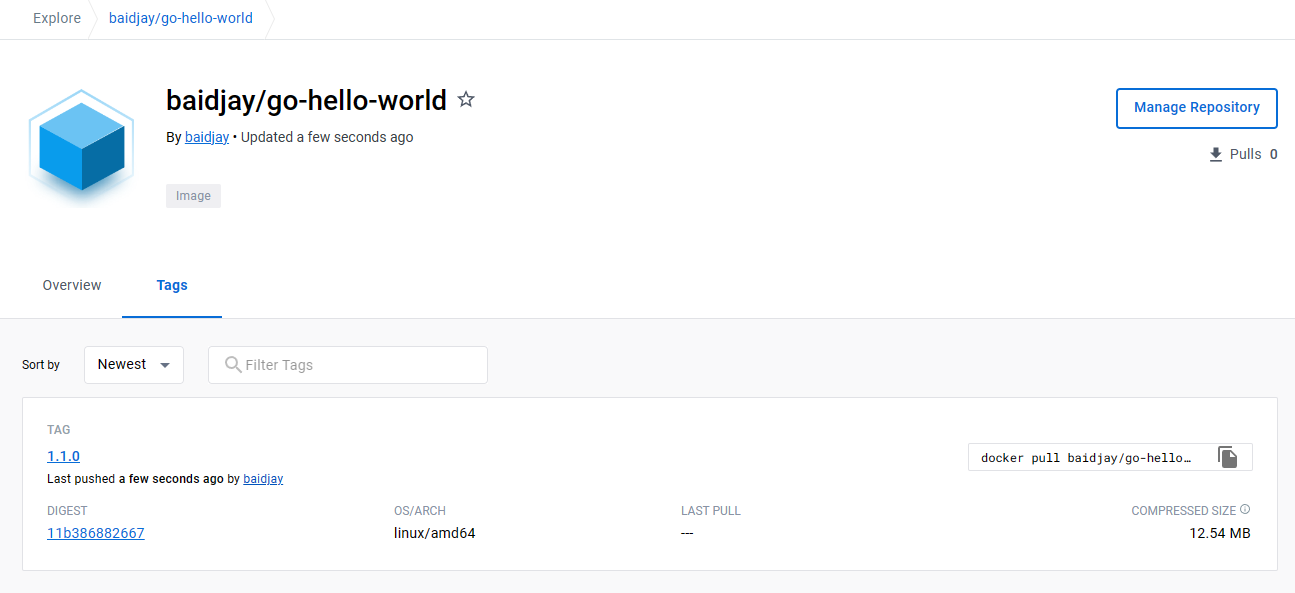
Start a container called
go-hello-worldand expose port8080.
Visit
http://127.0.0.1:8080to check if it is OK.
Requirements
To complete this challenge, you will need:
- Building with
Dockerfile - After the build is complete, make sure the container can run properly and respond to HTTP requests
Summary
Congratulations on the completion of all elements of this challenge, you now have the flexibility to create and manage application images.