



Introduction
GitHub Actions is a workflow automation system built into GitHub. It reacts to repository events such as pushes, pull requests, or manual triggers and then runs defined jobs automatically.
This automation can perform many DevOps tasks such as testing code, building artifacts, and deploying applications. The list of instructions is called a workflow.
At a higher level, a workflow is a pipeline definition. It turns repository events into repeatable automation so the same sequence does not depend on one human remembering it correctly each time.
In this lab, you will write your very first instruction manual (workflow) for this robot. You will learn the four basic component that make up every workflow:
- Triggers: When should the robot wake up? (e.g., when you push code).
- Jobs: What major task should the robot do?
- Runners: Which computer should the robot use to do the work?
- Steps: What specific commands should the robot execute?
By the end of this lab, you will have a working pipeline that automatically prints a greeting whenever you update your code.
Prerequisites
GitHub Actions matters because modern software delivery depends on repeatable automation rather than manual clicking and remembering steps.
Create a Repository
To start using GitHub Actions, you first need a project on GitHub. We will create a fresh repository for this module. This repository will be used across multiple labs, so please follow the naming convention carefully.
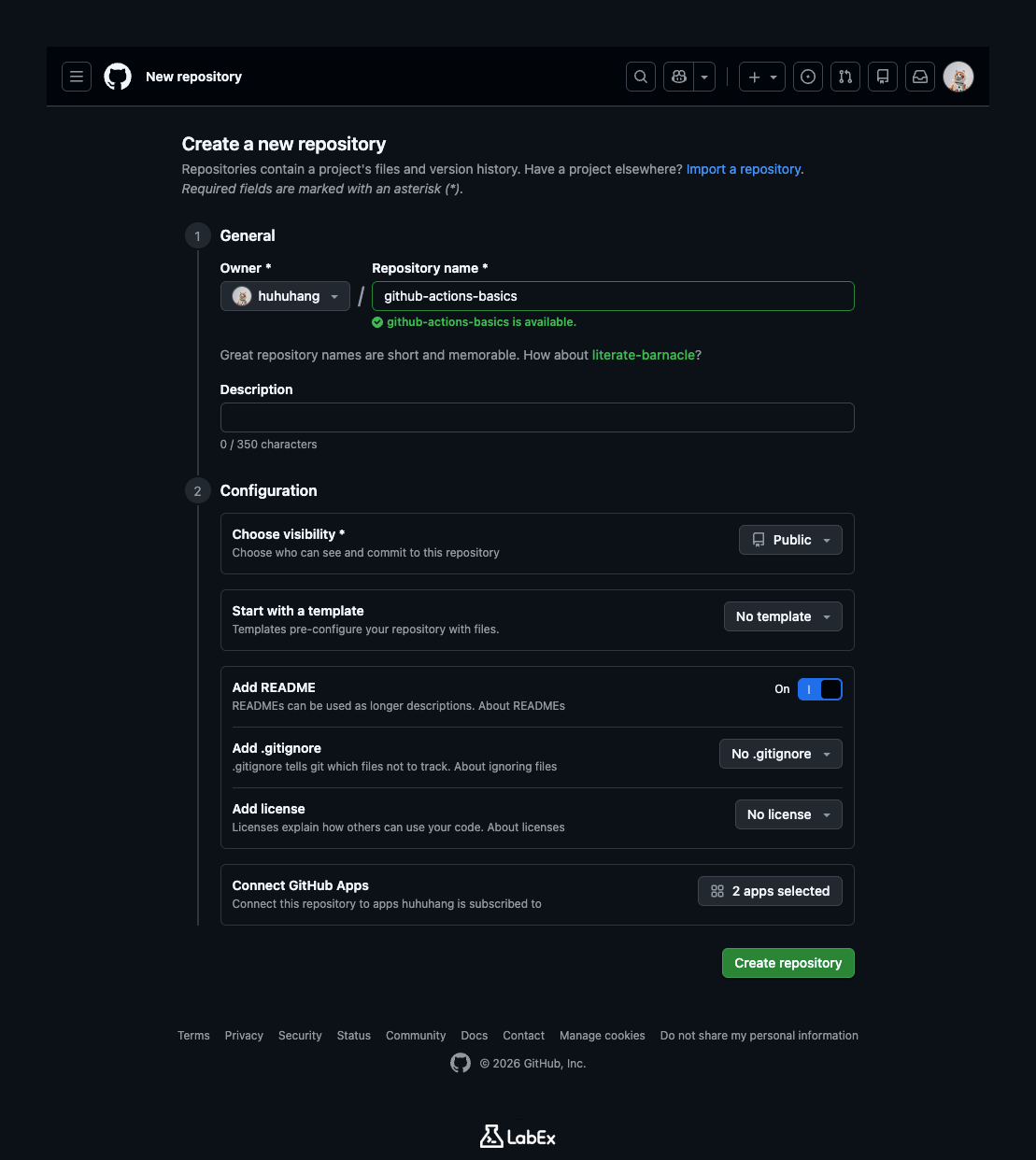
Open your web browser and log in to GitHub. Click the + icon in the top-right corner of any GitHub page and select New repository.
In the "Repository name" field, type github-actions-basics. Making the repository Public ensures it is free and easy to use. Check the box that says Add a README file to initialize the repository with a file. Finally, click the Create repository button.
Now that your project exists on the cloud (GitHub), you need to bring a copy of it to this lab environment so you can work on it. This process is called cloning.
In the terminal below, use the git clone command. You must replace your-username with your actual GitHub username.
cd ~/project
git clone https://github.com/your-username/github-actions-basics.git
After the cloning process finishes, you will see a new folder named github-actions-basics. Enter this directory to start working.
cd ~/project/github-actions-basics
GitHub Actions has a strict rule about where it looks for instructions. It only checks a specific hidden folder named .github containing a subfolder named workflows. If you put your workflow files anywhere else, the robot assistant will simply ignore them.
Create this required directory structure. The -p flag tells the command to create both parent and child directories at once if they don't exist.
mkdir -p .github/workflows
Next, create an empty file named main.yml inside this new folder. This file is where we will write our instructions.
touch .github/workflows/main.yml
You can verify that your Setup is correct by listing the files recursively. You should see the .github folder containing workflows, which in turn contains main.yml.
ls -R .github
Define the Trigger
Workflow files are written in YAML. This is a simple text format that uses indentation (spaces) to organize information, similar to how an outline uses indentation.
Every workflow needs a name and a trigger. The trigger tells the robot when to start working. Without a trigger, your workflow would never run. We want our robot to wake up every time we push new code to the repository.
This event-driven model is one of the main ideas behind CI/CD systems. Pipelines react to changes in the software lifecycle instead of waiting for someone to run scripts by hand.
Open that empty main.yml file using the nano text editor.
nano .github/workflows/main.yml
Type the following content into the file.
name: First Workflow
on: push
The name keyword gives your workflow a label that appears on GitHub. The on: push line is the magic command. It translates to "On the event of a push, run this."
Press Ctrl+X, then Y, and then Enter to save your changes and exit the editor.
Define Job and Runner
Now that the robot knows when to wake up, we need to tell it where to work. This is called defining a Job and a Runner.
A Job is a grouping of tasks. You can have multiple jobs (like "Test Code" and "Deploy App"), but for now, we'll just have one.
A Runner is the server that GitHub provides to execute your job. Think of it as the computer your robot assistant sits at. We will use ubuntu-latest, which means GitHub will lend us a fresh computer running the latest version of Ubuntu Linux.
That fresh runner matters because workflow jobs should be reproducible. Each run starts from a clean environment rather than relying on leftovers from an earlier manual setup.
Open the main.yml file again.
nano .github/workflows/main.yml
Add the following lines to the end of the file. Pay very close attention to the spacing. In YAML, indentation is critical. The word first-job should be indented with two spaces, and runs-on with four spaces.
jobs:
  first-job:
    runs-on: ubuntu-latest
Your complete file should now look like the block below. Ensure the structure matches exactly.
name: First Workflow
on: push

jobs:
  first-job:
    runs-on: ubuntu-latest
Save and exit the editor (Ctrl+X, Y, Enter).
Add Steps and Push
We have the "When" (on push) and the "Where" (ubuntu-latest). Now for the most important part: the "What". This is defined in the Steps section.
Steps are the actual commands the robot will execute. For this first lab, we will just ask the robot to say hello. We will use the run keyword to execute a standard Linux command.
Open main.yml one last time.
nano .github/workflows/main.yml
Add the steps section under first-job. Make sure steps: lines up vertically with runs-on:.
steps:
  - name: Print greeting
    run: echo "Hello World from LabEx"
The hyphen - indicates a list item. We are listing the steps for the job.
Your final file must look exactly like this:
name: First Workflow
on: push

jobs:
  first-job:
    runs-on: ubuntu-latest
    steps:
      - name: Print greeting
        run: echo "Hello World from LabEx"
Save and exit the editor.
Now that our instruction manual is complete, we need to send it to GitHub. The robot only looks at the code that is on GitHub, not the code on your local computer.
Run the standard Git commands to save and upload your changes.
git add .
git commit -m "Add my first workflow"
git push
The system will ask for your GitHub username and password.
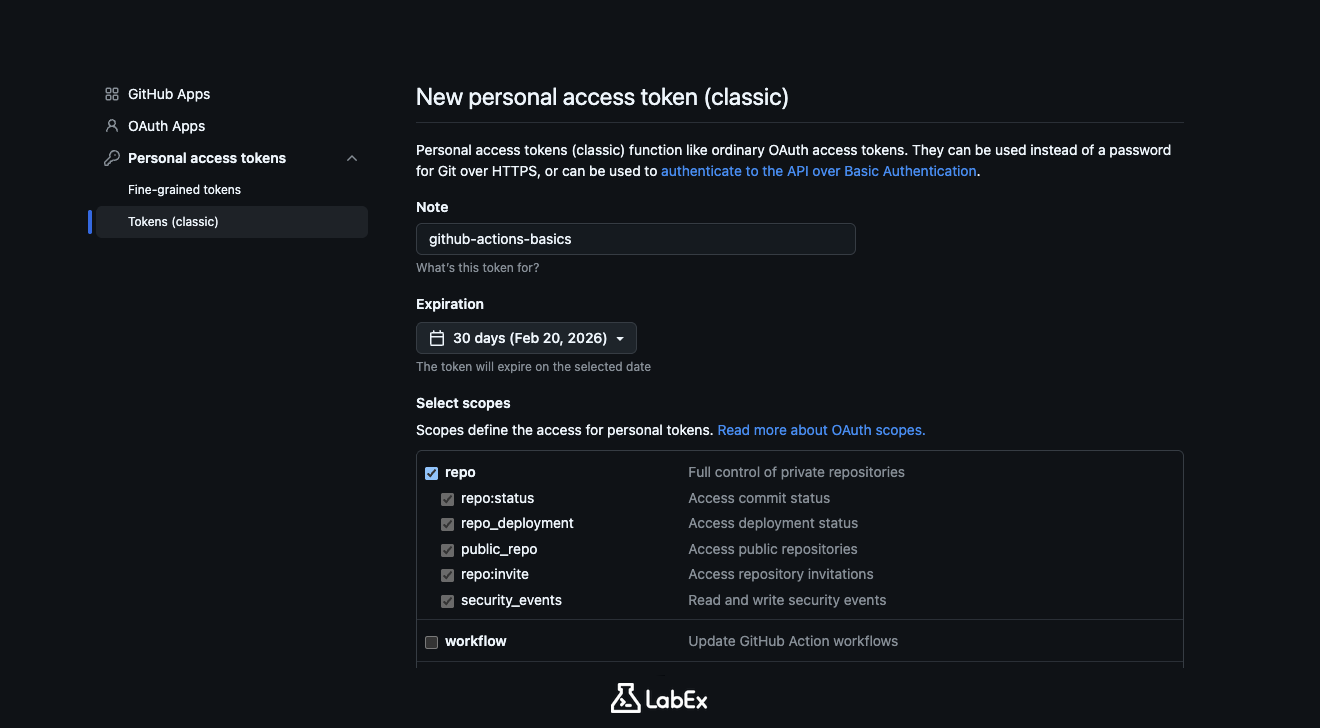
Important: If you see an error about password authentication support being removed, you must use a Personal Access Token (PAT) instead of your account password. You can generate one in your GitHub Settings -> Developer settings -> Personal access tokens. Select "Tokens (classic)", generate a new token with repo scope, and paste that token into the terminal when asked for your password.
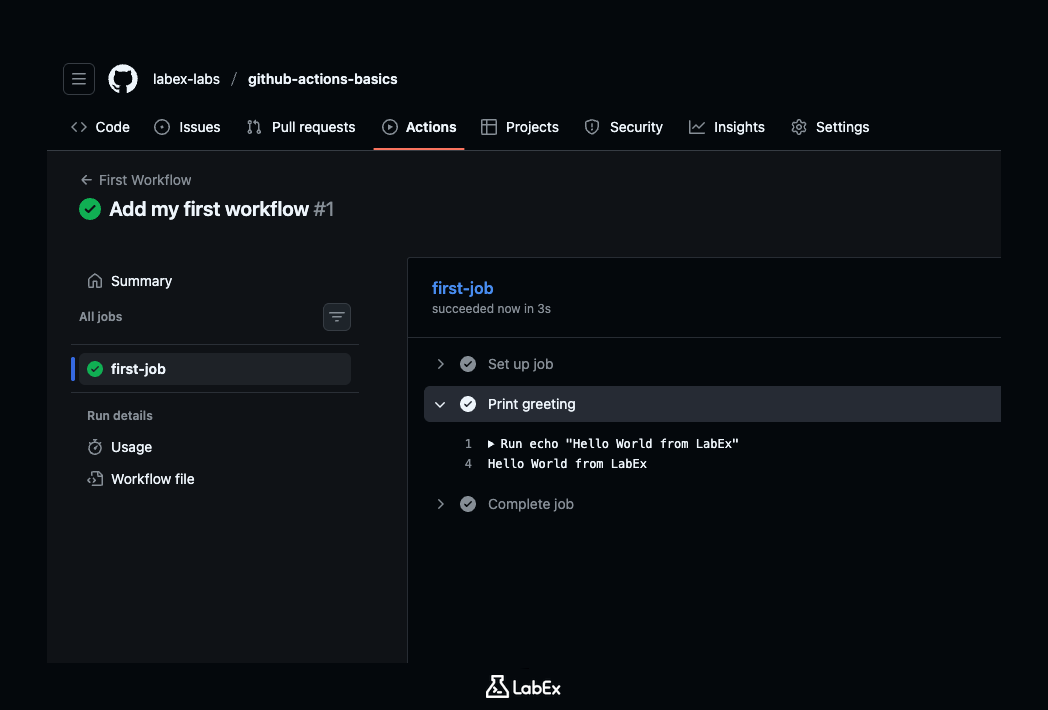
Once the push is successful, switch to your browser. Go to your repository page and locate the Actions tab at the top.
You should see a workflow listing named "First Workflow". It might have a yellow spinning circle (running) or a green checkmark (success). Click on it. Inside, click on first-job to see the details. You can expand the "Print greeting" step to see your "Hello World from LabEx" message printed in the logs!
Summary
Congratulations! You have successfully built and run your first GitHub Actions workflow.
In this lab, you learned the four pillars of a workflow file:
- Trigger (
on): Tells the action when to start. - Job: Groups tasks together.
- Runner (
runs-on): Specifies the server environment. - Step: Defines the actual command to run.
You now have a live "robot assistant" watching your repository. In the next labs, we will teach this assistant to do more useful things, like testing your code automatically!


