

Introduction
In this lab, you will learn how to create and apply colorizing rules in Wireshark, a powerful network protocol analyzer. These rules enable you to visually differentiate various types of network traffic according to specific criteria, facilitating the identification and analysis of network activities that matter to you.
By the end of this lab, you will gain a better understanding of leveraging Wireshark's colorizing features. This will enhance your network analysis skills and support your cybersecurity investigations.
Explore and Export Coloring Rules
In this step, we'll start by exploring the existing colorizing rules in Wireshark. Colorizing rules in Wireshark are used to highlight different types of network packets based on specific criteria. This helps in quickly identifying and analyzing important information in the captured network traffic. You'll also learn how to view these rules and export them for future use.
First, you need to open Wireshark on your Linux machine. To do this, open the terminal and run the following command. This command will launch the Wireshark application, which you'll use to work with the colorizing rules.
wireshark
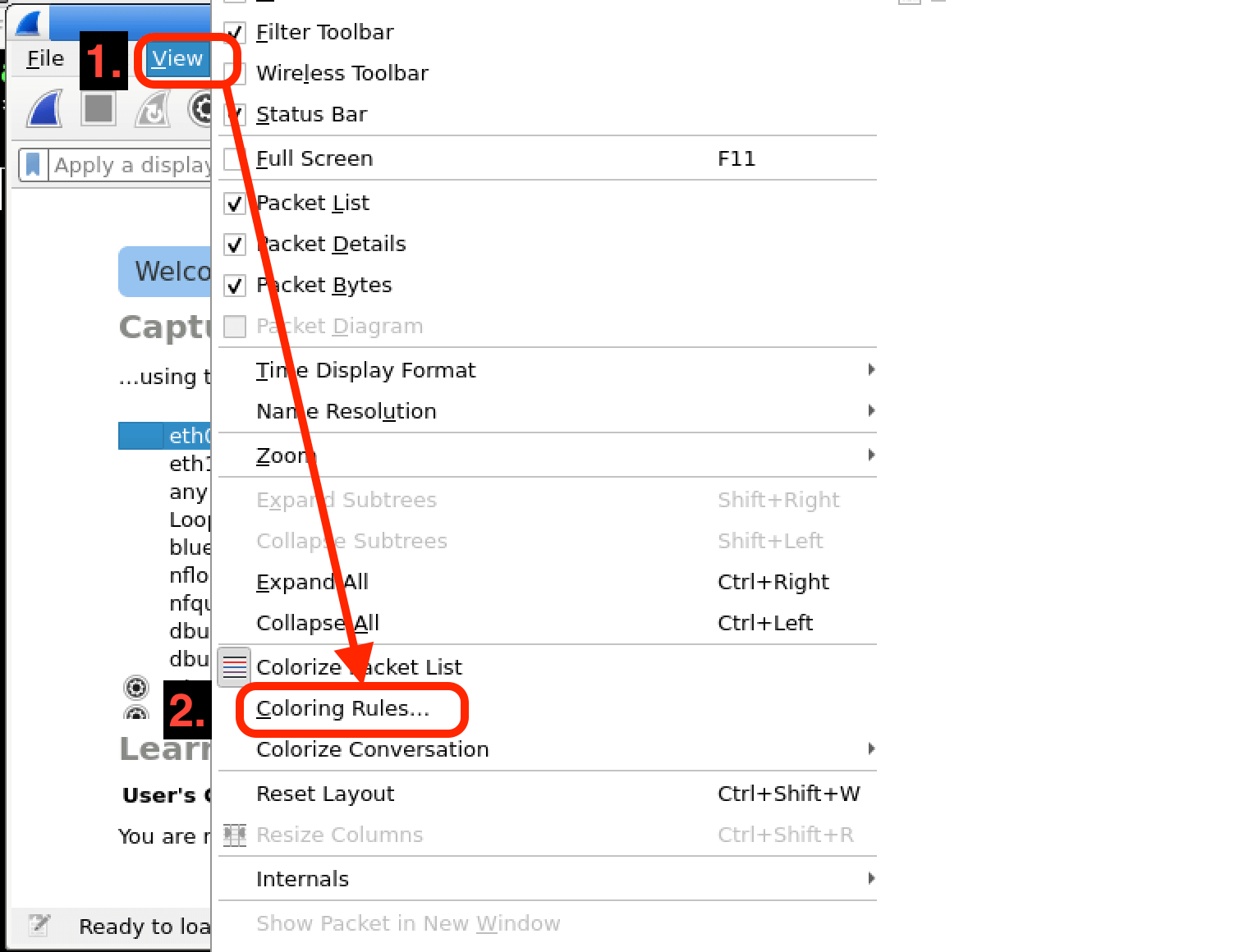
Once Wireshark is open, you'll need to access the coloring rules. Go to the View menu at the top of the Wireshark window, then select Coloring Rules.... This will open the Wireshark Coloring Rules Default dialog. This dialog is where you can manage all the colorizing rules in Wireshark.
In the Wireshark Coloring Rules Default dialog, you'll see a list of existing colorizing rules. Each rule has a specific condition and a corresponding color. These rules are applied to the captured packets in the order they appear in the list. Take a moment to look through the rules and read their descriptions. Understanding these rules will give you an idea of how Wireshark can help you analyze network traffic more effectively.
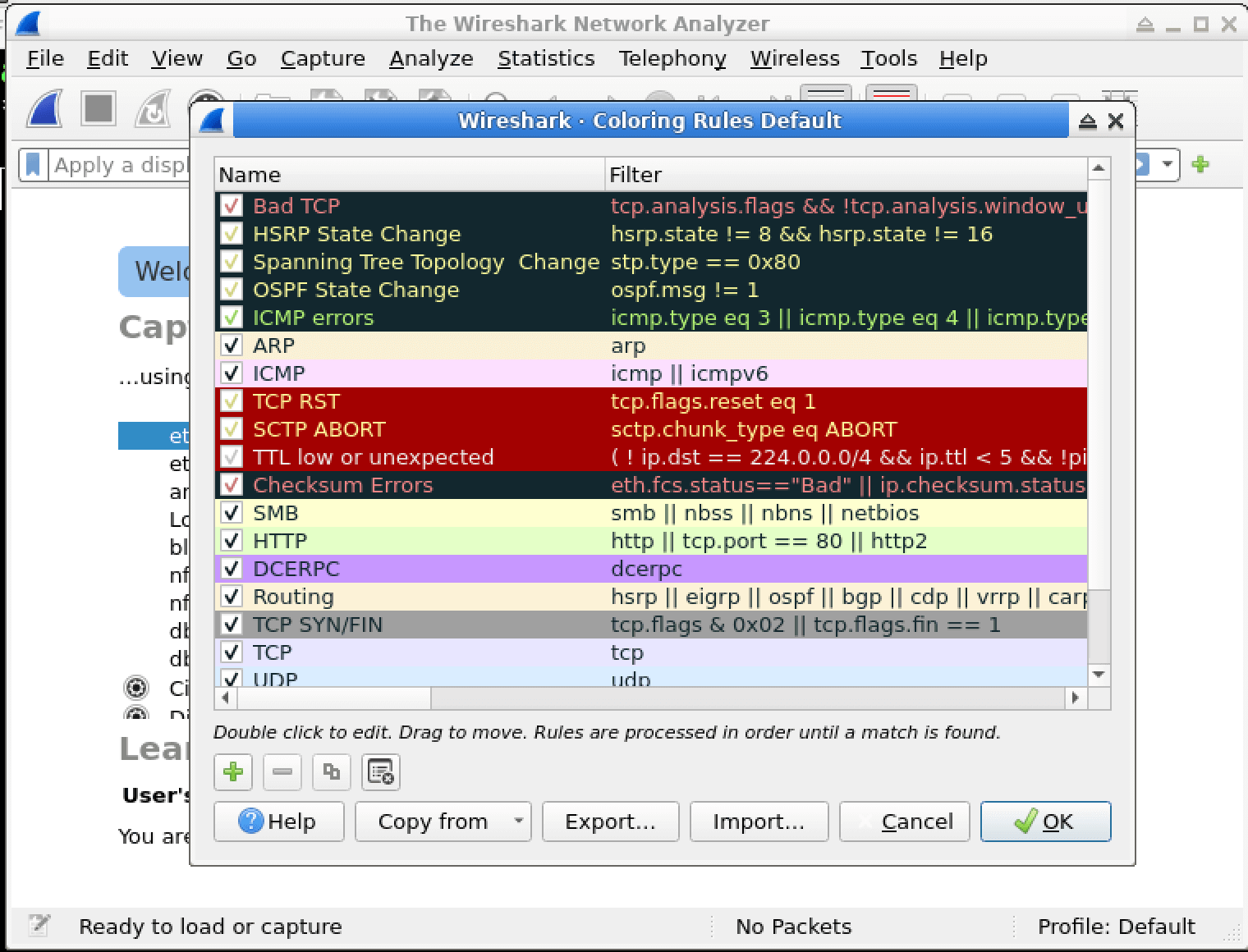
You might want to temporarily turn off or on a specific rule without deleting it. You can do this by selecting the rule in the list and clicking the checkbox next to it. If the checkbox is checked, the rule is enabled; if it's unchecked, the rule is disabled. This is useful when you want to test the impact of a particular rule on the packet coloring.
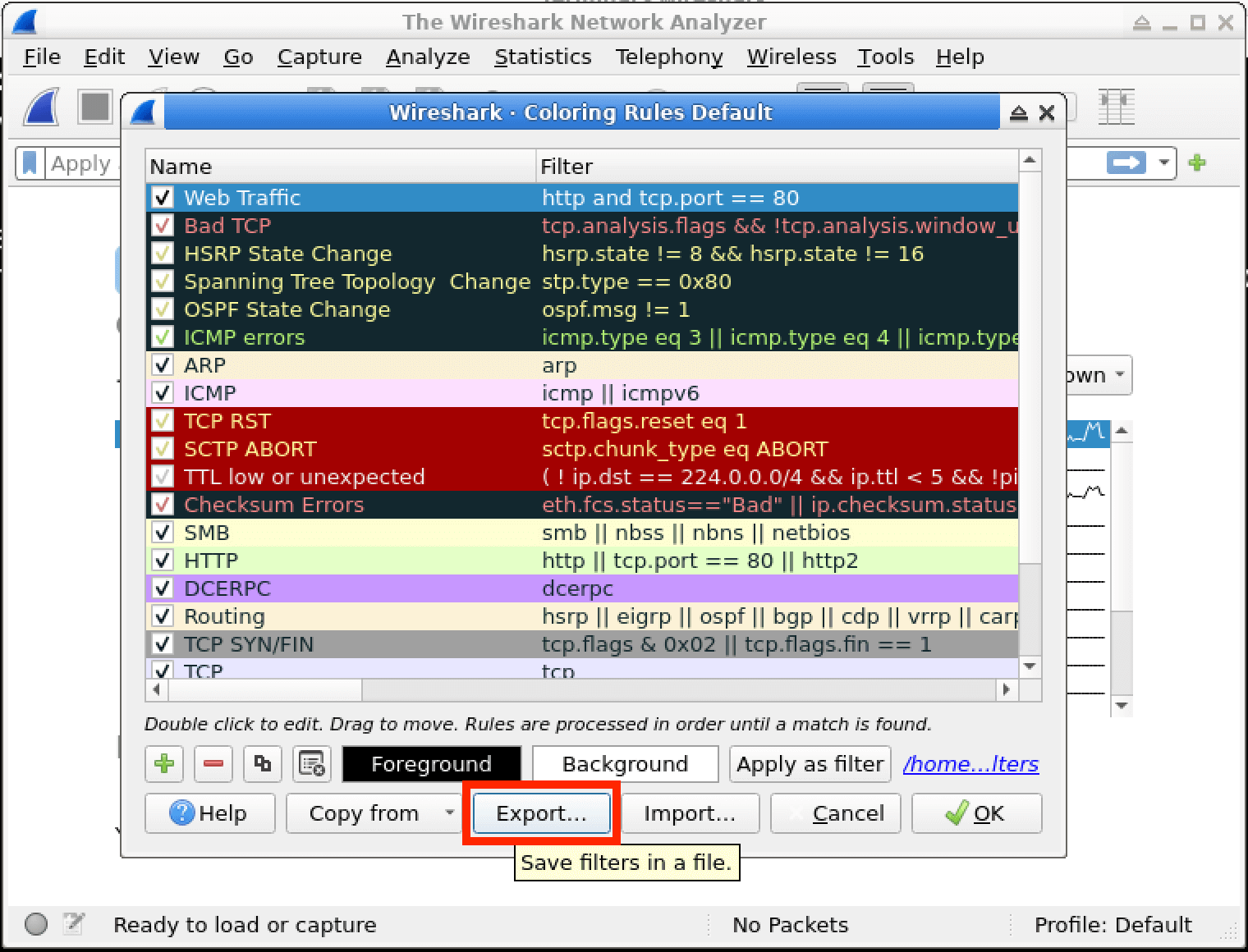
Now, let's say you want to save the current set of colorizing rules for later use or to share with others. To export these rules, click the Export... button in the Wireshark Coloring Rules Default dialog.
After clicking the Export... button, a file dialog will appear. You need to choose a location to save the colorizing rules file. Navigate to the /home/labex/project directory. It's a good practice to give the file a descriptive name, such as colorizing_rules.txt, so you can easily identify it later.
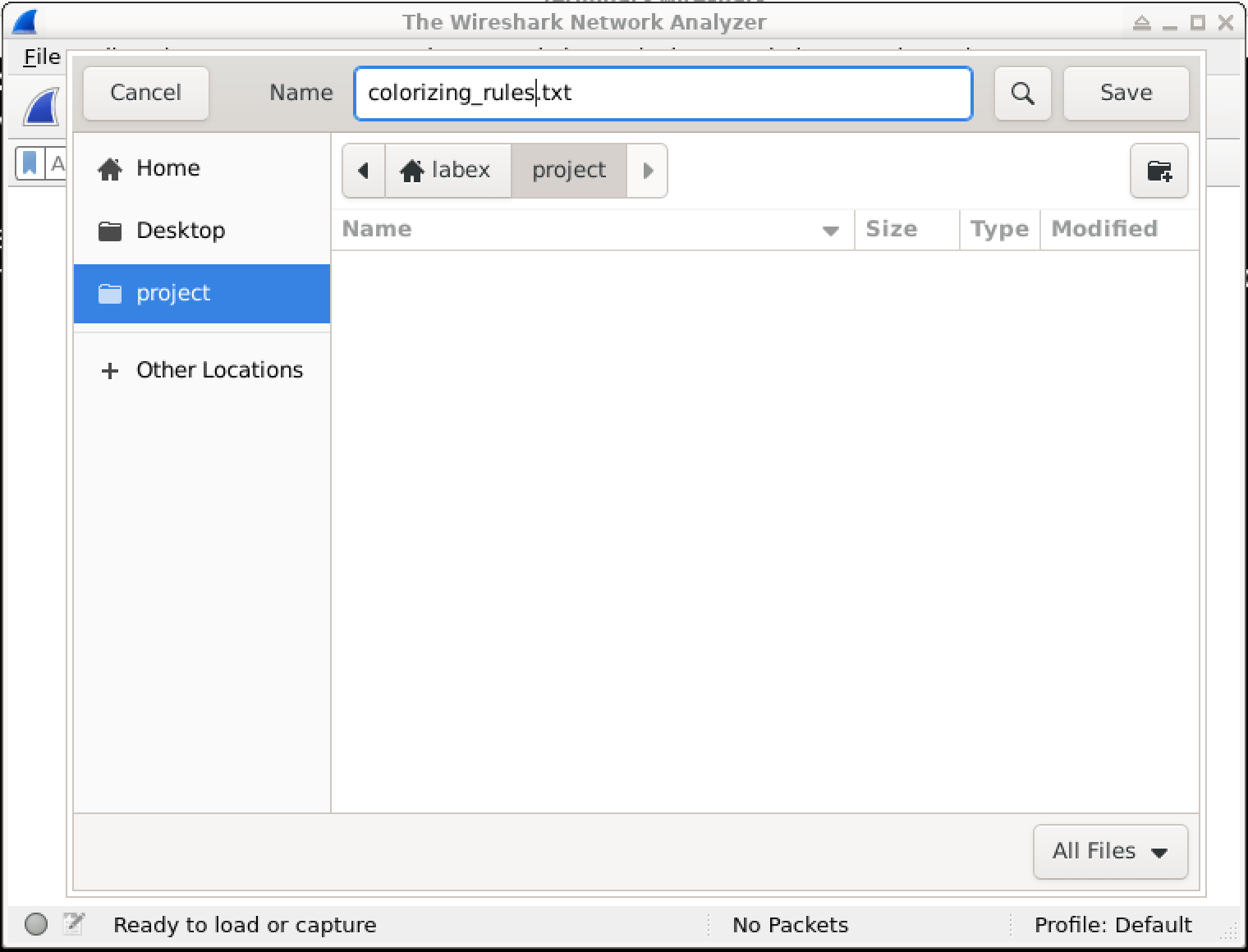
Once you've selected the location and named the file, click OK to close the Wireshark Coloring Rules Default dialog. You've now successfully exported the colorizing rules.
Create a New Colorizing Rule
In this step, we'll learn how to create a new colorizing rule in Wireshark. Colorizing rules are a powerful feature that allows you to highlight specific network traffic, making it easier to spot and analyze important packets. By creating a custom rule, you can quickly identify the types of network traffic that matter most to you.
First, open the Wireshark Coloring Rules Default dialog. In Wireshark, go to View > Coloring Rules.... This dialog is where you can manage all your coloring rules, including creating, editing, and deleting them.
To create a new colorizing rule, click the + button. This action adds a blank rule entry to the list of existing rules.
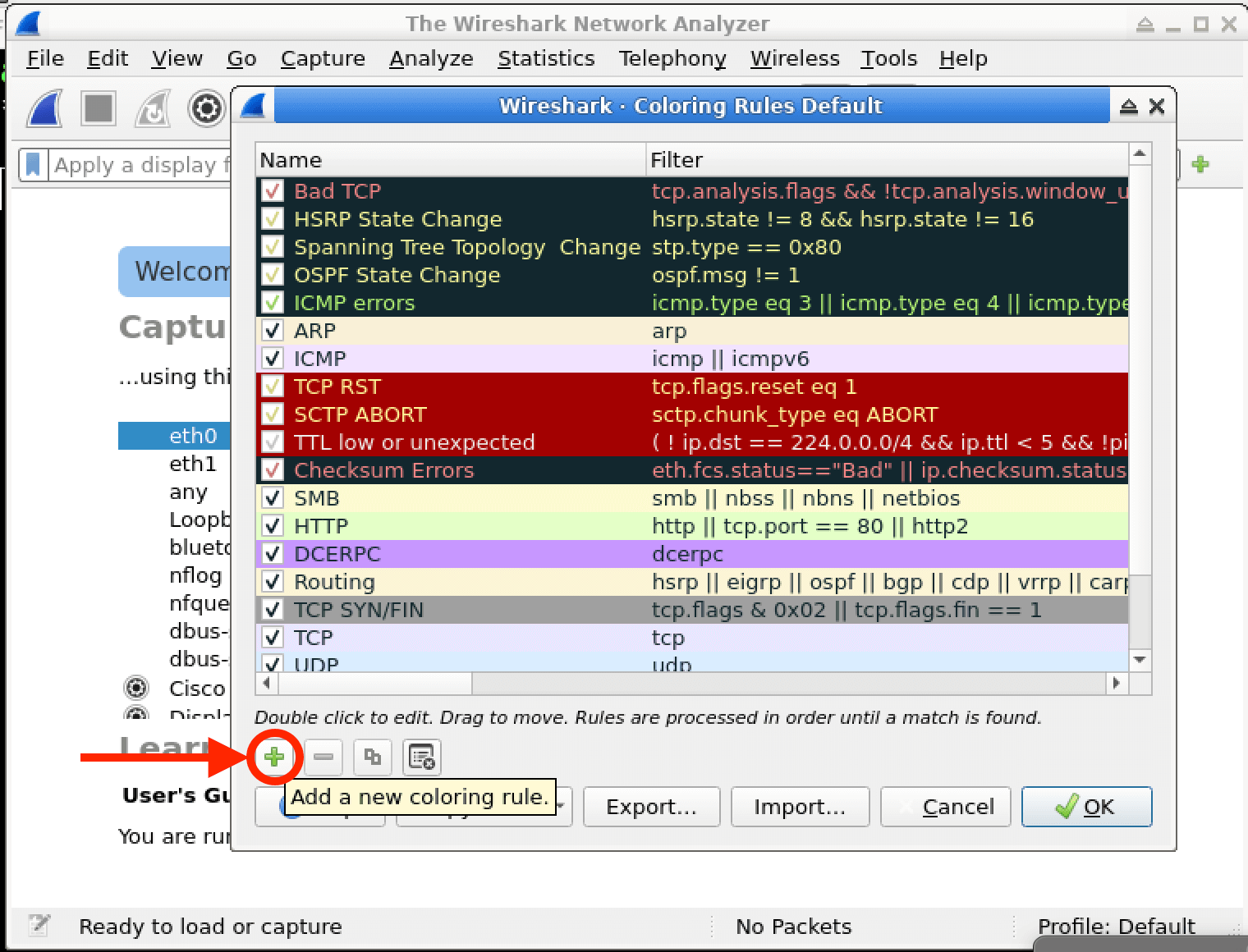
Once you've added a new rule, a New coloring rule entry appears at the top of the dialog. Double-click its Name cell, enter HTTP Traffic, and press Enter to commit the name. Then double-click its Filter cell, enter http, and press Enter again. The filter expression tells Wireshark which packets the rule should highlight.
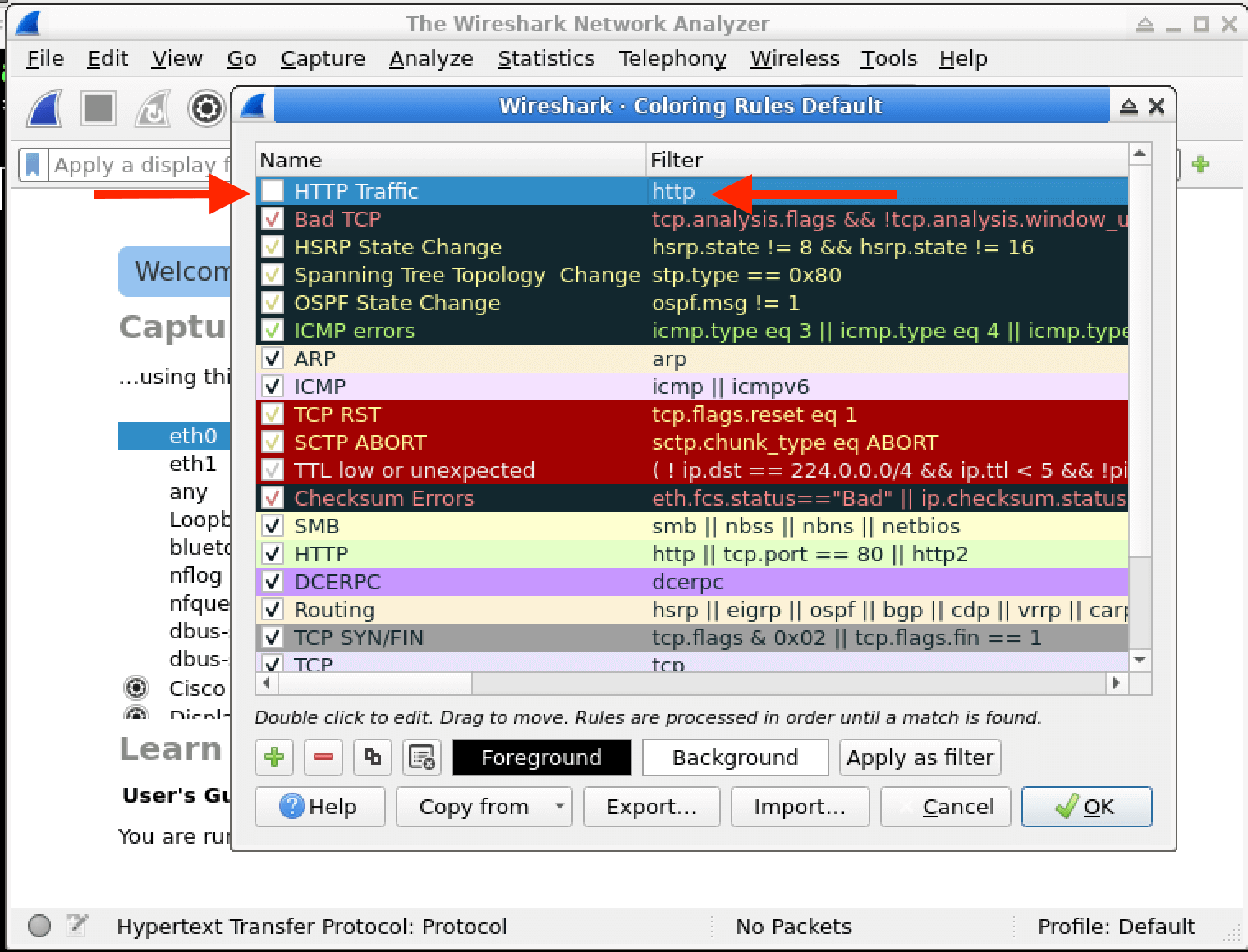
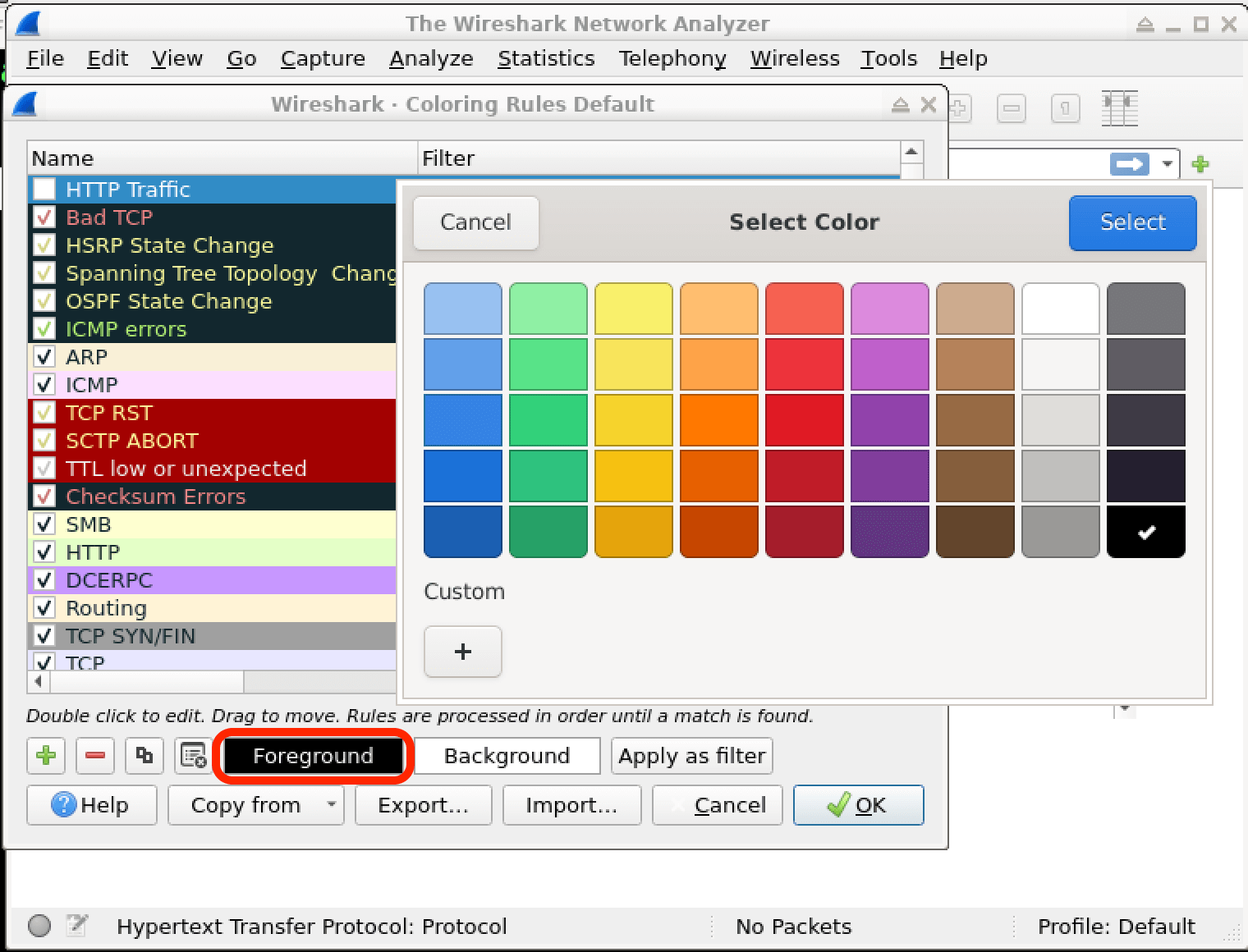
Now, let's talk about the coloring options. There are two important buttons here: the foreground and background buttons.
The foreground button is used to choose the color that will be used to highlight the text of the packets that match the rule. For example, if you want the text of the HTTP packets to be red, you can select red using this button.
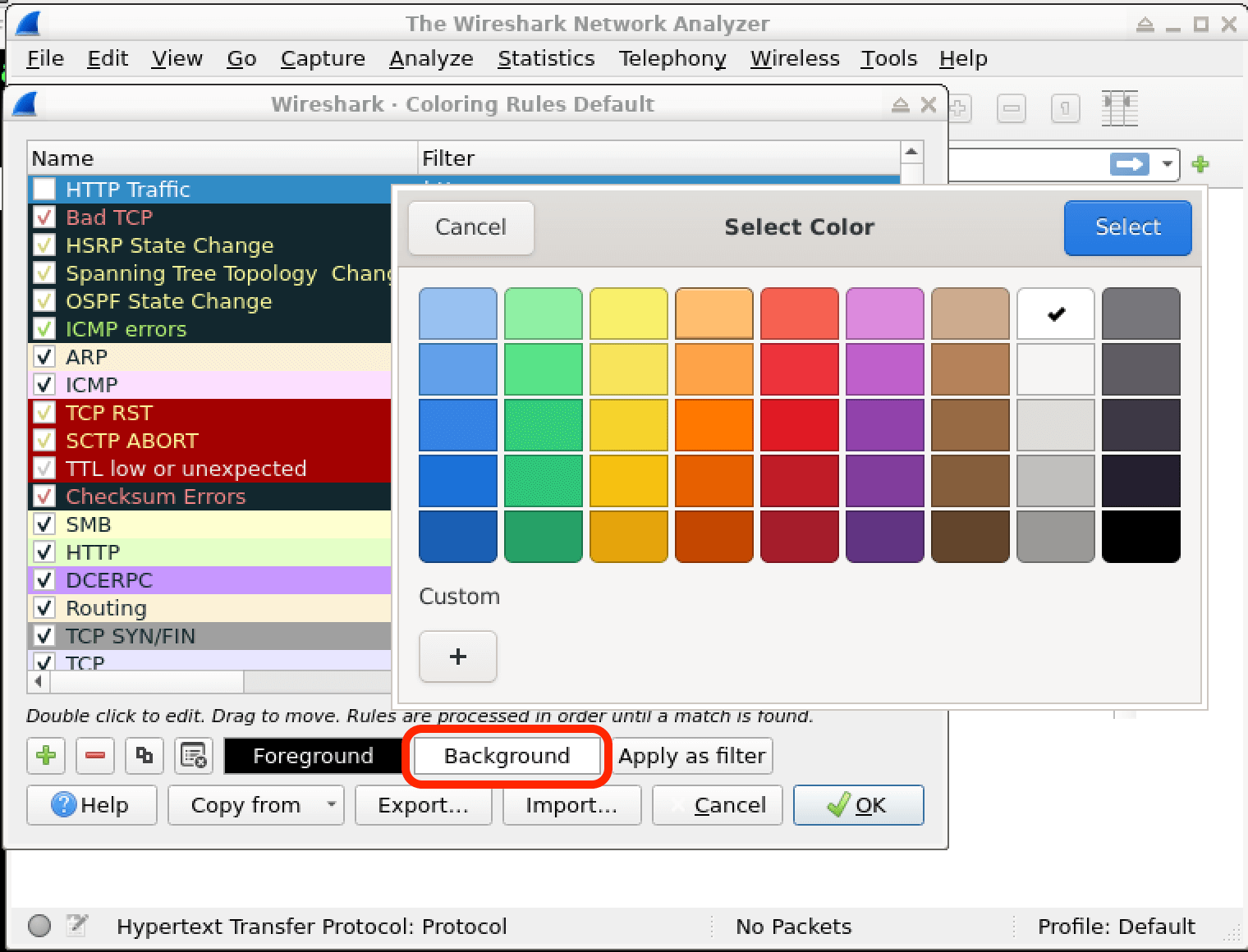
The background button allows you to choose the background color for the highlighted packets. You can use this to make the packets stand out even more. For instance, you could set the background color to yellow.
Optionally, you can adjust the rule's priority. Rules in Wireshark are applied based on their order in the list. Higher - priority rules take precedence over lower - priority rules. To change the priority, simply drag the rule up or down in the list.
After setting up the rule, you need to enable it. Click the checkbox next to the rule to enable the newly created coloring rule. Then, click OK to save the new coloring rule. This will apply the rule to your packet captures.
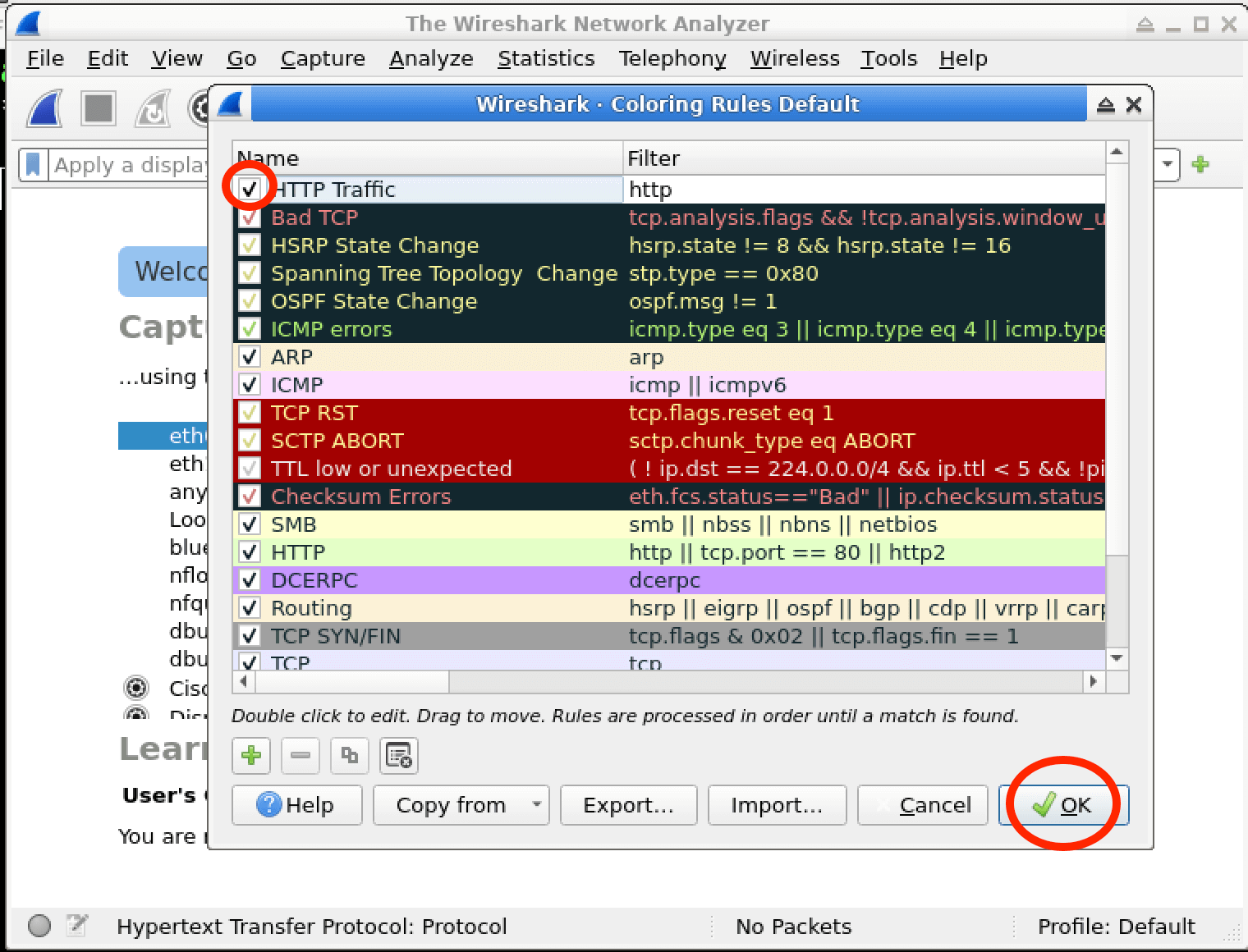
When you open a capture file or start a live capture in Wireshark, you should now see the network packets that match the filter expression displayed with the colors you selected for the rule. This makes it much easier to identify and analyze the specific traffic you're interested in.
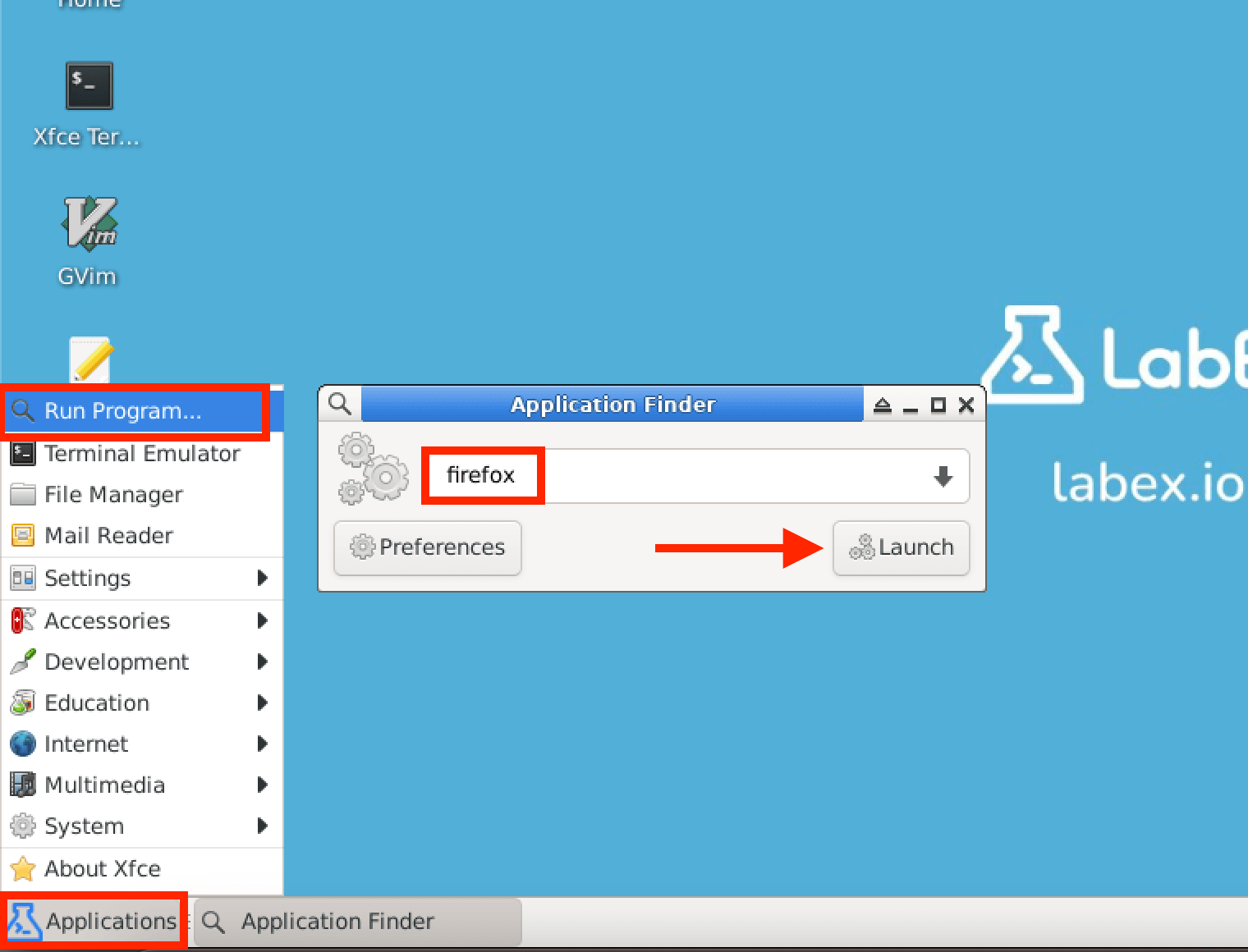
PS: If you want to generate some HTTP traffic to test your rule, you can start the browser. Click on Run Program... from the Applications button in the lower left corner and type Firefox.
Modify an Existing Colorizing Rule
In this step, you'll learn how to modify an existing colorizing rule in Wireshark. Colorizing rules in Wireshark are used to highlight network packets based on specific criteria, which helps you quickly identify and analyze different types of traffic. By modifying these rules, you can customize how packets are displayed, making it easier to focus on the information you need for cybersecurity analysis.
First, open Wireshark. In Wireshark, go to the View menu at the top of the window. Then, select Coloring Rules... from the dropdown menu. This action will open the Wireshark Coloring Rules Default dialog. This dialog is where you can manage all the colorizing rules in Wireshark.
In the Wireshark Coloring Rules Default dialog, you'll see a list of existing colorizing rules. Each rule has a name, a filter expression, and a color associated with it. Select the colorizing rule you want to modify from this list. You can click on the rule to highlight it.
Select the HTTP Traffic rule that you created in Step 2. Wireshark edits the Name and Filter cells directly in the rules table; it does not open a separate edit window. Double-click the rule's Name cell, replace its text with Web Traffic, and press Enter to commit the name before editing another cell.
Double-click the same rule's Filter cell, replace its text with http and tcp.port == 80, and press Enter again to commit the filter. The original filter http highlights all HTTP traffic; the updated filter limits the rule to HTTP traffic on TCP port 80.
rule's name: HTTP Traffic -> Web Traffic
filter expression: http -> http and tcp.port == 80
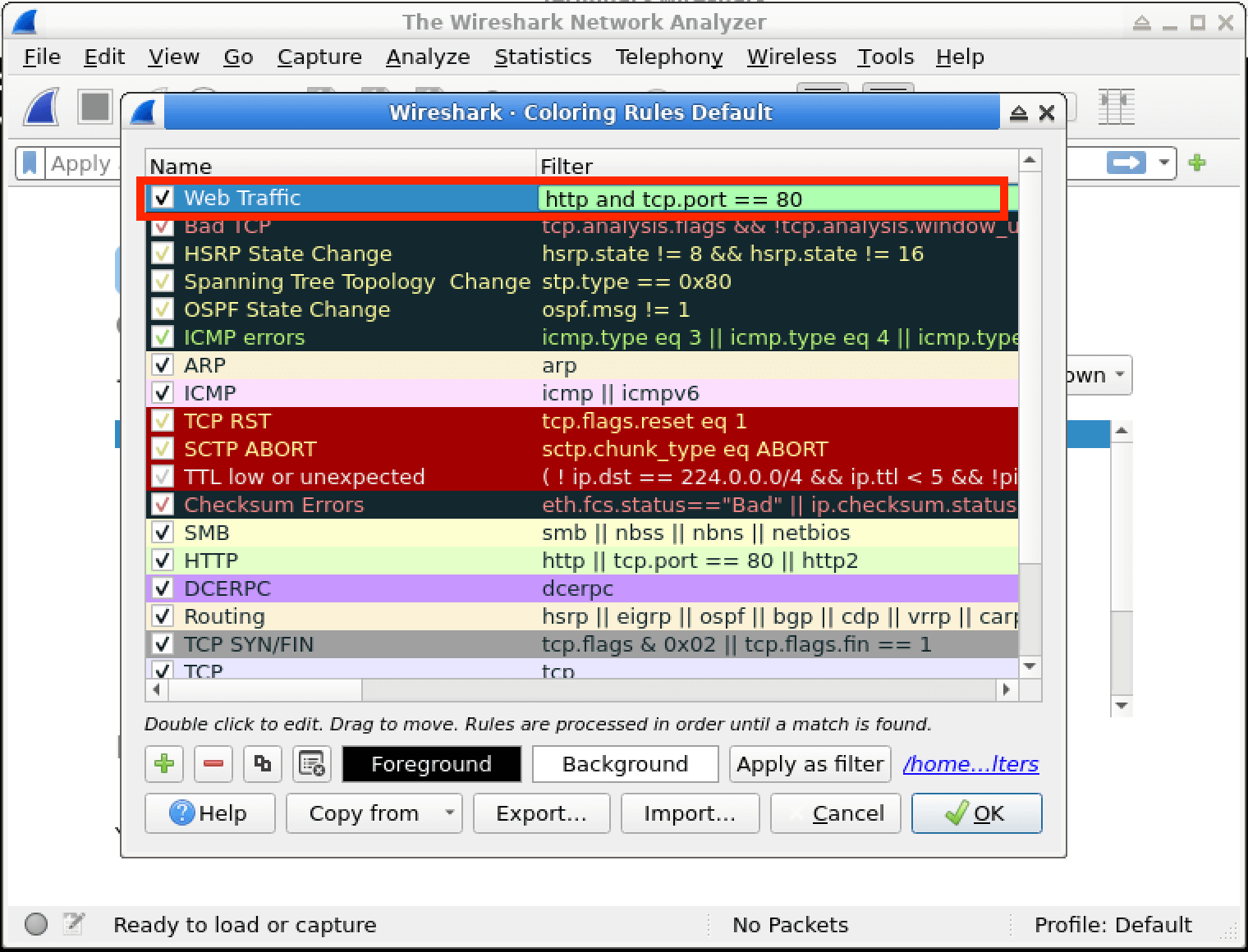
After you've made all the changes you want to the rule, click the OK button in the dialog. This will save the modified rule, and Wireshark will start using the new settings for highlighting packets.
To see the effects of the modified rule, you can either open an existing capture file in Wireshark or start a live capture. Once the packets are being displayed, you should now see the network packets that match the modified rule displayed in the updated color or according to the new filter expression. This way, you can easily spot the specific web traffic on port 80 that you're interested in.
Importing Coloring Rules
In this step, we'll learn how to import coloring rules into Wireshark. Coloring rules in Wireshark are a powerful feature that can help you quickly identify different types of network traffic by assigning distinct colors to them. This makes it easier to analyze and understand the data you're capturing.
First, open Wireshark. Once it's open, you need to access the coloring rules settings. To do this, go to the View menu at the top of the Wireshark window. From the dropdown menu, select Coloring Rules.... This will open the Wireshark Coloring Rules Default dialog. This dialog is where you can manage all your coloring rules in Wireshark.
Now that the Wireshark Coloring Rules Default dialog is open, you'll see several buttons. To import colorizing rules, look for and click the Import... button. This button allows you to bring in pre - defined coloring rules from an external file.
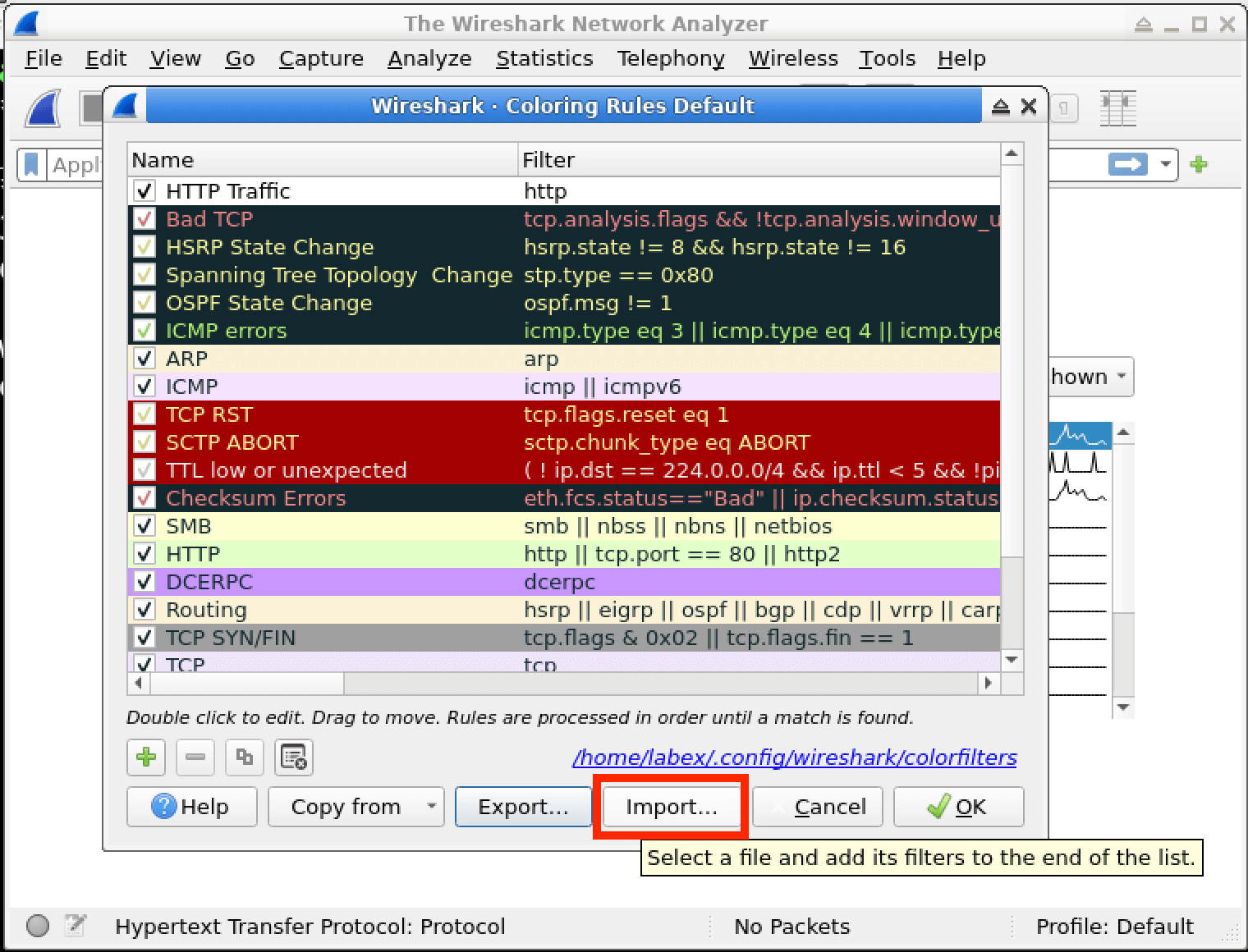
After clicking the Import... button, a new dialog called Wireshark Import Coloring Rules will appear. In this dialog, you need to find the file that contains the coloring rules you want to import. Navigate to the /home/labex/project directory. This is the location where the colorizing_rules.txt file you exported earlier is stored. Once you're in the correct directory, select the colorizing_rules.txt file.
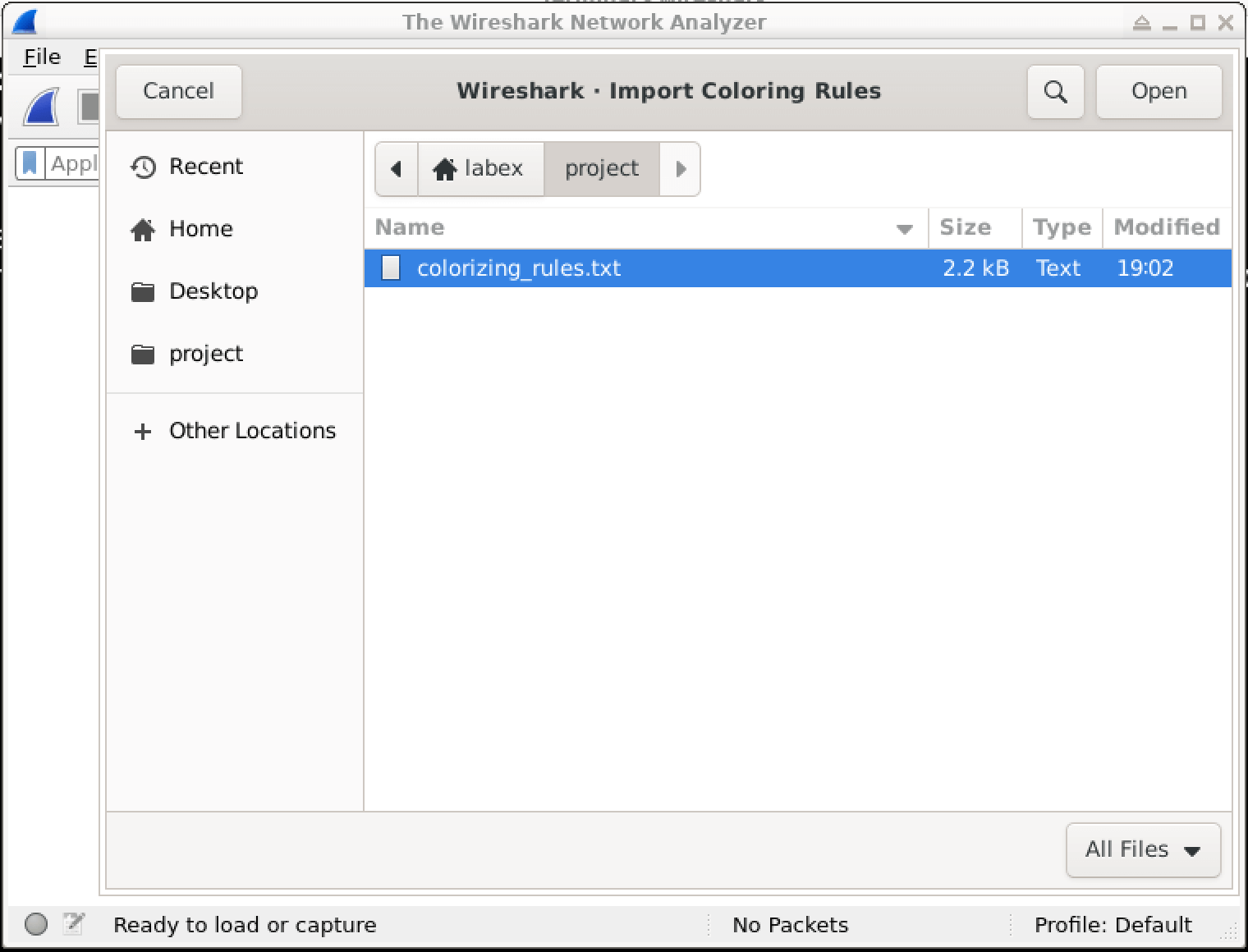
Once you've selected the colorizing_rules.txt file, click the Open button. This loads the colorizing rules into the Wireshark Coloring Rules Default dialog.
Before closing the dialog, click the OK button at the bottom of the main Wireshark Coloring Rules Default window. This final confirmation saves the imported rules to Wireshark's configuration file so the imported ARP rule remains available for verification.
After clicking OK, reopen View > Coloring Rules... if you want to confirm the import. Scroll to the bottom of the list, and you should see the newly imported coloring rule. This indicates that the import was saved successfully, and you can now use these rules to color-code your network traffic in Wireshark.
Summary
In this lab, you have learned how to create, modify, import, and export colorizing rules in Wireshark. By using these rules, you can visually differentiate various types of network traffic according to specific criteria, which simplifies the identification and analysis of network activities. This skill is highly useful in cybersecurity investigations, network troubleshooting, and protocol analysis.
Through hands - on exercises, you gained practical experience in managing the ruleset. Mastering these techniques can enhance your network analysis workflow and improve your ability to quickly spot and prioritize interesting network traffic patterns.