Introduction
Jenkins credentials let you store passwords, tokens, and keys in Jenkins instead of typing secrets directly into job scripts. Jobs can then refer to a credential by ID.
In this lab, you will use the Jenkins dashboard to open the global credential store, create a username/password credential, confirm that Jenkins masks and encrypts the secret, and update the same credential later without changing its ID.
Open the Global Credential Store
In this step, you will find the Jenkins credential store in the dashboard. Jenkins organizes credentials by store and domain. For beginner workflows, the most common place is the System store and the Global domain.
Open the Desktop interface. Firefox opens Jenkins automatically. If it does not, open http://localhost:8080.
From the Jenkins dashboard:
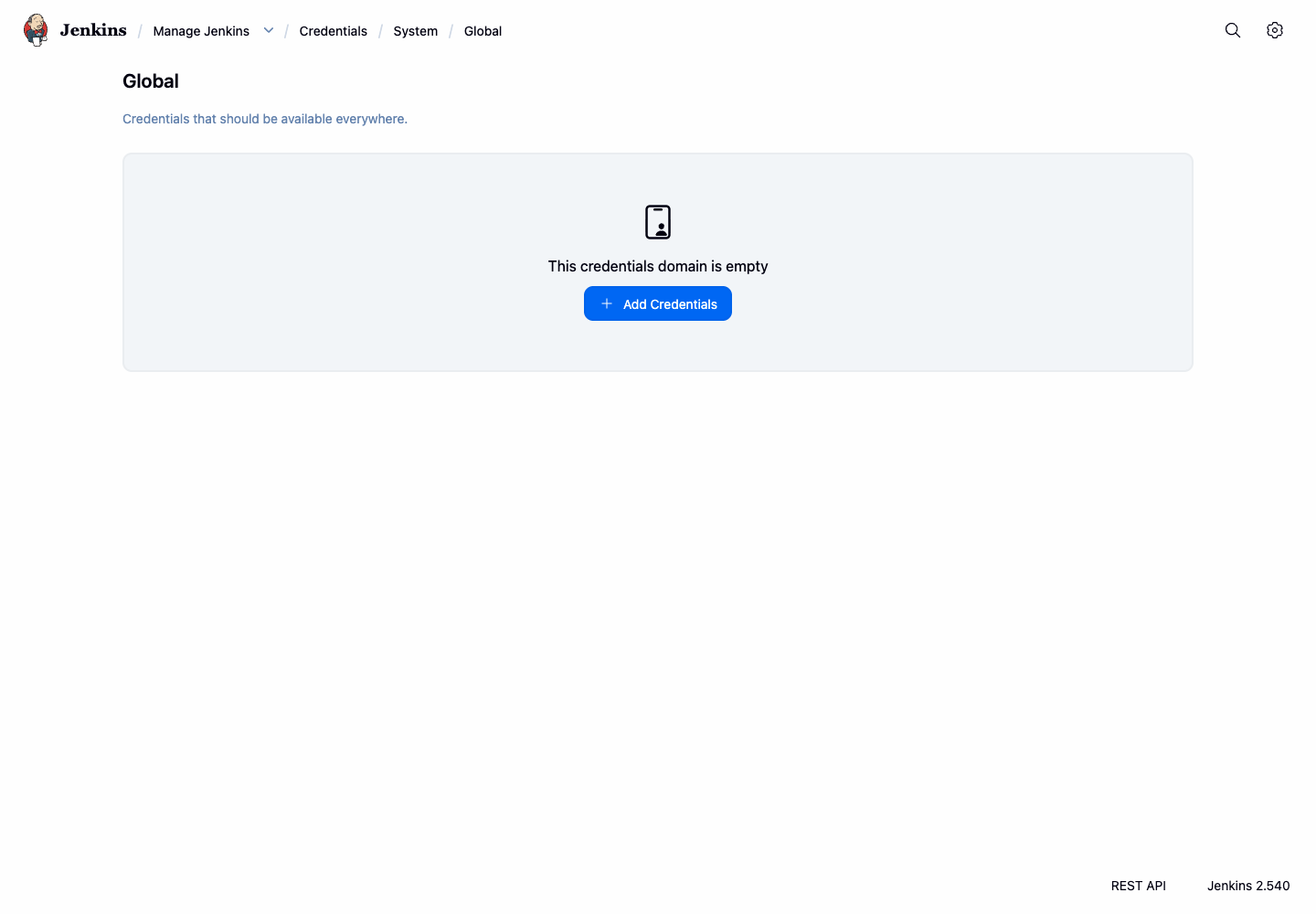
Click Manage Jenkins in the left sidebar, then click Credentials. On the Credentials page, click System, then click Global.
The page title should be Global, and the page should say that these credentials are available everywhere.
Run this small command in the terminal to record that the Global credentials page is reachable:
curl -fsS http://localhost:8080/manage/credentials/store/system/domain/_/ | grep -o 'Credentials that should be available everywhere' | tee /home/labex/project/credential-storage-page.txt
You should see:
Credentials that should be available everywhere
Add a Username and Password Credential
In this step, you will create a credential with the Jenkins form. The credential ID is important because jobs and pipelines refer to this ID later.
On the Global credentials page, click Add Credentials.
Fill in the form with these values:
Kind:Username with passwordScope:GlobalUsername:guided-userPassword:guided-password-v1ID:guided-credsDescription:Guided lab credential for Jenkins storage
Click Create.
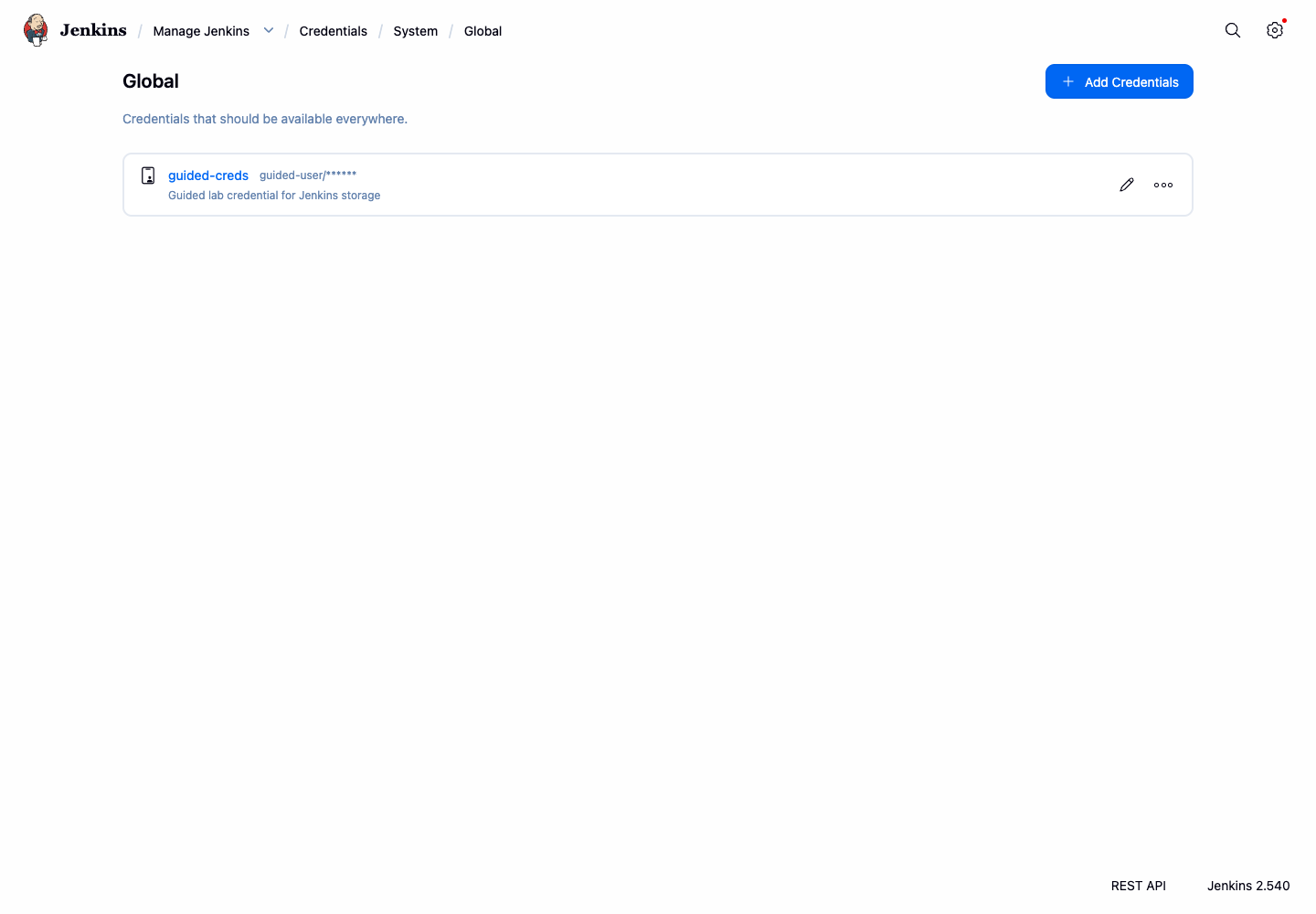
After Jenkins returns to the Global domain page, you should see a credential named guided-creds. Jenkins shows the username but masks the password.
Check How Jenkins Stores the Secret
In this step, you will inspect what Jenkins wrote to disk. This is not something you usually do during daily Jenkins work, but it helps you understand why credentials are safer than plain text passwords in job scripts.
In the terminal, print only the relevant lines from Jenkins' credentials.xml file:
docker exec jenkins sh -lc "grep -n -E '<id>guided-creds</id>|<username>guided-user</username>|<password>' /var/jenkins_home/credentials.xml" | tee /home/labex/project/credential-file-lines.txt
The output should include the credential ID and username. The password line should contain an encrypted Jenkins secret wrapped in braces, not the raw text guided-password-v1.
Example output:
...<id>guided-creds</id>
...<username>guided-user</username>
...<password>{...}</password>
Return to the Jenkins Global domain page in Firefox. The credential row should also show the password as masked text, not as the real password.
Update the Credential Without Changing Its ID
In this step, you will update the credential description through the Jenkins dashboard while keeping the same credential ID. This shows the key idea beginners need first: jobs should refer to a stable ID such as guided-creds, while administrators can adjust credential metadata later.
On the Global credentials page:
Click the guided-creds credential, then click Update credential. Leave Username, Password, and ID unchanged. Change Description to Updated guided lab credential, then click Save.
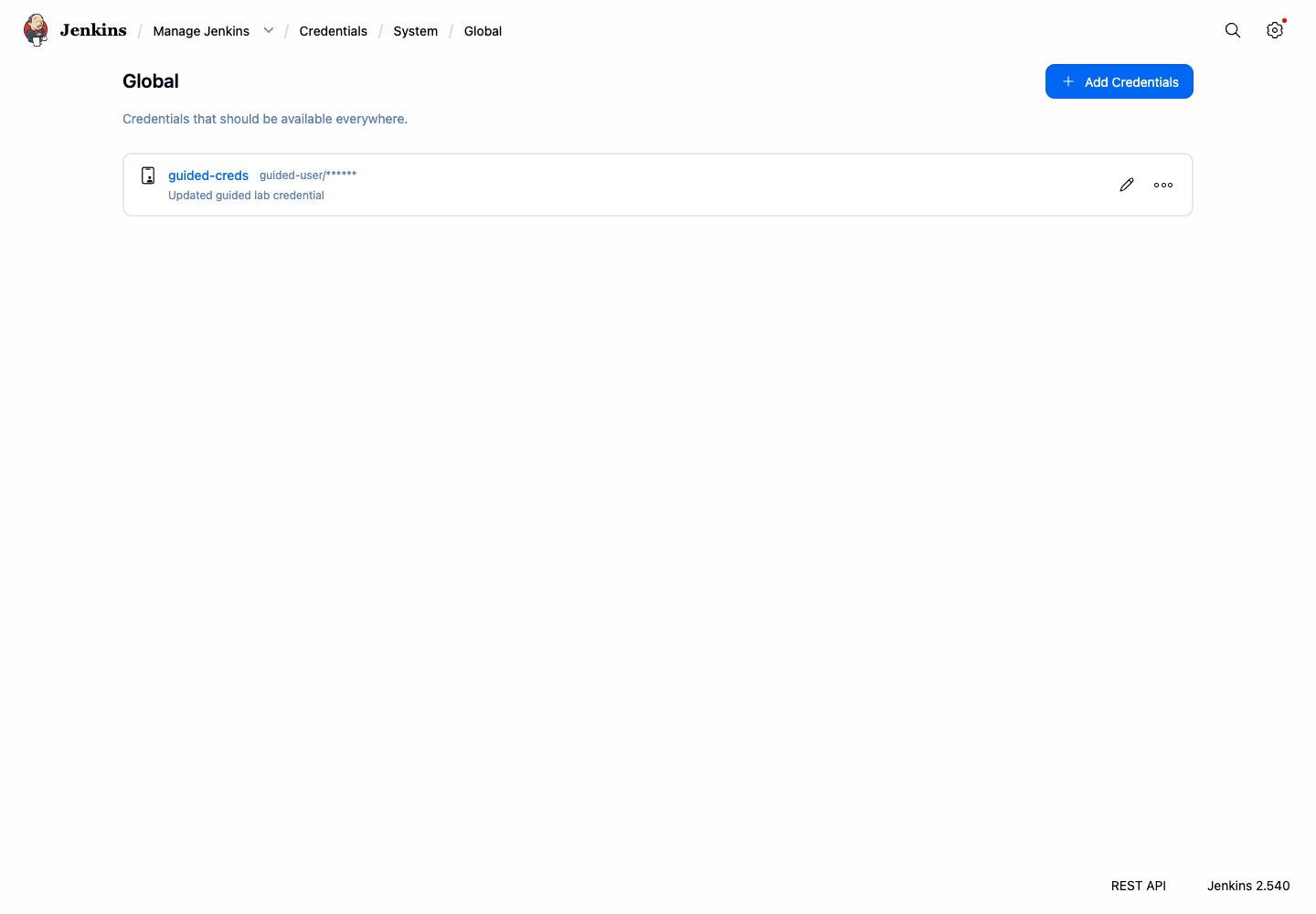
After saving, return to the Global domain page. The same credential ID should remain visible, but the description should now be Updated guided lab credential.
Run this command to confirm that Jenkins still has the same ID and the updated description:
docker exec jenkins sh -lc "grep -n -E '<id>guided-creds</id>|<description>Updated guided lab credential</description>|<password>' /var/jenkins_home/credentials.xml" | tee /home/labex/project/updated-credential-lines.txt
The password should still be encrypted, and the raw text guided-password-v1 should not appear.
Summary
You used the Jenkins dashboard to open the global credential store, create a username/password credential, observe that Jenkins masks and encrypts the secret, and update credential metadata while keeping the same stable ID.