Introduction
Many Jenkins installations run builds in container-backed environments. In this LabEx image, Jenkins itself runs in a Docker container. The controller does not expose the host Docker socket to builds, so this lab focuses on the practical evidence a Pipeline can collect from a container-backed execution context without pulling external images.
In this lab, you will inspect the local Jenkins image, create a Pipeline job that checks for container evidence, run the build, and verify the console output.
Inspect Available Container Images
In this step, you will inspect the local Docker images on the VM host. The Jenkins controller container was started from the local jenkins/jenkins:latest image, and the Pipeline build will run inside that container-backed Jenkins environment.
List the available images:
docker images --format '{{.Repository}}:{{.Tag}}' | sort
Inspect the running Jenkins container:
docker ps --filter name=jenkins --format 'container={{.Names}} image={{.Image}} status={{.Status}}'
You should see jenkins/jenkins:latest and a running container named jenkins.
Write a Container-Aware Pipeline
In this step, you will write a Pipeline script that checks its execution environment. The file /.dockerenv is commonly present inside Docker containers. The Pipeline also prints the hostname, workspace, and operating system details.
Create the Pipeline script:
cat > /home/labex/project/container-agent-pipeline.groovy <<'GROOVY'
node {
    stage('Container Context') {
        echo 'Checking container-backed Jenkins execution context'
        sh '''
set -e
echo "Container marker:"
test -f /.dockerenv && echo "INSIDE_CONTAINER=true"
echo "Container hostname: $(hostname)"
echo "Workspace: $WORKSPACE"
grep '^PRETTY_NAME=' /etc/os-release
'''
    }
}
GROOVY
Print the script so you can review the stage and shell step:
nl -ba /home/labex/project/container-agent-pipeline.groovy
Create the Pipeline Job
In this step, you will create a Jenkins Pipeline job named container-agent-demo. Python will XML-escape the Groovy script and write a Pipeline job config.
Generate the Jenkins job config:
python3 - <<'PY'
from html import escape
from pathlib import Path

script = Path("/home/labex/project/container-agent-pipeline.groovy").read_text()
config = f"""<?xml version='1.1' encoding='UTF-8'?>
<flow-definition plugin="workflow-job">
  <actions/>
  <description>Capture container execution evidence from a Pipeline build.</description>
  <keepDependencies>false</keepDependencies>
  <properties/>
  <definition class="org.jenkinsci.plugins.workflow.cps.CpsFlowDefinition" plugin="workflow-cps">
    <script>{escape(script)}</script>
    <sandbox>true</sandbox>
  </definition>
  <triggers/>
  <disabled>false</disabled>
</flow-definition>
"""
Path("/home/labex/project/container-agent-demo-config.xml").write_text(config)
PY
Copy the job into Jenkins and reload:
docker exec jenkins mkdir -p /var/jenkins_home/jobs/container-agent-demo
docker cp /home/labex/project/container-agent-demo-config.xml jenkins:/var/jenkins_home/jobs/container-agent-demo/config.xml
CRUMB=$(curl -fsS -c /tmp/jenkins-container-reload.cookies 'http://localhost:8080/crumbIssuer/api/xml?xpath=concat(//crumbRequestField,":",//crumb)')
curl -fsS -b /tmp/jenkins-container-reload.cookies -H "$CRUMB" -X POST http://localhost:8080/reload >/dev/null || true
sleep 5
Confirm Jenkins can load the job:
curl -fsS http://localhost:8080/job/container-agent-demo/api/json | grep -o '"name":"container-agent-demo"'
Run the Container-Aware Pipeline
In this step, you will run the Pipeline and wait for Jenkins to finish build #1.
Trigger the build:
CRUMB=$(curl -fsS -c /tmp/jenkins-container-build.cookies 'http://localhost:8080/crumbIssuer/api/xml?xpath=concat(//crumbRequestField,":",//crumb)')
curl -fsS -b /tmp/jenkins-container-build.cookies -H "$CRUMB" -X POST http://localhost:8080/job/container-agent-demo/build
Wait for the build to finish:
until curl -fsS http://localhost:8080/job/container-agent-demo/1/api/json >/tmp/container-agent-build-1.json 2>/dev/null && grep -q '"building":false' /tmp/container-agent-build-1.json; do
  echo "Waiting for container-aware pipeline build #1..."
  sleep 3
done
Confirm the result:
curl -fsS http://localhost:8080/job/container-agent-demo/1/api/json | grep -o '"result":"SUCCESS"'
Inspect Container Execution Evidence
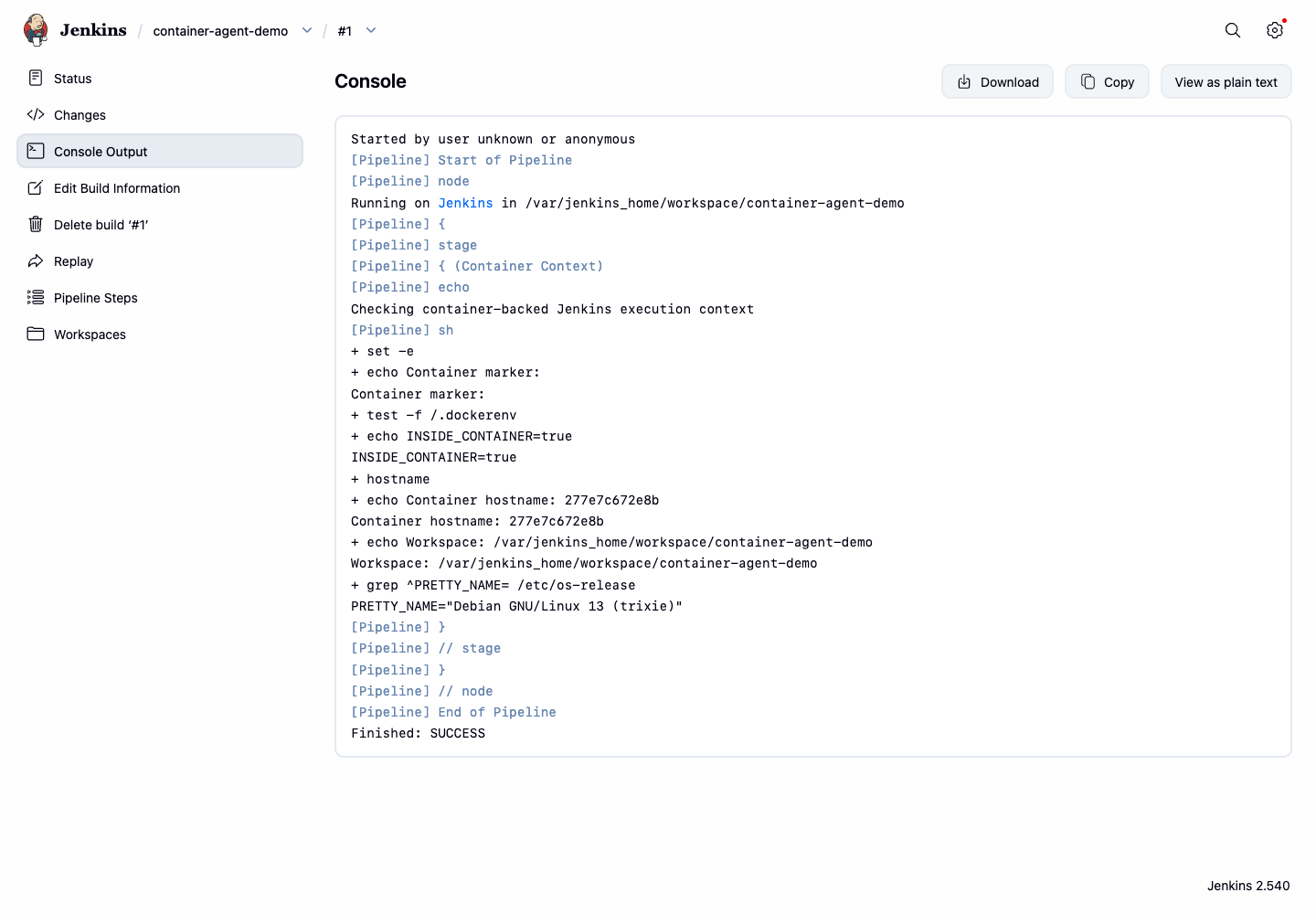
In this step, you will inspect the console output. The important evidence is INSIDE_CONTAINER=true, the container hostname, and the Jenkins workspace path.
Print the key console lines:
curl -fsS http://localhost:8080/job/container-agent-demo/1/consoleText | grep -E 'INSIDE_CONTAINER|Container hostname|Workspace|PRETTY_NAME|Finished: SUCCESS'
Open Firefox from the Desktop interface and visit http://localhost:8080/job/container-agent-demo/1/console. The console page should show the container marker and workspace information.
Summary
You inspected the local Jenkins container image, created a container-aware Pipeline job, ran it, and verified container execution evidence from the Jenkins console output. You also learned why this LabEx environment validates container-backed execution without relying on external image pulls or a mounted Docker socket.