



Introduction
Northstar's support website serves help pages and approved downloads. An unusual archive download suggests that an internal backup was accidentally stored alongside public files. You are the on-call engineer with maintenance access to the website.
You will trace the request, connect its URL to a file inside the web server, move the backup to private storage, and verify that the support site still works. Basic terminal familiarity is enough; HTTP status codes and web-root mapping are introduced here. All records and traffic are synthetic.
Investigate the Suspicious Download
In this step, you will trace a suspicious download, retrieve the archive, and inspect whether it contains internal data.
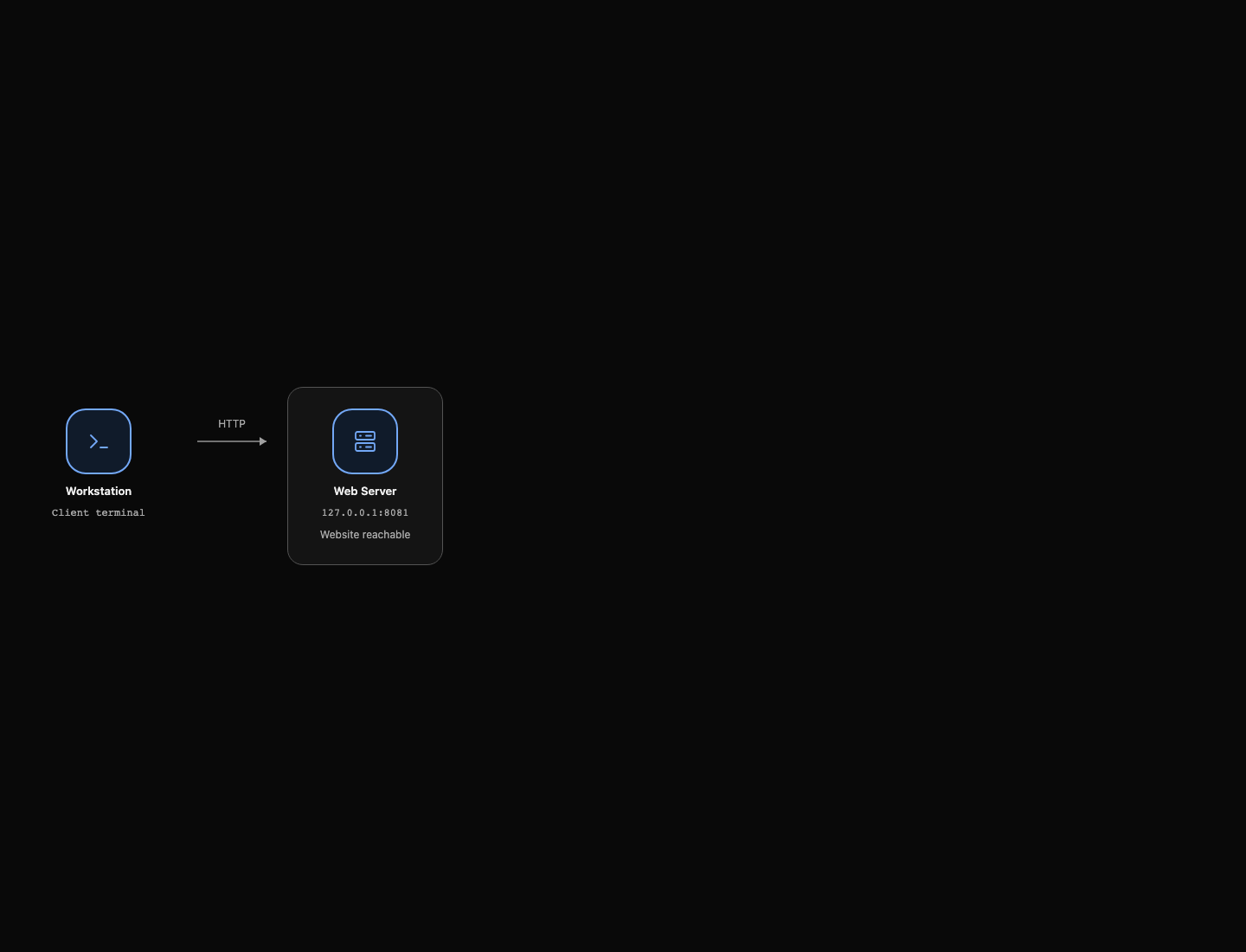
Your environment is ready. Workstation is your client terminal, already in /home/labex/project. Web Server is a maintenance terminal already connected to the website server. Switch between these tabs as instructed. Topology shows their relationship and the website's current reachability.
Open Topology to locate the client and server, then return to Workstation. The status shows whether the homepage responds; it does not indicate whether private files are protected.
Establish Normal Access
Use Workstation. curl sends an HTTP request and prints its response. -sS hides progress but still shows connection errors. The address 127.0.0.1:8081 is the website endpoint reachable from Workstation. 127.0.0.1 means the local machine: in Web Server, the same address refers to the server itself, not Workstation.
curl -sS http://127.0.0.1:8081/
The response contains Northstar Support and links to Help and the product guide. A public directory, or web root, is the filesystem directory whose contents the server makes available through URLs.
The product guide is deliberately public. Fetch it before changing anything:
curl -sS http://127.0.0.1:8081/downloads/product-guide.txt
The first line is Northstar Product Guide. The approved example download at /downloads/public-examples.tar is also public and must remain available, even though its name looks like an archive.
Trace the Download
Switch to Web Server. cat prints a text file:
cat /var/log/nginx/site-access.log
Nginx is the web server that handles these requests. Each access-log line records a client address, time, request, status code, response size in bytes, and user agent. GET requests a resource; the user agent identifies the requesting software. 200 means the server returned a successful response; 404 means the requested resource was not found. Network forwarding can affect the recorded client address, so do not assume it identifies an individual. TopologyHealth/1.0 entries are the environment view's own health checks.
Look for failed requests such as /admin followed by a successful request for /backups/support-backup.tar. To narrow the log, use grep, which prints lines matching the supplied text:
grep 'support-backup.tar' /var/log/nginx/site-access.log
The matching line should include GET /backups/support-backup.tar and status 200. That suggests a download, but the response must be examined before concluding that internal data was exposed. For example, the stable fields in the relevant line look like:
... "GET /backups/support-backup.tar HTTP/1.1" 200 10240 ... "ExternalClient/1.0"
The address and timestamp will vary. The path, successful response, and archive contents are the useful clues.
Confirm the Backup Exposure
Return to Workstation. -o writes a response to the named file instead of printing it:
curl -sS -o /home/labex/project/support-backup.tar http://127.0.0.1:8081/backups/support-backup.tar
tar reads archive files. -t lists the members and -f selects the archive:
tar -tf /home/labex/project/support-backup.tar
You should see internal-customers.txt. -x extracts a member; -O sends its contents to the terminal without writing extracted files:
tar -xOf /home/labex/project/support-backup.tar internal-customers.txt
The contents begin with INTERNAL ONLY and describe synthetic customer records. This confirms that the successful response contained internal data, not an approved public archive.
Move the Backup to Private Storage
In this step, you will remove the internal backup from the public website while preserving its contents for maintenance. Use Web Server to locate the public file and apply the repair.
Locate the Public File
Switch to Web Server and read the website configuration:
cat /etc/nginx/conf.d/default.conf
root /srv/site; maps /backups/support-backup.tar to /srv/site/backups/support-backup.tar. autoindex off; disables directory listings, but does not block direct access to a known filename. Unlinked files are not private.
The -l option gives a detailed listing, including size, owner, and access permissions. Use it to inspect the public file:
ls -l /srv/site/backups/support-backup.tar
The listed path confirms that the archive sits under the configured web root.
Preserve the Backup Outside the Website
The private directory /srv/private-backups already exists outside /srv/site. You have maintenance privileges inside this target container. mv relocates a file while keeping its contents:
mv /srv/site/backups/support-backup.tar /srv/private-backups/support-backup.tar
The website cannot serve this file through its ordinary public-directory mapping. This also preserves the backup for authorized maintenance rather than deleting it. No Nginx reload is needed because the file location changed, not the server configuration.
Confirm that the private copy is still readable from Web Server:
tar -xOf /srv/private-backups/support-backup.tar internal-customers.txt
You should see the same internal test records.
Verify Privacy and Website Availability
In this step, you will test the final access boundary and confirm that legitimate public resources still work.
Return to Workstation. -o /dev/null discards the response body, and -w prints the requested response information. %{http_code} selects the HTTP status; \n adds a newline:
curl -sS -o /dev/null -w '%{http_code}\n' http://127.0.0.1:8081/backups/support-backup.tar
Expect 404. This curl command still exits successfully: an HTTP error response is different from a connection failure. Stopping the server would fail the course's availability checks.
Check the normal pages and approved downloads with the same method:
curl -sS -o /dev/null -w '%{http_code}\n' http://127.0.0.1:8081/
curl -sS -o /dev/null -w '%{http_code}\n' http://127.0.0.1:8081/help.html
curl -sS http://127.0.0.1:8081/downloads/product-guide.txt
curl -sS -o /home/labex/project/public-examples.tar http://127.0.0.1:8081/downloads/public-examples.tar
tar -xOf /home/labex/project/public-examples.tar example.txt
The pages return 200. The guide begins with Northstar Product Guide, and the example archive member contains Public support examples. In Topology, Website reachable confirms the homepage is responding, not that the leak has been fixed. The final checks independently test both privacy and availability.
Summary
You traced a public download to its server-side file, moved internal data outside the web root, and verified that private downloads fail while public services continue working.


