Introduction
A daily report needs a stored copy that colleagues can retrieve after the source changes. This first S3 lab follows one report from upload through replacement and retrieval, then teaches the object-before-bucket deletion dependency.
Amazon S3 stores files as objects inside a bucket; each object has a key that names it within that bucket.
Complete Get Started with AWS on LabEx first. The CLI connection and report.txt are prepared in this fresh VM; no personal AWS login or earlier resources are needed. Use Terminal for commands and the AWS View above Terminal to observe this lab's storage.
Certification Relevance
| Certification | Exam task | Practice |
|---|---|---|
| Cloud Practitioner (CLF-C02) | Task 3.6 | S3 object storage, uploads, updates, and downloads. |
| Solutions Architect – Associate (SAA-C03) | Task 3.1 | S3 object storage, uploads, updates, and downloads. |
| Developer – Associate (DVA-C02) | Task 1.3 | S3 object storage, uploads, updates, and downloads. |
| Data Engineer – Associate (DEA-C01) | Task 1.1 | Foundational practice: S3 object storage, uploads, updates, and downloads. |
Lab Overview
Create Your Storage Bucket
In this step, you will create a bucket for a daily sales report and observe it in AWS View.
Move to the workspace. cd changes the terminal's current directory; all local files in this lab use this directory.
cd /home/labex/project
Confirm the prepared official CLI version:
aws --version
The output begins with aws-cli/2.37.12. The image already provides the tools so you can focus on storage operations.
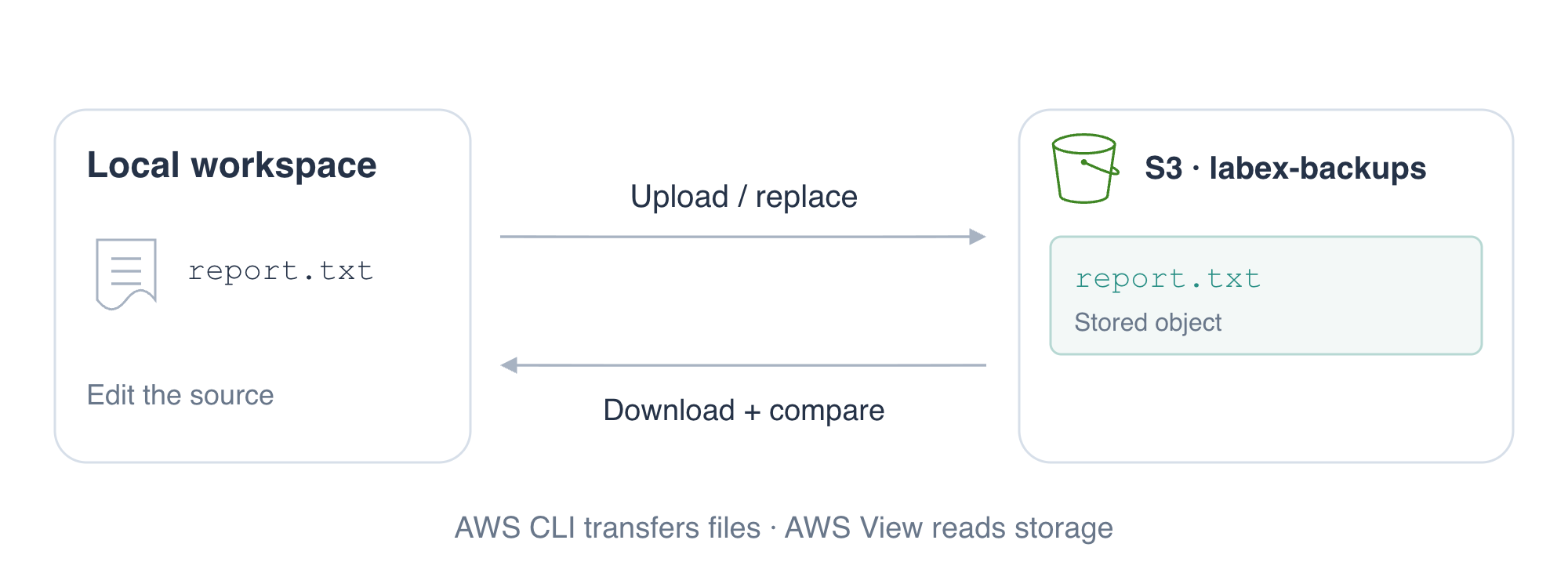
Amazon S3 stores file contents as objects. A bucket contains those objects, and a key names one object inside it. You will first create the container, then upload the report.
Create labex-backups. In aws s3 mb, s3 selects object storage and mb means make bucket. The s3:// prefix identifies a storage location, not a local folder.
aws s3 mb s3://labex-backups
Expected output:
make_bucket: labex-backups
List buckets with ls, meaning list:
aws s3 ls
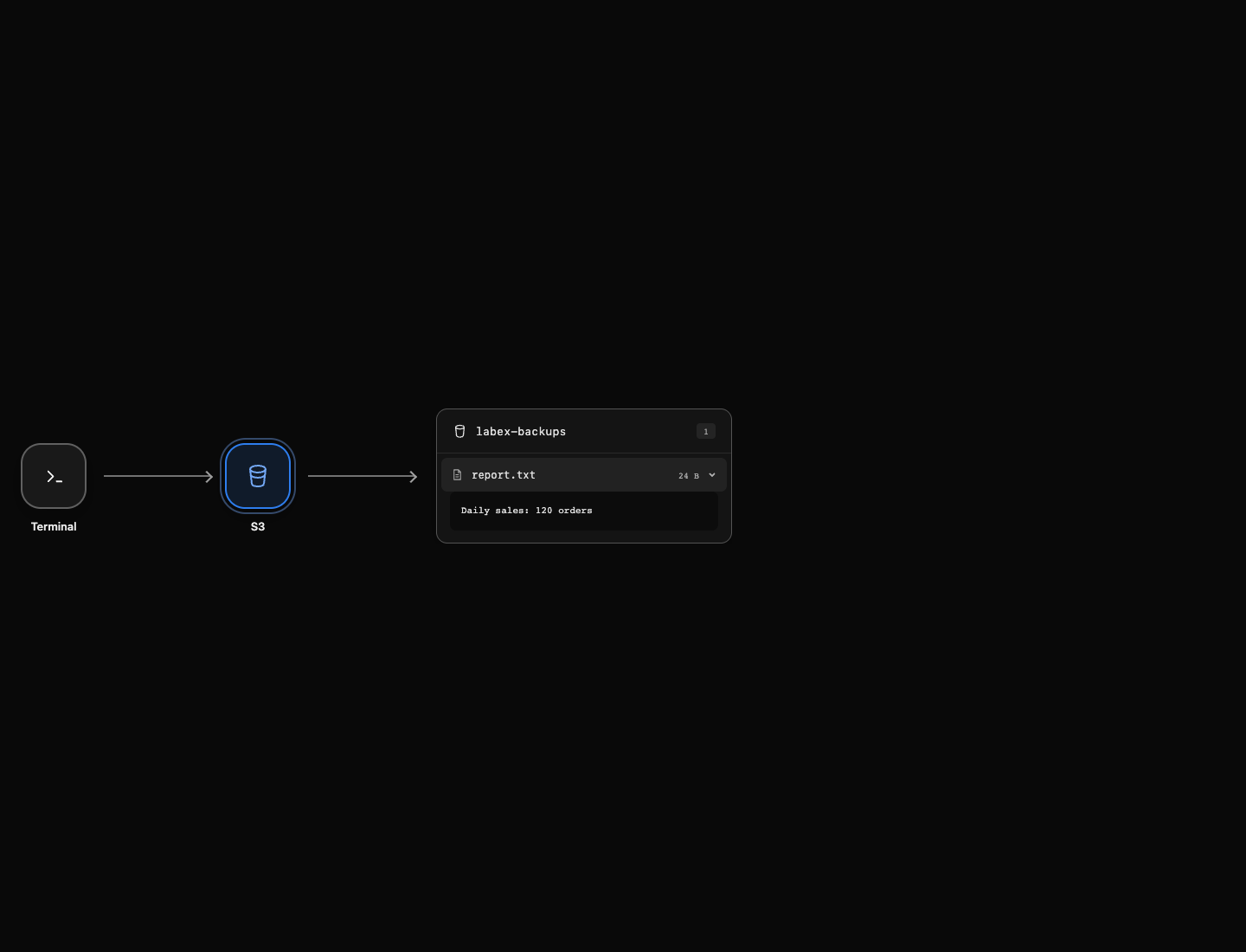
You should see a line ending in labex-backups; its date and time vary. In the AWS View preview, a labex-backups card appears with no objects. The arrows show how the CLI connects to storage; the bucket node reflects an actual resource query.
Upload and Inspect the Report
In this step, you will store a report as an S3 object and read its actual stored content through the preview.
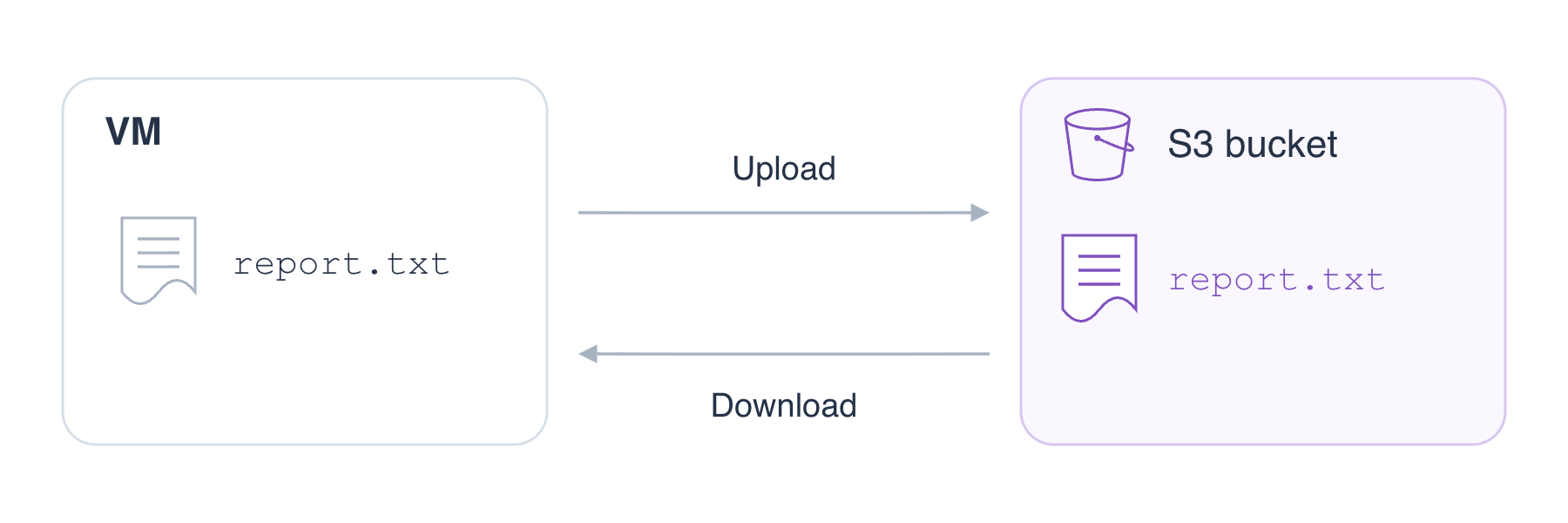
The local file and its stored copy are separate; upload and download connect them.
Inspect the prepared local file. cat prints a text file's contents:
cat report.txt
Expected output:
Daily sales: 120 orders
cp means copy. The first path below is the local source and the second is the destination. The part after the bucket name, report.txt, is the object's key.
aws s3 cp report.txt s3://labex-backups/report.txt
The output reports an upload from report.txt to s3://labex-backups/report.txt.
List the bucket's objects:
aws s3 ls s3://labex-backups/
The line for report.txt shows its modification time, size, and key. An upload creates a separate stored copy: editing the local file alone would not change it.
In AWS View, the bucket card shows 1 object. Click report.txt in the card to expand its contents. The preview should read Daily sales: 120 orders. This reads the stored object, not the local source file.
Update and Retrieve the Stored Copy
In this step, you will replace the report, download the current stored version, and prove that the content survived the round trip.
The updated report contains 145 orders. printf writes text; \n adds a newline. The shell's > operator replaces the contents of the named local file.
printf 'Daily sales: 145 orders\n' > report.txt
Look at the report preview before uploading again. It still shows 120 orders because the stored copy has not changed.
Upload to the same key to replace its current content:
aws s3 cp report.txt s3://labex-backups/report.txt
The preview now shows 145 orders, while the object count remains 1. Reusing a key updates that object; it does not create a second named object in this lab.
Download by reversing the direction of cp: the S3 path is now the source, and downloaded.txt is a new local destination.
aws s3 cp s3://labex-backups/report.txt downloaded.txt
Inspect the downloaded file:
cat downloaded.txt
Expected output:
Daily sales: 145 orders
cmp compares two files byte for byte. It prints nothing and exits successfully when they are identical. && runs the following command only if that comparison succeeds.
cmp report.txt downloaded.txt && echo 'Round trip verified'
Expected output:
Round trip verified
This comparison proves that the retrieved content matches your updated source. The step verifier independently reads S3 and compares the stored and downloaded contents.
Clean Up Your Storage
In this step, you will learn why a nonempty bucket cannot be removed, then delete this lab's objects and bucket.
rb means remove bucket. First try removing it while the report still exists:
aws s3 rb s3://labex-backups
This command is expected to fail with BucketNotEmpty. The failure teaches a resource dependency: a bucket contains objects, so remove those objects before removing their container. The bucket and object should remain visible in the preview.
rm removes an object at the exact S3 path:
aws s3 rm s3://labex-backups/report.txt
The output confirms delete: s3://labex-backups/report.txt. The object disappears from the preview; the bucket remains empty.
Now remove the empty bucket:
aws s3 rb s3://labex-backups
Expected output:
remove_bucket: labex-backups
Confirm that the service still responds and lists no remaining buckets:
aws s3 ls
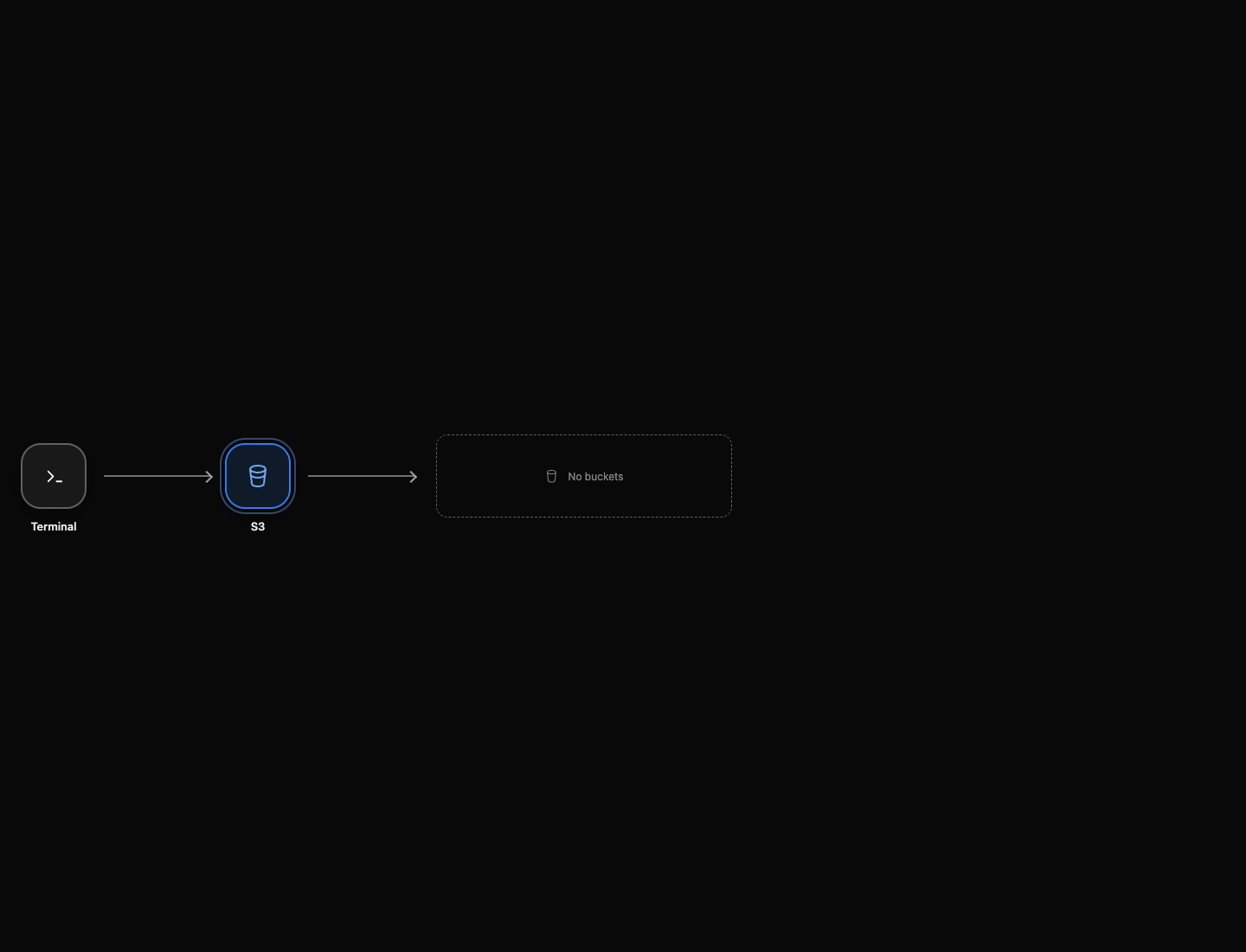
The command finishes without bucket rows. AWS View shows No buckets with no resource cards. That state comes from a successful service query; a disconnected page would not prove cleanup. Your local report files remain available, while the storage resources have been removed.
Summary
You used the official AWS CLI to create a bucket, upload and replace an object, download it, compare file contents, and remove the storage resources. AWS View connected your commands to observable resource changes, and the preview showed actual stored content.
You practiced a complete report-storage workflow: organize files in a bucket, keep local and stored copies distinct, verify a download, and remove objects before deleting their bucket.
For further reading, see the AWS reference on S3 buckets, objects, and keys.