



Introduction
The report application already has read-only configuration, but still runs as root. You are the maintainer selecting the prepared application user while preserving real document generation.
This independent environment includes its own report container and data. You will inspect UID and output ownership, edit the same launch format practiced earlier, then recreate and test the service. Complete Protect the Mounted Configuration first.
Meet the Application User
In this step, establish normal service behavior and distinguish the maintenance user from the container process user. This fresh environment already has a read-only configuration mount, but the renderer still runs as root.
Select the Maintenance tab in the lab interface to begin this step.
Switch to the Maintenance tab, starting in /home/labex/project/report-desk. This terminal manages only the prepared report-renderer container. If necessary, return with cd /home/labex/project/report-desk. sudo docker exec asks Docker to run a command inside the target. id displays its numeric user ID (UID) and group ID (GID):
Switch to the Maintenance tab before running the following command.
sudo docker exec report-renderer id
uid=0(root) gid=0(root) groups=0(root)
UID 0 is root inside this container. It has more authority over accessible files than the report application needs. Container root is not a separate VM's administrator; containers share the host kernel. This exercise reduces the application's file access, not every possible container risk.
The prepared application identity is UID/GID 1200:1200. Numeric IDs work without adding a named account to the image. The host directory owner must allow this user to write. ls -ldn lists the directory itself (-d), detailed permissions (-l), and numeric IDs (-n):
ls -ldn output
Look for drwxr-xr-x and owner/group 1200 1200. The owner has rwx: read, write, and directory traversal. Others have r-x: reading and traversal, but no write. Setup prepared this directory for the intended identity.
Use the already practiced POST request to generate a baseline. curl -fsS reports HTTP failures, and -X POST requests the business action:
curl -fsS -X POST http://localhost:8090/render/baseline
{"saved": "/output/baseline.json", "total": 37, "uid": 0}
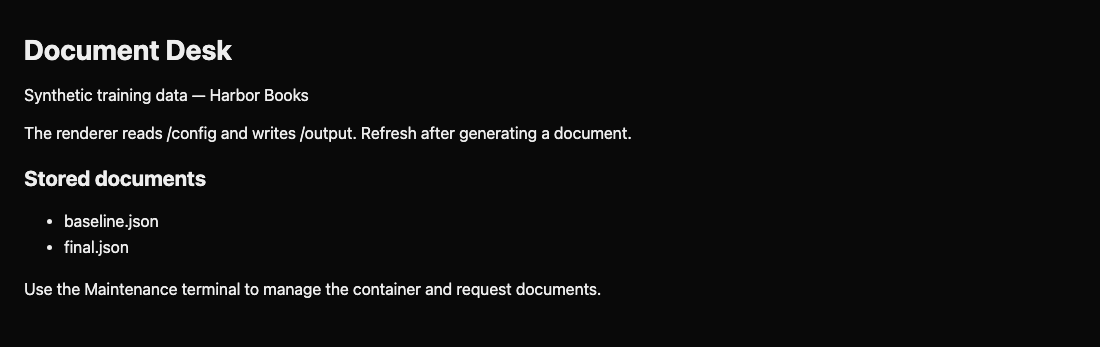
The report works, but UID 0 still produced it. Switch to the Document Desk tab to see the stored document; this page lists real output files.
Select the Prepared Identity
In this step, change the application identity in its launch declaration while retaining its required filesystem access. cat shows the script:
Select the Maintenance tab in the lab interface to begin this step.
Switch to the Maintenance tab before running the following command.
cat launch.sh
sudo authorizes the host management operation. Separately, --user determines the user and group of the container application. The value 0:0 means UID 0 and GID 0. Changing it to 1200:1200 selects the prepared identity. Keep port 8090, the prepared image, and both mount paths. The configuration line already ends in dst=/config,readonly; the output line must remain writable.
Open the terminal editor:
nano launch.sh
Use arrow keys to replace only --user 0:0 with --user 1200:1200. Save using Ctrl+O, Enter, and exit with Ctrl+X. Display the file again:
cat launch.sh
The user line should read:
--user 1200:1200 \
Changing the declaration alone does not update the running process. Before recreation, make the output directory's intended ownership explicit. chown sets numeric owner and group; sudo is needed because these IDs differ from the host maintenance user. This affects only the output directory, not all its existing files:
sudo chown 1200:1200 output
Avoid making everything read-only: generating a document requires output writes. Avoid granting everyone write permission to work around ownership; the prepared owner can write with the existing 755 directory permissions.
Recreate and Preserve the Business Result
In this step, apply the new identity and test both normal output and the protected input boundary. As before, remove only the target container, then launch its replacement:
Select the Maintenance tab in the lab interface to begin this step.
Switch to the Maintenance tab before running the following command.
sudo docker rm -f report-renderer
bash launch.sh
If the launch command fails, correct launch.sh with nano, remove the failed target with the same removal command, and rerun the script. The host data remains in place. Check the running identity:
sudo docker exec report-renderer id
uid=1200 gid=1200 groups=1200
Generate the final document after allowing a moment for startup:
curl -fsS -X POST http://localhost:8090/render/final
{"saved": "/output/final.json", "total": 37, "uid": 1200}
A Permission denied response usually means the output directory has the wrong owner, or an earlier root run created final.json. Correct the directory with the taught sudo chown 1200:1200 output. If an old final file exists, sudo rm output/final.json removes only that generated document; request it again. A Read-only file system response for /output means you accidentally restricted the output mount: repair that declaration and recreate the container.
Inspect the generated file. Here ls -ln shows numeric file ownership; cat shows its contents:
ls -ln output/final.json
cat output/final.json
Find owner 1200, "uid": 1200, total 37, and Report for Harbor Books: 37 orders. Switch to the Document Desk tab and refresh the page to see the new file. Finally, confirm configuration protection remains:
Switch back to the Maintenance tab before running the following command.
sudo docker exec report-renderer touch /config/probe.txt
touch: /config/probe.txt: Read-only file system
This failure is expected. Non-root identity and a read-only mount solve different problems: UID selection reduces process authority, while mount mode prevents configuration writes even by container root. The renderer still performs its actual job.
Summary
You separated host maintenance access from the application identity, selected UID/GID 1200, and preserved its output directory. The running process and newly generated document now use UID 1200, while configuration writes still fail.


