



Introduction
At Maple Yard, visitors want a small photo preview or the complete booth album. The photo servers already work, but visitors should not need a printed IP address and port. You will publish two named services, discover them from clients, and save the matching image collections without breaking the information desk.
You should recognize IPv4 addresses, hostnames, ports, paths, and terminal roles, and have followed complete HTTP download commands before. The previous event-network project is recommended. No DNS administration, XML experience or programming is required. The estimated 60 minutes includes reading and ordinary mistakes; it is an author estimate, not a measured beginner time.
Publisher, Client, and New Client are isolated Linux network nodes on one prepared LAN, sharing one kernel. Photo Shelf previews downloaded files. This lab teaches local-link mDNS and DNS-SD, not public DNS, discovery across routers, automatic authorization, or compatibility with every physical device or browser. The sample pictures are original synthetic illustration cards, not photographs of real attendees.
Discover a Working Service
In this step, you will use the working information desk before publishing anything. Begin in Client. Its terminal starts in /home/labex/project/photo-network/client; this directory and its shell remain separate from the other tabs. pwd prints the current directory:
pwd
Multicast DNS (mDNS) lets neighboring devices exchange name information on the same local link. Here its packets use IPv4 multicast 224.0.0.251, UDP port 5353. The .local suffix belongs to this local discovery mechanism; do not add it to the platform's hosts file or treat it as a public DNS zone.
DNS-based Service Discovery (DNS-SD) describes named service instances. A service type says what a client seeks: _http._tcp means HTTP over TCP. An instance name, such as Information Desk, identifies one offered service. The target hostname identifies its serving node. A port selects the listening application; path metadata selects a resource within it. Finding a name is only the start of using a service.
avahi-browse asks the native Avahi daemon to discover services. -r resolves each instance into connection information, -t exits after the browse completes, -p prints semicolon-separated fields, and -k keeps raw service-type names instead of friendly translations:
avahi-browse -rtpk _http._tcp
Expect a resolved row beginning with = and containing these fields:
=;eth0;IPv4;Information\032Desk;_http._tcp;local;desk.local;10.93.0.10;8080;"path=/welcome/index.json"
Avahi may also print + rows for newly seen instances. In its parsable output, \032 encodes a space. Read the resolved row: instance, type, domain, target hostname, address, port, then TXT metadata. Output order and escaping may vary. The native daemon receives these records over this LAN; there is no prepared discovery list.
Use the supplied photo-get client to save a collection by its instance name. Quotes keep a name containing spaces as one argument. The second argument is an output folder inside this terminal's workspace:
photo-get "Information Desk" desk
photo-get performs another real Avahi browse, resolves that exact instance, prints its endpoint, fetches its advertised JSON index and each listed PNG, decodes all images, then saves the received bytes. It does not consult the station plan for an IP, port or path. The index lists the image filenames; this is an application convention used by these services, not a universal DNS-SD format. Expect Saved 1 real images in the desk folder.
Switch to Photo Shelf and select Client. Reload saved files. You should see the Welcome to Maple Yard card. The viewer reads only the files saved in this client workspace; it never fetches from a server or supplies a missing picture. The Download image link returns that same saved file.
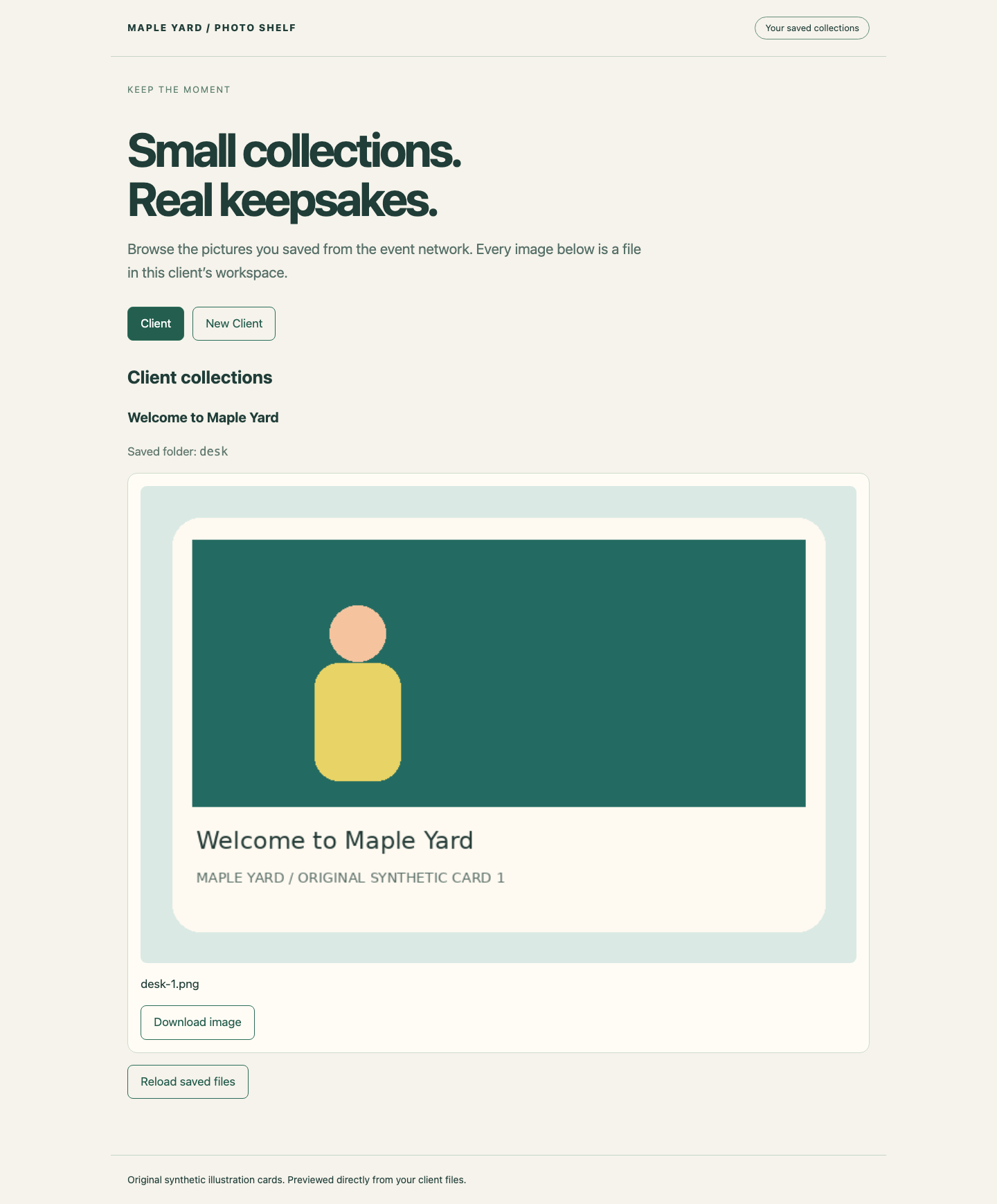
The Client selection identifies this workspace. The desk card is the working reference you will preserve while adding the booth.
If browsing is empty, check the exact service type and that you are in Client, then repeat the browse. Daemon not running means the discovery client cannot reach its prepared daemon; it is different from an empty result. If photo-get cannot resolve the name, compare spelling and quotes with the resolved row. A refused connection means an address was found but nothing accepted that port. An HTTP 404 means the server was reached but the resource path is absent. A JSON or image decoding error means the returned content is unsuitable. Do not replace these problems with a hosts entry or a manually copied picture.
Publish the Booth from a Complete Template
In this step, you will advertise the existing preview server. Switch to Publisher. Its terminal starts in /home/labex/project/photo-network/services. cat prints a text file; ../ means its parent directory:
cat ../stations.tsv
This business plan describes the actual prepared listeners. Photo Booth Preview belongs to publisher.local, port 8081, resource /preview/index.json. The full album is a different listener and resource. The information desk belongs to another node and must stay unchanged.
Read the incomplete preview definition:
cat preview.service
A .service file here uses XML: opening and closing tags surround each value. service-group contains the display name; its service supplies type, port, and txt-record. Publishing a definition does not create a web server, a collection, or access permission. Those applications are already running.
The following here-document writes the complete small file. > replaces the previous file contents. The quoted 'XML' makes the text literal; the closing XML must be alone at the start of its line. Copy the entire block:
cat > preview.service <<'XML'
<?xml version="1.0" standalone="no"?>
<!DOCTYPE service-group SYSTEM "avahi-service.dtd">
<service-group>
  <name>Photo Booth Preview</name>
  <service>
    <type>_http._tcp</type>
    <port>8081</port>
    <txt-record>path=/preview/index.json</txt-record>
  </service>
</service-group>
XML
Read your saved definition:
cat preview.service
The course's photo-load command parses both editable XML files before asking only the Publisher Avahi daemon to reload them. It does not restart the desk or the business servers:
photo-load
Expect Reload requested for the photo publisher. Allow a few seconds for name probing and registration. A successful parse confirms XML structure; it does not prove the advertised port or path is correct. If a closing tag is missing, photo-load reports the filename and parse error without sending a reload. Read the file, restore the complete block, and run photo-load again. You do not need to reset the environment.
Switch to Client and browse again:
avahi-browse -rtpk _http._tcp
Find Photo Booth Preview, its publisher.local target, port 8081, and /preview/index.json. Save and decode the actual collection:
photo-get "Photo Booth Preview" preview
Expect one preview image. In Photo Shelf, select Client, reload, and examine the preview card alongside the existing desk card. A service appearing in the list without the correct image would still be incomplete.
Tell Two Services Apart
In this step, you will publish the full album on the same node and distinguish the two instances. Switch to Publisher. Both use _http._tcp and publisher.local, but the album uses port 8082 and /album/index.json. Its three images differ from the one-image preview.
Write its separate definition with the already taught here-document syntax:
cat > album.service <<'XML'
<?xml version="1.0" standalone="no"?>
<!DOCTYPE service-group SYSTEM "avahi-service.dtd">
<service-group>
  <name>Photo Booth Full Album</name>
  <service>
    <type>_http._tcp</type>
    <port>8082</port>
    <txt-record>path=/album/index.json</txt-record>
  </service>
</service-group>
XML
photo-load
Switch to Client. Browse and read each resolved row separately:
avahi-browse -rtpk _http._tcp
The two instance names should differ. A common hostname does not imply a common port or resource. Download the album to its own folder, keeping the preview:
photo-get "Photo Booth Full Album" album
Expect three decoded PNG files and Saved 3 real images. In Photo Shelf, select Client and reload. The album and preview should each show their own saved files.
Now practice recognizing a wrong resource without editing or deleting your good collections. An intentionally absent instance name should fail before any download:
photo-get "Photo Booth Missing" missing
Expect Download stopped: Expected one resolved instance and a nonzero exit. This is intentional. Recover by using the actual resolved album name again:
photo-get "Photo Booth Full Album" album
If you advertised a wrong port or path, compare that instance's resolved row with stations.tsv. Fix only the corresponding .service file in Publisher, using its complete shown block, run photo-load, then browse and download again in Client. A wrong listening port can refuse the connection; a wrong path can produce HTTP 404; a reachable but different collection can decode successfully and still be the wrong business result. Check the collection title and filenames, not just a zero exit status.
Avahi announces changes and withdrawals. A client can briefly retain old records while an update propagates. Wait a few seconds after loading and repeat the browse; do not keep using copied old endpoints. The next step checks from an independent client daemon and workspace.
Use the Result from Another Client
In this step, you will use another network identity and independent Avahi daemon. Switch to New Client. It starts in /home/labex/project/photo-network/new-client; it has no access to the first client's shell variables or saved collections by default. Opening a tab does not reset the publisher or create advertisements.
Browse from this client rather than copying the first client's rows:
avahi-browse -rtpk _http._tcp
Read all three resolved instance relationships. The preview and full album have the same target but different ports and paths. The desk has its own target. Download all three from this client:
photo-get "Photo Booth Preview" preview
photo-get "Photo Booth Full Album" album
photo-get "Information Desk" desk
Expect one preview, three album images, and one desk card. Each invocation resolves the named instance again and prints the actual endpoint it used. These commands do not configure static IP discovery.
Switch to Photo Shelf, select New Client, and reload. Inspect every image and collection title. Select Download image on one saved-image card; the downloaded image must match that displayed saved card. The viewer does not silently copy the first client's work or refill missing files. Switch between Client and New Client to see their separate collections.
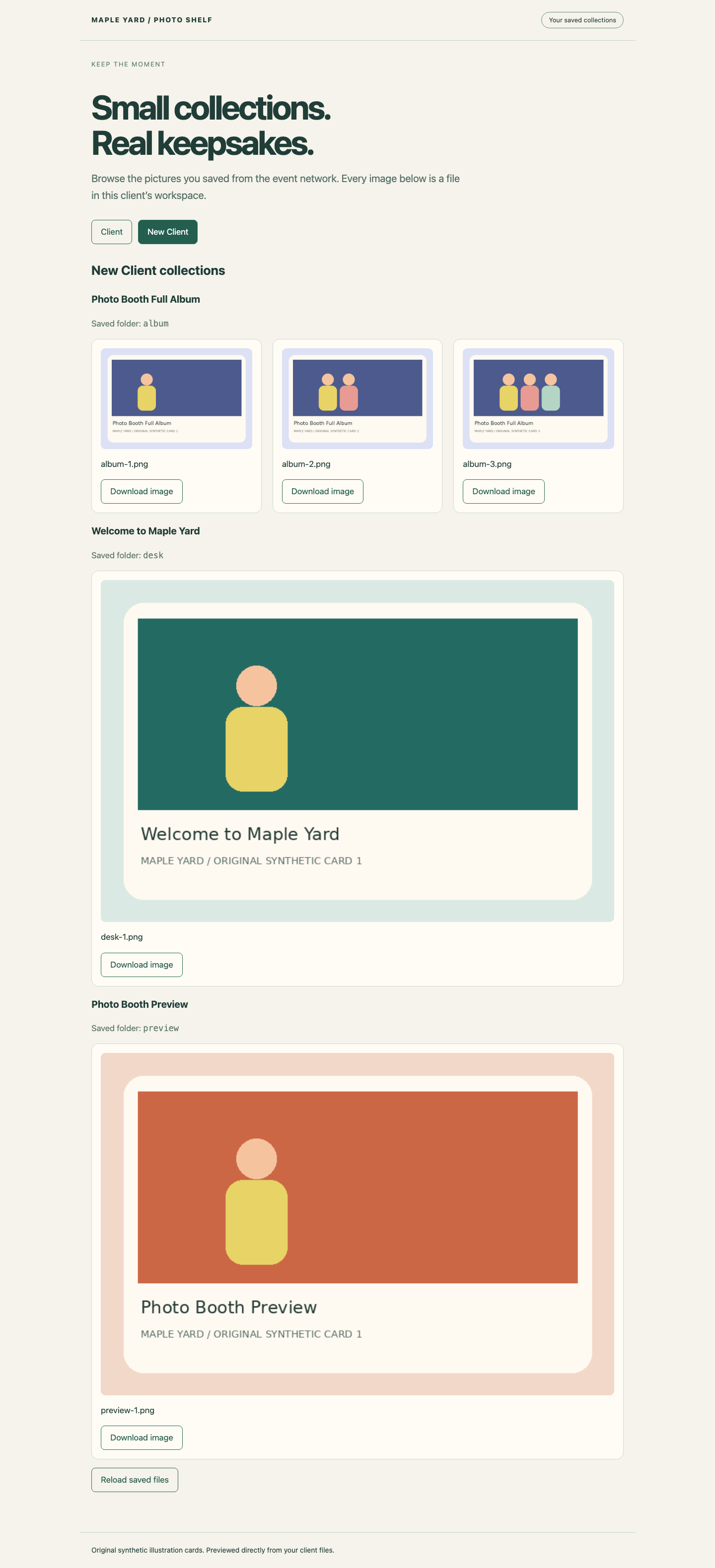
Look for the New Client selection, three album cards, the desk card and the separate preview card. Each Download image link belongs to an actual saved file.
If one collection is absent, return to New Client and repeat its download after checking the live advertisement. If a saved PNG is missing or unreadable, the viewer reports it instead of replacing it. Correct the publication or connection first, then repeat photo-get to obtain the complete original collection. A download succeeds only after the complete index and all images have been fetched and decoded.
You have now connected service publication to use: three distinguishable instances, correct current endpoints, actual files on two clients, and a still-usable information desk. Discovery provides connection information, not authentication or a promise that a discovered service is trustworthy.
Summary
You browsed native mDNS/DNS-SD records, distinguished instance names from hostnames, and published two HTTP services with separate ports and path metadata. You used each live discovery result to download real decodable images, repeated the workflow from an independent client, and kept the information desk available. A discovery row and a successful connection are separate pieces of evidence; the correct saved content completes the result.


