



Introduction
EARLY CRUMB is preparing Saturday's bread collection. Orders, payments and cancellations are recorded separately. Two customers have the same name, and one order can contain several products. A useful handover starts by connecting the right records, rather than guessing from names.
In this lab, you will prepare the order and payment tables, match every order ID to its payment status, then create the list of paid IDs. Cancellation handling comes in the next independent lab. You need only basic terminal familiarity; tabs, fields, sorting and the commands are explained before use. All people and records are synthetic.
Use Workstation for commands and Pickup Preview for the prepared collection desk. The preview shows source records and an example label. It does not calculate your answers or create your files.
Prepare Tables You Can Match
In this step, you will prepare header-free records and a sorted list of order IDs without losing any item lines. Begin in Pickup Preview.
Understand the handover
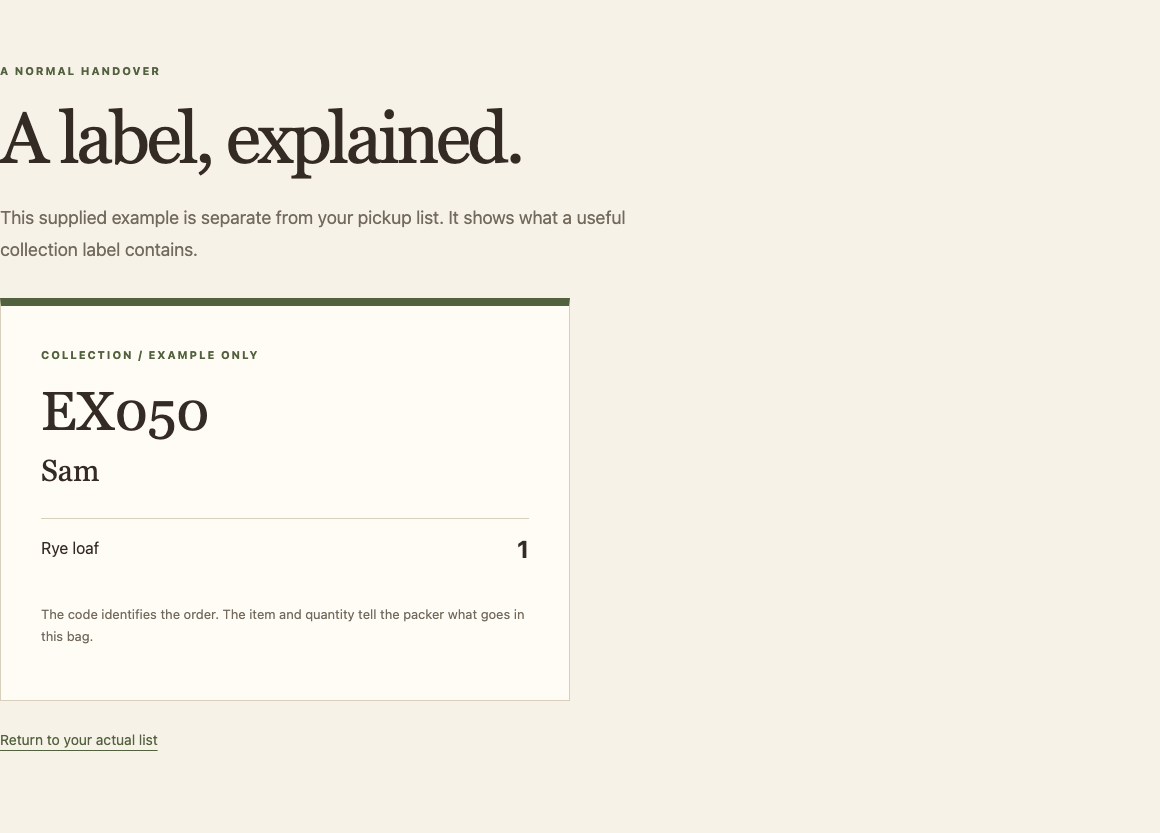
Open Sample label. EX050 belongs to Sam and contains one rye loaf. This is a separate example, not your completed pickup list. An order code identifies one bag; the name helps the customer recognize it; each item and its quantity tells the packer what belongs inside.
Open Records. The item key translates rye to Rye loaf and oat to Oat cookie. Find P101 in orders.tsv: Alex ordered two rye loaves and one oat cookie. P102 is also Alex, but it is a different order and its payment is unpaid. Matching on the name would give the wrong bag to the wrong order. Use order_id.
Read the prepared files
Switch to Workstation. It starts in /home/labex/project/pickup. pwd prints your current directory; ls lists entries:
pwd
/home/labex/project/pickup
ls
You should see source and work. Source records stay unchanged; work/ holds intermediate files that you may recreate. A path such as source/orders.tsv is relative to this directory. If you leave it, return with:
cd /home/labex/project/pickup
cat displays a file. Read both tables:
cat source/orders.tsv
cat source/payments.tsv
TSV means tab-separated values. Each line is a record; a tab separates fields. The first line is a heading. In orders, the four fields are order ID, customer, item and quantity. One order can have several item rows. Payments has two fields: order ID and the exact status paid or unpaid. There is at most one payment row per order. The prepared format has no tabs or newlines inside a value.
P106 appears in orders but has no payment row. Missing information does not mean paid. You will keep it visible while matching.
Separate headings from records
tail -n +2 prints from line 2 onward. > saves output to a file, replacing that destination if it already exists. It does not change the source. Never use the same path as both source and destination with >: the shell would empty it before the program reads it.
tail -n +2 source/orders.tsv > work/orders.rows
tail -n +2 source/payments.tsv > work/payments.rows
Inspect the item rows:
cat work/orders.rows
P101 and P105 each occur twice because each has two products. Keep those rows. Repeating an order ID is not automatically duplicate data.
Prepare the matching keys
A key is the field used to connect records. cut -f1 selects the first tab-separated field. A pipe | sends output to the next command. sort -u sorts lines and keeps each identical line once. Here we apply it only to the list of IDs, not the item table.
Sorting and matching must use the same ordering. LC_ALL=C selects a predictable byte ordering, and export lets subsequent commands use it. This setting belongs to this terminal; set it again if you open a new one.
export LC_ALL=C
cut -f1 work/orders.rows | sort -u > work/order-ids.txt
cat work/order-ids.txt
P101
P102
P103
P104
P105
P106
For the two-field payment table, sort by the first field while retaining the status. TAB is a shell variable holding one tab: printf '\t' prints it, and $(...) captures that output. Double quotes in "$TAB" pass it as one separator argument. -t sets the field separator; -k1,1 selects only the first field as the sorting key.
TAB=$(printf '\t')
sort -t "$TAB" -k1,1 work/payments.rows > work/payments.sorted.tsv
cat work/payments.sorted.tsv
Expect P101 through P105 in order, each with its original status. P106 has not acquired a payment row. You now have six distinct order IDs and all five payment records ready to match. If a heading or status is wrong, regenerate just the affected work file from its source; do not edit the source to make it fit.
Match Every Order to Its Payment Status
In this step, you will join the two prepared inputs and keep orders with missing payments visible. Begin in Workstation, in the same terminal as step 1.
Know what the match should mean
P101 must connect to paid, P102 to unpaid, and P106 to an explicit missing value. The names do not take part in matching. At this point, a paid order may still be cancelled; payment matching alone does not decide the final pickup list.
join connects sorted inputs on their first field by default. A normal inner join omits IDs without a match. Here we need to see those missing records too:
-t "$TAB"uses the tab separator you created in step 1.-a 1also includes unmatched records from the first input, the complete order-ID list.-e missingsupplies the wordmissingfor an unavailable output field.-o 1.1,2.2outputs field 1 of input 1 (order ID), then field 2 of input 2 (status). The1and2name the input files, not row numbers.
Run the full command on one line. It writes a two-field result:
join -t "$TAB" -a 1 -e missing -o 1.1,2.2 work/order-ids.txt work/payments.sorted.tsv > work/payment-match.tsv
cat work/payment-match.tsv
P101 paid
P102 unpaid
P103 paid
P104 paid
P105 paid
P106 missing
The gaps above represent tabs, not the literal characters backslash and t. You should see six rows. P106 is still present because the left input contains every order ID and -a 1 keeps unmatched IDs.
Read the result before filtering it
P101 and P102 are both Alex in the source, but they have different statuses. P103 is paid too; a cancellation may later exclude it. P106 has no payment record, so missing prevents silent disappearance from the comparison.
If join reports an input is not sorted, return to step 1 and recreate both sorted inputs using the same LC_ALL=C setting. Do not suppress the warning or remove an inconvenient order. If you reconnected the terminal, restore the directory and the two shell settings from step 1 before retrying.
A successfully executed command is not enough by itself: compare these three important rows with their source records. You now have a complete payment match that can support the next decision.
Select Paid Orders without Losing Their Identity
In this step, you will create the paid-order ID file and view exactly what you saved. Begin in Workstation.
Match a complete status
Both paid and unpaid contain the letters paid. A loose text search would include P102 incorrectly. We need a tab followed by the complete status at the end of the line.
grep selects matching lines. In the quoted expression $'\tpaid$', the outer $'...' makes \t a tab character; the final $ inside the expression means the end of the line. Thus the status field must be exactly paid, rather than the end of unpaid. cut -f1 then keeps only the order IDs. The output is already in sorted order because the matched table is sorted.
grep $'\tpaid$' work/payment-match.tsv | cut -f1 > paid-order-ids.txt
cat paid-order-ids.txt
P101
P103
P104
P105
P102 is unpaid and P106 is missing, so neither belongs here. Keep P103 at this stage: the file represents paid orders, not the final set of orders to pack. Removing it before considering cancellations would mix two decisions and make the intermediate result misleading.
Read your saved selection
Switch to Pickup Preview. Select Payment IDs in the navigation. This page displays paid-order-ids.txt; it does not calculate a payment answer. You should see the four IDs you just saved. Follow Compare with source records and check the corresponding payment rows.
The prepared preview's Pickup list may still say there is no list to pack. That is expected: you have created a payment selection, not the final item list. The next independent lab uses this selection to exclude cancellations and preserve every eligible product quantity.
If the file is empty or includes P102, inspect work/payment-match.tsv and the exact status pattern, then rerun the filtering command. You can correct and regenerate this result without changing any source record.
Summary
You prepared tab-separated records, sorted by a shared key, joined payments while retaining missing records, and selected exact paid statuses. You kept order identity separate from customer names and item rows. The next independent lab turns that payment selection into a useful collection handover.


