Introduction
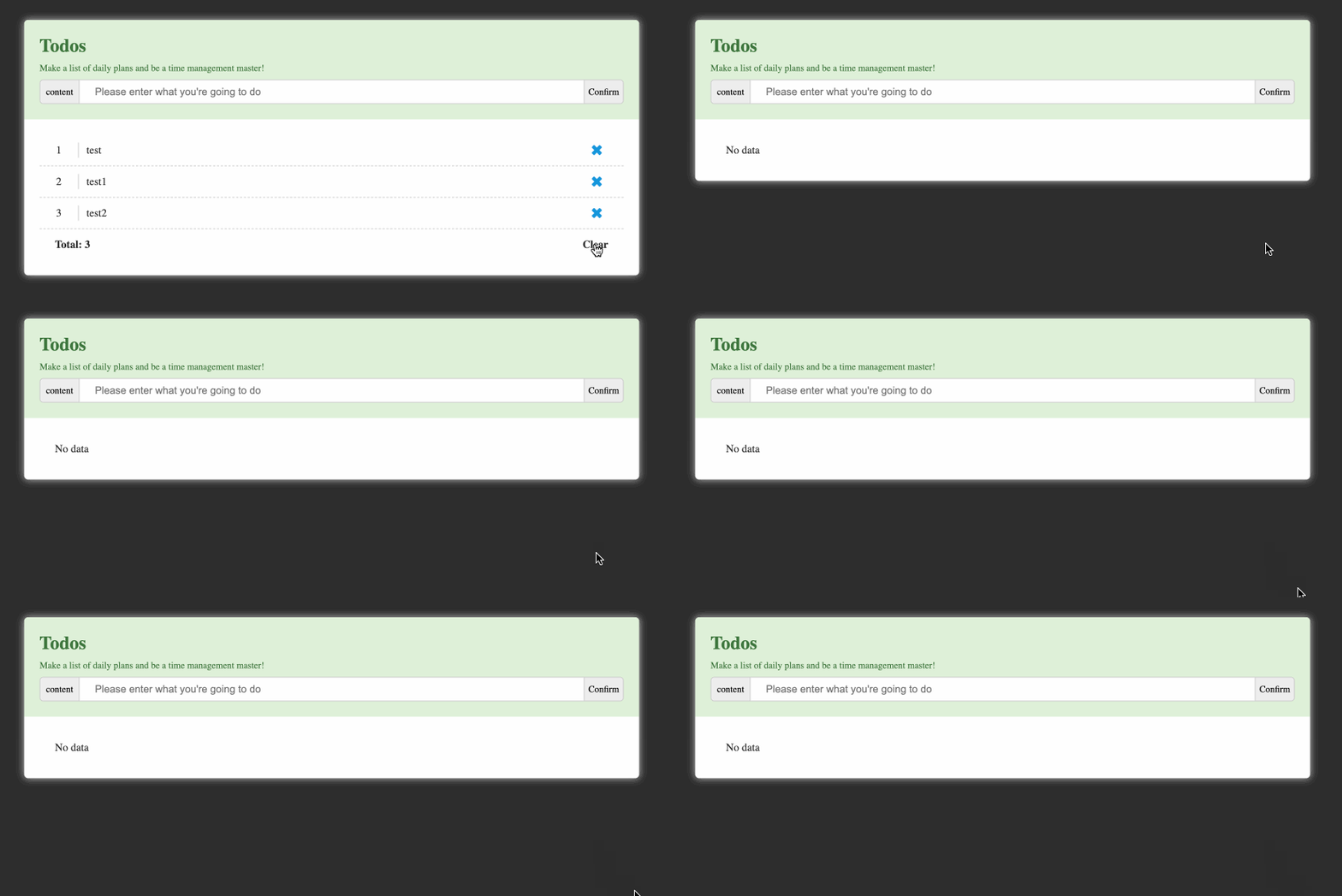
In this project, you will learn how to build a simple task manager application using Vue.js. The task manager allows you to create, delete, and keep track of your daily tasks, helping you become a time management master.
👀 Preview
🎯 Tasks
In this project, you will learn:
- How to set up the Vue.js environment
- How to display "No data" by default when the page is loaded
- How to add tasks to the task list
- How to delete tasks from the task list
- How to display the total number of tasks
- How to clear the entire task list
🏆 Achievements
After completing this project, you will be able to:
- Create a Vue.js application from scratch
- Use Vue.js directives and data binding
- Implement basic CRUD (Create, Read, Update, Delete) functionality
- Handle user interactions and update the UI accordingly
Set Up the Project Structure
In this step, you will set up the project files and structure. Follow the steps below to complete this step:
Open the project folder. The directory structure is as follows:
├── css
│   └── style.css ## Page style file
├── img
│   └── icon.png ## Small icons required by the page
├── js
│    └── vue.js ## Vue.js framework version 2.x
└── index.html ## Page layout and logic coding file
Click on Go Live button in the bottom right corner of WebIDE, to run the project.
Next, open "Web 8080" on the top of the VM and refresh it manually and you will see the page.
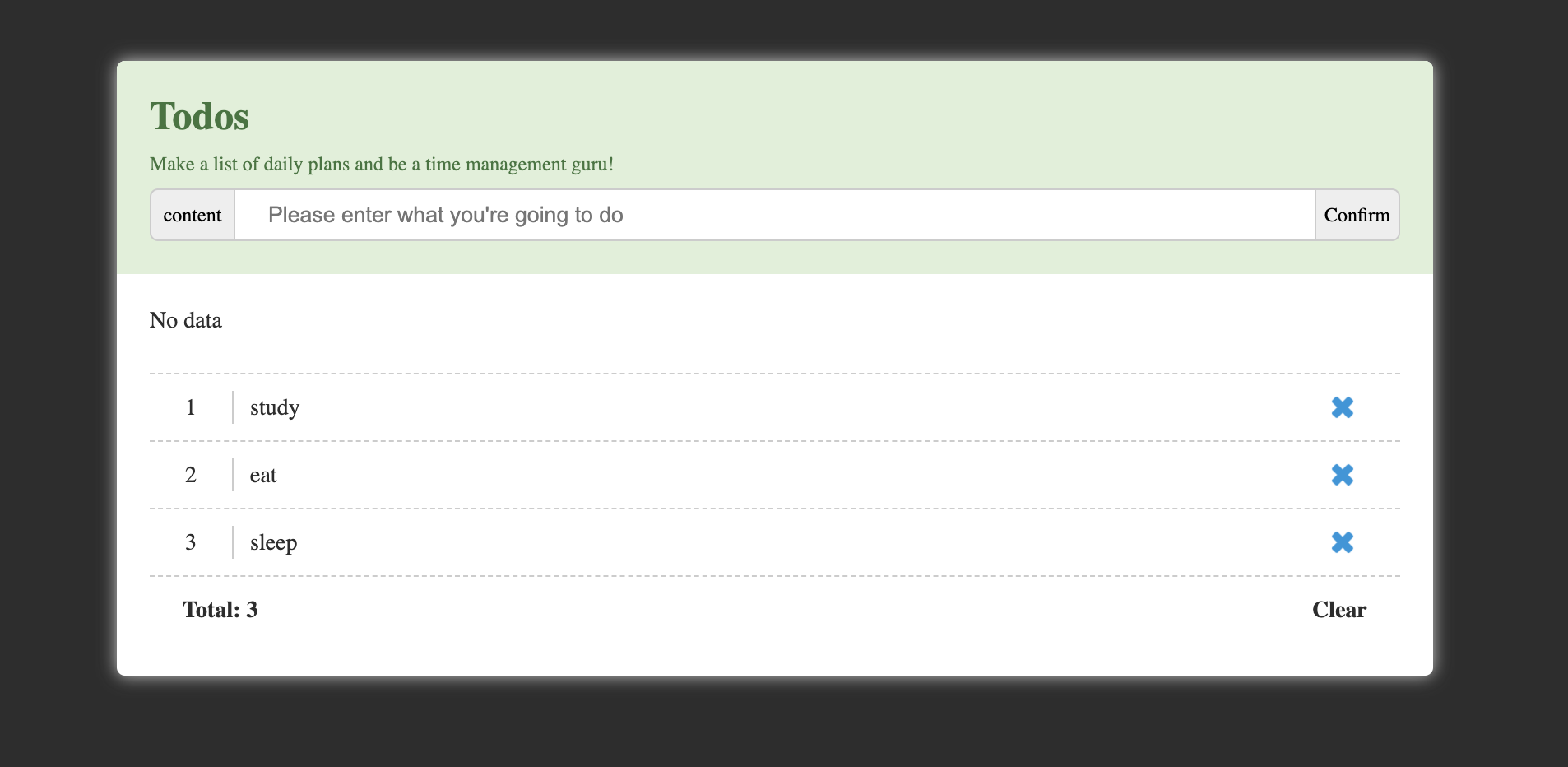
The current display is only a static layout and does not implement specific functions.
Display 'No data' by Default
In this step, you will display "No data" by default when the page is loaded.
- In the
index.htmlfile, add thedataobject from the Vue instance underel: "#box",so that it contains atodoListarray:
data: {
  todoList: [],
}
- In the HTML structure, remove all code from
<ul class="list"></ul>. Then add a conditional rendering to display "No data" if thetodoListarray is empty:
<ul class="list">
  <li v-if="!todoList.length">No data</li>
  <!-- TODO: Add task list items here -->
</ul>
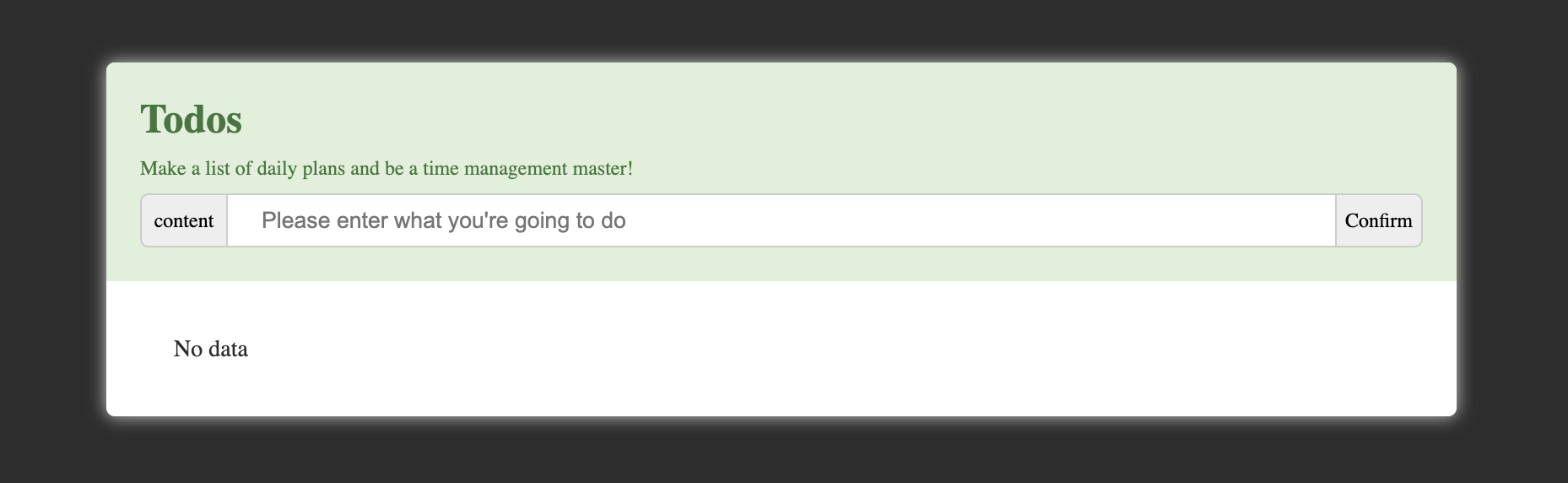
- Save the
index.htmlfile and refresh the page. You should see the "No data" message displayed. The final implementation effect is as follows:
Add Tasks to the List
In this step, you will add tasks to the task list.
- In the
index.htmlfile, add an input field and a "Confirm" button to the HTML structure:
<div class="input">
  <span>content</span>
  <input
    type="text"
    v-model="search"
    placeholder="Please enter what you're going to do"
  />
  <span id="add" @click="addTodo">Confirm</span>
</div>
- In the Vue instance, add a
searchdata property and anaddTodomethod:
data: {
  todoList: [],
  search: ""
},
methods: {
  addTodo() {
    this.todoList.push(this.search);
    this.search = "";
  },
}
- Save the
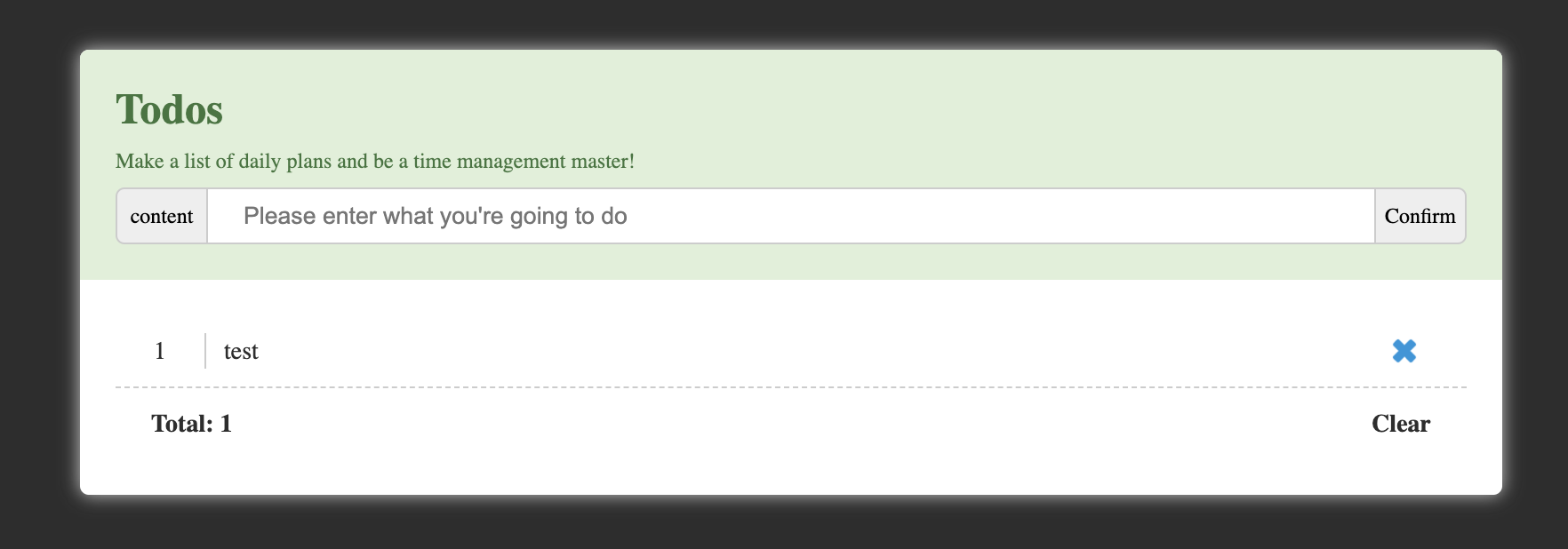
index.htmlfile and refresh the page. You should be able to enter text in the input field and click the "Confirm" button to add a new task to the list. The final implementation effect is as follows:
Delete Tasks From the List
In this step, you will add the functionality to delete tasks from the task list.
- In the
index.htmlfile, add a "Delete" icon to each task item:
<li v-if="!todoList.length">No data</li>
<li v-if="todoList.length" v-for="(todo, index) in todoList" :key="index">
  <!-- Preceding serial number -->
  <span class="number">{{index + 1}}</span>
  <!-- List content -->
  <span>{{todo}}</span>
  <!-- Delete button -->
  <span class="delete" @click="deleteTodo(index)"></span>
</li>
- In the Vue instance, add a
deleteTodomethod:
methods: {
  // ...
  deleteTodo(index) {
    this.todoList.splice(index, 1);
  },
}
- Save the
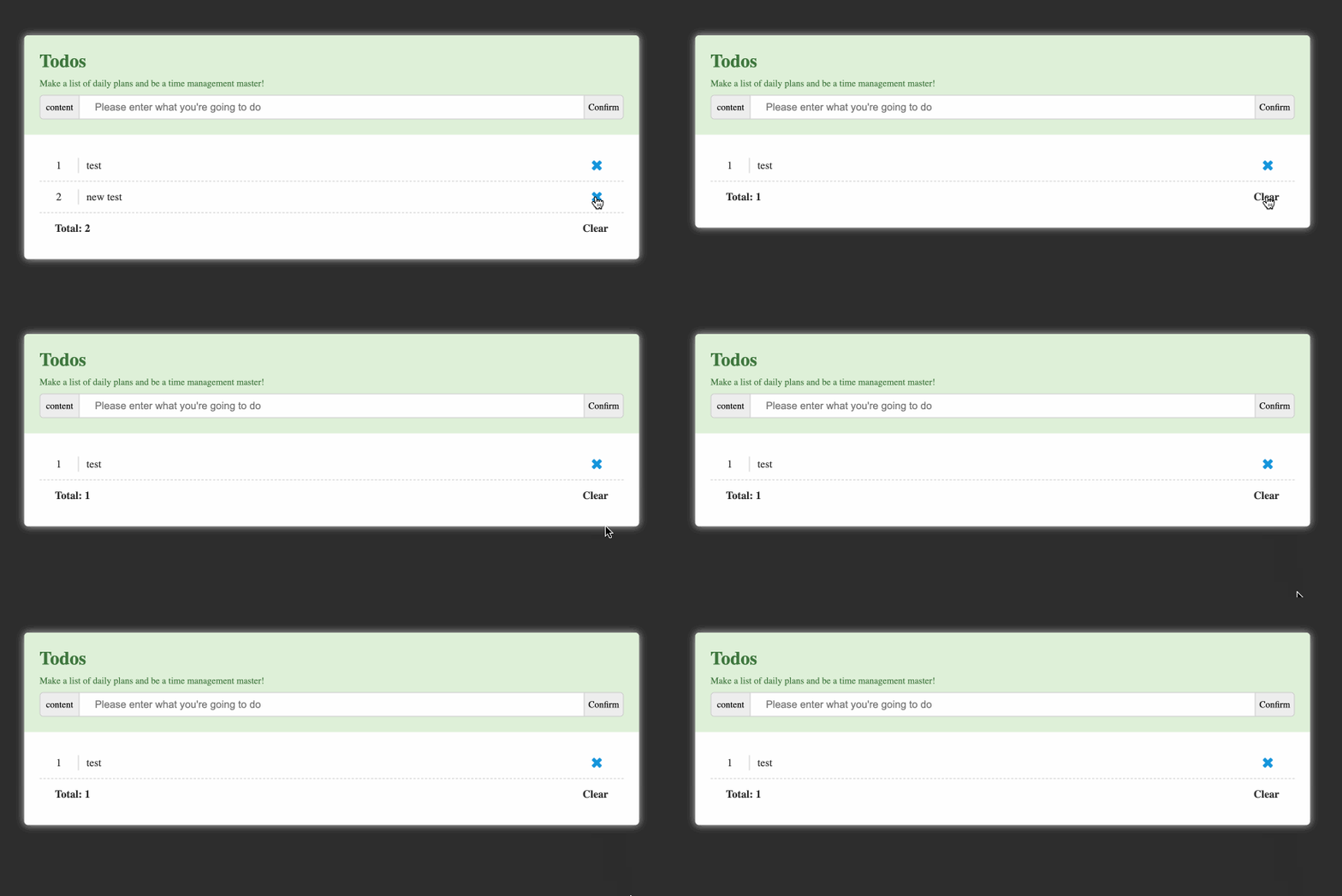
index.htmlfile and refresh the page. You should be able to click the "Delete" icon to remove a task from the list. The final implementation effect is as follows:
Display the Total Number of Tasks
In this step, you will display the total number of tasks in the task list.
- In the HTML structure, add a "Total" section at the bottom of the task list:
<li v-if="todoList.length" v-for="(todo, index) in todoList" :key="index">
  <!-- ... -->
</li>
<li v-if="todoList.length">
  <b> Total: {{todoList.length}} </b>
  <!-- ... -->
</li>
- Save the
index.htmlfile and refresh the page. You should see the total number of tasks displayed at the bottom of the list.
Clear the Task List
In this step, you will add the functionality to clear the entire task list.
- In the Vue instance, add a
clearmethod:
methods: {
  // ...
  clear() {
    this.todoList = [];
    this.search = "";
  }
}
- In the HTML structure, add a "Clear" button in the "Total" section:
<!-- ... -->
<li v-if="todoList.length">
  <b> Total: {{todoList.length}} </b>
  <b id="clear" @click="clear">Clear</b>
</li>
- Save the
index.htmlfile and refresh the page. You should be able to click the "Clear" button to remove all tasks from the list.
Congratulations! You have completed the Time Management Master project using Vue.js. The final implementation effect is as follows:
Summary
Congratulations! You have completed this project. You can practice more labs in LabEx to improve your skills.