



Introduction
In this lab, we will explore how to calculate the difference between two dates in seconds using JavaScript. Understanding how to work with dates and time is essential for many web applications. We will create a function that takes two Date objects as input and returns the time difference between them in seconds. This technique is useful for various applications, including measuring time intervals, calculating durations, or creating timers. By the end of this lab, you will have a better understanding of JavaScript Date objects and how to perform time calculations efficiently.
Getting Started with JavaScript Date Objects
JavaScript provides a built-in Date object that allows us to work with dates and times. Before we calculate the difference between dates, let us first understand how to create and work with Date objects in JavaScript.
Starting the Node.js Environment
Let us begin by opening the interactive Node.js environment:
- Open the Terminal by clicking on the Terminal menu at the top of the WebIDE
- Type the following command and press Enter:
node
You should now see the Node.js prompt (>), indicating that you are in the JavaScript interactive environment. This allows you to execute JavaScript code directly in the terminal.
Creating Date Objects
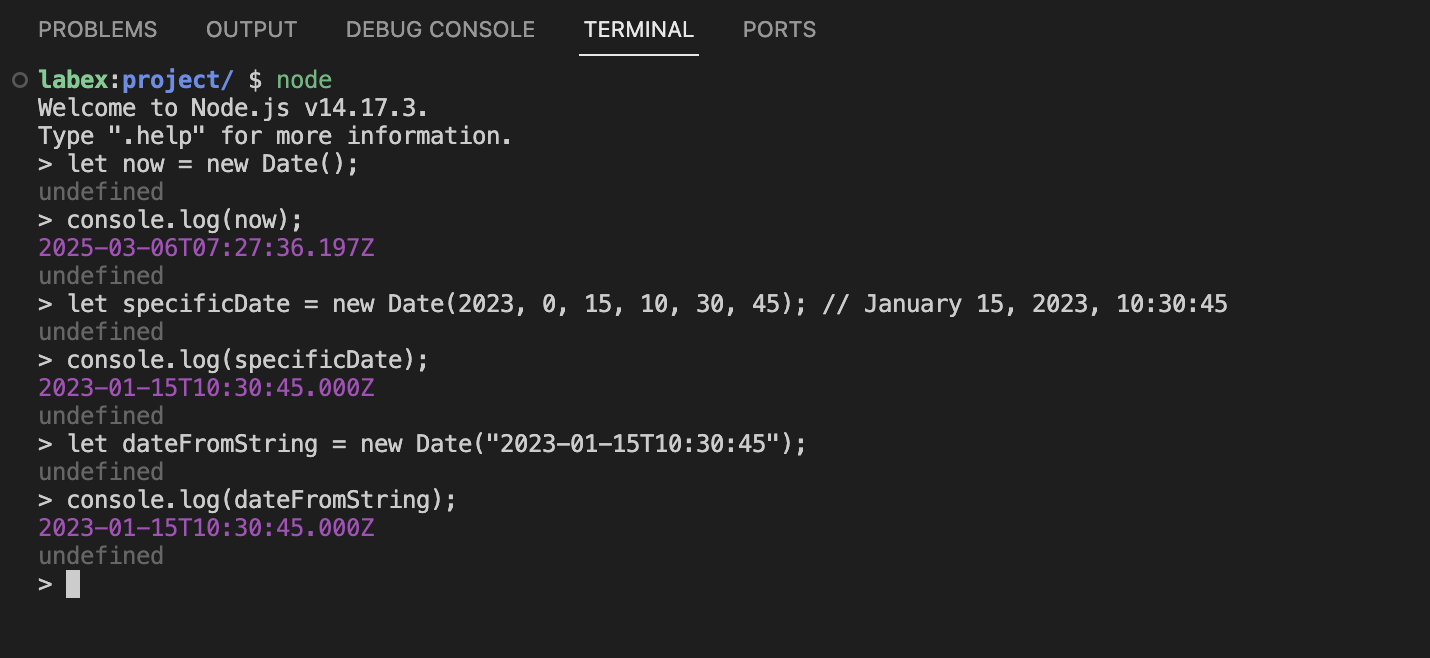
In JavaScript, we can create a new Date object in several ways:
// Current date and time
let now = new Date();
console.log(now);

// Specific date and time (year, month [0-11], day, hour, minute, second)
let specificDate = new Date(2023, 0, 15, 10, 30, 45); // January 15, 2023, 10:30:45
console.log(specificDate);

// Date from string
let dateFromString = new Date("2023-01-15T10:30:45");
console.log(dateFromString);
Try typing each of these examples in the Node.js environment and observe the output.
Note that in JavaScript, months are zero-indexed, meaning January is 0, February is 1, and so on.
Getting Timestamp from Date Objects
Every Date object in JavaScript internally stores time as the number of milliseconds that have passed since January 1, 1970 (UTC). This is known as a timestamp.
let now = new Date();
console.log(now.getTime()); // Get timestamp in milliseconds
This timestamp will be useful for calculating the difference between dates.
Understanding Date Calculations in JavaScript
Now that we understand how to create Date objects, let us learn how to calculate the difference between two dates.
Date Arithmetic in JavaScript
JavaScript allows you to perform arithmetic operations directly on Date objects. When you subtract one Date object from another, JavaScript automatically converts them to timestamps (milliseconds) and performs the subtraction.
let date1 = new Date("2023-01-01T00:00:00");
let date2 = new Date("2023-01-01T00:01:00");

let differenceInMilliseconds = date2 - date1;
console.log(differenceInMilliseconds); // 60000 (60 seconds * 1000 milliseconds)
Try running this code in your Node.js environment. The result should be 60000, which represents 60 seconds in milliseconds.
Converting Milliseconds to Seconds
To convert a time difference from milliseconds to seconds, we simply divide by 1000:
let differenceInSeconds = differenceInMilliseconds / 1000;
console.log(differenceInSeconds); // 60
This gives us our time difference in seconds, which is 60 seconds or 1 minute in this example.
Creating a Date Difference Function
Now that we understand the concept, let us create a simple function to calculate the difference between two dates in seconds:
function getDateDifferenceInSeconds(startDate, endDate) {
  return (endDate - startDate) / 1000;
}

// Test the function
let start = new Date("2023-01-01T00:00:00");
let end = new Date("2023-01-01T00:01:30");
let difference = getDateDifferenceInSeconds(start, end);
console.log(difference); // 90 (1 minute and 30 seconds)
Try typing and executing this function in the Node.js environment. The result should be 90, which represents 1 minute and 30 seconds.
Implementing the Date Difference Function Using Arrow Functions
Now that we understand how to calculate date differences, let us implement a more concise version of our function using arrow functions.
Arrow Functions in JavaScript
Arrow functions provide a shorter syntax for writing functions in JavaScript. Here is how we can rewrite our date difference function using arrow function syntax:
const getSecondsDiffBetweenDates = (dateInitial, dateFinal) =>
  (dateFinal - dateInitial) / 1000;
This function does exactly the same thing as our previous function, but with a cleaner and more concise syntax.
Creating a JavaScript File
Let us create a JavaScript file to store and test our function. Exit the Node.js environment by pressing Ctrl+D or typing .exit and pressing Enter.
Now, create a new file named dateDifference.js in the WebIDE:
- Click on the "Explorer" icon on the left sidebar
- Right-click in the file explorer and select "New File"
- Name the file
dateDifference.jsand press Enter - Add the following code to the file:
// Function to calculate difference between two dates in seconds
const getSecondsDiffBetweenDates = (dateInitial, dateFinal) =>
  (dateFinal - dateInitial) / 1000;

// Test examples
console.log("Example 1:");
console.log(
  getSecondsDiffBetweenDates(
    new Date("2020-12-24 00:00:15"),
    new Date("2020-12-24 00:00:17")
  )
); // Expected output: 2

console.log("\nExample 2:");
console.log(
  getSecondsDiffBetweenDates(
    new Date("2020-12-24 00:00:00"),
    new Date("2020-12-24 00:01:00")
  )
); // Expected output: 60

console.log("\nExample 3:");
console.log(
  getSecondsDiffBetweenDates(
    new Date("2020-12-24 00:00:00"),
    new Date("2020-12-24 01:00:00")
  )
); // Expected output: 3600
Save the file by pressing Ctrl+S or by clicking File > Save.
Running the JavaScript File
To run the file we just created, use the following command in the terminal:
node dateDifference.js
You should see the following output:
Example 1:
2

Example 2:
60

Example 3:
3600
This confirms that our function is working correctly:
- First example: The difference between 00:00:15 and 00:00:17 is 2 seconds
- Second example: The difference between 00:00:00 and 00:01:00 is 60 seconds (1 minute)
- Third example: The difference between 00:00:00 and 01:00:00 is 3600 seconds (1 hour)
Creating a Practical Application
Now that we have a working function to calculate the difference between dates in seconds, let us create a more practical application. We will build a simple timer that calculates how much time has passed since we started it.
Creating a Timer Application
Create a new file named timer.js in the WebIDE:
- Click on the "Explorer" icon on the left sidebar
- Right-click in the file explorer and select "New File"
- Name the file
timer.jsand press Enter - Add the following code to the file:
// Function to calculate difference between two dates in seconds
const getSecondsDiffBetweenDates = (dateInitial, dateFinal) =>
  (dateFinal - dateInitial) / 1000;

// Start time - when the script starts running
const startTime = new Date();
console.log(`Timer started at: ${startTime.toLocaleTimeString()}`);

// Function to update and display the elapsed time
function updateTimer() {
  const currentTime = new Date();
  const elapsedSeconds = getSecondsDiffBetweenDates(startTime, currentTime);

  // Format the time as hours:minutes:seconds
  const hours = Math.floor(elapsedSeconds / 3600);
  const minutes = Math.floor((elapsedSeconds % 3600) / 60);
  const seconds = Math.floor(elapsedSeconds % 60);

  const formattedTime = `${hours.toString().padStart(2, "0")}:${minutes
    .toString()
    .padStart(2, "0")}:${seconds.toString().padStart(2, "0")}`;

  // Clear the console and display the updated time
  console.clear();
  console.log(`Timer started at: ${startTime.toLocaleTimeString()}`);
  console.log(`Elapsed time: ${formattedTime}`);
}

// Update the timer every second
console.log("Timer is running... Press Ctrl+C to stop.");
const timerInterval = setInterval(updateTimer, 1000);

// Keep the script running
setTimeout(() => {
  clearInterval(timerInterval);
  console.log("\nTimer stopped after 1 minute.");
}, 60000); // Run for 1 minute
Save the file by pressing Ctrl+S or by clicking File > Save.
Running the Timer Application
To run the timer application, use the following command in the terminal:
node timer.js
The timer will start and update every second, showing how much time has passed since it started. The timer will automatically stop after 1 minute, or you can stop it earlier by pressing Ctrl+C.
Understanding the Timer Application
Let us break down how the timer application works:
- We define the
getSecondsDiffBetweenDatesfunction to calculate the time difference in seconds. - We record the start time when the script begins running.
- We define an
updateTimerfunction that:- Gets the current time
- Calculates how many seconds have passed since the start time
- Formats the elapsed time as hours:minutes:seconds
- Displays the formatted time
- We use
setIntervalto run theupdateTimerfunction every 1000 milliseconds (1 second). - We use
setTimeoutto stop the timer after 60000 milliseconds (1 minute).
This application demonstrates a practical use of our date difference function to create a real-time timer.
Summary
In this lab, you have learned how to work with dates in JavaScript and how to calculate the difference between two dates in seconds. Here is a summary of what you accomplished:
- You learned how to create and manipulate JavaScript Date objects.
- You understood how JavaScript handles date arithmetic internally using timestamps.
- You implemented a function to calculate the difference between two dates in seconds.
- You created a practical timer application that utilizes the date difference function.
These skills will be valuable for many real-world applications, such as:
- Creating countdown timers for events
- Measuring performance or load times in web applications
- Calculating durations between user actions
- Implementing time-based features in web applications
JavaScript's Date object is a powerful tool for working with dates and times, and knowing how to calculate time differences is an essential skill for web developers.