Introduction
A Jenkins Multibranch Pipeline scans a source control repository, finds branches that contain a Jenkinsfile, and creates one Pipeline job for each branch. This lets main and feature branches use their own Pipeline definitions while staying under one parent project.
In this lab, you will prepare a small local Git repository with two branches, create a Multibranch Pipeline from the Jenkins dashboard, scan the repository, and compare the console output from each discovered branch.
Prepare a Two-Branch Git Repository
In this step, you will prepare a small Git repository that Jenkins can scan. The repository lives inside the Jenkins container so the Jenkins controller can reach it without depending on GitHub or another external service.
Run this command in the terminal to create the main branch with a Jenkinsfile:
docker exec jenkins bash -lc '
set -e
rm -rf /var/jenkins_home/multibranch-src /var/jenkins_home/multibranch-demo.git
mkdir -p /var/jenkins_home/multibranch-src
cd /var/jenkins_home/multibranch-src
git init -b main
git config user.email "jenkins@example.com"
git config user.name "Jenkins Multibranch"
cat > Jenkinsfile <<'"'"'EOF'"'"'
pipeline {
    agent any
    stages {
        stage("Branch Info") {
            steps {
                echo "Running main branch pipeline"
                sh "echo BRANCH_NAME=${BRANCH_NAME}"
            }
        }
    }
}
EOF
git add Jenkinsfile
git commit -m "Add main branch Jenkinsfile"
'
Now create a feature/demo branch with a different Pipeline message, then publish both branches to a bare repository:
docker exec jenkins bash -lc '
set -e
cd /var/jenkins_home/multibranch-src
git checkout -b feature/demo
sed -i "s/Running main branch pipeline/Running feature demo pipeline/" Jenkinsfile
git add Jenkinsfile
git commit -m "Customize feature branch Jenkinsfile"
git init --bare --initial-branch=main /var/jenkins_home/multibranch-demo.git
git remote add origin /var/jenkins_home/multibranch-demo.git
git push origin main
git push origin feature/demo
touch /var/jenkins_home/multibranch-demo.git/git-daemon-export-ok
if [ -f /tmp/multibranch-git-daemon.pid ]; then
  kill "$(cat /tmp/multibranch-git-daemon.pid)" 2>/dev/null || true
  rm -f /tmp/multibranch-git-daemon.pid
fi
git daemon --reuseaddr --base-path=/var/jenkins_home --export-all --detach --pid-file=/tmp/multibranch-git-daemon.pid /var/jenkins_home
'
Record the branches Jenkins will scan:
docker exec jenkins git --git-dir=/var/jenkins_home/multibranch-demo.git branch -a | tee /home/labex/project/multibranch-branches.txt
You should see both branches:
  feature/demo
* main
Create a Multibranch Pipeline Project
In this step, you will create a Multibranch Pipeline project from the Jenkins dashboard. The project will scan git://localhost/multibranch-demo.git and look for a file named Jenkinsfile in each branch.
Open the Desktop interface. Firefox opens Jenkins automatically. If it does not, open http://localhost:8080.
From the Jenkins dashboard:
Click New Item, enter multibranch-demo, select Multibranch Pipeline, then click OK.
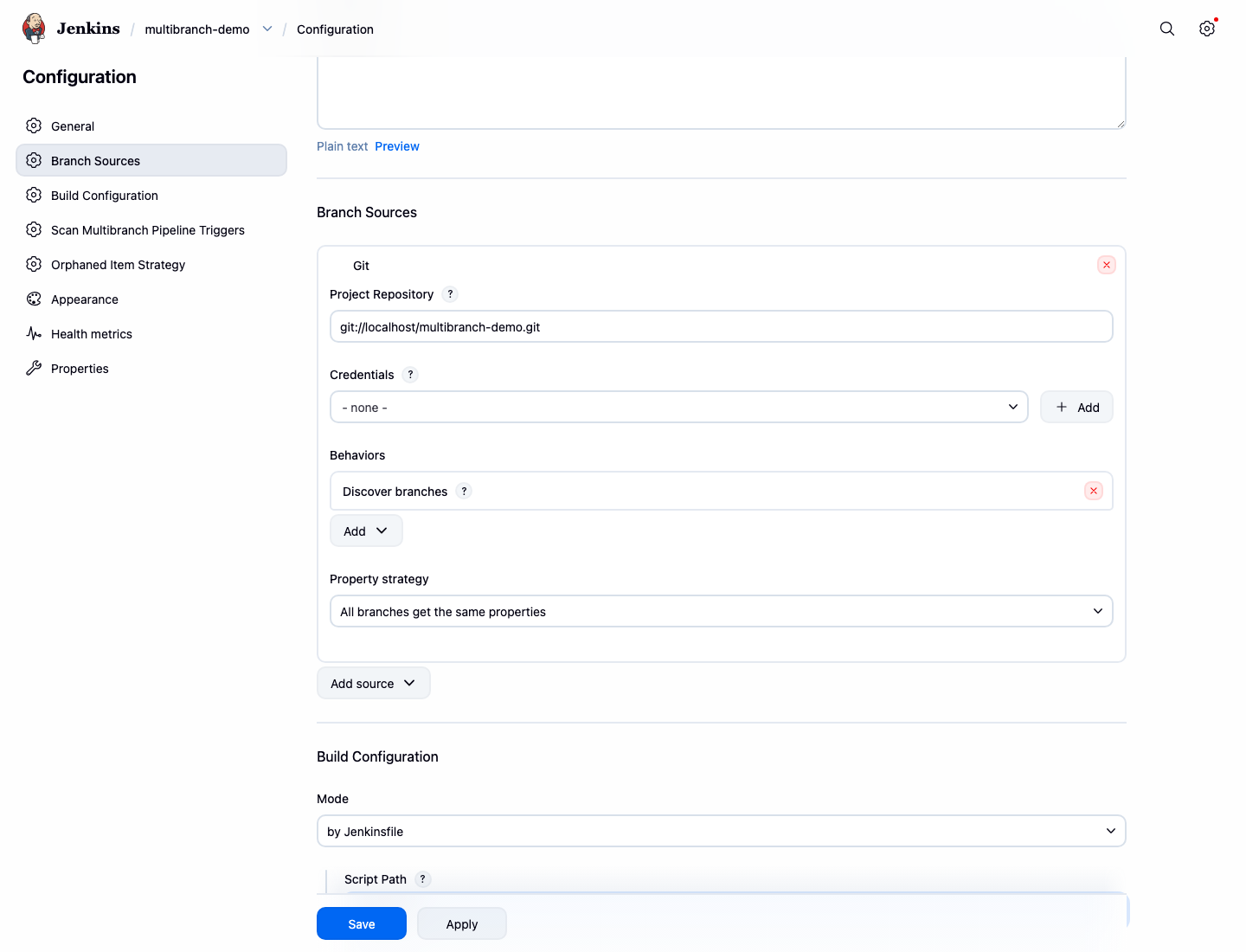
On the configuration page:
In Branch Sources, click Add source and select Git.
Fill in the Git source with these values:
Project Repository:git://localhost/multibranch-demo.gitCredentials:- none -
Leave Behaviors with the default branch discovery behavior. In Build Configuration, keep Mode as by Jenkinsfile and keep Script Path as Jenkinsfile.
Click Save.
Run this command to record the important saved configuration:
docker exec jenkins sh -lc "grep -n -E 'WorkflowMultiBranchProject|git://localhost/multibranch-demo.git|<scriptPath>Jenkinsfile</scriptPath>' /var/jenkins_home/jobs/multibranch-demo/config.xml" | tee /home/labex/project/multibranch-config-lines.txt
Scan the Repository Branches
In this step, you will run branch indexing from the Jenkins dashboard. Branch indexing scans the Git repository, finds branches with a Jenkinsfile, and creates child jobs for those branches.
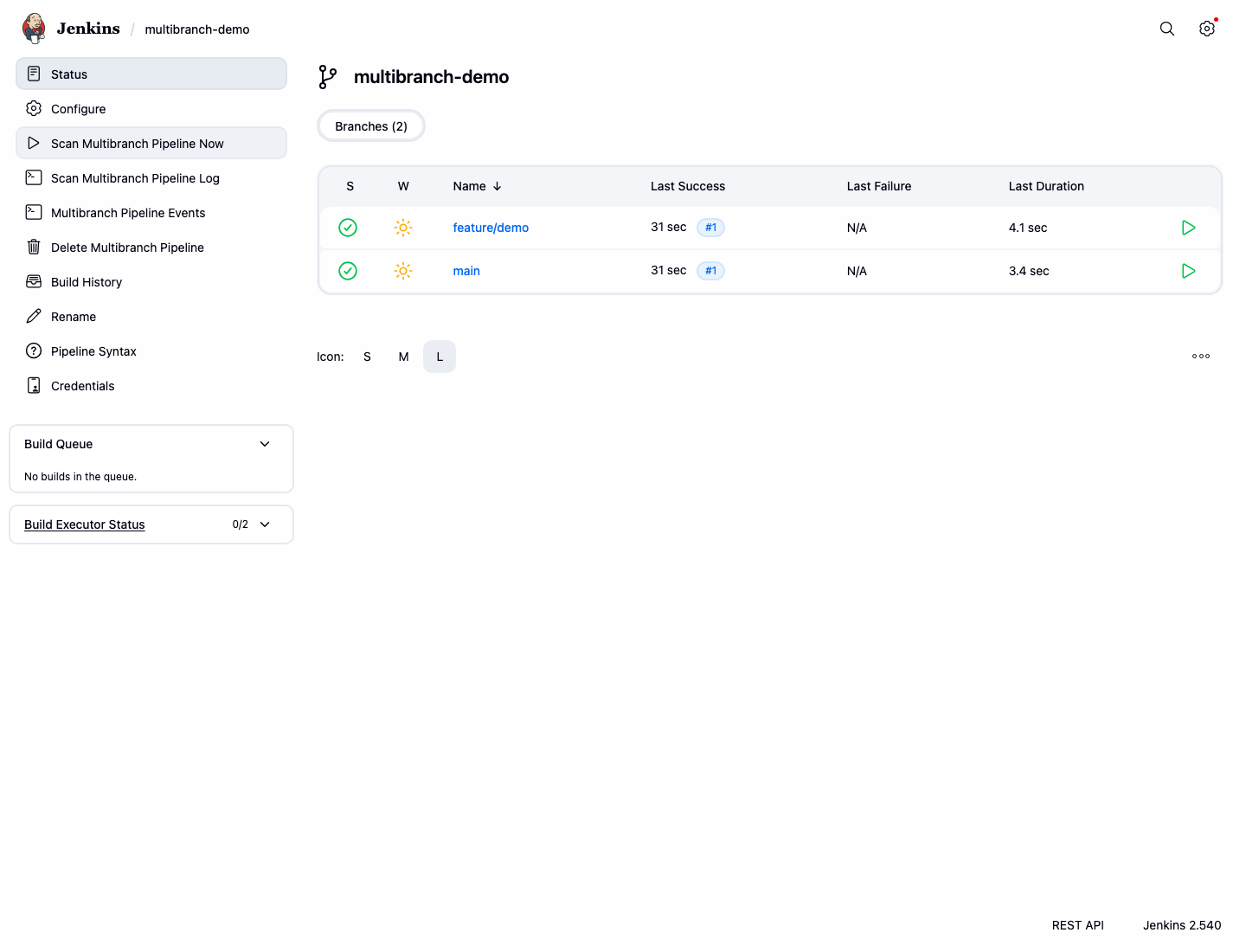
On the multibranch-demo project page, click Scan Multibranch Pipeline Now.
Wait until the page shows child jobs for main and feature/demo. Jenkins may also start the first build for each discovered branch automatically.
Run this command to record the discovered child jobs:
curl -fsS http://localhost:8080/job/multibranch-demo/api/json | grep -o '"name":"[^"]*"' | tee /home/labex/project/multibranch-discovered-jobs.txt
The output should include both branch jobs:
"name":"main"
"name":"feature%2Fdemo"
Check the Branch Builds
In this step, you will confirm that Jenkins can build each discovered branch. A Multibranch Pipeline keeps each branch as its own child Pipeline job.
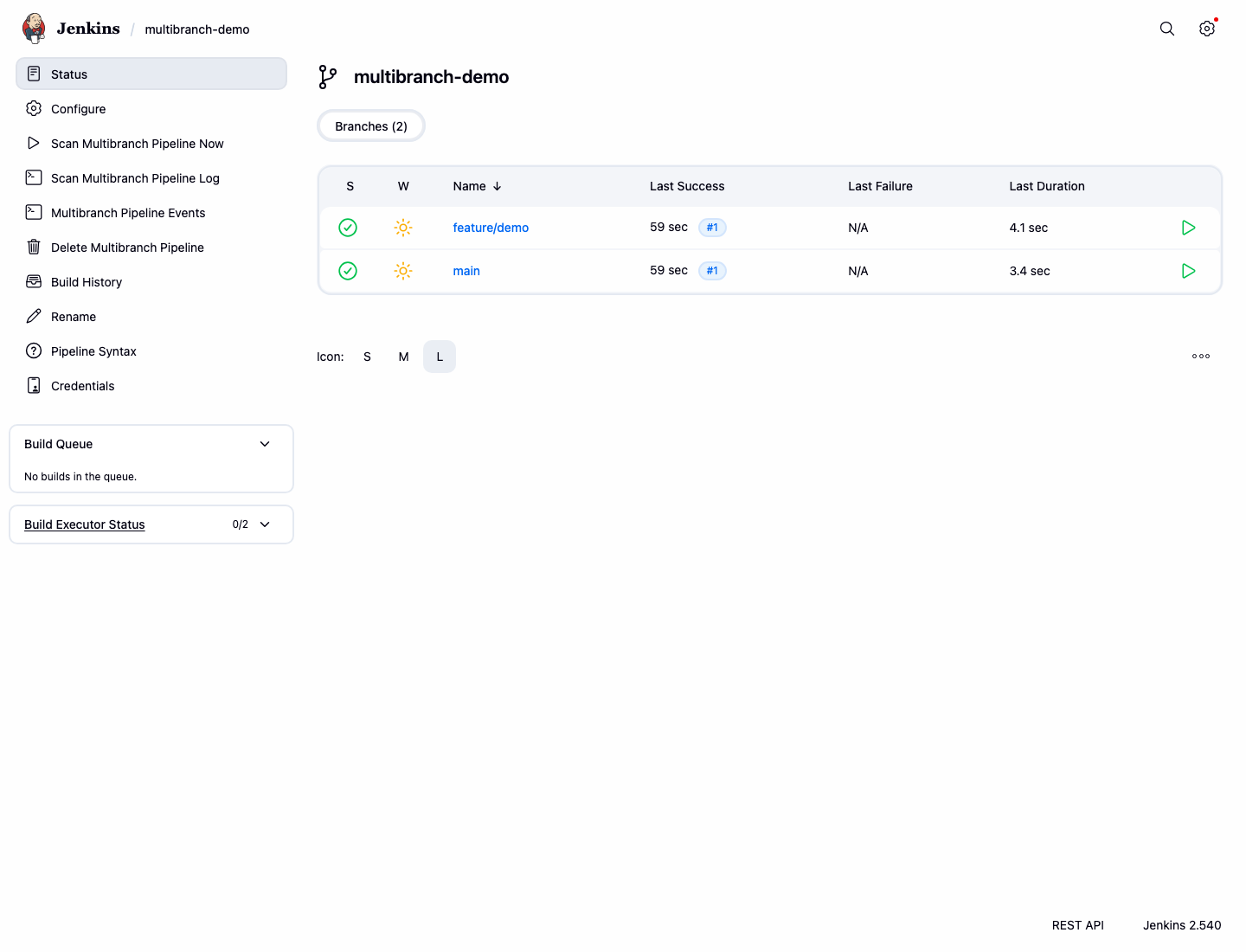
Open the main branch job from the multibranch-demo page. If a build is already running, wait for it to finish. If there is no build yet, click Build Now.
Return to multibranch-demo, open the feature/demo branch job, and do the same.
Both branch jobs should have a successful latest build.
Run this command to record the latest successful build for each branch:
python3 - <<'PY' | tee /home/labex/project/multibranch-build-results.txt
import json
import urllib.request

for url_name, display in [('main', 'main'), ('feature%252Fdemo', 'feature/demo')]:
    with urllib.request.urlopen(f'http://localhost:8080/job/multibranch-demo/job/{url_name}/lastBuild/api/json') as response:
        data = json.load(response)
    print(f'{display}: {data["result"]}')
PY
You should see:
main: SUCCESS
feature/demo: SUCCESS
Compare Branch Pipeline Output
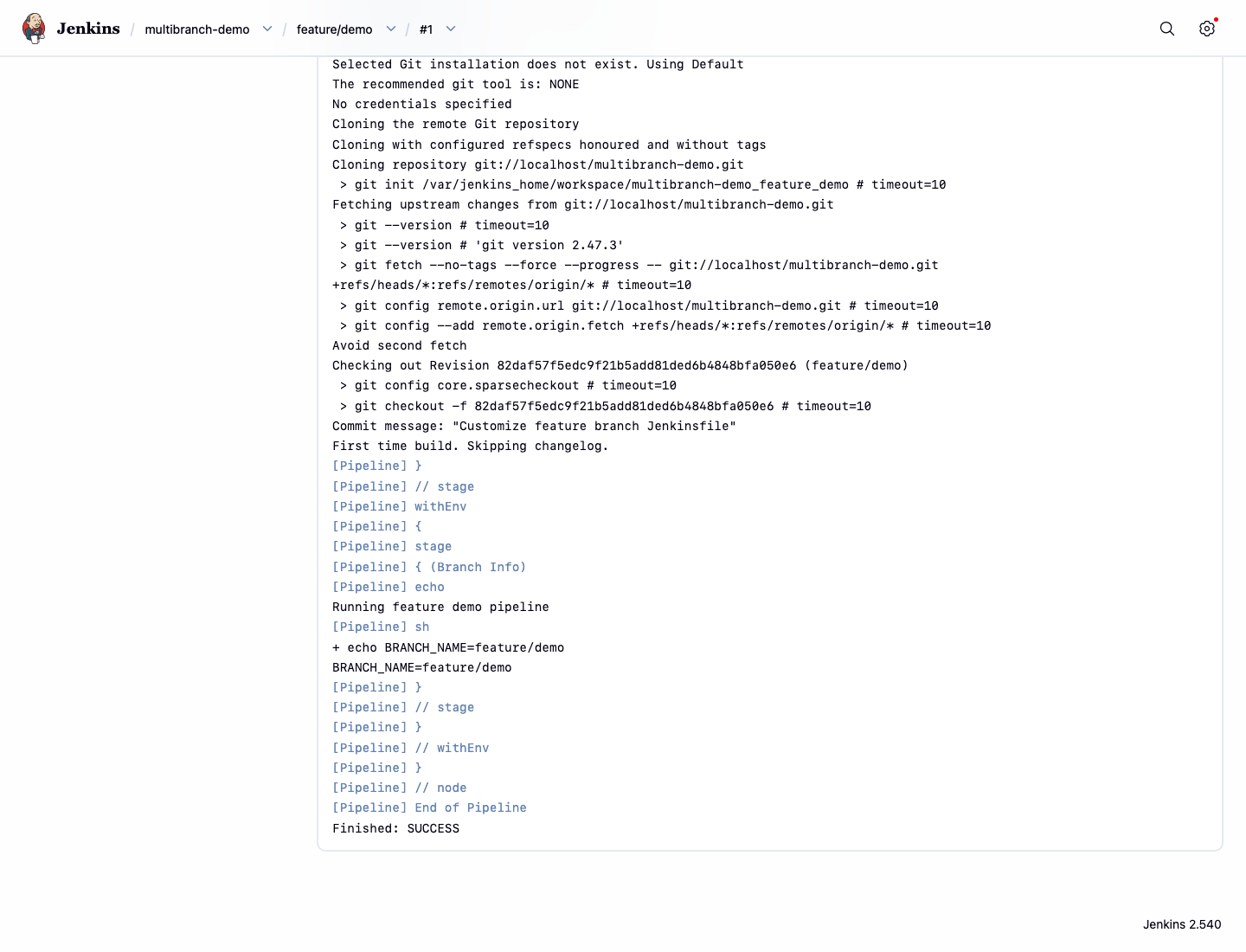
In this step, you will compare the console output from the two branch builds. The main branch and feature/demo branch use different messages in their Jenkinsfiles, so the logs prove that Jenkins ran the correct branch-specific Pipeline.
Open the latest main branch build and click Console Output. It should show Running main branch pipeline.
Then open the latest feature/demo branch build and click Console Output. It should show Running feature demo pipeline.
Run this command to save the same console evidence:
curl -fsS http://localhost:8080/job/multibranch-demo/job/main/lastBuild/consoleText | grep 'Running main branch pipeline' | tee /home/labex/project/multibranch-console-lines.txt
curl -fsS http://localhost:8080/job/multibranch-demo/job/feature%252Fdemo/lastBuild/consoleText | grep 'Running feature demo pipeline' | tee -a /home/labex/project/multibranch-console-lines.txt
Summary
You prepared a local Git repository with two branches, created a Jenkins Multibranch Pipeline from the dashboard, scanned the repository, confirmed both branch jobs built successfully, and compared branch-specific Pipeline output.