Introduction
Jenkins can run builds on different nodes. Labels describe what a node can do, such as linux-build, and jobs can require a matching label before Jenkins schedules them. Jenkins also stores tool installations, such as Git, so jobs and plugins can refer to a named tool instead of relying on a hard-coded path.
In this lab, you will use the Jenkins dashboard to review the built-in node, add a node label, configure a local Git tool, create a Freestyle job restricted to the label, and confirm the build output.
Open the Built-In Node Page
In this step, you will find the built-in Jenkins node in the dashboard. A node is a place where Jenkins can run builds. This lab uses the built-in node because it is already online in the LabEx Jenkins controller.
Open the Desktop interface. Firefox opens Jenkins automatically. If it does not, open http://localhost:8080.
From the Jenkins dashboard:
Click Manage Jenkins in the left sidebar, then click Nodes. Open the node named Built-In Node.
The node page should show the built-in node status and navigation options such as Configure and Build History.
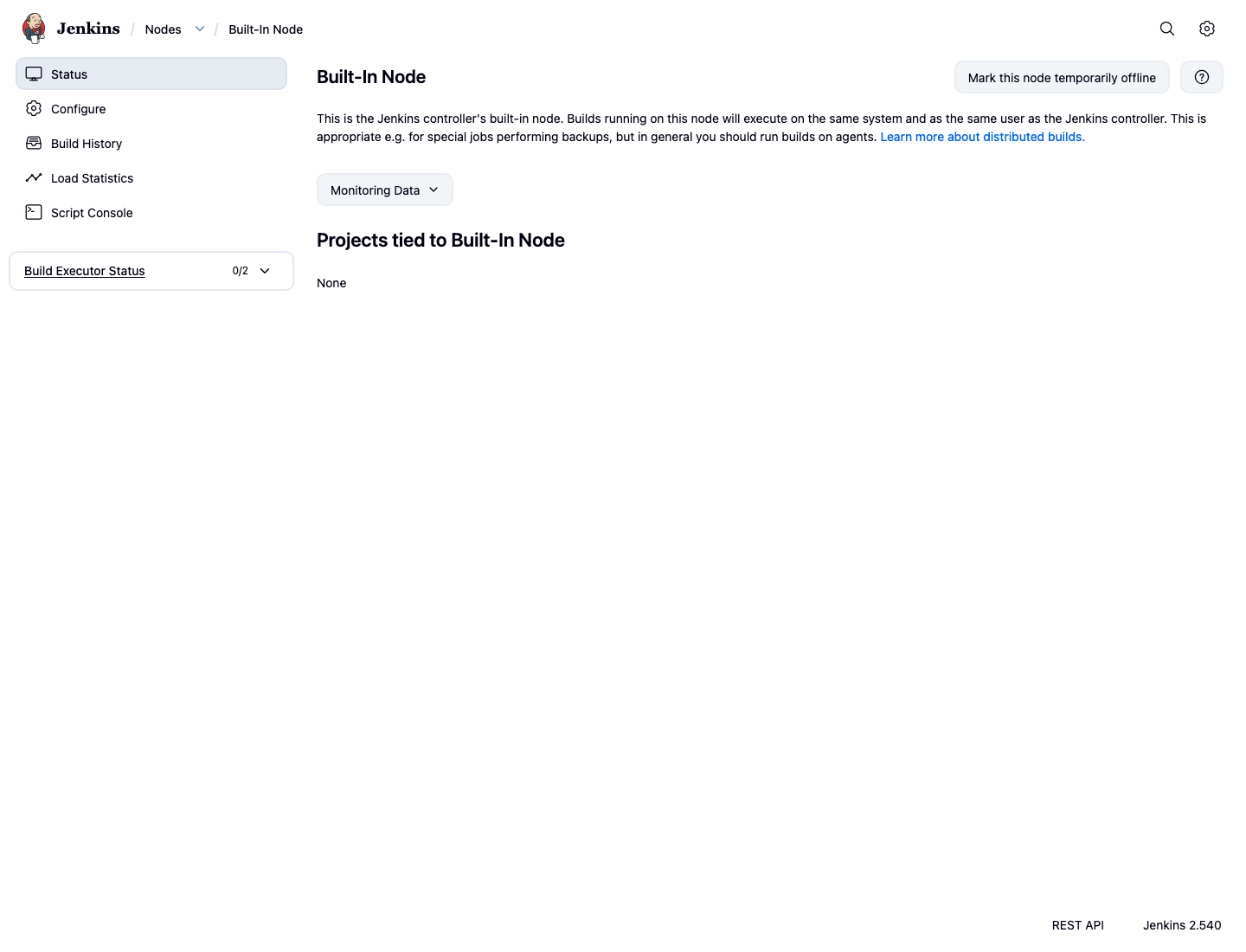
Run this command in the terminal to record that the built-in node page is reachable:
curl -fsS http://localhost:8080/computer/%28built-in%29/ | grep -o 'Built-In Node' | head -1 | tee /home/labex/project/built-in-node-page.txt
You should see:
Built-In Node
Add a Label to the Built-In Node
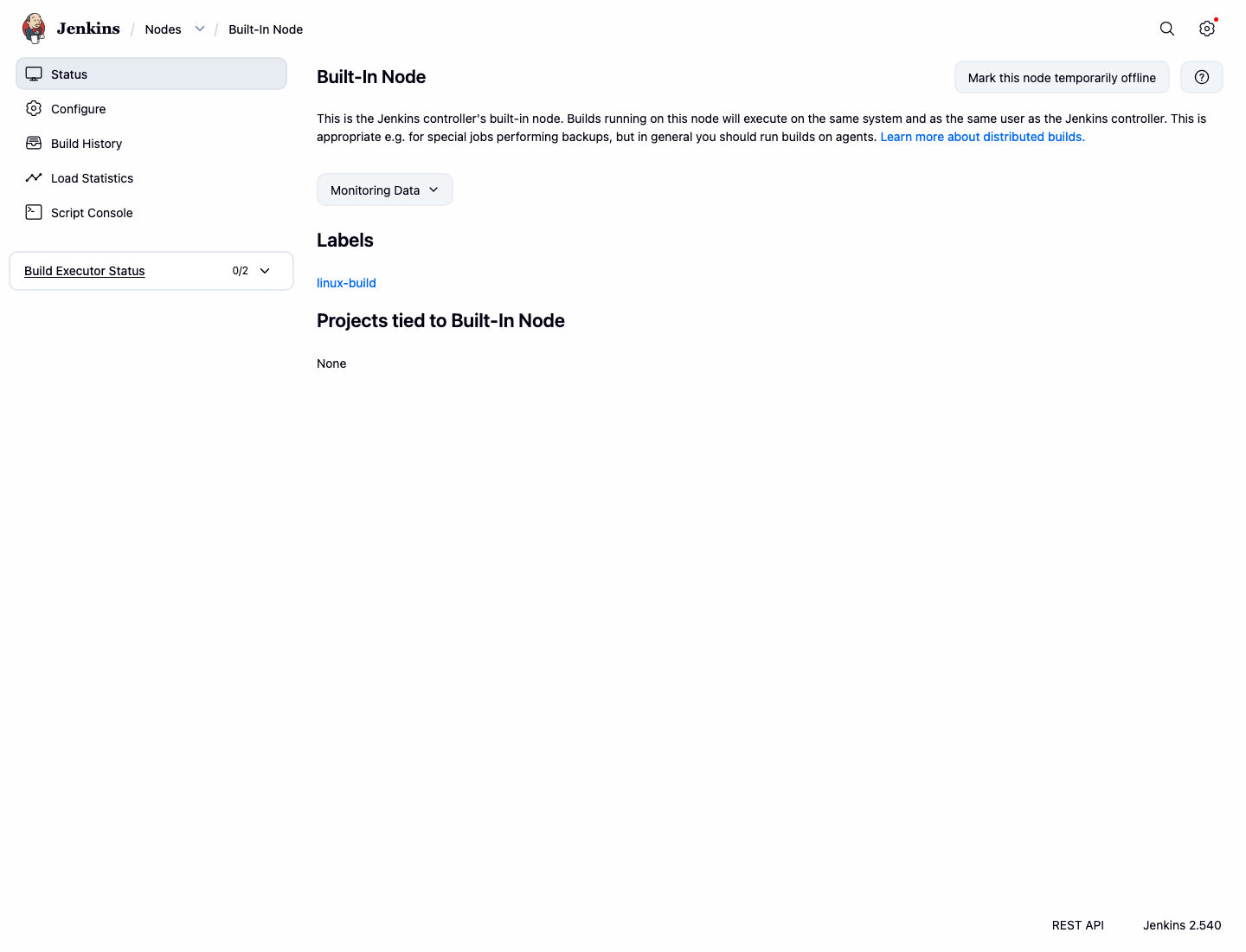
In this step, you will add the label linux-build to the built-in node. A label is a scheduling tag. Jobs that require linux-build can run only on nodes that have that label.
On the Built-In Node page, click Configure.
Find the Labels field and enter:
linux-build
Click Save.
After saving, Jenkins returns to the built-in node page. The page should show the label linux-build.
Configure a Local Git Tool
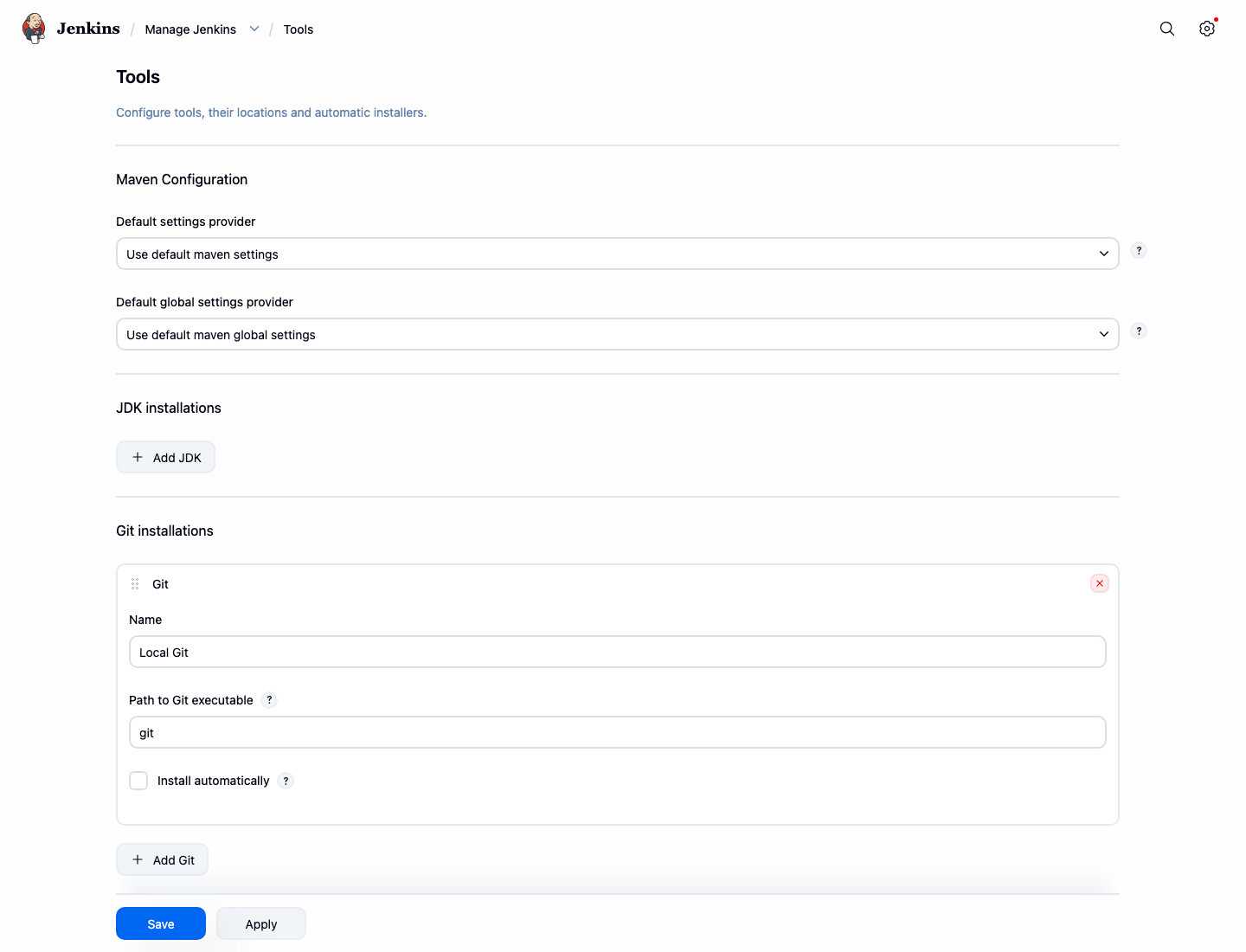
In this step, you will register a Jenkins Git tool named Local Git. Tool configuration lets Jenkins refer to a named installation instead of guessing which executable to use.
From the Jenkins dashboard:
Click Manage Jenkins, then click Tools.
Scroll to the Git installations section. If a Git installation already exists, update the first one. If the section has no installation, click Add Git.
Fill in the Git installation with these values:
Name:Local GitPath to Git executable:git
Click Save.
Jenkins stores this tool definition in its controller configuration.
Run this command to inspect the saved Git tool configuration:
docker exec jenkins sh -lc "grep -n -E '<name>Local Git</name>|<home>git</home>' /var/jenkins_home/hudson.plugins.git.GitTool.xml" | tee /home/labex/project/git-tool-lines.txt
The output should include both the tool name and the executable path:
...<name>Local Git</name>
...<home>git</home>
Create a Job Restricted to the Label
In this step, you will create a Freestyle job named labeled-tool-demo. The job will be restricted to nodes with the linux-build label, so Jenkins must schedule it on the labeled built-in node.
From the Jenkins dashboard:
Click New Item, enter labeled-tool-demo, select Freestyle project, then click OK.
On the configuration page:
Select Restrict where this project can be run. In Label Expression, enter:
linux-build
Scroll to Build Steps, click Add build step, then select Execute shell.
Enter this shell script:
echo "Running on label: linux-build"
git --version
echo "Local Git is available to this build"
Click Save.
The job page should open after saving.
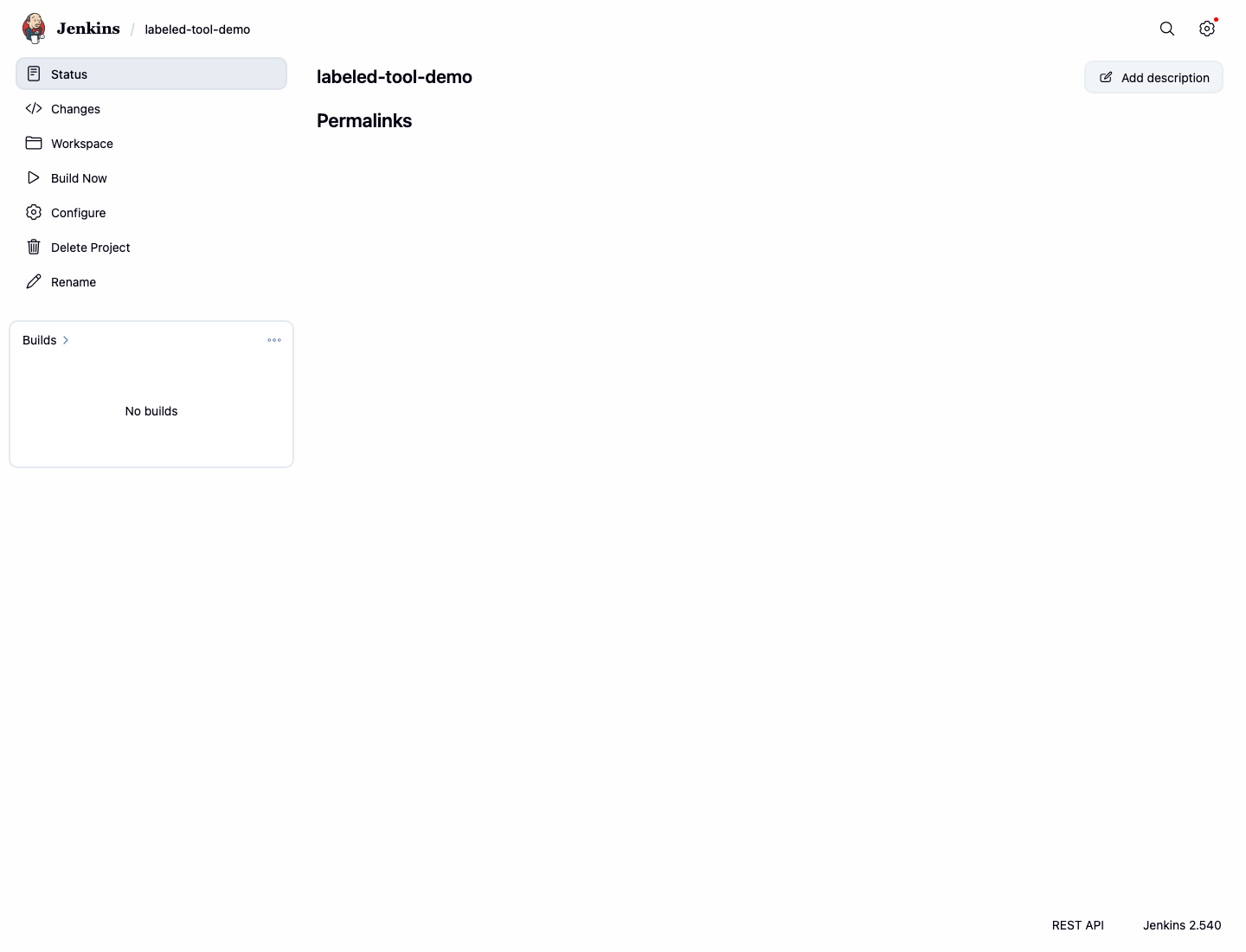
Run this command to record the important saved job settings:
docker exec jenkins sh -lc "grep -n -E '<assignedNode>linux-build</assignedNode>|Running on label: linux-build|git --version' /var/jenkins_home/jobs/labeled-tool-demo/config.xml" | tee /home/labex/project/labeled-job-config.txt
Run the Labeled Job
In this step, you will run the job and read the console output. This proves that Jenkins accepted the label restriction and that the build can run Git from the configured environment.
On the labeled-tool-demo job page, click Build Now.
When build #1 appears in the build history, open it and click Console Output. The console should show the label message, a git version line, and Finished: SUCCESS.
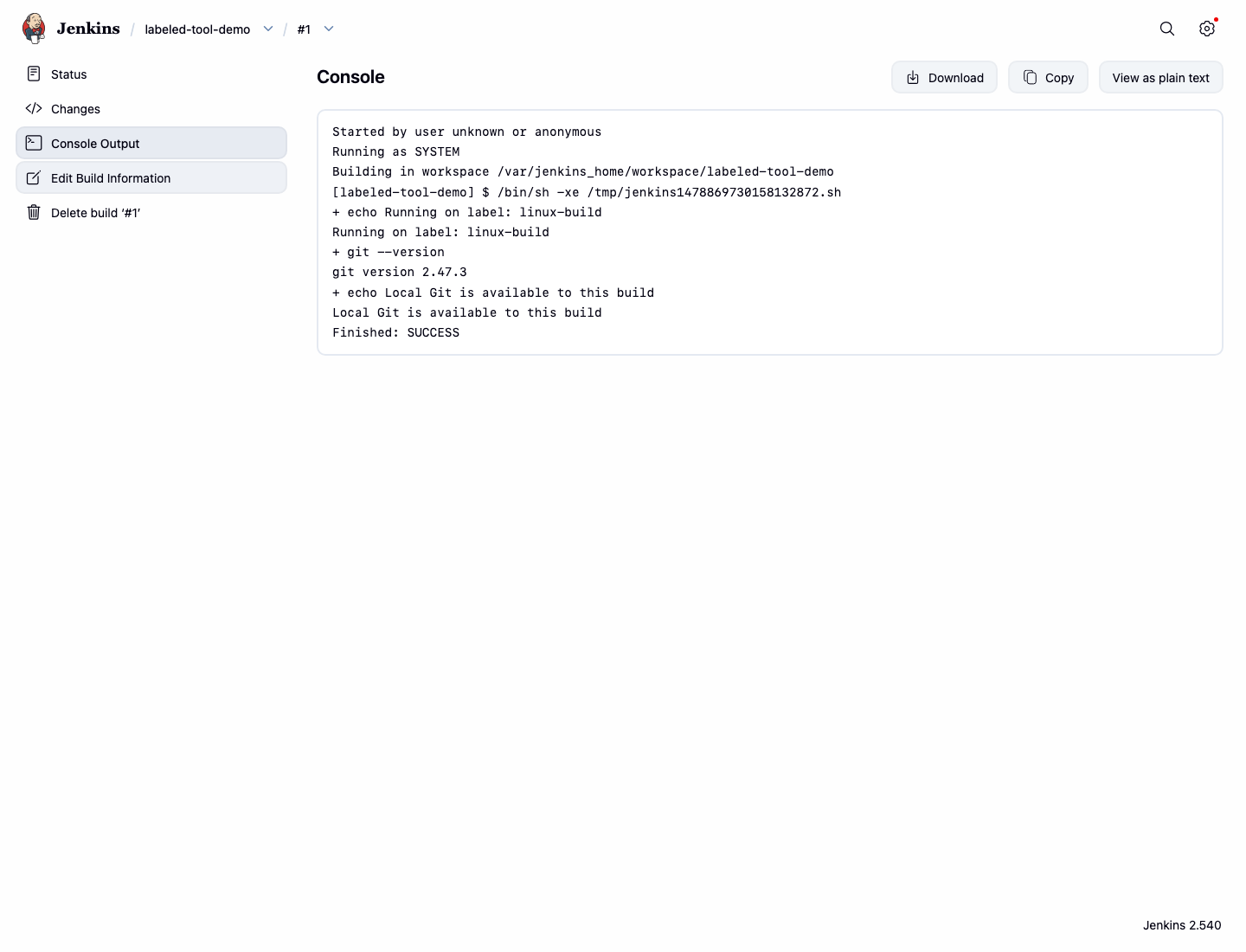
Run this command in the terminal to save the same console evidence for verification:
curl -fsS http://localhost:8080/job/labeled-tool-demo/1/consoleText | grep -E 'Running on label|git version|Finished: SUCCESS' | tee /home/labex/project/labeled-job-console.txt
You should see output like this:
Running on label: linux-build
git version ...
Finished: SUCCESS
Summary
You reviewed the built-in Jenkins node, added a linux-build label from the dashboard, configured a named local Git tool, created a Freestyle job restricted to the label, and verified the successful build output.