



Introduction
Continuous deployment (CD) is the stage where validated software is delivered to an environment where it can run.
Think of our software factory again.
- CI: The robot checks for defects.
- Artifact: The robot packs the product into a box.
- CD: The delivery truck drives the box to the store (Server) so customers can use it.
In the real world, deployment often means updating running systems through SSH, APIs, or platform-specific release mechanisms. In this lab, you will simulate that process, but the important lesson is the delivery flow from tested code to running environment.
This is the core distinction between CI and CD. CI proves that software changes are healthy enough to consider shipping, while CD handles the controlled movement of those validated changes into an environment.
In this lab, you will:
- Learn the concept of Manual Triggers (Click-to-Deploy).
- Write a deployment workflow that simulates the real process.
- Connect your "Delivery Truck" (CD) to your "Quality Control" (CI).
Prerequisites
We will continue using the github-actions-basics repository.
Create Manual Deployment
Sometimes, you don't want to deploy every single time you push code. You might want to wait for approval, or deploy only when you are ready.
That is why manual triggers and staged environments are common. Delivery pipelines often balance speed with operational caution rather than deploying every successful build immediately to production.
GitHub Actions allows you to create workflows that only run when you click a button. This is done using the workflow_dispatch trigger.
Navigate to your project workflow directory.
cd ~/project
git clone https://github.com/your-username/github-actions-basics.git
cd github-actions-basics
Note: Replace your-username with your actual GitHub username.
Create a new file named deploy.yml.
touch .github/workflows/deploy.yml
Open it with nano.
nano .github/workflows/deploy.yml
Add the following content:
name: Deploy to Production

on: workflow_dispatch

jobs:
  deploy:
    runs-on: ubuntu-latest
    steps:
      - name: Deploying
        run: echo "Starting deployment..."
See on: workflow_dispatch? That is the magic button.
Save and exit nano, then push this file to GitHub.
git add .
git commit -m "Add manual deployment workflow"
git push
Now, go to the Actions tab on GitHub.
- Click on Deploy to Production in the left sidebar.
- You will see a blue banner that says "This workflow has a dispatch event trigger."
- Click the Run workflow button (and then the green Run workflow button in the dropdown).
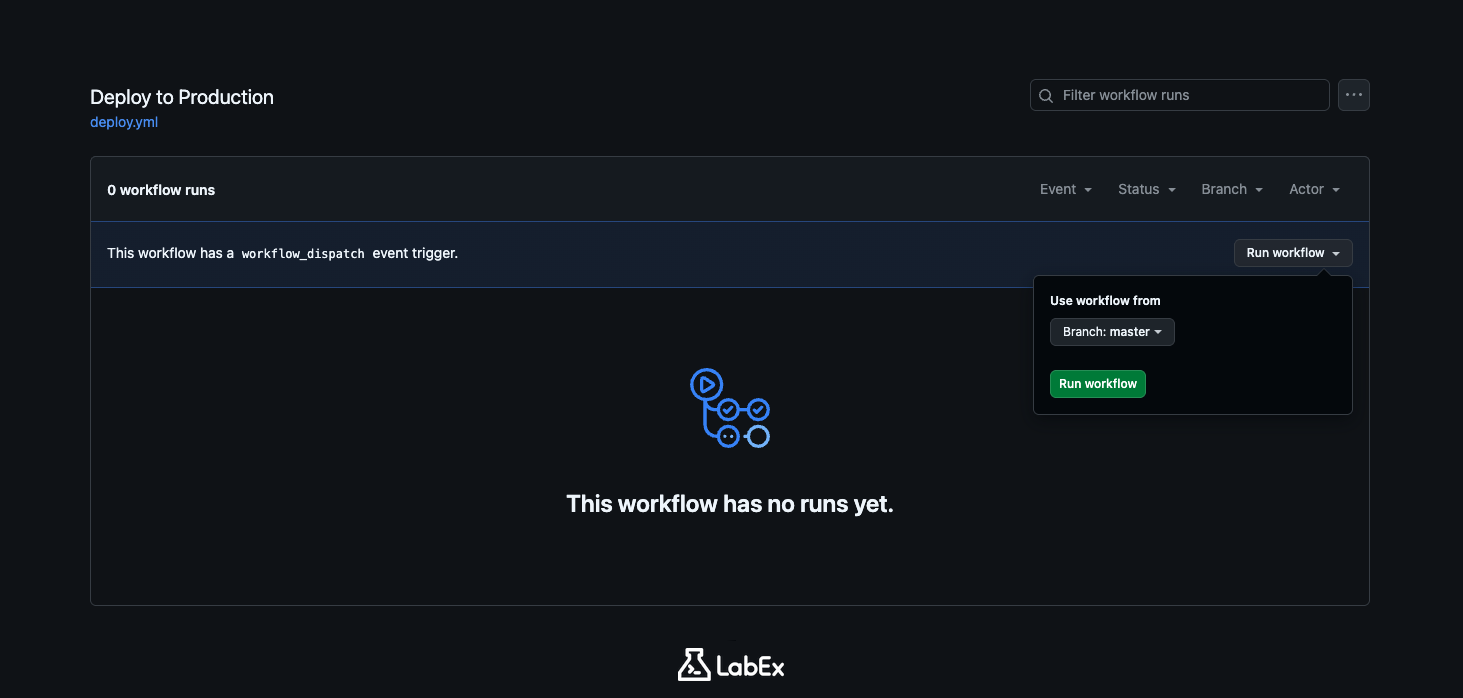
You just manually triggered a deployment pipeline!
Simulate Deployment Steps
Real deployment scripts can be complex, but they usually follow a simple pattern:
- Connect to the server.
- Pull the new version of the software.
- Restart the application.
Even when the implementation details vary, most deployment pipelines still follow this general shape: authenticate, fetch the desired artifact, and make the running environment use it.
Let's update our deploy.yml to simulate these steps. We will use echo commands to show what would happen.
Open the file again.
nano .github/workflows/deploy.yml
Replace the jobs section with this more detailed simulation:
jobs:
  deploy:
    runs-on: ubuntu-latest
    steps:
      - name: Mock SSH Connection
        run: echo "Connecting to production server at 192.168.1.1..."

      - name: Pull New Image
        run: |
          echo "Logging into Registry..."
          echo "Pulling image ghcr.io/myname/app:latest..."

      - name: Restart Application
        run: |
          echo "Stopping old container..."
          echo "Starting new container..."
          echo "Deployment Successful!"
Save and exit. Push your changes.
git add .
git commit -m "Update deployment steps"
git push
Go back to GitHub Actions and manually run the Deploy to Production workflow again. Watch the logs. It looks just like a real deployment!
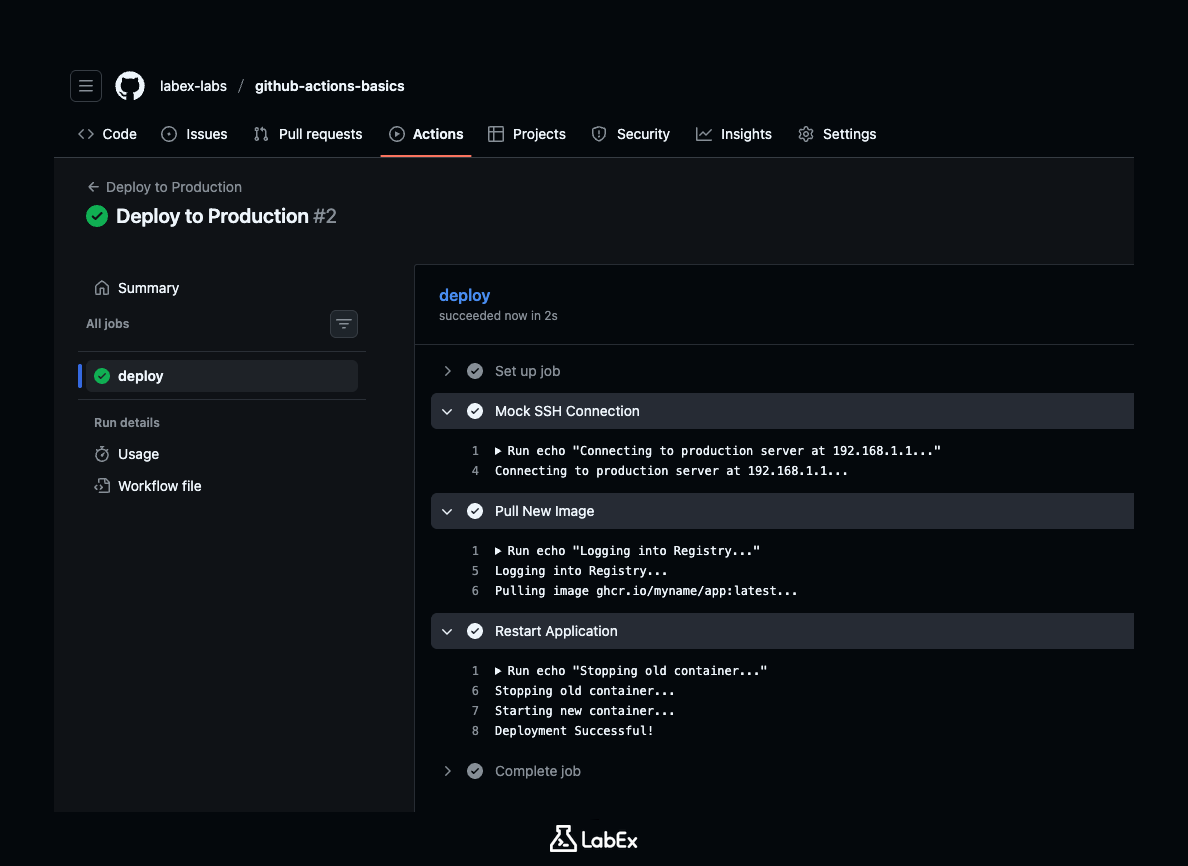
This "Mock" technique is actually very useful. In the professional world, we often write these "Skeleton" workflows first to agree on the process before we write the actual complex code.
Add Safety Checks
Right now, our "Deploy" workflow is completely separate from our "Test" (CI) workflow. But in real life, you never want to deploy broken code. You only want the delivery truck to leave if the quality check passes.
We can link workflows using the needs keyword, but that works best within a single file. For separate files, we usually just manage it by process (CI runs on Push, CD runs on Release or Manual).
However, let's learn how to add a safety check even to our manual deployment. We will assume that we only want to deploy if we are absolutely sure.
Open deploy.yml.
nano .github/workflows/deploy.yml
Let's add an environment protection simulation. Modify the steps to include a pause.
steps:
  - name: Safety Check
    run: echo " verifying that CI passed..."

  - name: Mock SSH Connection
    run: echo "Connecting to production server at 192.168.1.1..."
  ## ... rest of the file
(Note: In a true Enterprise setup, we would use a feature called GitHub Environments to enforce that "CI must pass" before this job can run, but that requires configuration outside this file).
For now, save and exit, then push your changes.
git add .
git commit -m "Add safety check"
git push
Run the workflow one last time manually.
Summary
Congratulations! You have completed the GitHub Actions CICD module.
In this final lab, you learned:
- Manual Triggers: How to use
workflow_dispatchfor controlled deployments. - Simulation: How to prototype a deployment process using mock steps.
- The Big Picture: How CI, Artifacts, Security, and CD all fit together.
You started with zero knowledge of GitHub Actions, and now you have a fully functional repository with automated testing, packaging, and deployment scripts. You are ready to start automating your own projects!


