



Introduction
Now that Prometheus is collecting metrics from Node Exporter, you can start asking questions about the data.
Prometheus has its own query language called PromQL (Prometheus Query Language).
PromQL is important because raw metrics are only useful when you can filter, combine, and calculate meaningful answers from them.
This is the point where monitoring becomes analysis rather than collection. Prometheus is not useful only because it stores numbers, but because PromQL lets you turn those numbers into questions and answers.
In this lab, you will ask three types of questions:
- Simple Fact: "How much free memory is there?"
- Rate: "How fast is the CPU working?"
- Math: "What percentage of memory is full?"
You will use the Prometheus Web Interface (Web Service) to type these questions and see the answers.
Query Free Memory
In this step, you will query the number of free memory bytes and save the response.
Let's start with a simple fact. We want to know how much memory (RAM) is free.
Begin by opening the Prometheus interface:
Click the Prometheus tab in the top left menu of the LabEx interface to open the dashboard.
Once the interface loads, locate the prominent search bar. This is where you will type your questions for the Librarian.
Enter the following query into the search bar:
node_memory_MemFree_bytes
This specific text is the name of the data point that represents "Free Memory". After typing it, click the Execute button.
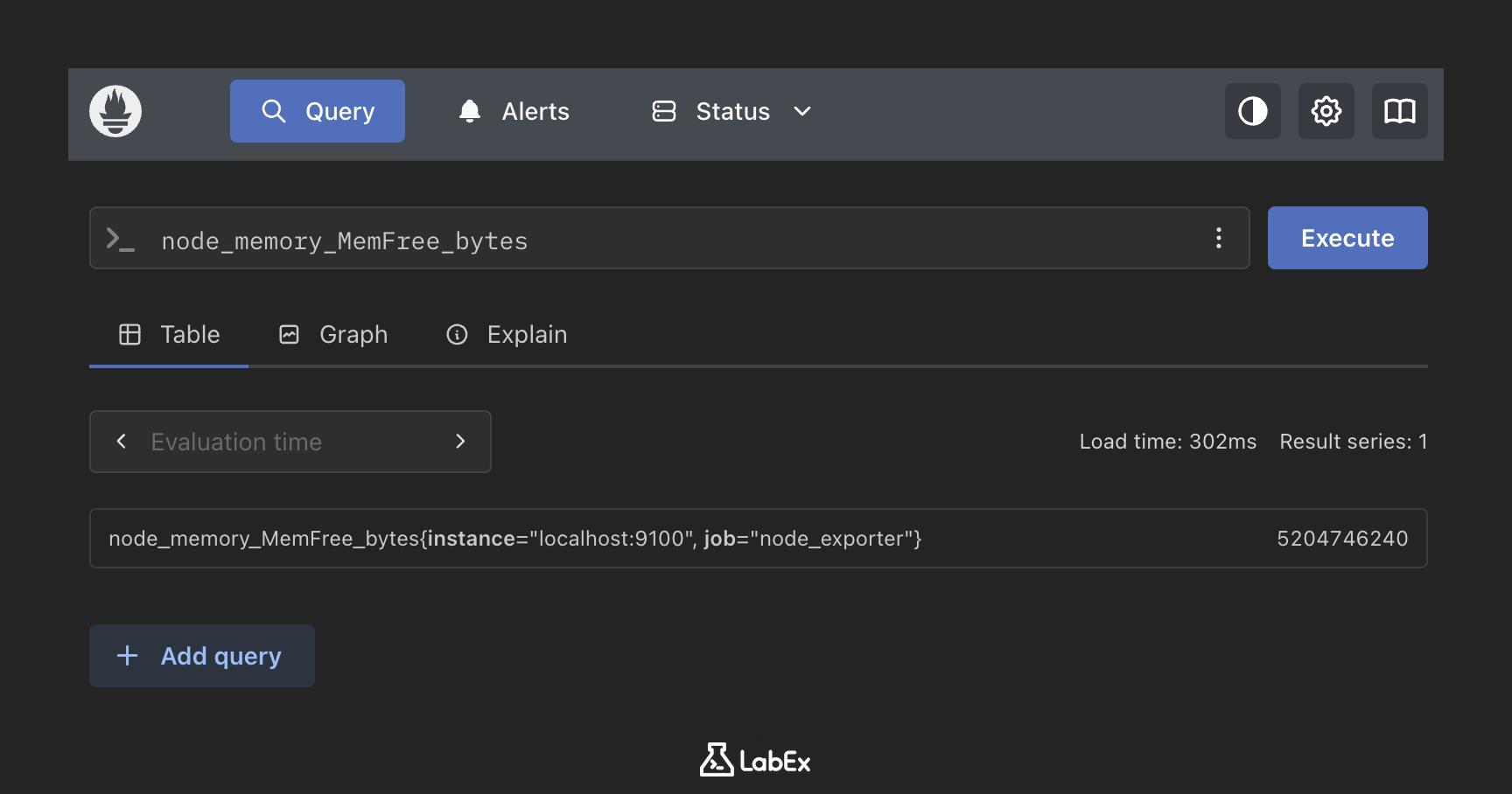
Look at the Result:
You should see a number in the "Value" column. It might look surprisingly large (e.g., 5204746240). This is normal because computers count memory in Bytes, which are very tiny units.
Note: Sometimes the number in the "Value" column might be hidden behind the Labby chat window. If you cannot see the value, try closing the Labby dialog temporarily to view the number, and then reopen it when you are done.
To verify you got it right (since we can't see your screen), run this command in the terminal to save the answer to a file:
curl "http://localhost:9090/api/v1/query?query=node_memory_MemFree_bytes" > ~/project/free_memory.json
cat ~/project/free_memory.json
{"status":"success","data":{"resultType":"vector","result":[{"metric":{"__name__":"node_memory_MemFree_bytes","instance":"localhost:9100","job":"node_exporter"},"value":[1768698428.127,"4001128448"]}]}}
Query CPU Rate
In this step, you will use rate() to query how quickly a CPU counter increases.
Now for a harder question.
A car's speedometer doesn't show "Total Miles Driven"; it shows "Miles Per Hour" (Speed).
CPU usage is similar. Prometheus records "Total Seconds the CPU has worked since it was turned on". This number just gets bigger and bigger.
Metrics like this are called counters: they accumulate over time. To understand current behavior, you often need a function like rate() that converts cumulative growth into a per-time-unit signal.
To see "How hard is the CPU working right now?", we need to calculate the Rate (Speed).
The Question:
rate(node_cpu_seconds_total[1m])
Breakdown:
node_cpu_seconds_total: The raw data (Total Seconds).[1m]: "Look at the data from the last 1 minute."rate(...): "Calculate how fast this number increased during that minute."
Try it in the Web UI:
Paste the query rate(node_cpu_seconds_total[1m]) into the search bar and click Execute. You will likely see many rows of numbers because your computer has multiple CPU cores!
Save the answer (for verification):
curl -g "http://localhost:9090/api/v1/query?query=rate(node_cpu_seconds_total[1m])" > ~/project/cpu_rate.json
The -g (--globoff) option disables curl URL globbing, so curl sends the literal brackets in [1m] instead of interpreting them as a URL range. The shell quotes keep the full query URL together.
Calculate Percentages
In this step, you will combine memory metrics into a percentage.
"500 Million Bytes free" is hard to understand. "50% Free" is easy.
Prometheus can do math for you.
That arithmetic capability is what makes PromQL powerful for operations. You can combine several low-level metrics into higher-level health indicators that are easier for humans to interpret.
We want to know: What percentage of memory is USED?
The formula is: $$ \text{Percent Used} = \frac{\text{Total Memory} - \text{Free Memory}}{\text{Total Memory}} \times 100 $$
The PromQL Question:
(node_memory_MemTotal_bytes - node_memory_MemFree_bytes) / node_memory_MemTotal_bytes * 100
Try it in the Web UI:
Paste that long math equation into the search bar and click Execute. You should see a single number (e.g., 45.2). That means 45.2% of your memory is being used.
Save the answer:
curl "http://localhost:9090/api/v1/query?query=(node_memory_MemTotal_bytes-node_memory_MemFree_bytes)/node_memory_MemTotal_bytes*100" > ~/project/memory_usage.json
Visualize Data
In this step, you will graph the memory query and interpret its axes.
Finally, pictures are better than numbers.
With your Math Question still in the search bar, look for the tabs above the results area. You will see a Graph tab (usually next to the Table tab used for simple text results).
Click on the Graph tab. You will see a line drawing of your memory usage over time.
- X-Axis: Time
- Y-Axis: Percent Used
If you see a straight line, it means your memory usage is stable. If you ran a heavy program, you would see a spike!
One last check:
Since you are just looking at pictures, let's confirm your server is still running in the background:
ps aux | grep prometheus
Summary
In this lab, you learned to ask the Librarian questions using PromQL.
You learned:
- Simple Facts:
node_memory_MemFree_bytes - Rates (Speed):
rate(... [1m]) - Math:
(Total - Free) / Total * 100 - Drawing: Using the Graph tab.
Now that you can see the data, the next step is to make Prometheus shout at you if something goes wrong. That's called Alerting.


