Introduction
Jenkins stores most controller and job configuration as files under JENKINS_HOME. A practical backup plan must capture the files that define jobs and controller settings, and a restore plan must prove Jenkins can load the restored files.
In this lab, you will create a sample job, back up its config.xml, delete the job, restore it from a tar archive, reload Jenkins, and verify that the job works again.
Create Jenkins State Worth Backing Up
In this step, you will create a Freestyle job named backup-restore-demo. This gives you a real Jenkins configuration file to back up and restore.
Write the job configuration:
cat > /home/labex/project/backup-restore-demo-config.xml <<'XML'
<?xml version='1.1' encoding='UTF-8'?>
<project>
  <actions/>
  <description>Job used to practice Jenkins backup and restore.</description>
  <keepDependencies>false</keepDependencies>
  <properties/>
  <scm class="hudson.scm.NullSCM"/>
  <canRoam>true</canRoam>
  <disabled>false</disabled>
  <blockBuildWhenDownstreamBuilding>false</blockBuildWhenDownstreamBuilding>
  <blockBuildWhenUpstreamBuilding>false</blockBuildWhenUpstreamBuilding>
  <triggers/>
  <concurrentBuild>false</concurrentBuild>
  <builders>
    <hudson.tasks.Shell>
      <command>echo "Restored Jenkins job is running"</command>
      <configuredLocalRules/>
    </hudson.tasks.Shell>
  </builders>
  <publishers/>
  <buildWrappers/>
</project>
XML
Copy the job into Jenkins and reload:
docker exec -u root jenkins mkdir -p /var/jenkins_home/jobs/backup-restore-demo
docker cp /home/labex/project/backup-restore-demo-config.xml jenkins:/var/jenkins_home/jobs/backup-restore-demo/config.xml
docker exec -u root jenkins chown -R jenkins:jenkins /var/jenkins_home/jobs/backup-restore-demo
/home/labex/project/reload-jenkins.sh
Confirm Jenkins can load the job:
curl -fsS http://localhost:8080/job/backup-restore-demo/api/json | grep -o '"name":"backup-restore-demo"'
Back Up the Job Configuration
In this step, you will copy the job configuration out of the Jenkins container and archive it. The backup keeps the relative path jobs/backup-restore-demo/config.xml, which makes the restore path clear.
Create a backup work directory and copy the job config:
mkdir -p /home/labex/project/jenkins-backup-work/jobs/backup-restore-demo
docker cp jenkins:/var/jenkins_home/jobs/backup-restore-demo/config.xml /home/labex/project/jenkins-backup-work/jobs/backup-restore-demo/config.xml
Create a compressed tar archive:
cd /home/labex/project/jenkins-backup-work
tar -czf /home/labex/project/backup-restore-demo.tar.gz jobs/backup-restore-demo/config.xml
List the archive contents:
tar -tzf /home/labex/project/backup-restore-demo.tar.gz
The output should include:
jobs/backup-restore-demo/config.xml
Delete the Job to Simulate Data Loss
In this step, you will delete the job from Jenkins. This simulates an accidental deletion and gives you a clear restore target.
Remove the job directory and reload Jenkins:
docker exec -u root jenkins rm -rf /var/jenkins_home/jobs/backup-restore-demo
/home/labex/project/reload-jenkins.sh
Confirm the job is no longer reachable. The command below intentionally treats a 404 response as success for this check:
if curl -fsS http://localhost:8080/job/backup-restore-demo/api/json >/dev/null 2>&1; then
  echo "Job still exists"
  exit 1
else
  echo "Job is absent and ready to restore"
fi
Restore the Job from Backup
In this step, you will extract the backup archive, copy the restored job directory back into Jenkins, and reload the controller.
Extract the archive into a restore directory:
rm -rf /home/labex/project/restore-work
mkdir -p /home/labex/project/restore-work
tar -xzf /home/labex/project/backup-restore-demo.tar.gz -C /home/labex/project/restore-work
Copy the restored job directory into Jenkins and reload:
docker cp /home/labex/project/restore-work/jobs/backup-restore-demo jenkins:/var/jenkins_home/jobs/backup-restore-demo
docker exec -u root jenkins chown -R jenkins:jenkins /var/jenkins_home/jobs/backup-restore-demo
/home/labex/project/reload-jenkins.sh
Confirm Jenkins can load the restored job:
curl -fsS http://localhost:8080/job/backup-restore-demo/api/json | grep -o '"name":"backup-restore-demo"'
Run the Restored Job
In this step, you will run the restored job. A restore is only useful if Jenkins can load and execute the restored configuration.
Trigger the build. Jenkins returns a queue item first, so store the response headers and read the Location header:
CRUMB=$(curl -fsS -c /tmp/jenkins-backup-build.cookies 'http://localhost:8080/crumbIssuer/api/xml?xpath=concat(//crumbRequestField,":",//crumb)')
curl -fsS -D /tmp/backup-restore-build.headers -o /dev/null -b /tmp/jenkins-backup-build.cookies -H "$CRUMB" -X POST http://localhost:8080/job/backup-restore-demo/build
QUEUE_URL=$(awk 'tolower($1)=="location:" {print $2}' /tmp/backup-restore-build.headers | tr -d '\r')
echo "Jenkins queued the restored job at ${QUEUE_URL}"
Wait until the queued item becomes a real build. Jenkins may spend a few seconds in a quiet period before it assigns the final build number:
until BUILD_NUMBER=$(python3 - "$QUEUE_URL" <<'PY'
import json
import sys
import urllib.request

with urllib.request.urlopen(sys.argv[1] + 'api/json') as response:
    data = json.load(response)

executable = data.get('executable')
if not executable:
    raise SystemExit(1)
print(executable['number'])
PY
); do
  echo "Waiting for Jenkins to assign a build number..."
  sleep 3
done

echo "The restored job is running as build #${BUILD_NUMBER}"
Wait for that build to finish:
until curl -fsS "http://localhost:8080/job/backup-restore-demo/${BUILD_NUMBER}/api/json" >/tmp/backup-restore-build.json 2>/dev/null && grep -q '"building":false' /tmp/backup-restore-build.json; do
  echo "Waiting for restored job build #${BUILD_NUMBER}..."
  sleep 3
done
Inspect the console output:
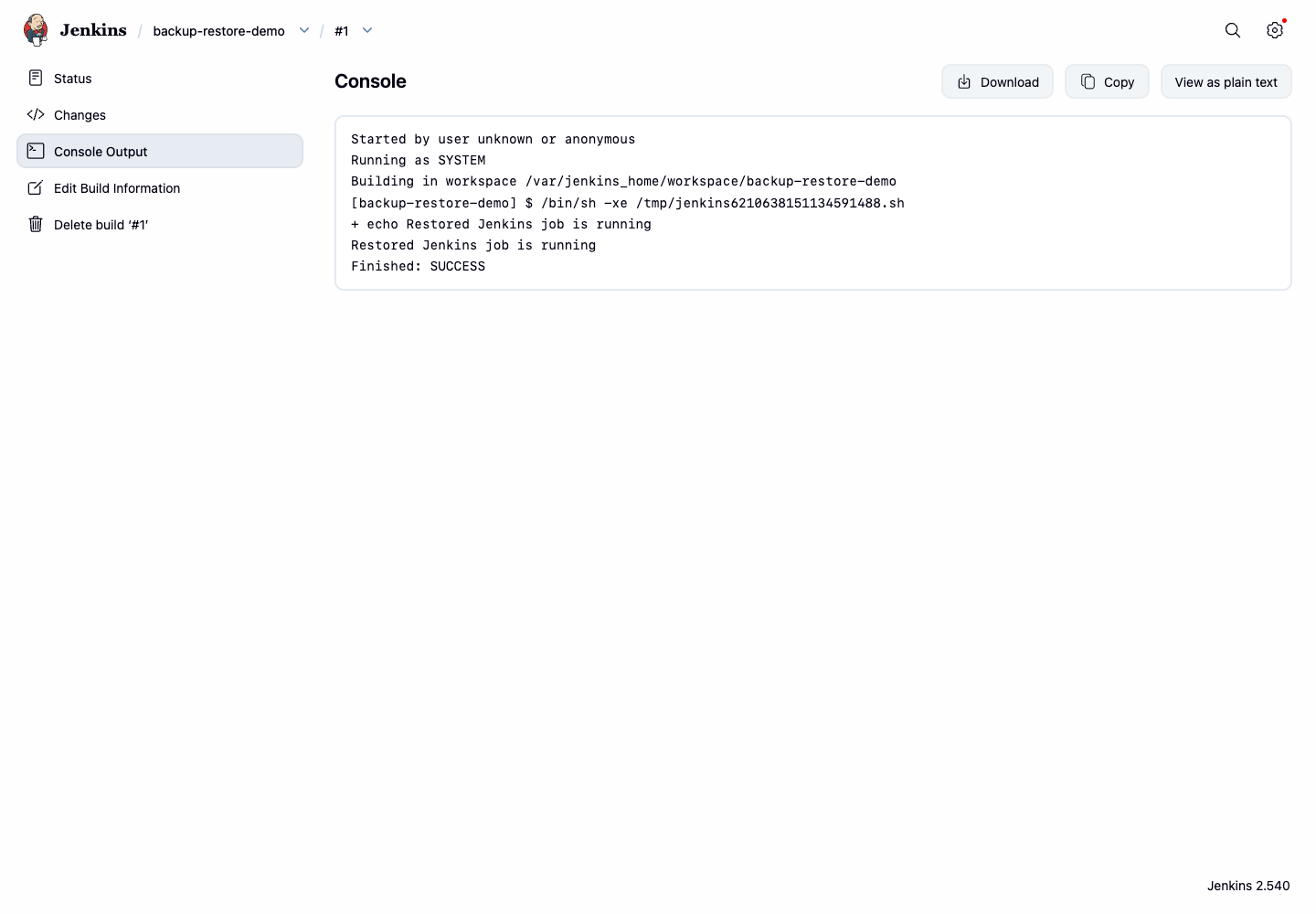
curl -fsS "http://localhost:8080/job/backup-restore-demo/${BUILD_NUMBER}/consoleText" | grep -E 'Restored Jenkins job is running|Finished: SUCCESS'
Open Firefox from the Desktop interface and visit the console URL for the build number shown by your terminal, such as http://localhost:8080/job/backup-restore-demo/2/console. The console page should show the restored job running successfully.
Summary
You created Jenkins configuration worth backing up, archived a job config.xml, deleted the job, restored it from the backup archive, reloaded Jenkins, and verified the restored job by running a successful build.