Introduction
After organizing individual objects, publish a changing collection. Synchronize daily reports, distinguish incremental transfer from a mirror, and remove an obsolete report without touching the separate archive.
Complete Organize Documents with Keys and Metadata first, including its bucket, key, prefix, and download concepts. This fresh VM provides the CLI connection, local reports, and a bucket containing only the archive. Use Terminal for commands and the AWS View above Terminal to observe your changes.
Certification Relevance
| Certification | Exam task | Practice |
|---|---|---|
| Cloud Practitioner (CLF-C02) | Task 3.6 | Directory synchronization and scoped deletion in S3. |
| Solutions Architect – Associate (SAA-C03) | Task 3.1 | Directory synchronization and scoped deletion in S3. |
| Developer – Associate (DVA-C02) | Task 1.3 | Directory synchronization and scoped deletion in S3. |
Lab Overview
Publish the Prepared Report Directory
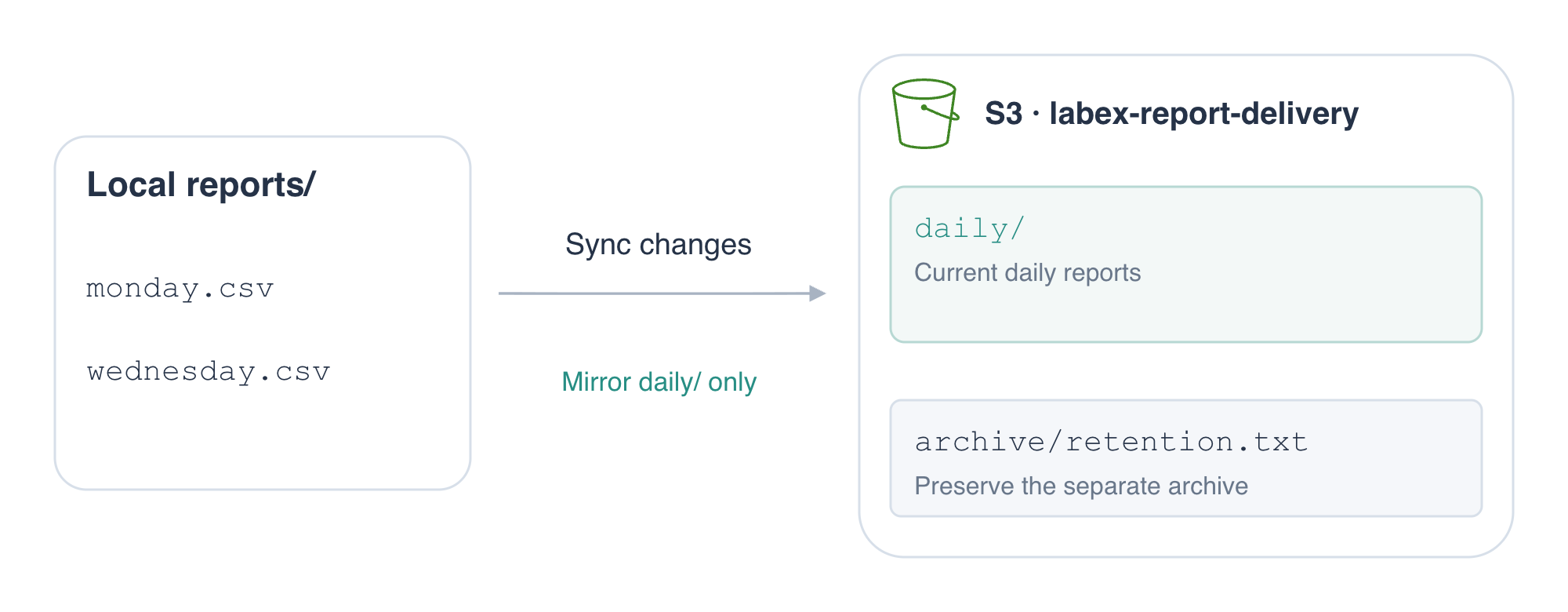
In this step, you will publish two local reports to the daily/ prefix and understand how their filenames map to object keys.
Enter the workspace with cd (change directory):
cd /home/labex/project
Inspect the prepared report directory with ls, which lists its local filenames:
ls reports
The listing contains monday.csv and tuesday.csv. Both are CSV files: a header names the columns, and commas separate the values in each record. Inspect Monday's report with cat, which prints a file's contents:
cat reports/monday.csv
date,orders
2026-09-28,120
List the prepared bucket. For an S3 location, --recursive displays complete keys throughout the bucket:
aws s3 ls s3://labex-report-delivery/ --recursive
Only archive/retention.txt is present. The archive belongs to a separate workflow and must survive your daily synchronization.
aws s3 sync takes a source and a destination, in that order. It recursively considers files in the source directory; you do not need --recursive for sync. Each relative filename becomes a key below the destination prefix. reports/monday.csv therefore becomes daily/monday.csv, rather than daily/reports/monday.csv.
aws s3 sync reports/ s3://labex-report-delivery/daily/
The command reports uploads for Monday and Tuesday; their output order can vary. List the whole bucket again:
aws s3 ls s3://labex-report-delivery/ --recursive
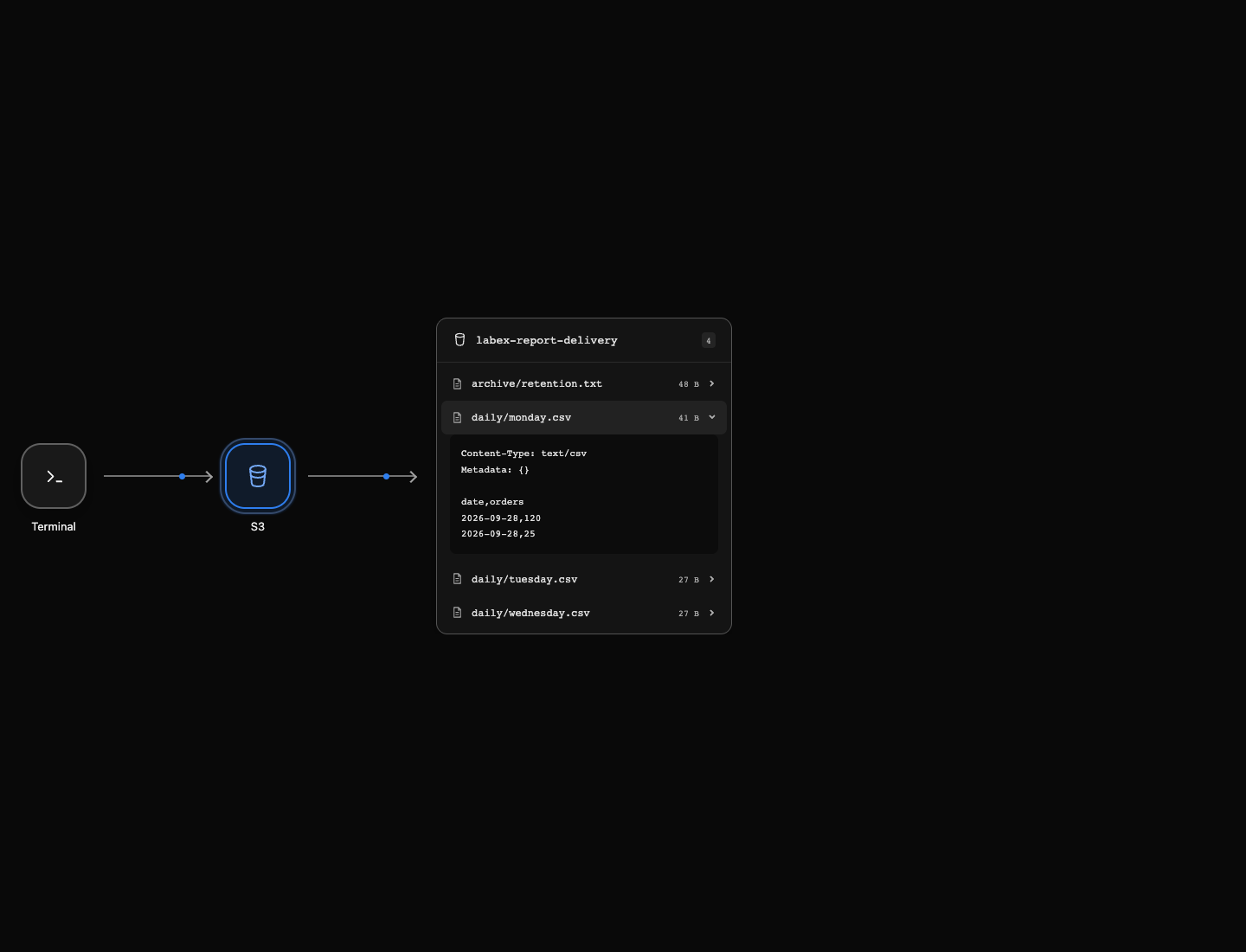
You should find three keys: archive/retention.txt, daily/monday.csv, and daily/tuesday.csv. AWS View shows the same objects. Click daily/monday.csv to read the stored two-line CSV report. The archive remains outside the daily/ destination you selected.
Synchronize a Change and a New Report
In this step, you will update one report, add another, and transfer those changes without uploading an unchanged report again.
Running sync with the same source and destination is safe when neither side has changed:
aws s3 sync reports/ s3://labex-report-delivery/daily/
There are no upload lines when the existing files are already up to date. For local-to-S3 transfers, the CLI considers whether the destination key is missing, the sizes differ, or the local file has a newer modification time. It does not watch the directory continuously: you run sync when you want to publish changes.
Add a late batch of 25 orders to Monday's report. printf prints the quoted text; \n ends the line. The shell's >> appends to a local file instead of replacing it:
printf '2026-09-28,25\n' >> reports/monday.csv
Inspect the three-line result:
cat reports/monday.csv
date,orders
2026-09-28,120
2026-09-28,25
Create Wednesday's report. Here > writes a new file, replacing any existing contents at that path:
printf 'date,orders\n2026-09-30,150\n' > reports/wednesday.csv
Before publishing, the stored Monday report still has two lines and Wednesday is absent from AWS View. Editing local files alone does not change S3.
Publish again:
aws s3 sync reports/ s3://labex-report-delivery/daily/
You should see uploads for the changed Monday report and the new Wednesday report. Tuesday is unchanged, so it is not uploaded. This is an incremental transfer: it copies changes rather than blindly copying every file.
In AWS View, Monday now shows the late batch and Wednesday appears. Download Monday to a separate local path so you can compare the actual stored content:
aws s3 cp s3://labex-report-delivery/daily/monday.csv retrieved-monday.csv
cmp compares files byte for byte. It exits successfully without printing differences when the contents match. && prints the message only after that successful comparison:
cmp reports/monday.csv retrieved-monday.csv && echo 'Updated report matches'
Updated report matches
This confirms the update reached storage; a successful command message alone would not tell you which bytes were stored.
Mirror Only the Daily Prefix
In this step, you will remove an obsolete destination report while protecting the unrelated archive.
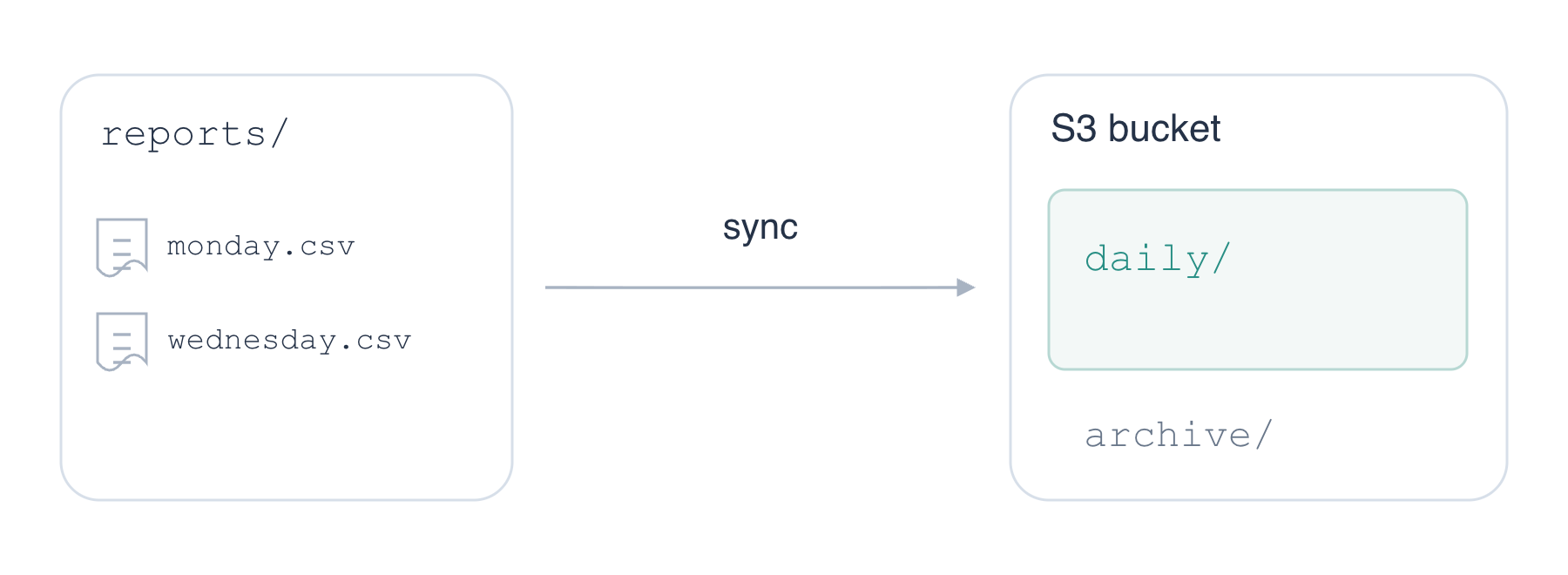
The sync destination is daily/; archive/ stays outside that scope.
Tuesday's report is no longer part of the published daily collection. Remove only that local file with rm (remove). This is a local filesystem command, so it does not delete an S3 object:
rm reports/tuesday.csv
Run ordinary sync again:
aws s3 sync reports/ s3://labex-report-delivery/daily/
List the destination prefix:
aws s3 ls s3://labex-report-delivery/daily/ --recursive
Tuesday still appears. By default, sync copies missing or updated files but leaves extra objects at the destination. Removing a source file alone does not remove its stored copy.
A mirror keeps the destination's file set aligned with the source, including removals. --delete removes destination keys that have no matching source file. First combine it with --dryrun, which displays intended operations without performing them:
aws s3 sync reports/ s3://labex-report-delivery/daily/ --delete --dryrun
The dry run should list only the deletion of daily/tuesday.csv. Monday and Wednesday match the source, and archive/retention.txt is outside daily/. Keep the destination prefix exact: using the bucket root would bring the archive into scope.
After checking the intended deletion, run the same operation without --dryrun:
aws s3 sync reports/ s3://labex-report-delivery/daily/ --delete
The command reports deletion of Tuesday. Inspect the whole bucket so you can check both what disappeared and what survived:
aws s3 ls s3://labex-report-delivery/ --recursive
The remaining keys are daily/monday.csv, daily/wednesday.csv, and archive/retention.txt. In AWS View, open the archive object and confirm it still reads Keep the archive outside daily synchronization. Your mirror operation affected only the chosen prefix.
Summary
You published a changing report directory with sync, verified the stored update, and previewed a mirror before using --delete. The final daily/ collection contains Monday and Wednesday; the separate archive remains unchanged. Choose both the transfer direction and destination scope before publishing.
For further reading, see the AWS reference on S3 sync transfer selection, dry runs, and deletion scope.