Introduction
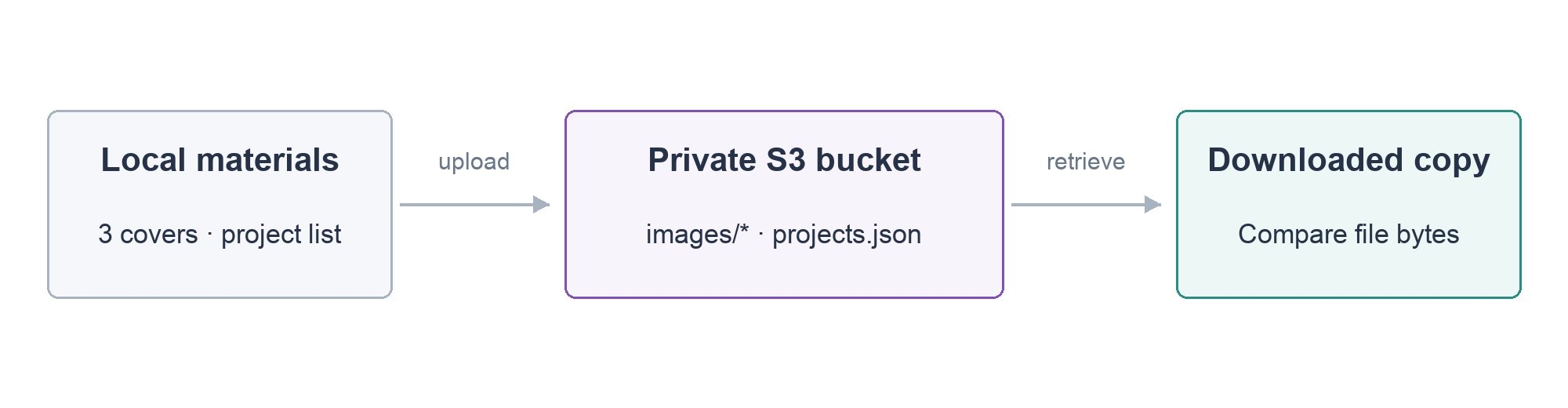
Your portfolio needs a place to store its artwork and project list. Create private Amazon S3 storage, upload those materials and retrieve a copy to confirm the stored content.
Complete the first three portfolio labs first. This fresh environment supplies its own running website and local materials. You will prepare storage here; the next lab will connect a website to private S3 images through an EC2 role.
Certification Relevance
| Certification | Exam task | Practice |
|---|---|---|
| AWS Certified Cloud Practitioner (CLF-C02) | Task 3.6 | Use S3 object storage for application materials, separate from EC2 compute. |
Lab Overview
Create Private Portfolio Storage
In this step, you will create a private S3 bucket for your portfolio materials and apply its public-access safeguards.
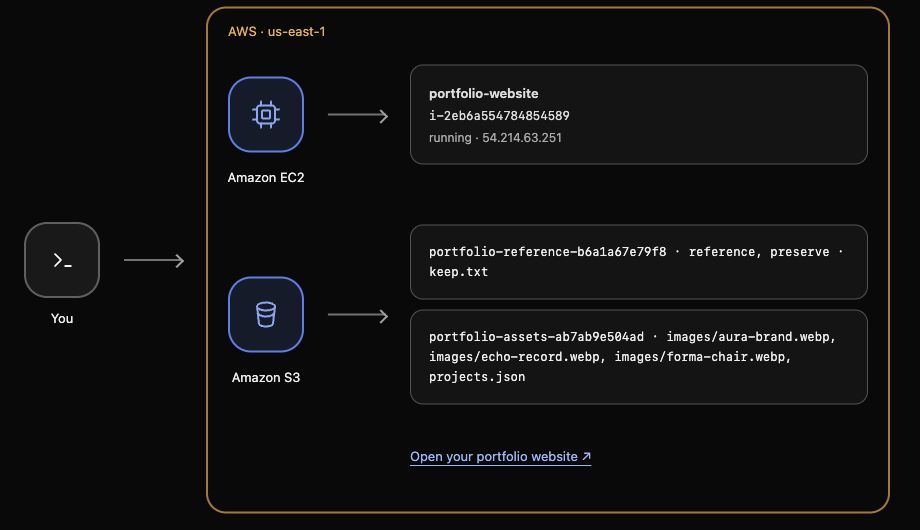
EC2 runs your website application. Amazon S3 stores files as objects inside a bucket, a named container for storage. Keeping materials in S3 separates them from the server that runs the website. This lab provides a fresh website and local files; you will create the portfolio bucket yourself.
Enter the prepared project folder:
cd /home/labex/project
Load this lab’s identifiers and display the bucket name:
source website.env
echo "$PORTFOLIO_BUCKET"
PORTFOLIO_BUCKET is the unique name supplied for this exercise; the bucket does not exist yet. S3 requires unique bucket names, so use the supplied name rather than a common name such as portfolio.
The CLI’s s3 commands provide convenient file operations. mb means make bucket, and s3:// identifies an S3 location:
aws s3 mb "s3://$PORTFOLIO_BUCKET"
Expect a make_bucket confirmation. The prepared connection uses us-east-1, so the new bucket is in that Region. Find its name in AWS View.
New storage is private by default. Block Public Access adds safeguards against accidentally granting public permissions. Inspect the supplied JSON file, whose four settings should all be true:
cat private-access.json
Each true enables a safeguard. The CLI’s s3api commands expose individual S3 operations, including access settings. As with launch.json, the file:// option reads the local configuration rather than requiring you to enter every value separately:
aws s3api put-public-access-block \
  --bucket "$PORTFOLIO_BUCKET" \
  --public-access-block-configuration file://private-access.json
A successful update returns to the prompt without output. Read the settings from S3 to check they were saved:
aws s3api get-public-access-block --bucket "$PORTFOLIO_BUCKET"
Confirm all four values are true. AWS View should show your bucket with No objects. The separate reference bucket contains unrelated keep.txt data; leave it unchanged. Your bucket is now ready for the materials.
Upload and Retrieve Your Design Assets
In this step, you will store the three project covers and project list, then retrieve the AURA cover and compare its bytes with the original.
The supplied portfolio-assets/ folder contains four files. WebP is an image format; projects.json holds the titles, descriptions and image references used by the project panels. The artwork and website are supplied, so you can focus on storage.
| File | Website use |
|---|---|
images/aura-brand.webp |
AURA |
images/forma-chair.webp |
FORMA |
images/echo-record.webp |
ECHO |
projects.json |
Project titles, descriptions and image references |
An object’s key is its name within the bucket. images/aura-brand.webp has the images/ prefix; it does not require a real folder inside S3. cp copies files, and --recursive copies every file in the local folder while retaining relative paths as keys:
aws s3 cp portfolio-assets/ "s3://$PORTFOLIO_BUCKET/" --recursive
Expect four upload lines, one per file. Now list the stored objects with s3 ls; here --recursive includes keys under the images/ prefix:
aws s3 ls "s3://$PORTFOLIO_BUCKET/" --recursive
The four lines show modification time, size and key. Confirm the three image keys and projects.json; their order and timestamps are not important. AWS View displays the same four object names.
Reverse the copy direction to retrieve AURA under a different local filename:
aws s3 cp "s3://$PORTFOLIO_BUCKET/images/aura-brand.webp" downloaded-aura.webp
cmp compares file bytes. Compare the supplied original with the file you retrieved:
cmp portfolio-assets/images/aura-brand.webp downloaded-aura.webp
No output and a returned prompt mean the files match. You have stored and retrieved the actual cover unchanged. If they differ, check the key and upload the supplied original again.
Your private storage task is complete. The website still reads its supplied local files, so uploading to S3 does not change the page yet. The next lab starts fresh with equivalent materials already stored and teaches how an application gains permission to read them.
Summary
You created private S3 storage, applied public-access safeguards, uploaded three covers and a project list, and retrieved an unchanged copy. You distinguished stored objects from the website application that will use them.
Official references: S3 objects, AWS CLI S3 file commands, and Block Public Access.