Introduction
A visitor reports a page problem. Use actual request logs to distinguish a missing page from an unavailable website. Generate successful and missing-page requests, find their CloudWatch log events and relate each status to what the browser showed.
Complete the earlier portfolio labs first. This fresh lab provides its own running website and request-log integration. You do not install an agent or configure log collection; you generate and inspect real requests.
Certification Relevance
| Certification | Exam task | Practice |
|---|---|---|
| AWS Certified Cloud Practitioner (CLF-C02) | Task 3.8 | Use CloudWatch Logs to understand application request results. |
Lab Overview
Find a Successful Website Request
In this step, you will request the portfolio page and find the resulting log event.
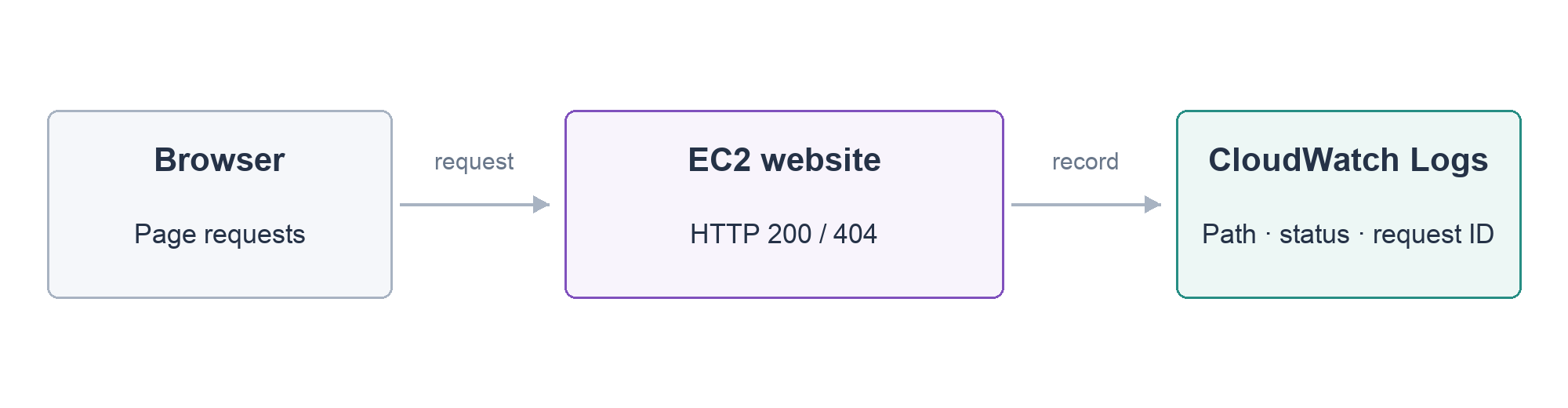
Open your portfolio website from AWS View. Confirm Alex Morgan and the three design projects are displayed. Opening the page makes an actual request to the EC2 website.
A log event records what happened at a particular time. CloudWatch Logs groups related events in a log group; separate log streams can represent different application instances. This lab supplies one group and an instance-specific stream. The prepared integration records request paths, response statuses and a request ID without storing credentials or headers.
Load the group name in Terminal:
cd /home/labex/project
source website.env
echo "$LOG_GROUP"
filter-log-events reads matching events from a group. With no filter pattern it returns the collected events:
aws logs filter-log-events --log-group-name "$LOG_GROUP"
Look inside events for a message containing path=/website status=200. HTTP 200 means that request succeeded. The event's timestamp is the event time in milliseconds since the Unix epoch, and request_id identifies this particular request. Your IDs and times will differ.
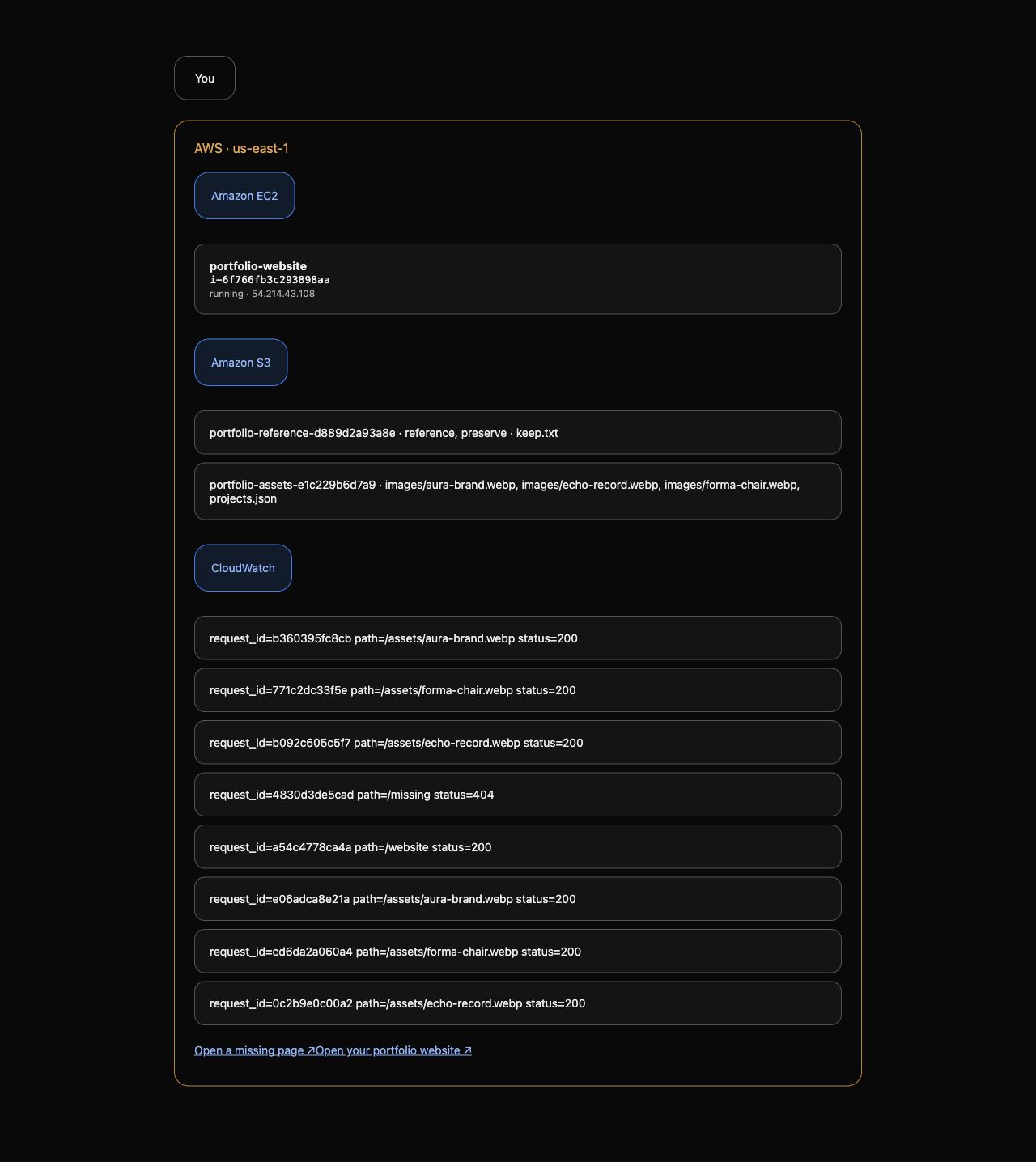
The browser also requests paths such as /assets/aura-brand.webp for the project images, plus the CSS, font and project list. These are separate HTTP requests, so you may see additional successful events. AWS View's CloudWatch cards display recent events from the same group. The automatic check confirms a real successful page request was collected; your task is to interpret its fields.
Diagnose a Missing Page
In this step, you will generate a missing-page response and locate its event while confirming that the main website still works.
In AWS View, click Open a missing page. The new tab requests /missing, a path that the supplied website does not serve. The browser should show Page not found.
HTTP 404 means a requested page was not found. It does not mean the instance stopped or every website path is unavailable. Search the group for messages containing 404:
aws logs filter-log-events --log-group-name "$LOG_GROUP" --filter-pattern '"status=404"'
--filter-pattern limits which messages are returned. The outer single quotes preserve the inner double quotes: "status=404" is an exact phrase in the log message. Confirm an event includes path=/missing status=404. Compare its path with the page you opened. This ties the log evidence to the visitor's actual request.
Return to the portfolio tab and refresh it. Alex Morgan should still be visible. Read the group again:
aws logs filter-log-events --log-group-name "$LOG_GROUP"
You should now have both a missing-path event and successful main-page events. A useful diagnosis is: the server can serve the portfolio, but /missing is not a valid page. Restarting the server would not create that missing route.
An empty filtered result is not proof that the request succeeded. Confirm you opened the missing-page link from this lab, selected the displayed group and allowed the request to finish, then repeat the read command.
Clean Up Your Website and Request Logs
In this step, you will stop the workload by terminating its instance and remove only this exercise's log group.
Display the supplied instance ID before deleting it:
echo "$INSTANCE_ID"
aws ec2 terminate-instances --instance-ids "$INSTANCE_ID"
aws ec2 wait instance-terminated --instance-ids "$INSTANCE_ID"
The website is no longer running. After reviewing the events, delete the group named by LOG_GROUP. This removes its streams and stored events, so use only the disposable exercise group:
aws logs delete-log-group --log-group-name "$LOG_GROUP"
The command returns without output on success. AWS View should show no recent exercise events. Preserve the separate reference log group and prepared network. The next lab starts with independent logs and metrics.
Summary
You generated real website requests, inspected CloudWatch log events and correlated paths with HTTP 200 and 404 results. You confirmed that a missing route does not imply a stopped server, then removed the disposable workload and exercise logs while preserving reference data.
Official references: CloudWatch Logs concepts and filter pattern syntax.