Introduction
Your team has a small HTTP application ready for delivery. Package its supplied code as a container image, store the image in Amazon Elastic Container Registry (ECR), and prove that the exact stored release can start and answer a request. Keep the separate reference repository unchanged, then remove the resources you created.
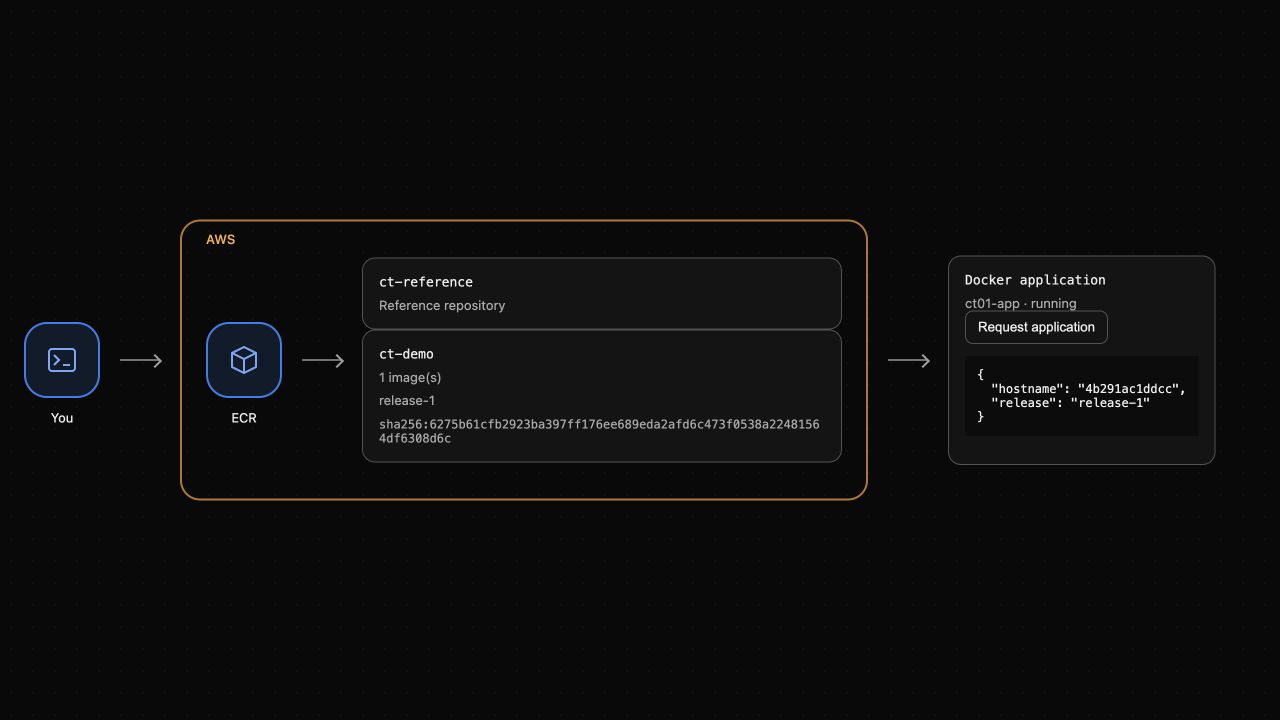
Complete AWS Foundations and IAM identity-policy basics first. Docker concepts are introduced here; you do not need to write application code or have a personal AWS account. AWS CLI access, Docker, a Dockerfile and application source are prepared in this independent VM. Use the upper AWS View to observe repositories and test the application; use the lower Terminal for commands. Both areas read the same resource state.
Certification Relevance
| Certification | Exam task | Practice |
|---|---|---|
| Developer – Associate (DVA-C02) | Task 3.1, Skill 3.1.1 | Package an application's code and runtime into a container image for deployment. |
Lab Overview
Create an Immutable Image Repository
In this step, create the repository that will store your application release.
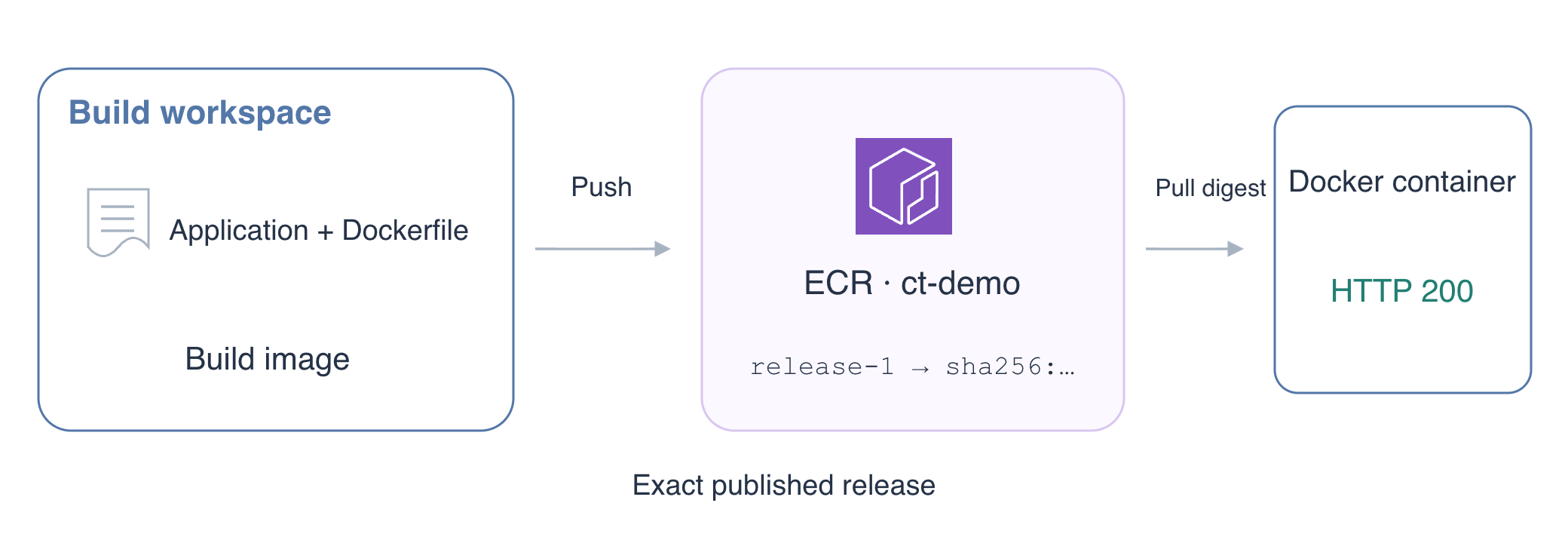
An image packages application files and their runtime. A container is a running instance of an image. A registry stores and distributes images; an ECR repository groups the images for one application. Storing an image does not start the application.
Move to the supplied workspace and inspect the Dockerfile. cat prints a text file:
cd /home/labex/project
cat application/Dockerfile
FROM selects a Python base image. COPY adds the supplied application, USER chooses an unprivileged user, and CMD defines the startup command. The sha256 base reference fixes the base image content; it does not refer to your new application image.
Create the repository ct-demo. A tag is a readable image label, such as release-1. IMMUTABLE prevents replacing an existing tag with different image content, helping your team keep release labels reliable:
aws ecr create-repository \
  --repository-name ct-demo \
  --image-tag-mutability IMMUTABLE
The response contains repositoryUri, the address Docker uses for this repository, and imageTagMutability: IMMUTABLE. Save the URI in a shell variable. $(...) captures command output; --query selects one field and --output text returns it without JSON quotes:
REPOSITORY_URI=$(aws ecr describe-repositories \
  --repository-names ct-demo \
  --query 'repositories[0].repositoryUri' \
  --output text)
echo "$REPOSITORY_URI"
Keep this Terminal session open so the variables remain available. Look at the upper AWS View: ct-demo should appear with zero images alongside ct-reference. The reference repository belongs to another application and is outside your cleanup scope.
Build and Publish the Release
In this step, build the supplied application and push its image to ECR.
Docker needs a registry login before it can push. The registry address is the part of the repository URI before its first slash. ${REPOSITORY_URI%%/*} removes that slash and everything after it:
REGISTRY=${REPOSITORY_URI%%/*}
echo "$REGISTRY"
Ask AWS CLI for a short-lived ECR login password and pipe it directly into Docker. The pipe | passes output to the next command; --password-stdin keeps the password out of your command arguments and Terminal output. Do not print or save the password yourself:
aws ecr get-login-password | docker login \
  --username AWS \
  --password-stdin "$REGISTRY"
Docker reports Login Succeeded. This authorizes registry operations permitted to your configured identity; it does not grant access to every repository.
Build from the supplied application directory. -t labels the resulting image with the repository URI and release tag. The final argument is the build context, the directory whose files are available to COPY:
docker build -t "${REPOSITORY_URI}:release-1" application
Push the image. Docker uploads its filesystem layers and manifest, which describes the image content:
docker push "${REPOSITORY_URI}:release-1"
At the end, Docker prints a sha256:... digest. A digest identifies exact image content. A tag identifies a label; even when a repository permits changing labels, a digest remains tied to the original content.
Query ECR to confirm that it now holds the release and save the digest:
aws ecr describe-images \
  --repository-name ct-demo \
  --image-ids imageTag=release-1 \
  --query 'imageDetails[0].{Tags:imageTags,Digest:imageDigest}'
IMAGE_DIGEST=$(aws ecr describe-images \
  --repository-name ct-demo \
  --image-ids imageTag=release-1 \
  --query 'imageDetails[0].imageDigest' \
  --output text)
The ECR digest should match the digest printed by docker push. Look at the upper AWS View: ct-demo now contains release-1 and its digest. The application is still not running; that is the next step.
Run the Exact Published Image
In this step, retrieve the published image by digest and test a real application container.
Remove the locally built application image first. docker image rm removes a local image reference; it does not delete the image stored in ECR. This makes the next pull retrieve the published release:
docker image rm "${REPOSITORY_URI}:release-1"
Combine the URI and digest with @ to select the exact published content:
docker pull "${REPOSITORY_URI}@${IMAGE_DIGEST}"
Docker reports the same digest and a successful download. Start that digest as ct01-app. --detach runs it in the background, and --publish 127.0.0.1:8081:8000 connects host port 8081 to application port 8000. The loopback address keeps direct access within this VM. The image already selects an unprivileged user; --read-only makes its root filesystem read-only, --cap-drop ALL removes Linux capabilities, and no-new-privileges prevents gaining extra privileges:
docker run --detach \
  --name ct01-app \
  --read-only \
  --cap-drop ALL \
  --security-opt no-new-privileges \
  --memory 256m \
  --publish 127.0.0.1:8081:8000 \
  "${REPOSITORY_URI}@${IMAGE_DIGEST}"
A container ID means Docker accepted the start request. Test the application rather than treating that ID as proof of health. curl --fail returns a failure status for an HTTP error; --retry-all-errors retries startup connection errors, including a brief connection reset:
curl --fail --silent --show-error \
  --retry 5 --retry-all-errors --retry-delay 1 \
  http://127.0.0.1:8081/
Expect a JSON response with "release": "release-1" and the container's hostname. Check its logs for the actual request:
docker logs ct01-app
Expect served application request. The hostname and timestamps vary. In the upper AWS View, select Request application. Its response should also report release-1; this button makes an actual HTTP request to your running container.
Remove Your Application Resources
In this step, stop the application and delete its local image and ECR repository while preserving the reference repository.
Stop the container, then remove it. Removing a container does not remove its image:
docker stop ct01-app
docker rm ct01-app
Remove the local digest reference now that no running container uses it:
docker image rm "${REPOSITORY_URI}@${IMAGE_DIGEST}"
Delete the image from ECR using its digest. imageDigest selects exact content instead of relying on a tag:
aws ecr batch-delete-image \
  --repository-name ct-demo \
  --image-ids imageDigest="$IMAGE_DIGEST"
The response should list the deleted image under imageIds with an empty failures list. Delete the now-empty application repository:
aws ecr delete-repository --repository-name ct-demo
Confirm the reference repository remains:
aws ecr describe-repositories \
  --query 'repositories[].repositoryName'
Expect only ct-reference. Finally, remove Docker's saved registry login:
docker logout "$REGISTRY"
In the upper AWS View, ct-demo and the application container should disappear; the reference repository remains. A failed HTTP request alone would not prove cleanup, so you also checked the repository inventory and removed the actual container and image.
Summary
You created an immutable ECR repository, built and published an application image, matched its digest, pulled and ran that exact release, and tested actual HTTP responses and logs. You removed your container, local image and ECR repository while preserving another application's repository. The next lab uses an ECS task definition to select and run an image.
For further reading, see the AWS reference on Registry authentication and image push; Preventing image tag overwrites.