Introduction
Your website is ready, but its welcome message is still generic. Store a welcome message in AWS Systems Manager Parameter Store, change it without editing the website code, and observe the real page each time.
The website, tools and connection are prepared. You should know how to enter commands in Terminal and use AWS View from Get Started with AWS on LabEx. Each lab starts in a fresh environment; no personal AWS account or earlier resources are needed.
Certification Relevance
| Certification | Exam task | Practice |
|---|---|---|
| Cloud Practitioner (CLF-C02) | Task 3.1 | Use the AWS CLI to manage a service resource and observe its application effect. |
Lab Overview
Give the Website a Welcome Message
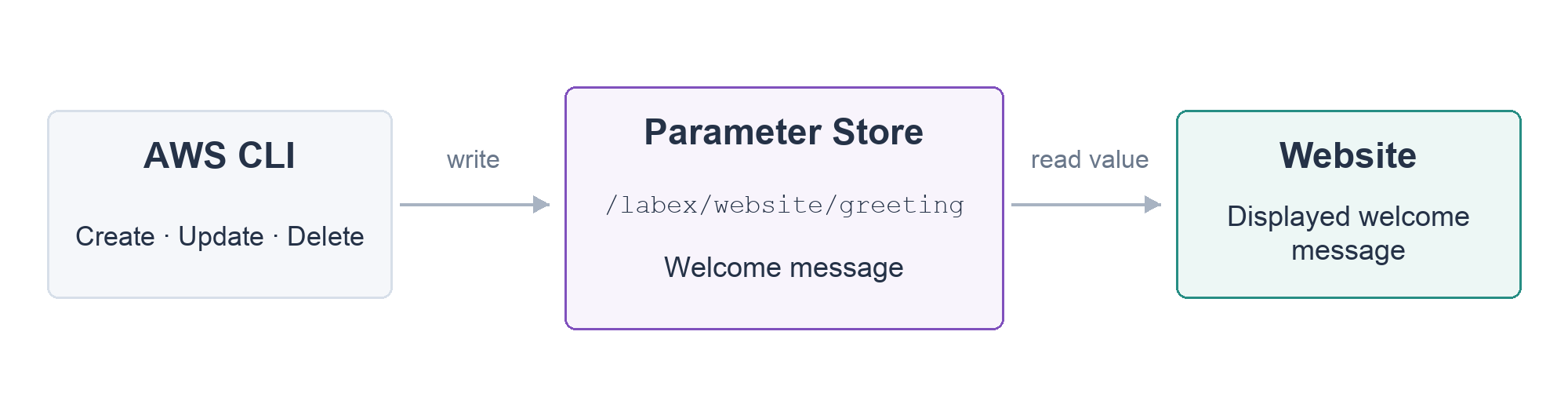
In this step, you will create a named configuration value and see the website use it.
Use Terminal below AWS View for commands. In the upper AWS View, select Open website. The supplied Field Notes page initially says Your website is ready, with Default welcome message as its source. Keep the website available so you can reload it after a change.
The website is application code that responds to a browser request. A resource is an item managed by an AWS service. Systems Manager Parameter Store manages named configuration values called parameters. Here, /labex/website/greeting is the name the website reads on each request; the text stored under that name controls its welcome message. Slashes organize the name; they are not local folders.
The website code is already prepared. Your work is to create its configuration. Enter your workspace; cd changes the Terminal's current directory:
cd /home/labex/project
Create an ordinary text value. aws ssm selects Systems Manager, put-parameter writes the setting, --name identifies it, --type String chooses ordinary text, and --value supplies that text. Quotes keep a message containing spaces together. Backslashes continue one command onto the next line:
aws ssm \
  put-parameter \
  --name /labex/website/greeting \
  --type String \
  --value 'Welcome to Field Notes'
The response contains "Version": 1 on the first creation. Read back what you stored; get-parameter reads the named resource:
aws ssm \
  get-parameter \
  --name /labex/website/greeting
Find Name, Value and Version. The value is Welcome to Field Notes. AWS View now contains the new parameter beside the prepared /labex/reference/team setting. Leave that reference unchanged.
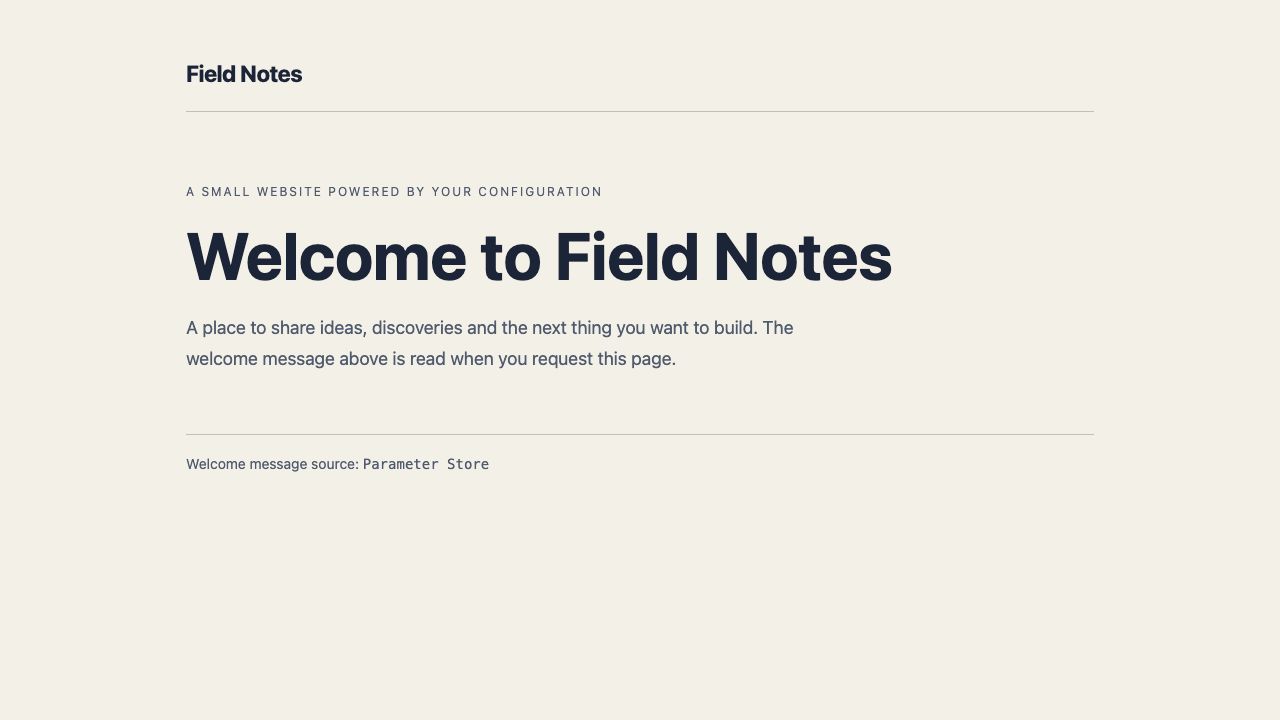
Reload the website. Its heading is now Welcome to Field Notes, and its source is Parameter Store. The page changed because the application requested the stored value, not because a value changed in your local Terminal. The resource and the website are different things, connected by this read operation.
If creation reports ParameterAlreadyExists, read the named parameter and compare its value instead of deleting unrelated settings.
Update the Message Without Editing Website Code
In this step, you will change the existing configuration and prove that the website uses the new value.
The parameter name stays the same so the application can keep requesting it. --overwrite permits replacing the value of an existing parameter. Change the greeting:
aws ssm \
  put-parameter \
  --name /labex/website/greeting \
  --type String \
  --value 'Hello from the AWS CLI' \
  --overwrite
Read the current value:
aws ssm \
  get-parameter \
  --name /labex/website/greeting
Expect Hello from the AWS CLI. Its version is normally 2 after one update and can be higher if you repeated the update. Each overwrite creates a new stored version; it does not create a differently named resource.
AWS View shows the same name with the new value. Reload the website and confirm the heading is Hello from the AWS CLI. No website file was edited.
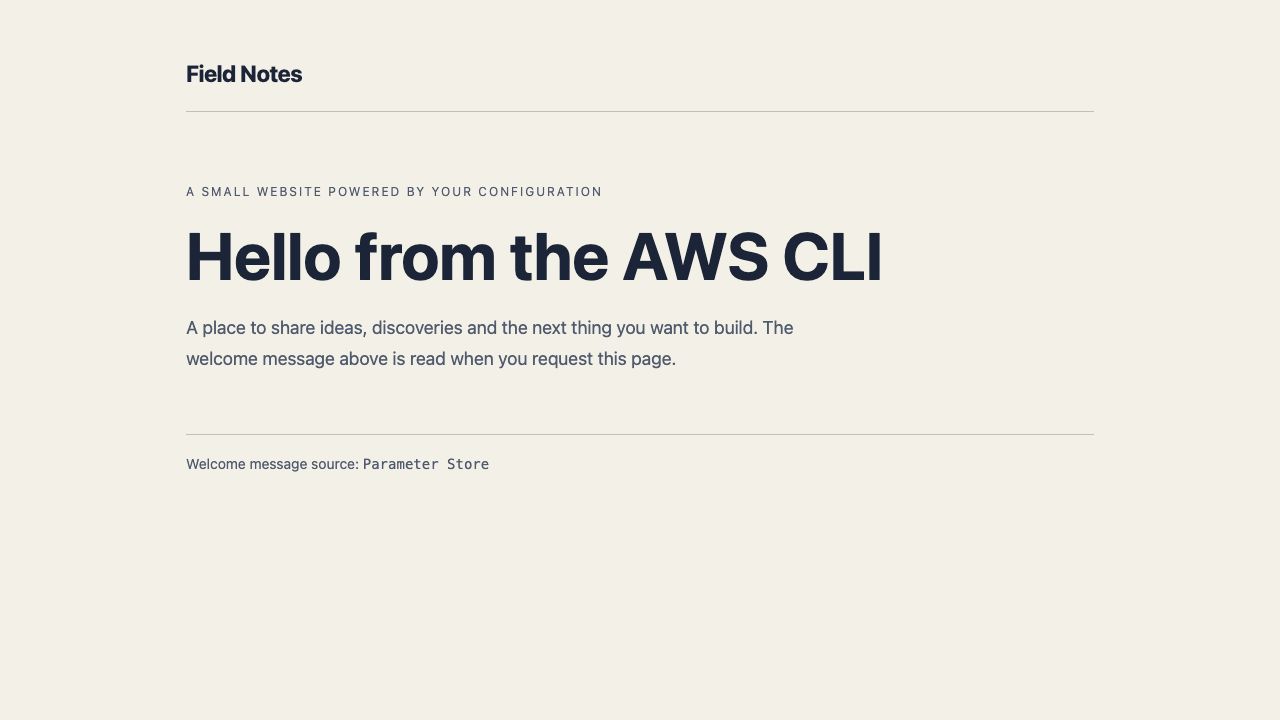
This website reads the parameter on each request. A different application might read only at startup or cache configuration, so changing a parameter does not automatically refresh every running page. Here, the new HTTP request is the evidence that the application consumed the updated value.
Remove the Practice Configuration Safely
In this step, you will remove your greeting parameter and observe how the website handles its absence.
The website has a prepared default message for this optional setting. That makes the greeting safe to remove at the end of this exercise. In a real application, first establish whether a setting is optional or required; deleting a required dependency can stop the application.
delete-parameter removes one named resource. Delete only the greeting you created:
aws ssm \
  delete-parameter \
  --name /labex/website/greeting
A successful deletion may print nothing. Query the remaining inventory using describe-parameters, which lists resource metadata:
aws ssm \
  describe-parameters
The greeting is absent. /labex/reference/team remains; confirm its value:
aws ssm \
  get-parameter \
  --name /labex/reference/team
Its value is still platform. AWS View retains that reference and no longer shows the greeting. Reload the website: Your website is ready returns, with Default welcome message as its source.
A network error would not prove deletion. Here, successful resource queries establish the absence, and a successful website request proves the application still works. You completed a resource lifecycle: create, read, update and delete, while preserving an unrelated setting.
Summary
You created, read, updated and removed a Parameter Store greeting. Real website responses showed when the application used the stored value and when it returned to its default. You preserved unrelated configuration throughout.
Next, compare Regions and resource identities. A resource name is useful, but its location and complete identity matter when managing more than one environment.
For further reading, see Parameter Store application configuration and the CLI reference for creating and overwriting parameters.