Introduction
Your portfolio website is running, but it still shows the example profile. Edit a short profile file and publish it to the website server, then compare your local edit with the actual browser page.
Complete Launch Your First Portfolio Website first. This lab supplies its own fresh EC2 server, connection configuration and website code. You do not need the instance or files from the previous lab.
Certification Relevance
| Certification | Exam task | Practice |
|---|---|---|
| AWS Certified Cloud Practitioner (CLF-C02) | Task 3.3 | Operate an EC2-hosted application and distinguish a virtual server from a local working directory. |
Lab Overview
Prepare Your Personal Profile
In this step, you will edit a local profile file while your website continues to show its original content.
Look at AWS View above Terminal. The supplied portfolio-website instance is already running. Open its portfolio link and confirm the page currently shows Alex Morgan. The fresh server lets you focus on publishing rather than repeating the previous launch.
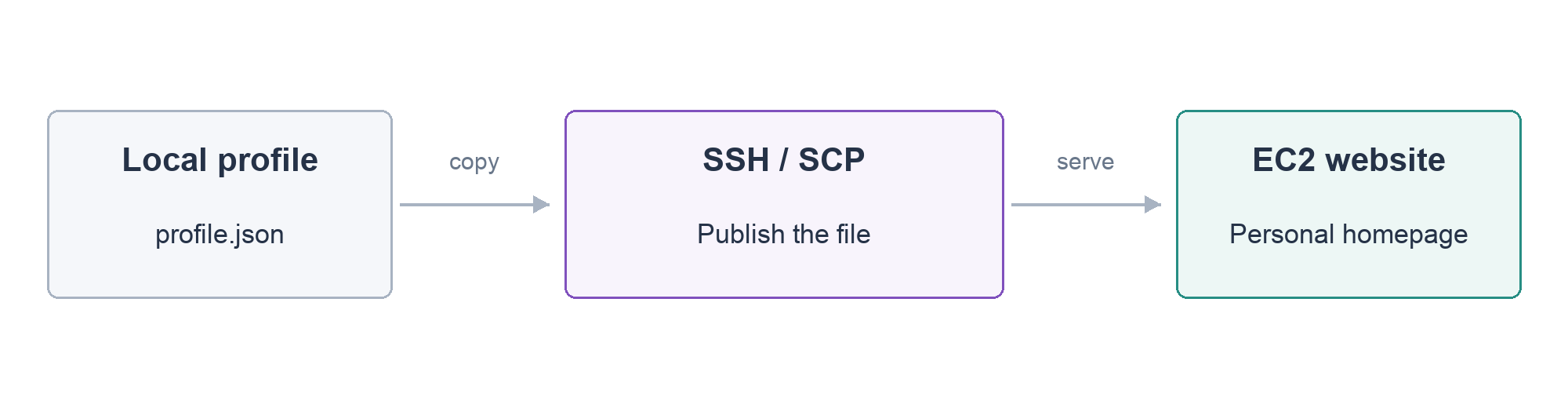
A local file is in your LabEx working environment. A remote file is on the website's EC2 server. Changing a local file does not automatically change the remote website.
Return to Terminal and enter the project folder:
cd /home/labex/project
Inspect the supplied profile with cat:
cat profile.json
The profile is JSON, a small configuration format using named fields. name appears in the navigation, about section and footer. headline is the large main title, and about is its short supporting line. The original headline uses \n inside a JSON string for a line break; your practice title is one short line. Text is enclosed in double quotes; commas separate fields. The website code is provided, so you only need to supply these three values.
Write a new practice profile. cat > profile.json writes text into that file instead of displaying it. The <<'JSON' notation takes the following lines as the file content until the closing JSON line. Copy the whole block, including both marker lines:
cat > profile.json <<'JSON'
{
  "name": "Sam Rivera",
  "headline": "Design with purpose.",
  "about": "Brand identities and digital experiences."
}
JSON
Read the file back:
cat profile.json
Confirm the three values above. Use these practice values for the lab checks; you can explore other profile text after completing the exercise.
Refresh the website tab. It should still show Alex Morgan. This is expected: your local file has changed, but it has not yet been published to the EC2 server.
Publish and View Your Homepage
In this step, you will copy your profile to the website server and observe the new content in the browser.
SSH provides an encrypted connection to a server. SCP copies files over that connection. The prepared ssh_config selects the supplied login key and connection route. You do not need to configure credentials or inspect the private key.
The file website.env contains non-secret identifiers for this lab's fresh server. source loads those variable assignments into the current Terminal. Display the address you will use:
source website.env
echo "$PUBLIC_IP"
Compare the address with AWS View. $PUBLIC_IP uses the saved address, and quotes keep that value together.
Publish your local profile.json. -F ssh_config selects the prepared connection settings. ubuntu is the user on the EC2 server. The colon separates the remote destination from its file path:
scp -F ssh_config profile.json ubuntu@"$PUBLIC_IP":/home/ubuntu/portfolio/profile.json
On the first connection, SSH may show a notice that it stored the new server's host key. This is the freshly supplied lab server. A transfer summary ending at 100% means the file copy completed; the next check confirms its effect on the application.
Refresh your portfolio website tab. It should now show Sam Rivera, Design with purpose. and the short Brand identities and digital experiences. line. The supplied application reads the profile on each request, so no service restart is required.

You can also inspect the remote file using SSH. A command after the server address executes on that server and then returns you to the LabEx prompt:
ssh -F ssh_config ubuntu@"$PUBLIC_IP" cat /home/ubuntu/portfolio/profile.json
The remote JSON should match your local profile. You have now confirmed both the published file and the actual page it drives.
If the page still shows the original name, confirm the copy completed, compare the address with AWS View and refresh the same lab's website tab. Check the spelling of the destination path; creating a file in another directory does not publish the profile.
Clean Up Your Website Server
In this step, you will remove the disposable EC2 server after confirming the published homepage.
The environment file also supplied INSTANCE_ID. Display it and compare it with AWS View before deletion:
echo "$INSTANCE_ID"
Terminate only that server:
aws ec2 terminate-instances --instance-ids "$INSTANCE_ID"
Wait for termination to finish:
aws ec2 wait instance-terminated --instance-ids "$INSTANCE_ID"
AWS View should show terminated. Refresh the portfolio tab and confirm that the website is no longer running. Leave the supplied network and login key intact. The next lab will supply a fresh website to practice access rules.
Summary
You edited a local JSON profile, published it to an EC2 server with SCP and confirmed that the actual website displayed the new content. You used SSH to inspect the remote file, distinguished a file copy from a successful application result, and terminated the disposable server.
Official references: Connect to a Linux instance with SSH and transfer files to an instance.