


Introduction
Fieldnote's keyword, category, sort and page can already travel in a URL. Its prepared controller replaces the current history entry after every search. That keeps direct links useful but loses the previous view: a reader cannot browse several searches and reliably go Back through them. You will distinguish new user actions from restoration and make the browser's own history work.
This independent lab prepares the completed selection, normalization and URL files from the previous lab; no earlier VM is required. You need that lab's four-state contract and basic JavaScript functions, objects, DOM selection and events. You will learn pushState, replaceState, popstate, and why sharing needs the URL rather than an old local preference or an in-memory history object. There are no asynchronous requests or framework routers. The 40-minute duration is an author estimate.
Use Workspace and Fieldnote. Edit only /home/labex/project/fieldnote/work/app.js. Preserve selection.js, state.js, url.js, catalog.js, view.js, HTML/CSS, the independent Study view and the service. The renderer is prepared: it displays each selected event's actual title, description, date, time and place. The website stays English. A link opens only while this VM's public route remains available; this is not Internet publication.
Create Visits for Committed User Changes
In this step, keep initialization in one history entry and create a new visit when a reader commits a different search or page.
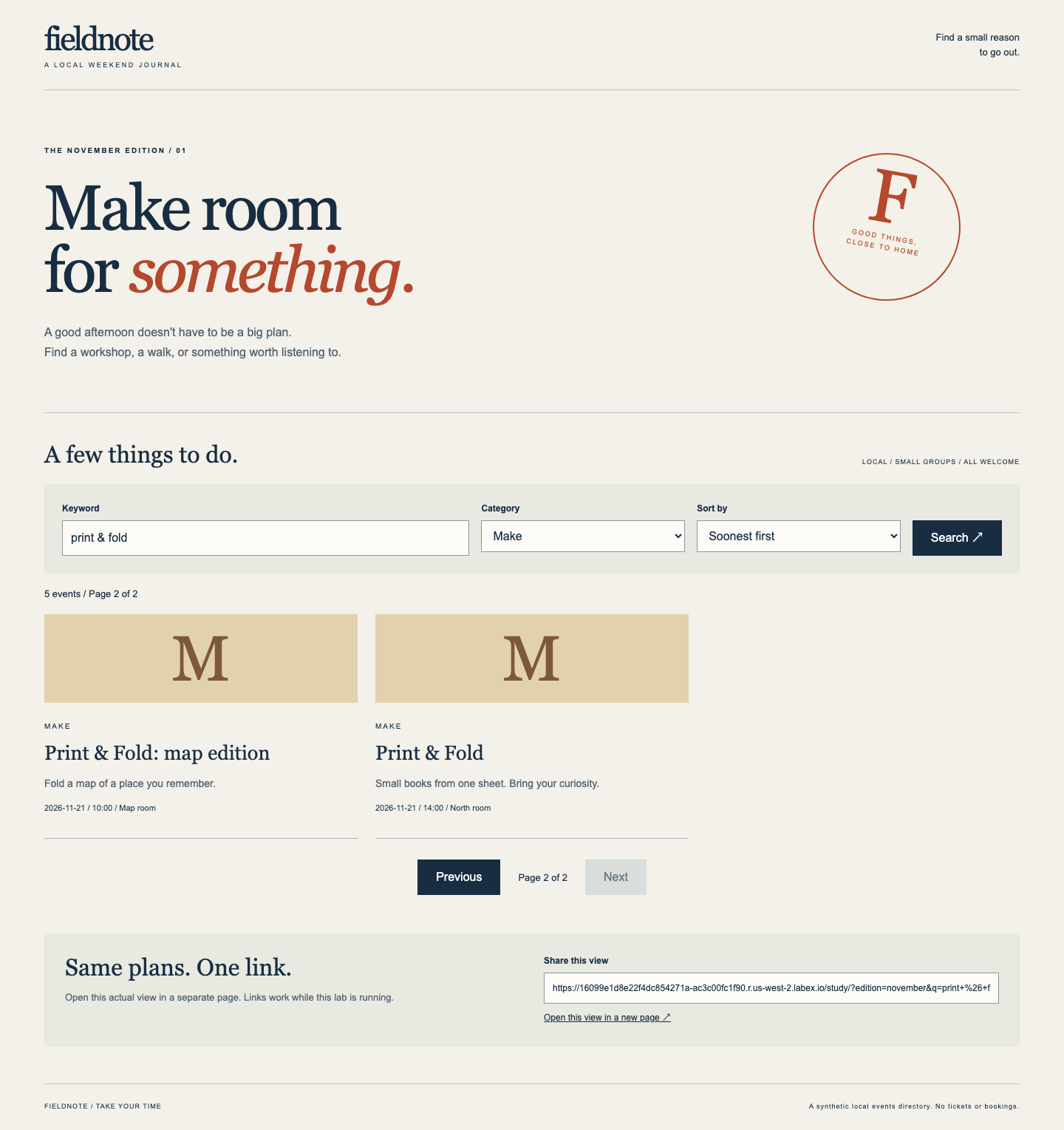
In Fieldnote, choose Open Study view in a new page. This is a standalone browser page, not the embedded product Tab. Read its print & fold, Make, Soonest first, page 2 result. Choose Previous, then change Keyword to sound + light, Category to Listen, Sort by to Title A–Z, and activate Search. The page resets to 1. Use the browser's Back button, not the website's Previous page button: it restores the prior keyword, category, sort, page and matching complete event records. Use browser Forward to restore the newer view. This is the normal example; it does not complete your work.
This is the independent Study view before your edits. Its share href describes the same visible page; it does not complete Work.
Close the Study page and choose Open Work view in a new page from the Fieldnote entry. The work files have all G1 functions but the prepared controller still replaces entries. Switch to Workspace. cd sets this persistent terminal's directory; cat reads a file without changing it:
cd /home/labex/project/fieldnote/work
cat app.js
The current show function calls normalize, creates a URL with stateURL, replaces the address and asks draw to display the selected records. Those helper functions come from prepared state.js, url.js, view.js and selection.js. You will preserve that ordering while distinguishing two reasons for showing a view.
history.pushState(null, '', url) adds a same-origin history entry and changes the address without requesting a new page. replaceState updates only the current entry. The first argument is optional associated state; we use null because all required state is already in the URL. The empty string is the API's unused title argument. Neither call fires popstate by itself. The next step handles actual history traversal. Initial normalization uses replace, so opening a link does not add another visit. Search and page buttons use push when the committed URL differs; submitting an unchanged view need not add a duplicate entry.
document.querySelector('form') finds the prepared form. form.elements.q accesses its control named q. preventDefault stops the browser's default form navigation so this controller can update the view. An event listener runs when the named event occurs. Spread syntax {...current, page: ...} copies the current state's fields, then replaces its page, preserving the committed filters. Editing a control alone is a draft until Search; page buttons use committed state.
Save this complete replacement. cat > app.js replaces only that file. The quoted <<'JS' here-document keeps its contents literal; finish with JS alone on a line:
cat > app.js <<'JS'
const form = document.querySelector('form');
let current;
function show(raw, mode) {
  current = normalize(raw);
  const url = stateURL(current);
  if (mode === 'push' && url.href !== location.href) {
    history.pushState(null, '', url);
  } else if (mode === 'replace') {
    history.replaceState(null, '', url);
  }
  draw(current, matches(current));
}
form.addEventListener('submit', event => {
  event.preventDefault();
  show({q: form.elements.q.value, category: form.elements.category.value,
    sort: form.elements.sort.value, page: 1}, 'push');
});
document.querySelector('#previous').addEventListener('click', () =>
  show({...current, page: current.page - 1}, 'push'));
document.querySelector('#next').addEventListener('click', () =>
  show({...current, page: current.page + 1}, 'push'));
show(readURL(), 'replace');
document.documentElement.dataset.ready = 'true';
JS
&& requires both conditions, so only a requested push with a different address creates a visit. else if selects replacement for initialization. The prepared files still own normalization and only the four course query keys; the actual proxy path, extra query parameters and fragment remain intact. The final data-ready marker lets a browser know your controller finished its initial draw; do not confuse an HTML control appearing with JavaScript having completed.
Return to the standalone work page and refresh. Search print & fold, Make, Soonest first, then choose Next. Note page 2's map edition and North room event. Change to sound + light, Listen, Title A–Z and submit: page 1 shows the two distinct sound events. Activate Open this view in a new page, then refresh that new page. It must retain Title A–Z and the correct dates/places. A cached preference is unnecessary; all four committed values belong in the shared URL, including a non-default sort. Close the new page and keep the original work page.
Do not expect Back to redraw the work page yet: new history entries exist, but the restoration listener is still missing. Run this step's Check, which verifies direct URL behavior, useful pushed entries and replacement at initialization without requiring the next step's listener. If a JavaScript typo stops updates, use cat app.js, compare the complete block, replace it, and refresh. Saving a corrected file does not clear the prepared catalog or require a VM reset.
Restore Views with Real Back and Forward
In this step, read the URL after actual history navigation and prove that another browser context can reconstruct the same view.
Back and Forward change the current history entry. The browser emits popstate when it traverses applicable same-document entries; calling pushState yourself does not emit it. Listen to the real event, read the current URL, normalize it and draw the view. Do not push from that listener, which would create a new forward visit instead of restoring the existing one. The URL also works when there is no in-memory event.state, such as a directly opened link. Do not use localStorage as the authority or store a sort only in a history object.
Switch to Workspace. Append one listener to the file saved in the previous step. Unlike >, >> appends without deleting existing contents. Run this block once; if you accidentally append it twice, replace app.js with the previous complete block and then append once again.
cat >> app.js <<'JS'
window.addEventListener('popstate', () => show(readURL(), 'replace'));
JS
The arrow callback runs on native history traversal. It reuses the same show path, so controls, record order, page label, disabled boundaries and actual share href all agree with the newly current URL. Using replacement here may normalize equivalent input but must not add a history entry. There is no simulated event dispatch or invisible test shortcut in the learner workflow.
Return to your original standalone work page. For a clear initial entry, use its address bar to open the actual /work/ URL with this query, preserving its real origin and path:
?edition=november&q=print%20%26%20fold&category=make&sort=title&page=2#directory-title
That is state A: Title A–Z, page 2, Print & Fold: map edition then Print & Fold: tiny type. Read their time and place. Make state B by choosing Previous: page 1 has the two plain Print & Fold records followed by Print & Fold: colour. Make state C by submitting sound + light, Listen, Soonest first: page 1 of 1, two distinct dates. These actions must preserve edition and the fragment. Changing the filters resets the page.
Use the real browser Back twice: C → B → A. At each entry compare all controls, page, ordered titles and each event's date/time/place. Now use Forward twice: A → B → C. Repeat that Back/Back/Forward/Forward cycle once more; restoration must not silently add visits or lose the forward chain. Product Tab switching is not history traversal, and the website's Previous is a result-page action rather than browser Back.
At C, activate the actual Open this view in a new page link. The new page must show the same committed state. Refresh it; compare again. The checker additionally uses a fresh browser context with no old localStorage or history state, opening the exact generated link. In your normal browser, the new page is a separate tab, not a claim that all browser storage is isolated. No clipboard API or untested Copied message is needed.
Return to the original work page, go Back to B and refresh. This must still show B, because refresh reads the URL. A changed but unsubmitted keyword is a draft and is discarded on refresh. Test that explicitly: type unsubmitted draft without Search, refresh and observe B's committed keyword restored. For an ordinary error, submit prnit, read the valid no-results message, then correct to print & fold, Make and submit. No fake fallback card should appear for an empty result.
At desktop width, near 768 pixels and near 390 pixels, compare the complete cards, controls and share link. Use Tab and Enter for a Search and inspect the visible focus indication; keep the prepared responsive shell. Run Check. It executes your unchanged frontend in an isolated fixture, exercises real Back/Forward and clean-context opening, checks every visible record against the independent catalog, and preserves your live workspace. It does not create an account or publish an enduring website.
Summary
You separated new committed actions from initial or historical restoration. Real Back/Forward, direct shared links and refresh now use the same URL-driven state and complete event records. The challenge transfers this behavior to another catalog and page size without adding a router, backend pagination or private storage dependency.