Introduction
Cedar & Common is planning a neighborhood day. Its official program is already available, and two candidate plans need separate previews. Jenkins can build both branches, but their current Pipelines publish to the same place. A successful build alone will not keep both ideas available.
You will discover the branches, observe that collision, change their Jenkinsfiles, and publish two usable previews. Then you will change one meeting time and confirm that its preview updates while the other plan stays intact.
Prerequisites are basic terminal input and paths, Jenkins page navigation, and recognition of a short Declarative Pipeline. Git branches, commits, push, indexing and the new Pipeline settings are explained before use. The repository, Java builder, publisher and Jenkins plugins are prepared; you do not install them or write the website. This is a local training source and preview service on one VM, not GitHub or a production deployment platform. The duration is an author estimate, not a measured beginner time.
Discover the Plans and Their Branch Builds
In this step, you will inspect the normal programs and candidate source, then discover their branch jobs and observe the shared-preview collision. Start in Preview Desk.
Choose Open the official program. Confirm Common Ground Day and 09:30. Choose Explore this plan and check the three activities and route illustration. Choose Download the activities for a real CSV and Read visitor notes for the complete text. Use the browser's Back action to return to the overview, then Back again to return to the desk. Also open Read the courtyard notes and confirm Courtyard Stories. Both existing programs must remain available throughout your work.
Switch to Source. This terminal is a Git working copy: the files you can edit belong to one selected branch at a time. A branch is a named line of source history. Switching branches changes the working files to that branch's version; it does not change the other branch. A commit is a recorded version of repository content, identified by a hash; that identifier will connect a Jenkins build to its source.
The terminal opens in /home/labex/project/community-site. pwd prints the current directory. git --no-pager branch --list lists local branches, with * marking the selected one. --no-pager keeps the result directly in the terminal. Without that option, Git may open an interactive viewer; if you see (END) instead of a shell prompt, press q to leave the viewer. Run:
pwd
git --no-pager branch --list
The list includes main, courtyard-notes, garden-plan and river-plan. The prepared selection is garden-plan. If you accidentally change directory, recover with cd /home/labex/project/community-site before continuing.
cat prints a file without changing it. event.properties stores one key=value setting per line for the title, meeting details and activities. Read this small data file:
cat event.properties
It describes Garden Gathering, meeting at 10:00 by Glasshouse gate. The meeting_time line is data used by the provided builder, which produces the pages, CSV and notes together.
git switch selects a branch in this working copy. Compare the second candidate, then return:
git switch river-plan
cat event.properties
git switch garden-plan
The second plan is Riverside Picnic, meeting at 14:00 by River steps. These are genuinely different source files, rather than one page with a different branch badge.
Your editable scope is the candidate branches' Jenkinsfile and the later requested meeting_time change in event.properties. Keep the templates, route image, builder and publisher unchanged. Do not edit, delete, rename or recreate the prepared Jenkins project or branch jobs. Preserve all Git and Jenkins history and every retained preview archive, the main and courtyard-notes branches, the official program and courtyard preview. This exercise does not require Docker or administrator commands.
At this point, identify which candidate starts at 10:00 and which starts at 14:00. No candidate preview has been published yet.
Now run native Jenkins branch discovery and compare successful builds with their actual publication result. Switch to Jenkins and open community-previews from Dashboard.
This prepared parent is a Multibranch Pipeline. It scans a Git repository for branches containing a Jenkinsfile and creates a child Pipeline job for each one. The source uses a small read-only Git service inside this training environment; the working copy's prepared origin is where your later pushes will publish source changes. No external account or credentials are needed.
Wait for the Jenkins page to finish loading, then choose Scan Multibranch Pipeline Now. Open Scan Multibranch Pipeline Log and wait for Finished: SUCCESS. The scan discovers garden-plan and river-plan; main and courtyard-notes contain no Jenkinsfile and are not candidate jobs. Return through the community-previews breadcrumb. Wait for both child builds to finish.
Open garden-plan, then its numbered build and Console Output. Its output should identify Garden Gathering, 10:00 and the checked-out source revision. Return through community-previews, open river-plan and inspect its numbered build's console. It should identify Riverside Picnic, 14:00 and its own source revision. Both should end with SUCCESS. In this prepared environment, a Using Default Git tool message can appear before a successful checkout; read the actual revision and final result to judge whether the checkout completed.
Switch to Source. Read the supplied Pipeline:
cat Jenkinsfile
options { skipDefaultCheckout() } turns off Declarative Pipeline's implicit source checkout so the visible Check out this branch stage performs it explicitly. checkout scm uses the particular branch revision that supplied this Jenkinsfile. Do not replace it with a checkout of a fixed branch.
The supplied Build preview stage turns that checked-out source into real visitor files. Archive preview retains preview.zip in Jenkins before Publish preview sends those same bytes to the local desk. The final post block uses deleteDir() to clear that build's workspace. Keep these stages and cleanup.
An environment block supplies values to the stages. Both branches currently contain this same setting:
PREVIEW_KEY = 'shared'
PREVIEW_KEY chooses the desk's publication address. The literal string 'shared' sends both builds to one location, even though their source checkouts are different. Return to Preview Desk and refresh. There is one shared candidate card, showing whichever branch published last. Choose its Open preview link and compare its title with the two successful source builds. You cannot share two independent previews from that one address.
Use the browser's Back action to return to the desk. The official program and courtyard notes must still work. You have now observed why separate branch jobs do not automatically imply separate published results.
Give Each Branch Its Own Preview
In this step, you will change and publish each branch's Jenkinsfile, then build both independent previews. Start in Source, in /home/labex/project/community-site.
Jenkins provides env.BRANCH_NAME in a Multibranch build. It is the current branch name, such as garden-plan. Replace the shared value with that native branch identity:
PREVIEW_KEY = "${env.BRANCH_NAME}"
Groovy double quotes allow ${...} to insert the variable's value. Single quotes around this expression would preserve its literal characters instead. The branch names in this exercise already use simple lowercase letters and hyphens suitable for preview addresses; this is not a general sanitization rule for arbitrary branch names.
First select the garden candidate. git status --short shows uncommitted changes in a compact form; M means a modified file, and no output means the working copy is clean. nano is a terminal editor for the named file; it keeps control of this terminal until you save and exit.
git switch garden-plan
git status --short
nano Jenkinsfile
nano edits the named file in this terminal. Use the arrow keys to reach the PREVIEW_KEY line. Press Home to move to its beginning, then Ctrl+K once to cut that one line. Type the complete replacement line shown above, including its indentation, and press Enter to keep the following RECEIVER_URL line separate. Do not cut additional lines. Save with Ctrl+O, press Enter to confirm Jenkinsfile, then exit with Ctrl+X. Here, Ctrl means holding the Control key, including on macOS.
Inspect your edit before saving it to Git history. git diff compares the working file with its committed version. As before, --no-pager prints directly in the terminal; -- separates options from the file path. Run:
git --no-pager diff -- Jenkinsfile
The diff should show only the old PREVIEW_KEY line removed and the new one added. The - and + prefixes describe removed and added text; they are not characters to type into the file. If the diff includes an unintended change, reopen nano Jenkinsfile, correct it, save, exit and inspect again. If you see a file-not-found error, run pwd and return to the working directory given above.
A commit records the staged source change on the selected branch. git add stages this file; git commit -m records it with the supplied message; git push origin garden-plan publishes that branch to the prepared origin repository so Jenkins can discover the new commit. In these commit commands, double quotes keep the multiword message together as one argument. These commands change source history, not the live preview directly:
git add Jenkinsfile
git commit -m "Give the garden plan its own preview"
git push origin garden-plan
Now apply the same setting to the other candidate:
git switch river-plan
git status --short
nano Jenkinsfile
Replace only its PREVIEW_KEY line using the same nano operation and exact double-quoted expression. Save and exit. Inspect, commit and push this branch:
git --no-pager diff -- Jenkinsfile
git add Jenkinsfile
git commit -m "Give the river plan its own preview"
git push origin river-plan
If Git refuses to switch because of uncommitted changes, run git status --short and inspect the diff on the current branch first. Finish or correct that intended edit before switching; do not discard files or reset the repository. If git commit says there is nothing to commit after you have already committed the intended edit, inspect git --no-pager log -1 --oneline and continue with the branch push. -1 limits this view to one commit; --oneline shows its short identifier and message.
Switch to Jenkins, return to community-previews using the breadcrumb, and choose Scan Multibranch Pipeline Now again. There is no webhook in this local exercise, so pushing source alone does not request a scan. Wait for the scan and both new child builds to finish successfully. Each console must show its own branch preview key. If a build reports a Groovy syntax error, correct its Jenkinsfile's quotes and braces in Source, commit and push the correction on that branch, then scan again. Do not edit a generated child job instead of its source.
Switch to Preview Desk and refresh. There must now be separate garden-plan and river-plan cards. The old shared card may remain as the observed earlier result. Open each candidate's Open preview link and check its correct title, meeting time, three activities, route image, CSV and visitor notes. After exploring a plan, use the browser's Back action to return to its overview, then Back again to return to the desk before opening the other card. The two preview addresses must be different and remain usable at the same time.
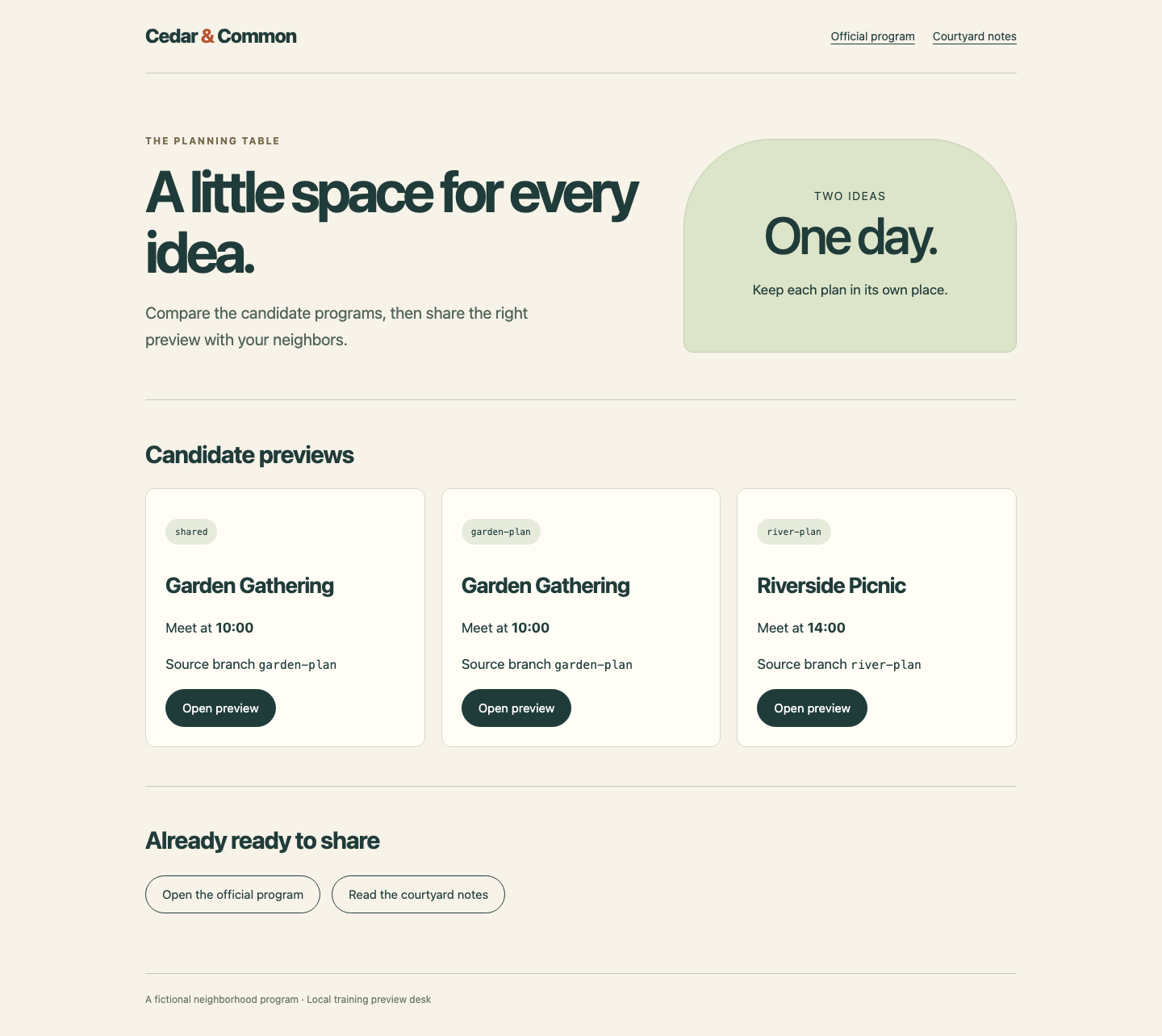
Look for the garden-plan and river-plan keys above their own titles and original meeting times. The retained shared card shows the earlier collision; it is not a substitute for either independent preview.
In Jenkins, open each latest successful branch build's status page and download preview.zip from Build Artifacts. Extract each ZIP into a different new folder and open index.html. Keep all seven files together. The pages and attachments must work locally; a text attachment may open directly rather than trigger another download. build.json identifies the actual source branch and commit. These complete previews are the result; two green build labels alone are insufficient.
Update One Plan and Preserve the Other
In this step, you will change the garden meeting time and use another scan to update only that branch's preview. Start in Jenkins and note the latest successful river-plan build number. Keep its preview open for comparison.
Switch to Source. Select the garden branch and edit its small data file:
git switch garden-plan
git status --short
nano event.properties
Change only the complete meeting_time line from meeting_time=10:00 to:
meeting_time=10:30
Use the same arrow keys, Home, one Ctrl+K, replacement text and Enter operation used for the Pipeline line. Save with Ctrl+O, Enter, and exit with Ctrl+X. The builder reads this one value to keep the page, CSV and notes consistent; you do not edit generated visitor files.
Review and publish this source update:
git --no-pager diff -- event.properties
git add event.properties
git commit -m "Move the garden meeting to 10:30"
git push origin garden-plan
The diff should change only that meeting time. If it does not, correct the file before committing. The river branch receives no source change.
Switch to Jenkins, return to community-previews, and choose Scan Multibranch Pipeline Now. After indexing, the garden job should run a new build for its changed revision; the unchanged river branch should retain the build number you noted. Wait for the garden build to finish with SUCCESS. Open its Console Output and relate the new commit and 10:30 to the source change.
If the scan says there are no changes and the garden preview remains old, return to Source. Check git status --short and git --no-pager log -1 --oneline, confirm the intended change was committed on garden-plan, and push that branch before scanning again. A local file edit or commit that has not reached origin is not yet source Jenkins can discover. If a build fails, read its console and correct the indicated source error through another commit and push. Do not reset the VM or replace the supplied builder.
Switch to Preview Desk and refresh. Open garden-plan: Garden Gathering must now meet at 10:30. Inspect Explore this plan, the downloaded activities CSV and the complete visitor notes; the meeting time must agree everywhere. Open river-plan: Riverside Picnic must still meet at 14:00, with its original activities and working attachments. Its build.json must retain the previous source commit and native build number. Do not rerun that unchanged child job during this final update.
Return to Jenkins and download the newest garden preview.zip. Extract it into another new folder and repeat the local page/image/CSV/notes checks. It must identify the new garden commit; the earlier downloaded river pack should still be usable independently.
Finally return to Preview Desk, open Open the official program and Read the courtyard notes, and confirm that both complete programs remain intact. Preserve the original branch and build histories. If you make any further source edit, commit, push and complete the corresponding Jenkins build before checking completion. You have two live previews and evidence that updating one did not overwrite or rebuild its neighbor.
Summary
You used native Multibranch discovery and the source revision behind each Jenkinsfile, then separated publication by Jenkins' branch identity. Both plans now have usable pages, images and attachments at independent addresses. A later garden commit updated only its own preview, while the river build, official program and courtyard preview remained intact.