Introduction
Two applications need shared file storage, but each should work inside its own directory. Configure EFS access points so each application mount has a specific root and POSIX identity, then observe the actual file and ownership boundaries.
Complete Share Files Between Application Servers with EFS first. This independent VM supplies new application hosts and a subnet; it does not reuse that lab's file system. Use Terminal for the configured AWS CLI and supplied SSH connections, and AWS View to compare upload responses. No personal AWS account is required.
Certification Relevance
| Certification | Exam task | Practice |
|---|---|---|
| Cloud Practitioner (CLF-C02) | Task 3.6 | Explore EFS as a file service and observe how application directories and file permissions differ from object storage. |
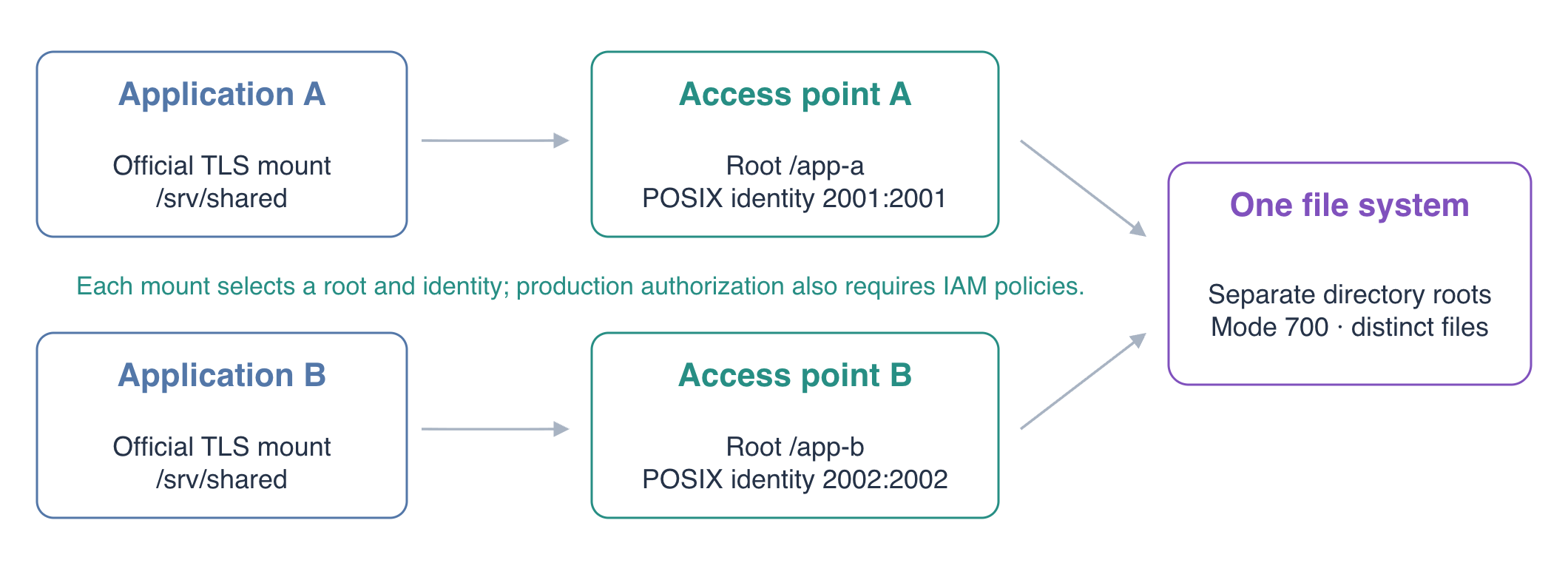
Conceptual overview; actual identifiers appear in your fresh environment.
Prepare a Shared File System and NFS Endpoint
In this step, create the storage and restricted network endpoint that both applications will use.
Work in /home/labex/project and identify the supplied network. AWS CLI is already configured for this lab:
cd /home/labex/project
aws sts \
  get-caller-identity
SUBNET_ID=$(jq -r .subnet_id resources.json)
APP_GROUP_ID=$(jq -r .application_group_id resources.json)
VPC_ID=$(jq -r .vpc_id resources.json)
echo "$SUBNET_ID"
echo "$APP_GROUP_ID"
echo "$VPC_ID"
Create a new EFS file system. Both applications will use this same resource, while their access points select different directories within it:
FS_ID=$(aws efs \
  create-file-system \
  --creation-token fs02-application-files \
  --encrypted \
  --tags Key=Name,Value=fs02-application-files \
  --query FileSystemId --output text)
echo "$FS_ID"
Create a dedicated storage group:
EFS_GROUP_ID=$(aws ec2 \
  create-security-group \
  --group-name fs02-efs-access \
  --description 'NFS for the upload application servers' \
  --vpc-id "$VPC_ID" \
  --query GroupId --output text)
echo "$EFS_GROUP_ID"
Allow TCP 2049 from the application group. This network rule permits NFS connections; it does not choose an application's file-system directory or user identity:
aws ec2 \
  authorize-security-group-ingress \
  --group-id "$EFS_GROUP_ID" \
  --ip-permissions "IpProtocol=tcp,FromPort=2049,ToPort=2049,UserIdGroupPairs=[{GroupId=$APP_GROUP_ID}]"
Create the mount target in the prepared subnet:
MOUNT_TARGET_ID=$(aws efs \
  create-mount-target \
  --file-system-id "$FS_ID" \
  --subnet-id "$SUBNET_ID" \
  --security-groups "$EFS_GROUP_ID" \
  --query MountTargetId --output text)
echo "$MOUNT_TARGET_ID"
Inspect the resource states and wait until both are available:
aws efs \
  describe-file-systems \
  --file-system-id "$FS_ID" \
  --query 'FileSystems[].{ID:FileSystemId,State:LifeCycleState}'
aws efs \
  describe-mount-targets \
  --file-system-id "$FS_ID" \
  --query 'MountTargets[].{ID:MountTargetId,IP:IpAddress,State:LifeCycleState}'
Create Application-Specific Access Points
In this step, define the root directory and file identity for each application's mount.
An access point is an application-specific entry to an EFS file system. Its root directory becomes / within that mount, and its POSIX user replaces the client's file-operation identity. POSIX identifies a user with a numeric UID and a group with a numeric GID.
Create the access point for application A:
AP_A_ID=$(aws efs \
  create-access-point \
  --file-system-id "$FS_ID" \
  --posix-user Uid=2001,Gid=2001 \
  --root-directory 'Path=/app-a,CreationInfo={OwnerUid=2001,OwnerGid=2001,Permissions=700}' \
  --tags Key=Name,Value=fs02-app-a \
  --query AccessPointId --output text)
echo "$AP_A_ID"
CreationInfo supplies ownership and permissions if /app-a does not already exist. Permission 700 gives the directory owner read, write and traversal access while withholding those permissions from other users. The access point's UID/GID matches that owner.
Create a second access point with a different root and identity:
AP_B_ID=$(aws efs \
  create-access-point \
  --file-system-id "$FS_ID" \
  --posix-user Uid=2002,Gid=2002 \
  --root-directory 'Path=/app-b,CreationInfo={OwnerUid=2002,OwnerGid=2002,Permissions=700}' \
  --tags Key=Name,Value=fs02-app-b \
  --query AccessPointId --output text)
echo "$AP_B_ID"
Inspect both definitions:
aws efs \
  describe-access-points \
  --file-system-id "$FS_ID" \
  --query 'AccessPoints[].{ID:AccessPointId,Root:RootDirectory.Path,User:PosixUser,Creation:RootDirectory.CreationInfo}'
The roots are /app-a and /app-b, with identities 2001:2001 and 2002:2002. The next step tests their actual behavior; matching configuration alone does not prove the boundary.
An access point constrains the root and identity of the mount that selects it. It does not alone prevent an authorized client from choosing another access point. Production designs can add IAM authorization and file-system policies to control which access point a client may mount; this lab focuses on directory and POSIX behavior.
Observe Separate Directories and Enforced Ownership
In this step, mount each access point and prove that identical filenames refer to different application files.
Mount A's access point on application A. Access-point mounts require TLS:
ssh -F ssh_config application-a \
  "sudo mkdir -p /srv/shared && sudo mount -t efs -o tls,stunnel,lookupcache=positive,accesspoint=${AP_A_ID} ${FS_ID}:/ /srv/shared"
The mount uses lookupcache=positive so a previously missing filename is checked again on the server when another application creates it. This keeps the short upload exercise observable; cache tuning for production workloads requires its own performance assessment. See the Linux NFS directory-cache options.
Mount B's access point on application B:
ssh -F ssh_config application-b \
  "sudo mkdir -p /srv/shared && sudo mount -t efs -o tls,stunnel,lookupcache=positive,accesspoint=${AP_B_ID} ${FS_ID}:/ /srv/shared"
Both use the local path /srv/shared, but that path represents /app-a on A and /app-b on B. Point each supplied upload application directly at its access-point root:
ssh -F ssh_config application-a \
  'printf "{\"upload_directory\":\"/srv/shared\"}\n" | sudo tee /etc/uploads-app/config.json'
ssh -F ssh_config application-b \
  'printf "{\"upload_directory\":\"/srv/shared\"}\n" | sudo tee /etc/uploads-app/config.json'
Write private.txt through A and try reading it through B:
curl -i -X PUT --data-binary 'Private upload for application A' \
  http://127.0.0.1:8081/uploads/private.txt
curl -i http://127.0.0.1:8082/uploads/private.txt
A returns 201 Created; B returns 404 Not Found. Now create B's own file using the same filename:
curl -i -X PUT --data-binary 'Private upload for application B' \
  http://127.0.0.1:8082/uploads/private.txt
curl -i http://127.0.0.1:8081/uploads/private.txt
curl -i http://127.0.0.1:8082/uploads/private.txt
A still returns its A-specific content, and B returns its B-specific content. Use filename private.txt and Read upload on both AWS View cards to compare the results.
Inspect the actual mounts and file identities:
ssh -F ssh_config application-a 'findmnt -t nfs4 /srv/shared; stat -c "%i %u:%g" /srv/shared/private.txt'
ssh -F ssh_config application-b 'findmnt -t nfs4 /srv/shared; stat -c "%i %u:%g" /srv/shared/private.txt'
The files have different inodes and owners 2001:2001 and 2002:2002. The supplied application process runs as labex, but the server applies the identity selected by the access point.
Even a root client write through A's mounted access point uses the selected identity:
ssh -F ssh_config application-a \
  'printf "Access-point identity also applies to root callers\n" | sudo tee /srv/shared/root-caller.txt; stat -c "%u:%g" /srv/shared/root-caller.txt'
Its owner is 2001:2001. You do not need local user accounts named 2001 and 2002 for EFS to apply those numeric identities.
A's mount exposes the contents of /app-a, rather than the whole EFS root. B's sibling directory is not a child of A's mount:
ssh -F ssh_config application-a 'ls -a /srv/shared'
ssh -F ssh_config application-a 'cat /srv/shared/app-b/private.txt'
The final command reports No such file or directory, even though B's actual file exists and its application can read it. The two independently mounted roots and distinct file contents demonstrate directory separation. Traversing .. from a local mount point leads to the local parent directory; it is not a way to inspect the EFS sibling directory.
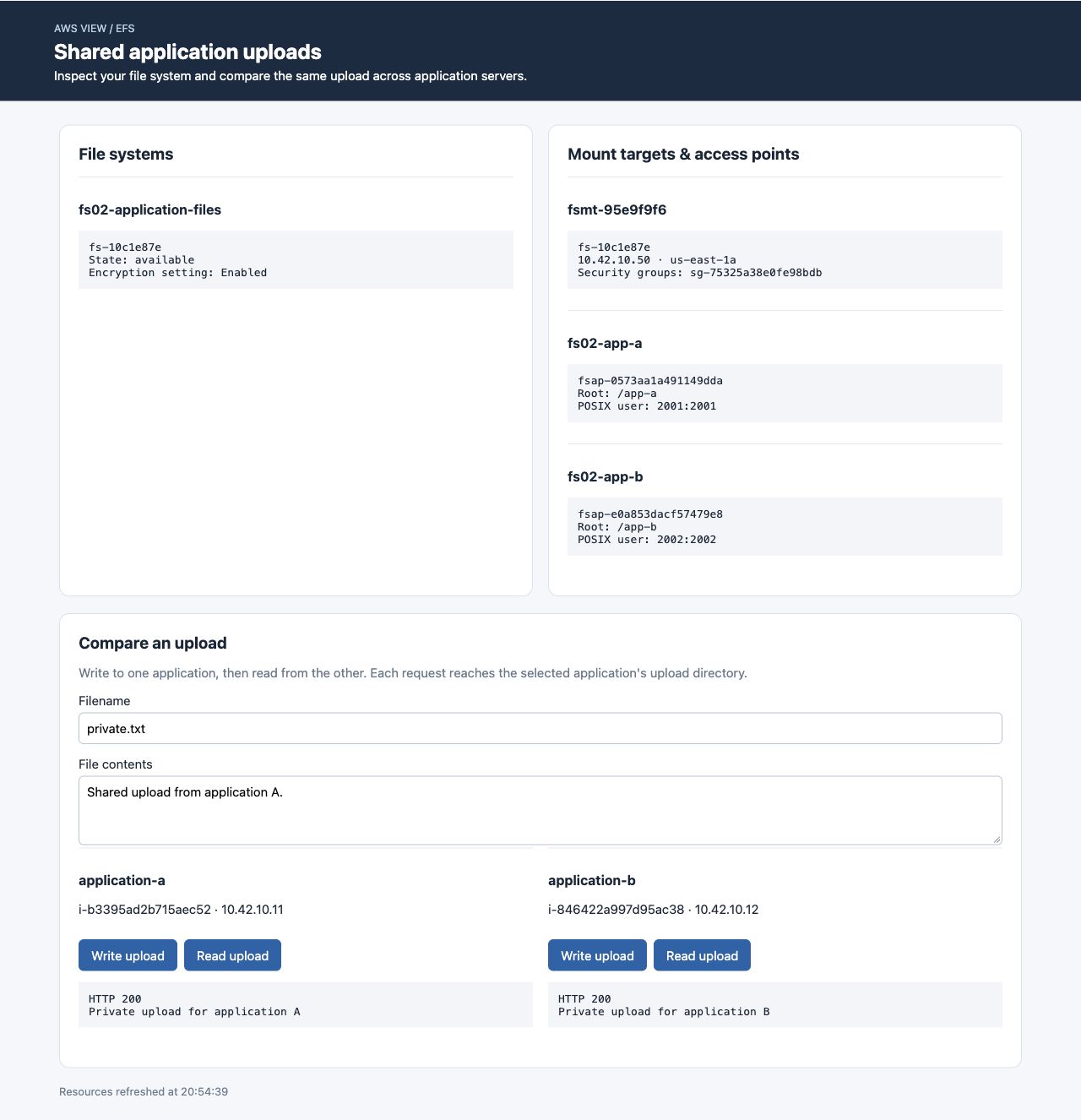
The same filename belongs to separate access-point directories and has different contents. Identifiers vary in fresh environments.
Remove the Access Points and Shared Storage
In this step, release the mounts and remove only your application storage resources.
Return both applications to their local directories before unmounting:
ssh -F ssh_config application-a \
  'printf "{\"upload_directory\":\"/srv/uploads\"}\n" | sudo tee /etc/uploads-app/config.json'
ssh -F ssh_config application-b \
  'printf "{\"upload_directory\":\"/srv/uploads\"}\n" | sudo tee /etc/uploads-app/config.json'
ssh -F ssh_config application-a 'sudo umount /srv/shared'
ssh -F ssh_config application-b 'sudo umount /srv/shared'
Delete the two access points, then confirm that the file system has none:
aws efs \
  delete-access-point \
  --access-point-id "$AP_A_ID"
aws efs \
  delete-access-point \
  --access-point-id "$AP_B_ID"
aws efs \
  describe-access-points \
  --file-system-id "$FS_ID"
AccessPoints should be empty. Deleting an access point removes its entry definition, not the files in its directory. This lab will now remove the entire disposable file system and its data:
aws efs \
  delete-mount-target \
  --mount-target-id "$MOUNT_TARGET_ID"
aws efs \
  describe-mount-targets \
  --file-system-id "$FS_ID"
Wait until MountTargets is empty before continuing:
aws efs \
  delete-file-system \
  --file-system-id "$FS_ID"
aws ec2 \
  delete-security-group \
  --group-id "$EFS_GROUP_ID"
Confirm successful empty service responses for your named resources:
aws efs \
  describe-file-systems \
  --query 'FileSystems[?Name==`fs02-application-files`].FileSystemId'
aws ec2 \
  describe-security-groups \
  --filters Name=group-name,Values=fs02-efs-access \
  --query 'SecurityGroups[].GroupId'
Both return empty lists. Preserve the prepared application servers, their groups and subnet, then run this step's verification.
Summary
You used two access points to select different roots and POSIX identities within one EFS file system. Identical filenames held different actual application data, and server-enforced file ownership applied to ordinary and root callers. You then unmounted the clients and removed the disposable access points, network endpoint and file system.
Network reachability, mount selection and directory permissions are different layers. The next guided lab uses those layers to diagnose an EFS mount connection.
For further reading, see the AWS reference on Access-point roots, identities, and authorization scope.