Introduction
Application A can read its shared uploads, but application B cannot connect to the same EFS storage. Diagnose the failed connection, restore B's mount and keep access limited to the intended application servers.
Complete the two previous EFS guided labs first. This fresh environment supplies the existing file system, access point, original upload and application hosts needed for the fault. Use the configured AWS CLI, supplied SSH connections and AWS View; no earlier VM resources or personal AWS account are required.
Certification Relevance
| Certification | Exam task | Practice |
|---|---|---|
| Cloud Practitioner (CLF-C02) | Task 3.5; Task 3.6 | Relate a file-service connection to VPC security-group access and distinguish network reachability from an available storage resource. |
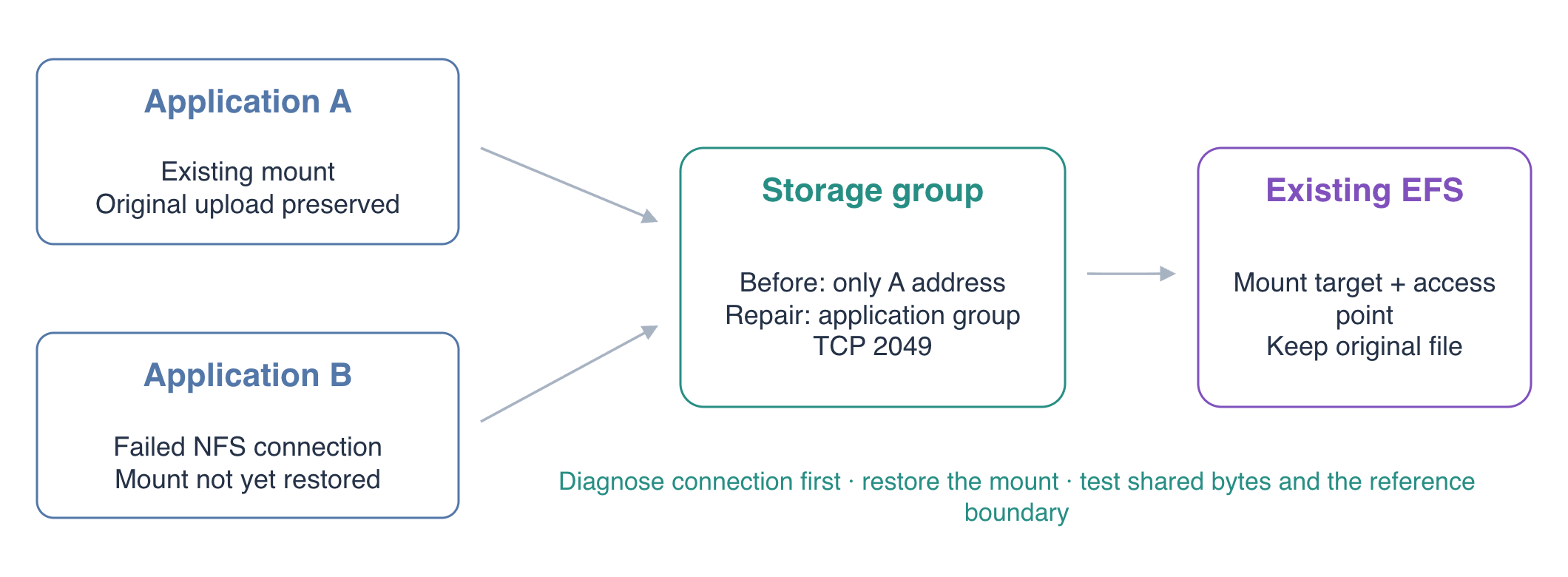
Conceptual overview; actual identifiers appear in your fresh environment.
Diagnose and Repair the NFS Network Rule
In this step, locate the failed connection layer and repair the storage security group.
Work in /home/labex/project. The supplied resources.json records this lab's storage and application identifiers:
cd /home/labex/project
aws sts \
  get-caller-identity
FS_ID=$(jq -r .fault.filesystem_id resources.json)
MOUNT_TARGET_ID=$(jq -r .fault.mount_target_id resources.json)
AP_ID=$(jq -r .fault.access_point_id resources.json)
EFS_GROUP_ID=$(jq -r .fault.storage_group_id resources.json)
APP_GROUP_ID=$(jq -r .application_group_id resources.json)
APP_A_IP=$(jq -r '.clients["application-a"].ip' resources.json)
echo "$FS_ID"
echo "$MOUNT_TARGET_ID"
echo "$AP_ID"
echo "$EFS_GROUP_ID"
echo "$APP_GROUP_ID"
echo "$APP_A_IP"
Read the existing upload through both applications:
curl -i http://127.0.0.1:8081/uploads/original-upload.txt
curl -i http://127.0.0.1:8082/uploads/original-upload.txt
A returns 200 OK with Original upload from application A; B returns 404 Not Found. Inspect their mounts:
ssh -F ssh_config application-a 'findmnt -t nfs4 /srv/shared'
ssh -F ssh_config application-b 'findmnt -t nfs4 /srv/shared'
A has an NFS mount. B has none; its findmnt command returns status 1. Before changing paths or permissions, check whether B can reach the network endpoint:
MOUNT_IP=$(aws efs \
  describe-mount-targets \
  --mount-target-id "$MOUNT_TARGET_ID" \
  --query 'MountTargets[0].IpAddress' --output text)
echo "$MOUNT_IP"
ssh -F ssh_config application-b "nc -zvw2 $MOUNT_IP 2049"
The connection fails. nc tests TCP reachability without creating a mount. A wrong access-point path or POSIX identity can prevent file access after a connection is established, but it does not explain this failed TCP test.
Confirm that the mount target is available and inspect its attached group:
aws efs \
  describe-mount-targets \
  --mount-target-id "$MOUNT_TARGET_ID" \
  --query 'MountTargets[].{ID:MountTargetId,State:LifeCycleState,Subnet:SubnetId}'
aws efs \
  describe-mount-target-security-groups \
  --mount-target-id "$MOUNT_TARGET_ID"
aws ec2 \
  describe-security-groups \
  --group-ids "$EFS_GROUP_ID" \
  --query 'SecurityGroups[].IpPermissions'
The NFS ingress rule allows TCP 2049 only from A's private address, using a /32 CIDR. That includes A alone and excludes B. Replace the address-specific rule with the supplied application-group rule:
aws ec2 \
  revoke-security-group-ingress \
  --group-id "$EFS_GROUP_ID" \
  --protocol tcp \
  --port 2049 \
  --cidr "$APP_A_IP/32"
Allow both members of the application group:
aws ec2 \
  authorize-security-group-ingress \
  --group-id "$EFS_GROUP_ID" \
  --ip-permissions "IpProtocol=tcp,FromPort=2049,ToPort=2049,UserIdGroupPairs=[{GroupId=$APP_GROUP_ID}]"
ssh -F ssh_config application-b "nc -zvw2 $MOUNT_IP 2049"
The new connection succeeds. You repaired the network layer without opening NFS to 0.0.0.0/0 or replacing the file system.
Restore B's Access-Point Mount
In this step, connect application B to the existing shared upload directory without replacing A's data.
Inspect the supplied access point before mounting it:
aws efs \
  describe-access-points \
  --access-point-id "$AP_ID" \
  --query 'AccessPoints[].{ID:AccessPointId,Root:RootDirectory.Path,User:PosixUser}'
Its root is /uploads, with the numeric identity of the prepared application user. Both applications should select this same access point because they need the same uploads. Do not create a new file system or copy A's files to B's local disk.
Mount it on B using the official EFS helper and TLS:
ssh -F ssh_config application-b \
  "sudo mkdir -p /srv/shared && sudo mount -t efs -o tls,stunnel,lookupcache=positive,accesspoint=${AP_ID} ${FS_ID}:/ /srv/shared"
ssh -F ssh_config application-b 'findmnt -t nfs4 /srv/shared'
The mount uses lookupcache=positive so a previously missing filename is checked again on the server when another application creates it. This keeps the short upload exercise observable; cache tuning for production workloads requires its own performance assessment. See the Linux NFS directory-cache options.
B now shows an NFS 4 mount at /srv/shared. Its application is already configured to use that directory, so the next request reads EFS directly:
curl -i http://127.0.0.1:8082/uploads/original-upload.txt
ssh -F ssh_config application-a 'stat -c "%i %u:%g" /srv/shared/original-upload.txt'
ssh -F ssh_config application-b 'stat -c "%i %u:%g" /srv/shared/original-upload.txt'
B returns the original content, and both hosts report the same inode and ownership. The repair recovered access to the existing file instead of creating another copy.
Verify New Uploads and the Access Boundary
In this step, prove that B can write shared files and that the unrelated client remains excluded.
Upload a new file through B, then read it through A:
curl -i -X PUT --data-binary 'Shared upload after connection repair' \
  http://127.0.0.1:8082/uploads/shared.txt
curl -i http://127.0.0.1:8081/uploads/shared.txt
B returns 201 Created; A returns 200 OK with the same content. In AWS View, use filename shared.txt and read it from both application cards.
The prepared reference server belongs to a different security group. Confirm that it cannot open a fresh NFS connection:
ssh -F ssh_config reference-c "nc -zvw2 $MOUNT_IP 2049"
This connection should fail with a nonzero exit status. That failure is the intended access boundary, rather than another application fault. Confirm that the reference server's unrelated upload remains available:
curl -i http://127.0.0.1:8083/uploads/reference.txt
It returns 200 OK with Unrelated reference upload remains unchanged. The repaired applications and the reference workload retain different network scopes.
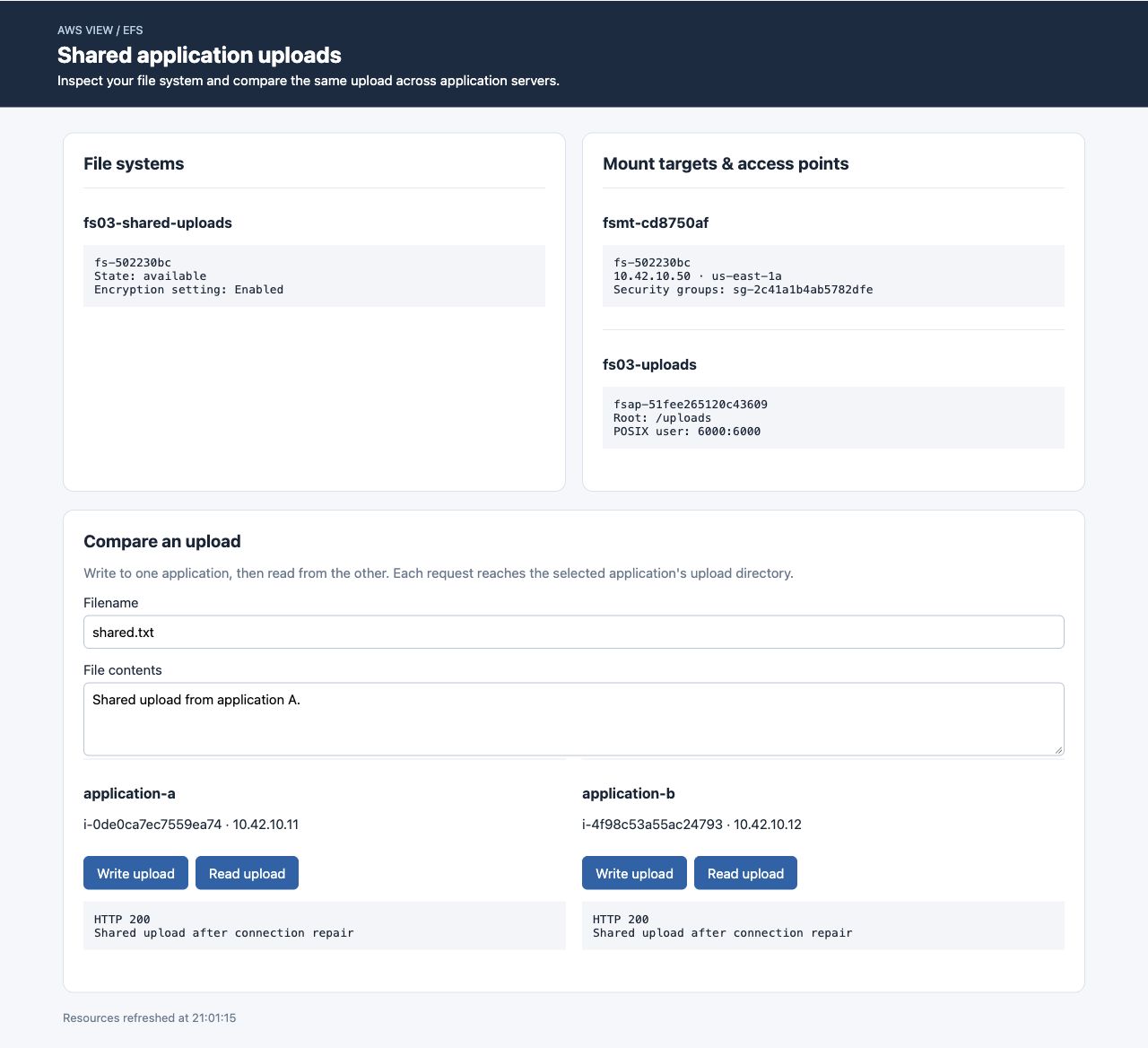
Both applications read the new shared upload after connection repair. Identifiers vary in fresh environments.
Release the Lab's Storage
In this step, remove the disposable storage after testing the repair, preserving the prepared application and network fixtures.
Return both upload applications to their local directories and unmount the shared storage:
ssh -F ssh_config application-a \
  'printf "{\"upload_directory\":\"/srv/uploads\"}\n" | sudo tee /etc/uploads-app/config.json'
ssh -F ssh_config application-b \
  'printf "{\"upload_directory\":\"/srv/uploads\"}\n" | sudo tee /etc/uploads-app/config.json'
ssh -F ssh_config application-a 'sudo umount /srv/shared'
ssh -F ssh_config application-b 'sudo umount /srv/shared'
This lab's storage identifiers came from resources.json; delete those exact resources. Start with its access point and mount target:
aws efs \
  delete-access-point \
  --access-point-id "$AP_ID"
aws efs \
  delete-mount-target \
  --mount-target-id "$MOUNT_TARGET_ID"
aws efs \
  describe-mount-targets \
  --file-system-id "$FS_ID"
Wait until MountTargets is empty, then remove the file system and storage group:
aws efs \
  delete-file-system \
  --file-system-id "$FS_ID"
aws ec2 \
  delete-security-group \
  --group-id "$EFS_GROUP_ID"
Confirm successful empty responses:
aws efs \
  describe-file-systems \
  --query 'FileSystems[?Name==`fs03-shared-uploads`].FileSystemId'
aws ec2 \
  describe-security-groups \
  --filters Name=group-name,Values=fs03-efs-access \
  --query 'SecurityGroups[].GroupId'
The storage lists should be empty. Keep the application servers, their original groups, the subnet and the reference upload. Run the cleanup verification while the environment is still available for authorized reads.
Summary
You separated resource availability, TCP reachability, mount selection and file permissions while diagnosing an EFS connection. You repaired the restrictive rule using the application group, restored B's access to the original file, tested a new cross-server upload and kept the reference client excluded. Finally, you removed the lab's storage in dependency order.
For further reading, see the AWS reference on Client and mount-target network rules; Diagnose mount timeouts and access failures.