Introduction
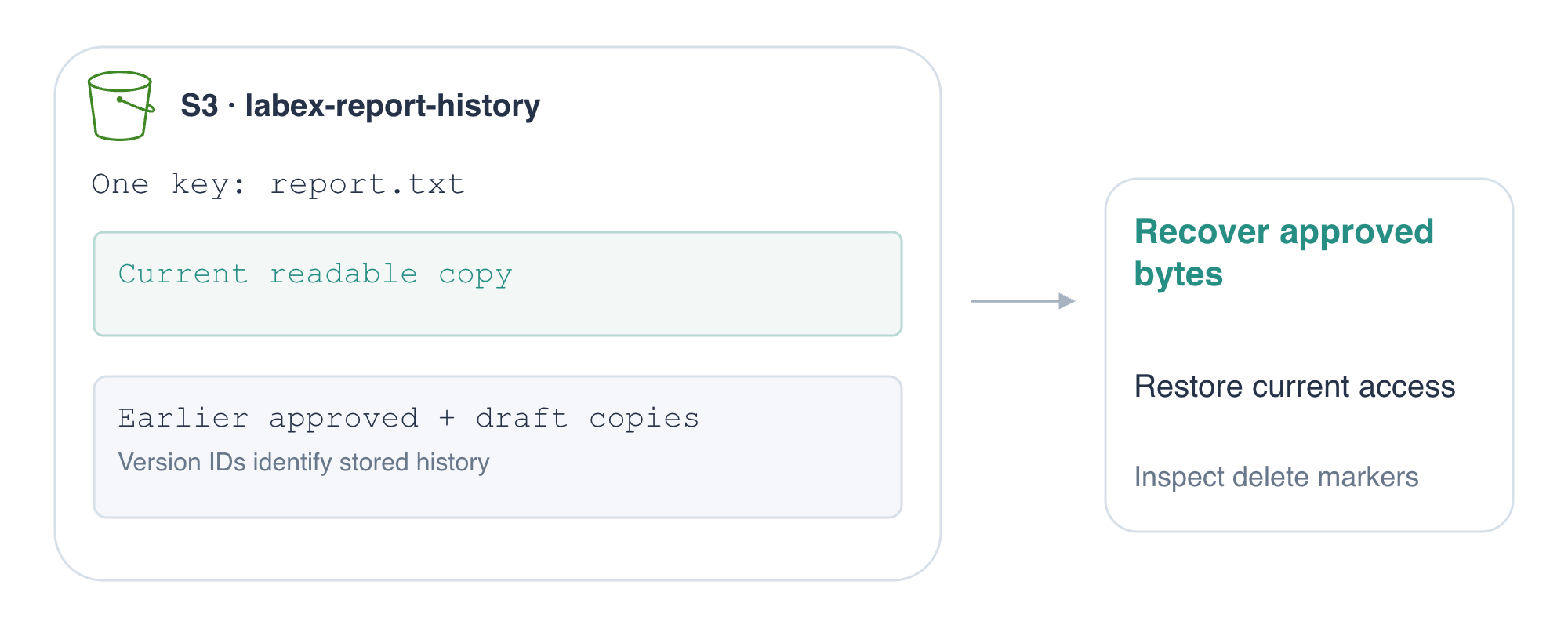
Replacing a key updates what ordinary readers receive. Now protect its earlier contents: recover an approved report after an overwrite, restore access after a delete marker, and distinguish recovery from permanent history deletion.
Complete Organize Documents with Keys and Metadata first for object keys, properties, downloads, and scoped deletion. This fresh VM provides the CLI connection and approved/draft files; you will create the bucket. Use Terminal for commands and the AWS View above Terminal to compare current objects with their history.
Certification Relevance
| Certification | Exam task | Practice |
|---|---|---|
| Solutions Architect – Associate (SAA-C03) | Task 1.3 | S3 version history, delete markers, and data recovery. |
| Developer – Associate (DVA-C02) | Task 1.3 | S3 version history, delete markers, and data recovery. |
| CloudOps Engineer – Associate (SOA-C03) | Task 2.3 | S3 version history, delete markers, and data recovery. |
| Security – Specialty (SCS-C03) | Task 5.2 | Foundational practice: S3 version history, delete markers, and data recovery. |
| Data Engineer – Associate (DEA-C01) | Task 2.3 | Foundational practice: S3 version history, delete markers, and data recovery. |
Lab Overview
Enable Versioning Before Publishing
In this step, you will create an empty bucket and enable versioning before any report is uploaded.
Enter the workspace with cd (change directory):
cd /home/labex/project
Create the report bucket with mb (make bucket):
aws s3 mb s3://labex-report-history
You should see make_bucket: labex-report-history. Versioning is a bucket setting: once enabled, subsequent writes to a key create version IDs instead of discarding its previous stored contents. It is useful for recovering accidental overwrites, but it does not prevent someone from explicitly deleting a particular version.
aws s3api exposes individual S3 API operations. put-bucket-versioning updates this setting; --bucket identifies the container, and --versioning-configuration Status=Enabled requests the enabled state:
aws s3api put-bucket-versioning \
  --bucket labex-report-history \
  --versioning-configuration Status=Enabled
The successful update prints no body. Read the configuration back instead of relying on silence alone:
aws s3api get-bucket-versioning --bucket labex-report-history
{
    "Status": "Enabled"
}
AWS View now shows Versioning: Enabled on the bucket. It is still empty: turning on versioning does not upload a report or create a historical version. Enable the setting before the data you want to protect is written.
Create an Original and an Overwritten Version
In this step, you will publish an approved report and then overwrite its current contents with a draft, while retaining the original in history.
Inspect the prepared files with cat, which prints their contents:
cat report-approved.txt
Monthly revenue: 42000
cat report-draft.txt
Monthly revenue: 00000
Publish the approved file at key report.txt. The source filename and object key can differ:
aws s3 cp report-approved.txt s3://labex-report-history/report.txt
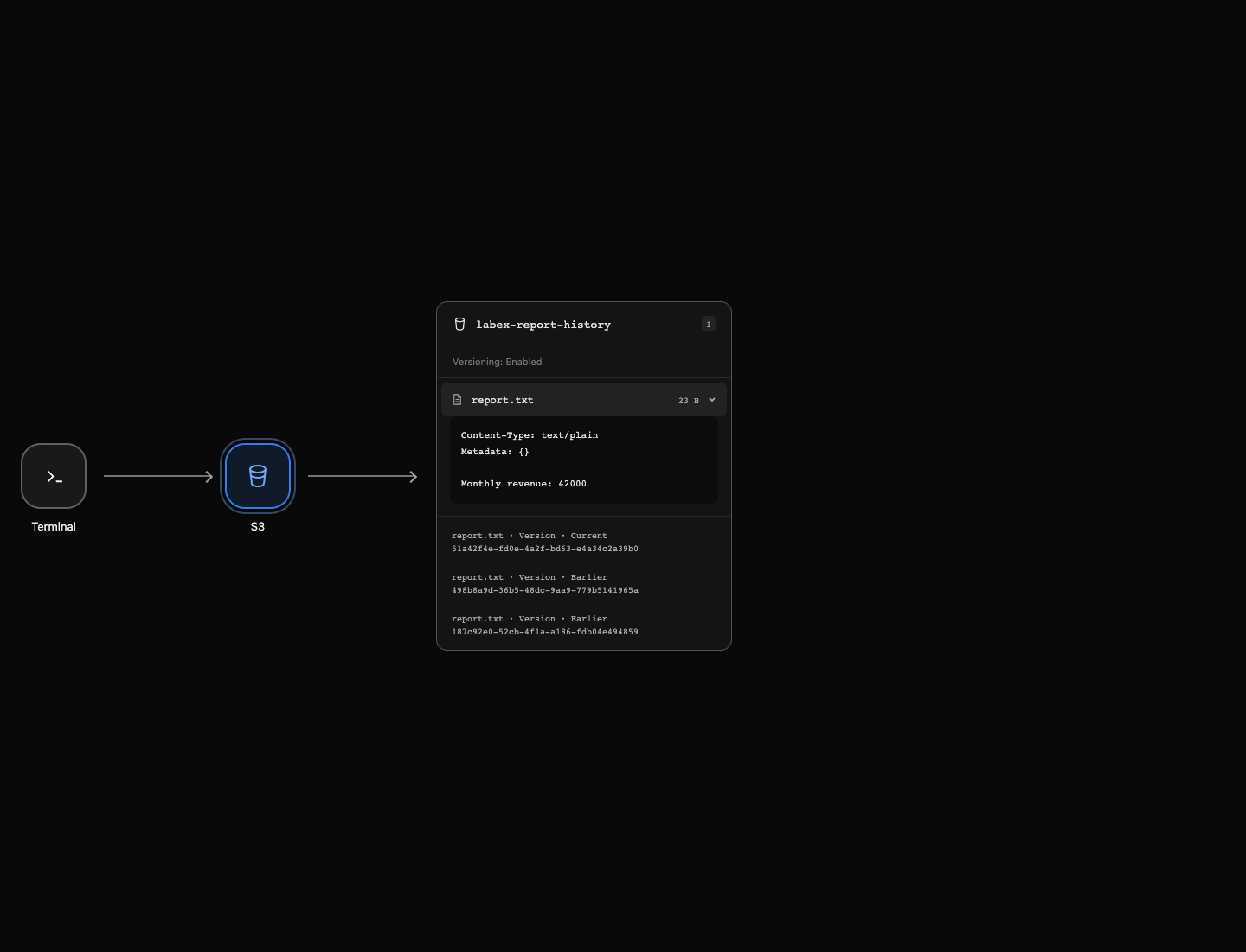
In AWS View, open report.txt and confirm the approved revenue. The history contains one version, marked Current.
Now reproduce the mistake: upload the draft to that same key:
aws s3 cp report-draft.txt s3://labex-report-history/report.txt
The preview changes to Monthly revenue: 00000. There is still one current object key, but its history now has two stored versions. Both files have the same size; versioning tracks writes, rather than deducing changes only from their size.
list-object-versions retrieves historical records as well as the current version:
aws s3api list-object-versions --bucket labex-report-history
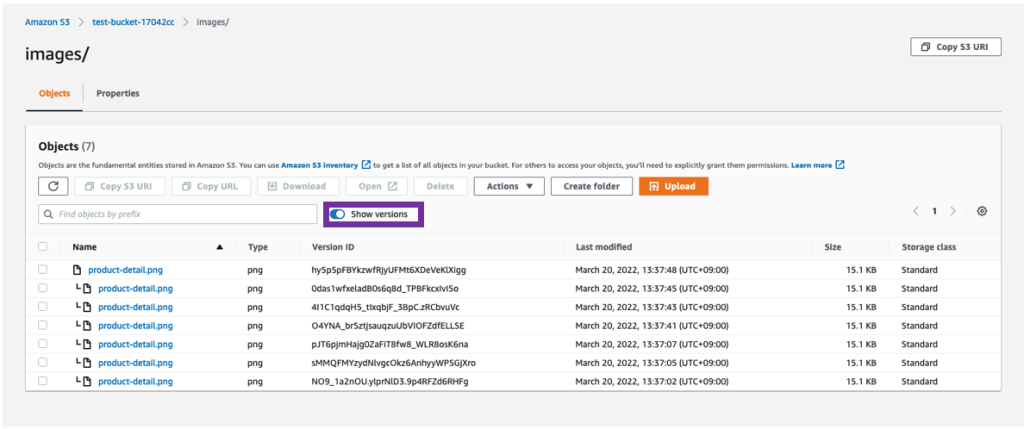
The Versions array contains two entries with key report.txt and different VersionId values. IsLatest: true identifies the draft as current; the earlier approved version has IsLatest: false. IDs and timestamps vary. A normal object listing shows current keys, so use the version listing when investigating an overwrite.
In the official S3 Console, Show versions reveals these history entries in the object list. This example shows a different object and more writes; use it to recognize the Version ID column. No Console login is needed for this lab.
Retrieve and Publish the Approved Version
In this step, you will download the earlier approved version, check its bytes, and make those contents current again without deleting the history.
There are exactly two versions of report.txt at this point. In the previous listing, find the entry with IsLatest: false: it is the approved original. Copy its VersionId.
Store that ID in a shell variable so you can reuse it. Replace PASTE_APPROVED_VERSION_ID below with the value you copied, keeping the quotes. A variable assignment has no spaces around =:
OLD_VERSION='PASTE_APPROVED_VERSION_ID'
Check the value before using it:
echo "$OLD_VERSION"
You should see the ID from the earlier version, rather than the placeholder. $OLD_VERSION reads the variable; double quotes keep the value together as one command argument.
get-object downloads an object's body to the final local path. --version-id selects the historical copy instead of the current draft:
aws s3api get-object \
  --bucket labex-report-history \
  --key report.txt \
  --version-id "$OLD_VERSION" recovered-report.txt
The JSON output describes the retrieved copy. Read its contents:
cat recovered-report.txt
Monthly revenue: 42000
cmp compares file bytes. && runs the following message only if the comparison succeeds:
cmp report-approved.txt recovered-report.txt && echo 'Approved historical content verified'
Retrieving an older version does not make it current; readers of the unqualified key still receive the draft. Publish the recovered bytes to that key:
aws s3 cp recovered-report.txt s3://labex-report-history/report.txt
This creates a third version containing the approved report. The old approved version and the draft both remain for investigation. AWS View shows the approved contents as current and three version records. List the history to confirm:
aws s3api list-object-versions --bucket labex-report-history
The new entry is IsLatest: true. You restored the data by writing a new current version, rather than erasing evidence of the mistake.
Restore Access After a Delete Marker
In this step, you will observe how a delete marker hides a versioned object, then remove that marker to reveal the previous current version.
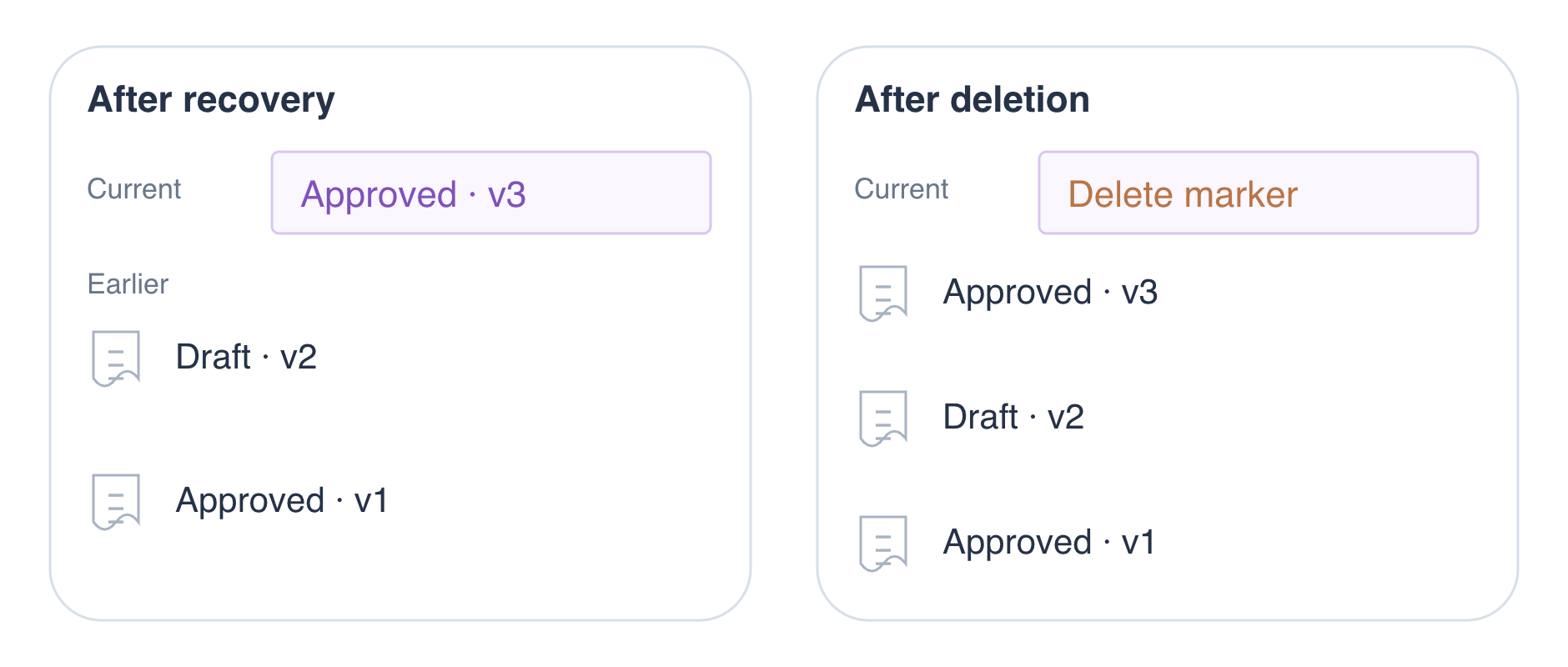
In a versioning-enabled bucket, a delete request without a version ID creates a delete marker. This is a current history entry saying the key is deleted; it does not contain file bytes and does not erase the older versions. Delete the current key using the usual file command:
aws s3 rm s3://labex-report-history/report.txt
A normal listing now shows no current objects:
aws s3 ls s3://labex-report-history/
In AWS View, the current object disappears, while three Version rows and a current Delete marker remain in the history.
Try downloading the key without choosing a version:
aws s3 cp s3://labex-report-history/report.txt unavailable-report.txt
This command is expected to fail with a not-found error. The current delete marker makes an ordinary read behave as though the object is absent. This does not prove the historical bytes were erased.
Read the full history:
aws s3api list-object-versions --bucket labex-report-history
The response now contains DeleteMarkers as well as Versions. Find the single entry in DeleteMarkers and copy its VersionId. This ID identifies the marker, not a stored report.
Replace the placeholder below with that marker ID:
MARKER_VERSION='PASTE_DELETE_MARKER_ID'
Remove that exact marker with delete-object. Providing --version-id deletes the selected history entry rather than creating another marker:
aws s3api delete-object \
  --bucket labex-report-history \
  --key report.txt \
  --version-id "$MARKER_VERSION"
The response identifies the deleted marker. The prior approved version becomes current again; this operation does not upload another report version. Confirm ordinary access by downloading the key:
aws s3 cp s3://labex-report-history/report.txt accessible-report.txt
cmp report-approved.txt accessible-report.txt && echo 'Current report accessible again'
The comparison succeeds. AWS View shows report.txt again with the approved contents and three versions. Removing a marker restores access; permanently deleting a data version would instead erase that specific copy.
Remove Historical Versions and the Bucket
In this step, you will remove all lab-owned data versions before deleting the empty bucket.
Version history consumes storage even when a normal object listing is empty. A plain aws s3 rm would create another delete marker, so it is not sufficient to empty a versioned bucket. The marker from the previous step has already been removed; the three data versions remain.
List the history before permanent cleanup:
aws s3api list-object-versions --bucket labex-report-history
You should see three entries in Versions and no DeleteMarkers. All entries belong to this disposable report exercise.
All three entries belong to report.txt. You already used delete-object --version-id to remove a marker; the same operation can permanently remove a data version.
Copy one VersionId from the listing and replace the placeholder below. Run this command once for each of the three distinct IDs. Permanent deletion cannot be undone, so check the bucket, key, and ID each time:
aws s3api delete-object \
  --bucket labex-report-history \
  --key report.txt \
  --version-id 'PASTE_VERSION_ID'
A successful response identifies the deleted version. A version ID selects one historical copy; it does not delete every version of the key. After removing all three, confirm that no versions or markers remain:
aws s3api list-object-versions --bucket labex-report-history
The successful response has no Versions or DeleteMarkers entries. Now remove the empty bucket with rb:
aws s3 rb s3://labex-report-history
The output is remove_bucket: labex-report-history. Confirm storage still responds:
aws s3 ls
No buckets remain, and AWS View shows No buckets. Local report files remain available; only the lab-owned S3 resources and their history have been removed.
Summary
You enabled bucket versioning before publishing, distinguished a current key from its historical version IDs, and recovered an overwritten report by retrieving an earlier version and publishing its verified bytes. You then created and removed a delete marker to restore ordinary access without uploading another version.
Versioning preserves history; it does not make explicit version deletion reversible. You finished by inspecting and permanently deleting all lab-owned versions, confirming no markers remained, and removing the empty bucket.
For further reading, see the AWS reference on S3 versioning and retained object history.