Introduction
The reporting team wants to find its test settings by team and environment, even when their names differ. You will add ownership tags, spot an incorrect environment label, and repair it without changing the stored settings.
Complete the workspace, regional-resource, and CLI-query labs first. The tools and four resources are prepared in a fresh environment. Work in Terminal and observe the same tags and filtered results in AWS View beside it.
Certification Relevance
This lab provides hands-on practice for the following exam topics.
- Cloud Practitioner (CLF-C02) · Task 3.1: Resource tags for operational grouping and selection.
Label the Finance Export Setting
In this step, you will attach team and environment labels to the finance export parameter.
The last lab found resources by a shared name prefix. Names do not always describe their team or environment. A tag adds a separate key and value to a resource, such as owner=finance or environment=staging. These labels help you find related resources without renaming them.
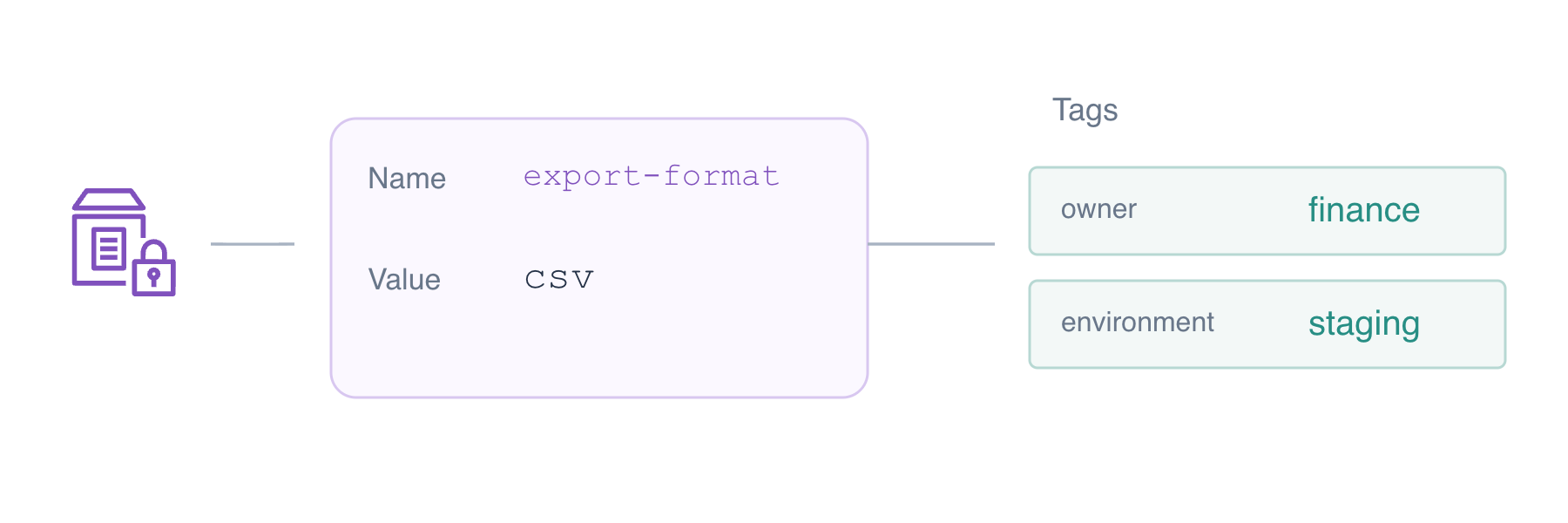
Concept diagram: tags describe a resource. They do not rewrite its stored value, move it, or grant access.
Start in the workspace. As in the previous lab, the prepared default Region is us-east-1:
cd /home/labex/project
List the parameters:
aws ssm describe-parameters
Read their descriptions: /labex/tagging/export-format and /labex/tagging/archive-format are finance staging settings, used for testing. The two /labex/reference/ resources belong to other teams; leave them unchanged.
Tag operations identify the kind of resource and its name. For a parameter, keep --resource-type Parameter and use its full name as --resource-id. Inspect the export setting's tags:
aws ssm list-tags-for-resource --resource-type Parameter --resource-id /labex/tagging/export-format
TagList is []: this resource has no tags yet. Add two labels. Each Key=...,Value=... supplies one tag, and a space separates them:
aws ssm add-tags-to-resource --resource-type Parameter --resource-id /labex/tagging/export-format --tags Key=owner,Value=finance Key=environment,Value=staging
Use the lowercase keys exactly as shown; tags are case-sensitive. A successful write normally prints nothing. Read it back:
aws ssm list-tags-for-resource --resource-type Parameter --resource-id /labex/tagging/export-format
Both labels appear. Click AWS View beside Terminal: the export is included in its finance staging selection. Its stored value remains csv.
Find Resources by Owner
In this step, you will add the archive setting's owner and find both finance resources using a tag filter.
The archive is also assigned to finance. Add its owner label without changing any other tag:
aws ssm add-tags-to-resource --resource-type Parameter --resource-id /labex/tagging/archive-format --tags Key=owner,Value=finance
Read the full tag list:
aws ssm list-tags-for-resource --resource-type Parameter --resource-id /labex/tagging/archive-format
You should see owner=finance and an existing environment=production tag. The description said this is a staging setting; keep that mismatch in mind for the next step.
Use the filtering pattern from the previous lab, now matching a tag. Key=tag:owner selects the owner tag and Option=Equals requires an exact value:
aws ssm describe-parameters --parameter-filters Key=tag:owner,Option=Equals,Values=finance --query 'Parameters[].Name'
Both finance names appear. HR and platform are outside this selection. Labels describe the facts you supply; the service does not determine a team's owner or environment for you.
Repair the Environment Label
In this step, you will correct the archive's mislabeled environment and restore the complete finance staging selection.
A team-only list includes both finance resources. To find its test settings, require both tags: owner=finance and environment=staging. Supply two filters, separated by a space:
aws ssm describe-parameters --parameter-filters Key=tag:owner,Option=Equals,Values=finance Key=tag:environment,Option=Equals,Values=staging --query 'Parameters[].Name'
Only the export appears. The archive exists, but its incorrect production tag excludes it from this view.
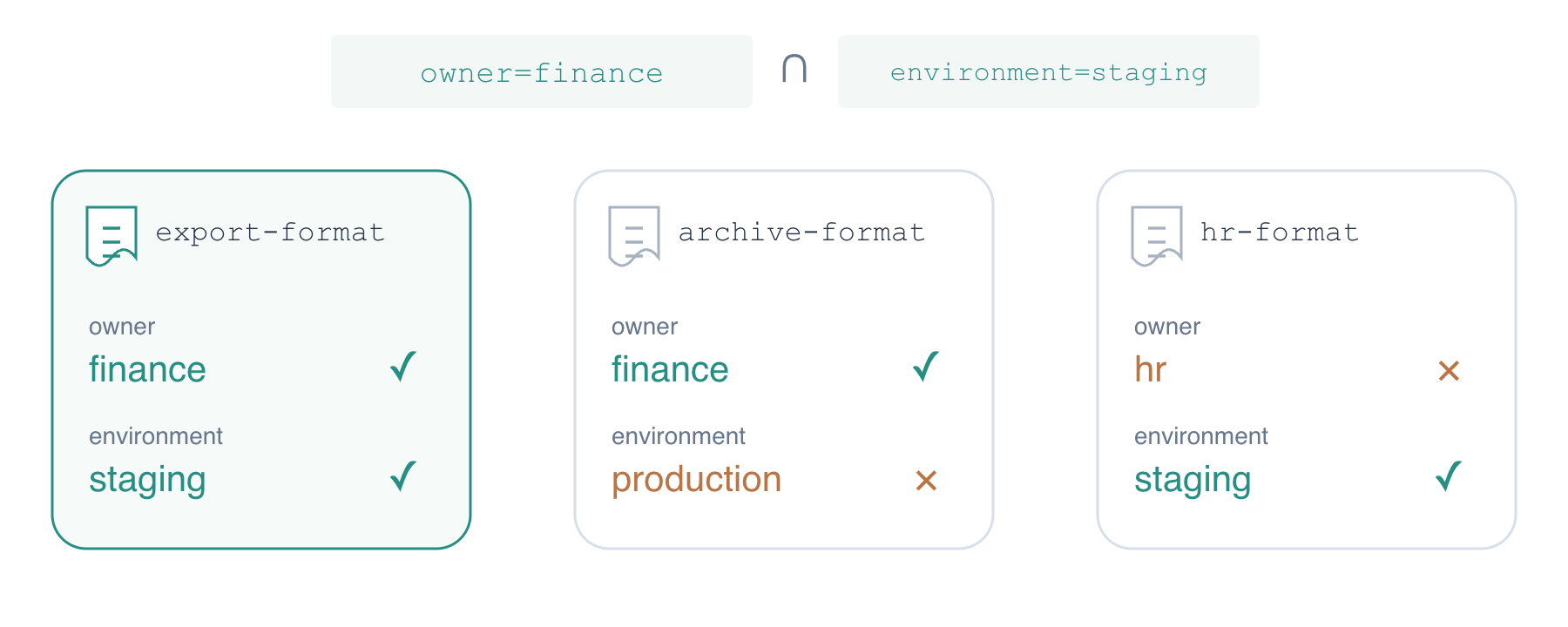
Concept diagram: an unmatched resource is outside the result, not deleted.
Confirm the archive's stored data before repairing the label:
aws ssm get-parameter --name /labex/tagging/archive-format
It has value json, Version 1. Its description in the inventory identifies it as a finance staging archive setting. Correct the environment tag with the same add operation: supplying an existing key replaces its value and leaves other tags alone.
aws ssm add-tags-to-resource --resource-type Parameter --resource-id /labex/tagging/archive-format --tags Key=environment,Value=staging
You are correcting a label to match an existing test resource, not moving a production application into staging. Read the labels back:
aws ssm list-tags-for-resource --resource-type Parameter --resource-id /labex/tagging/archive-format
Both owner and environment now match the task. Run the selection again:
aws ssm describe-parameters --parameter-filters Key=tag:owner,Option=Equals,Values=finance Key=tag:environment,Option=Equals,Values=staging --query 'Parameters[].Name'
Both finance names appear. Read the stored data again:
aws ssm get-parameter --name /labex/tagging/archive-format
Its name, ARN, json value, and Version 1 are unchanged. In AWS View, both resources now appear in finance staging, and the other teams' resources remain intact.
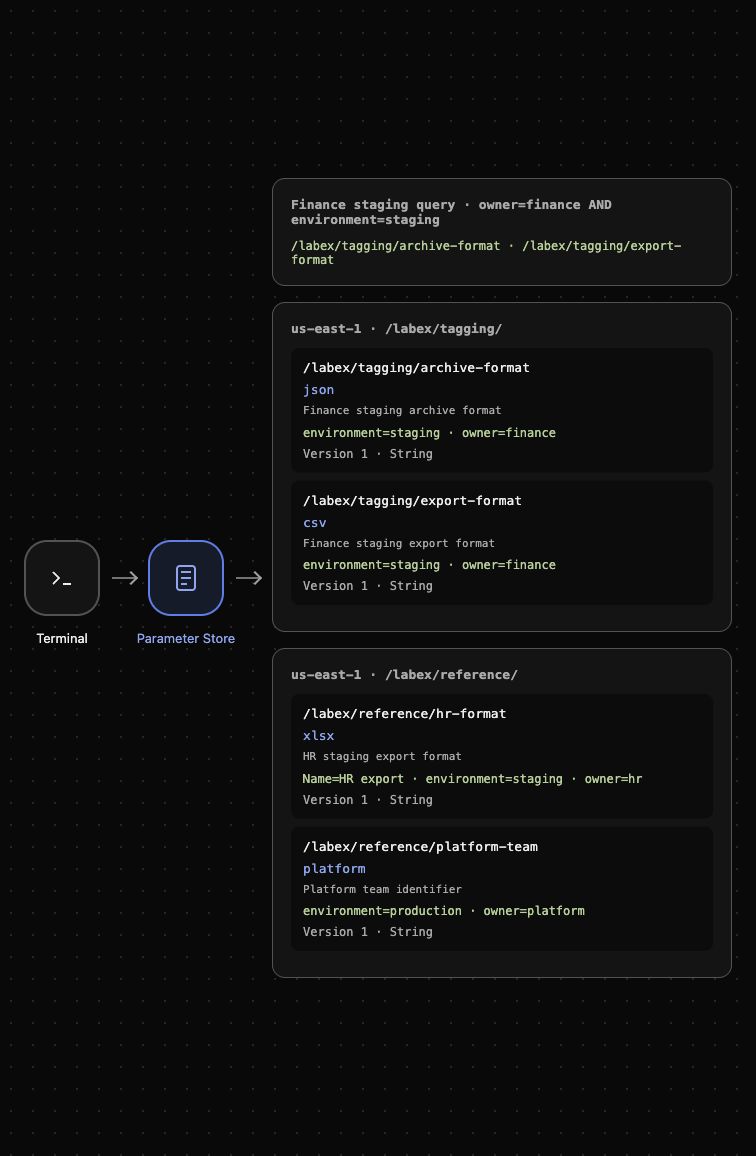
Example result: changing the label restores the selection without rewriting either setting.
Remove Only Your Practice Resources
In this step, you will delete the two assigned finance parameters and confirm the references remain.
Tags help find resources, but they are editable. Use the two exact names assigned to this exercise for cleanup:
aws ssm delete-parameters --names /labex/tagging/export-format /labex/tagging/archive-format
Both names should appear in DeletedParameters, and InvalidParameters should be empty.
Confirm absence by name, independent of tags:
aws ssm describe-parameters --parameter-filters Key=Name,Option=BeginsWith,Values=/labex/tagging/ --query 'Parameters[].Name'
A successful response is []. A failed request is not proof of deletion. Read the remaining inventory:
aws ssm describe-parameters --query 'Parameters[].Name'
Only /labex/reference/hr-format and /labex/reference/platform-team remain. AWS View shows the same references and no finance staging matches. The completion check also reads their unchanged values and tags.
Next, Missing Resources in the Inventory lets you diagnose a similar selection problem independently, using the Region, query, and tag skills from this course.
Summary
You added owner and environment tags, selected resources by team, and combined two conditions to find test settings. An incorrect environment tag hid an existing resource from the filtered view; correcting it restored the selection without changing stored data.
You then deleted only your two practice resources. Continue with Missing Resources in the Inventory to use these skills in an independent recovery task.