Introduction
Once a file is stored, its name and properties help a team find the right document. Organize finance and HR documents in one bucket, inspect the finance report, then remove only its prefix while leaving HR intact.
Complete Store and Retrieve Files in S3 first. This fresh VM provides the CLI connection and local documents; no earlier resources or personal credentials are needed. Use Terminal for commands and the AWS View above Terminal to compare stored keys, properties, and contents.
Certification Relevance
| Certification | Exam task | Practice |
|---|---|---|
| Cloud Practitioner (CLF-C02) | Task 3.6 | S3 keys, prefixes, and object metadata. |
| Solutions Architect – Associate (SAA-C03) | Task 3.1 | S3 keys, prefixes, and object metadata. |
| Developer – Associate (DVA-C02) | Task 1.3 | S3 keys, prefixes, and object metadata. |
Lab Overview
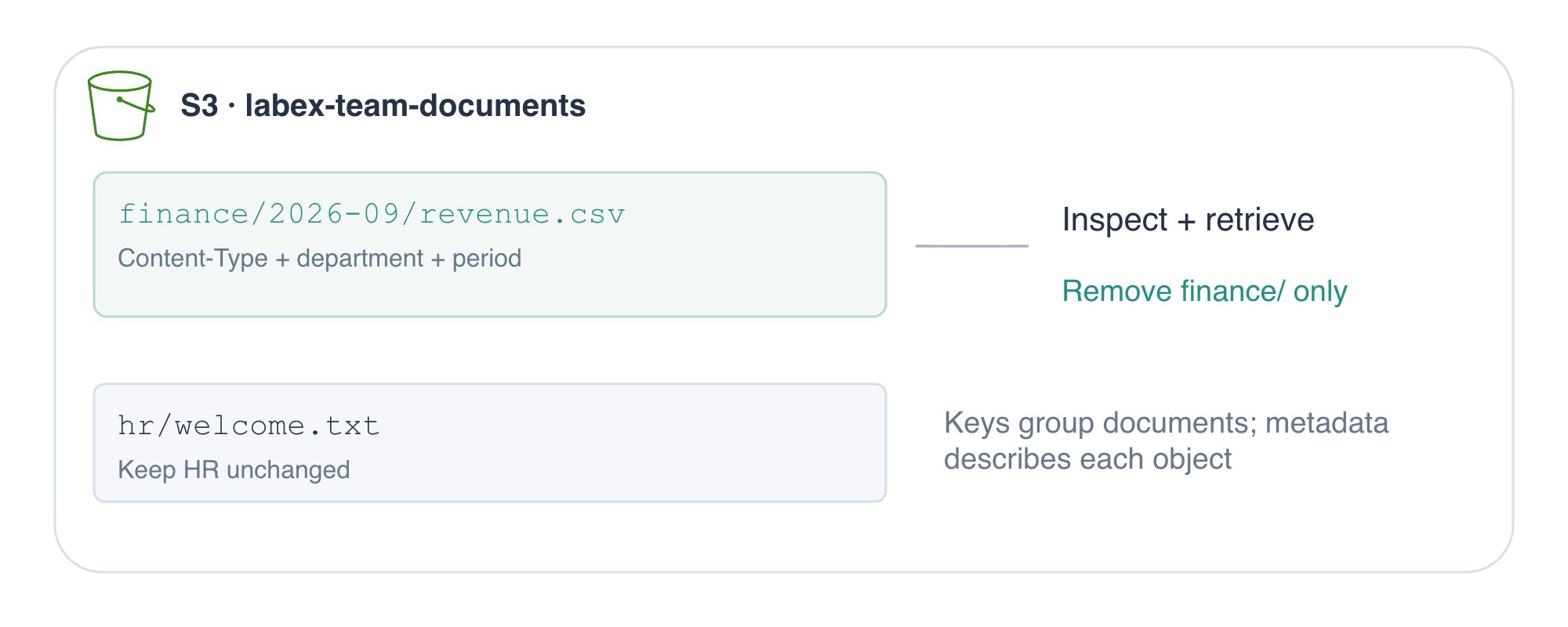
Choose Keys and Upload Team Documents
In this step, you will use meaningful object keys to separate two departments' documents in one bucket.
A local directory stores files on your machine; a bucket stores objects in S3. Enter the prepared workspace with cd (change directory):
cd /home/labex/project
The supplied documents directory contains two small text files. cat prints their contents so you know what you are about to store:
cat documents/revenue.csv
month,revenue
2026-09,42000
A CSV file uses commas to separate columns. Here the two columns are month and revenue; each following line is a record.
cat documents/welcome.txt
Welcome to the reporting team.
Create a bucket with aws s3 mb (make bucket). s3:// identifies a storage location rather than a local path:
aws s3 mb s3://labex-team-documents
The command reports make_bucket: labex-team-documents.
The finance key will be finance/2026-09/revenue.csv. The slashes make the name easy to group, but S3 does not create filesystem directories: the whole string is one object key. Its prefix finance/ groups finance documents; the longer prefix finance/2026-09/ narrows the group to one month.
Content-Type is standard metadata describing a file's media format. text/csv identifies comma-separated text. Custom metadata contains your own descriptive key-value pairs. Here department=finance and period=2026-09 describe the report; they do not grant permissions or change its contents.
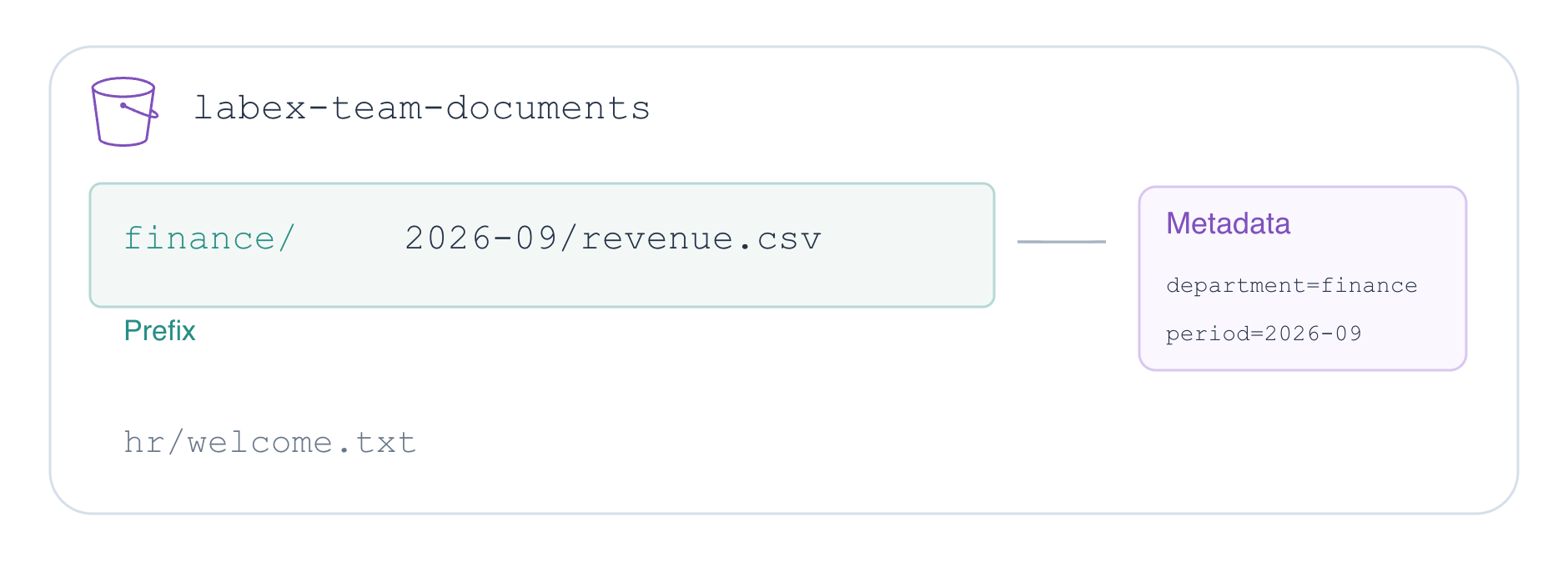
aws s3 cp copies the first path to the second. --content-type explicitly sets the format. --metadata accepts comma-separated name=value pairs. Quoting keeps the metadata argument together. A backslash at the end of a line continues the same command on the next line:
aws s3 cp documents/revenue.csv s3://labex-team-documents/finance/2026-09/revenue.csv \
  --content-type text/csv \
  --metadata 'department=finance,period=2026-09'
The upload message names the destination key. Upload the welcome document with its own key and properties. text/plain means ordinary text without a specialized document format:
aws s3 cp documents/welcome.txt s3://labex-team-documents/hr/welcome.txt \
  --content-type text/plain \
  --metadata 'department=hr'
Use ls (list) and --recursive to display complete keys throughout the bucket instead of grouping them into folder-like prefixes:
aws s3 ls s3://labex-team-documents/ --recursive
Two lines end in finance/2026-09/revenue.csv and hr/welcome.txt; timestamps vary. AWS View shows both keys in the same bucket. You have organized objects by name, without creating separate buckets for each department.
Inspect Properties and Retrieve a Report
In this step, you will select one department's objects, inspect metadata, and prove a downloaded report matches its source.
aws s3api exposes individual S3 API operations. The higher-level aws s3 commands handle common file workflows; both operate on the same objects. list-objects-v2 lists object records. --bucket names the container and --prefix limits the keys returned by S3 to those starting with that string:
aws s3api list-objects-v2 --bucket labex-team-documents --prefix finance/
Find finance/2026-09/revenue.csv in Contents. There is no HR object in this response because hr/welcome.txt does not start with finance/. A prefix filters names, not custom metadata: department=finance alone would not place a differently named key in this result.
head-object retrieves the object's properties without downloading its body. Supply the complete key, including its prefix:
aws s3api head-object --bucket labex-team-documents --key finance/2026-09/revenue.csv
The response includes ContentType set to text/csv, ContentLength (stored bytes), and a Metadata object containing department and period. Other fields, such as timestamps and ETag, describe the stored object. Metadata is associated with the stored copy, not the original local file.
In AWS View, click finance/2026-09/revenue.csv. The expanded card shows its Content-Type, custom metadata, and actual stored CSV contents. Compare these with the CLI response.
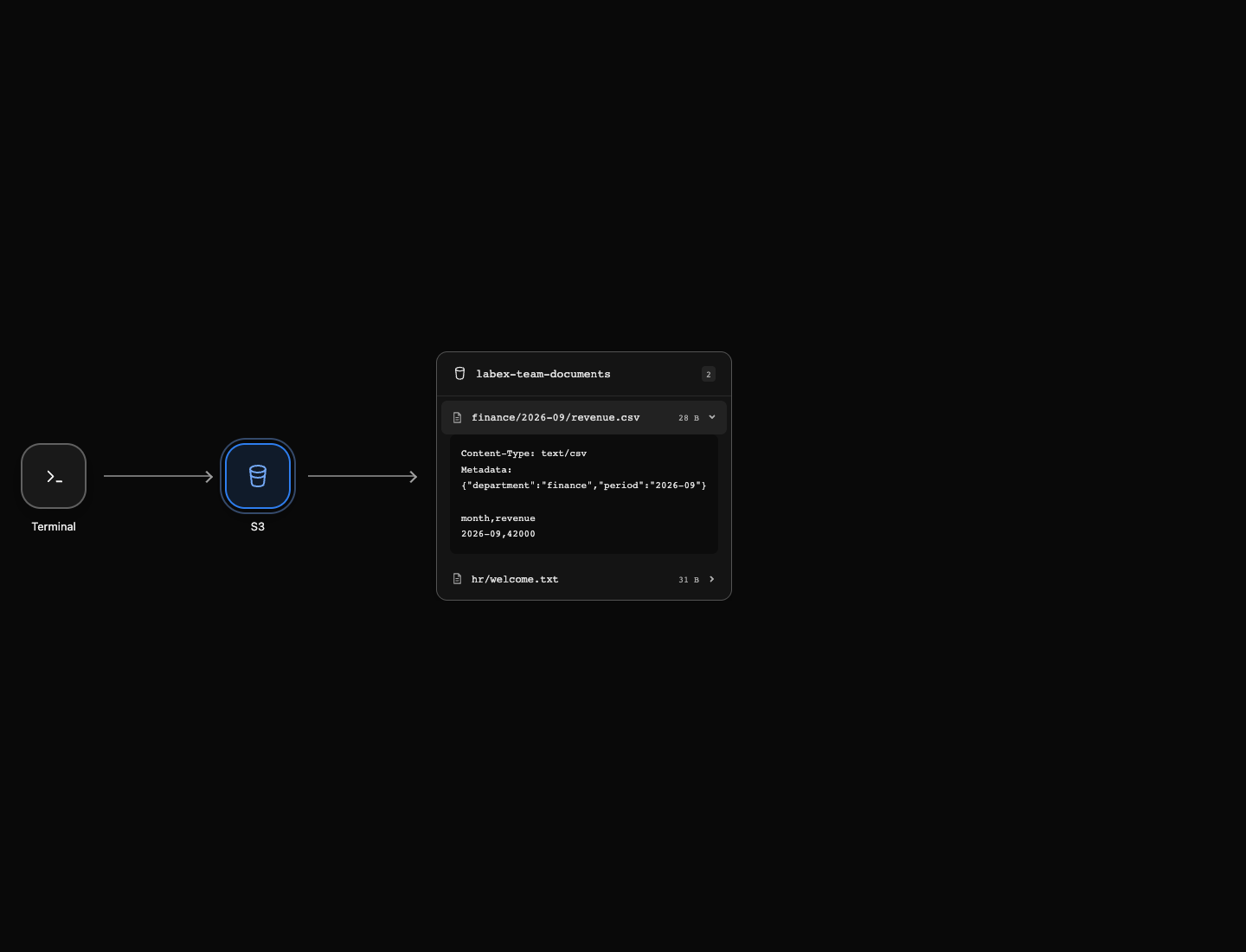
Download with the S3 URI as the source and a new local filename as the destination. Its name does not have to match the key:
aws s3 cp s3://labex-team-documents/finance/2026-09/revenue.csv retrieved-revenue.csv
Inspect what you retrieved:
cat retrieved-revenue.csv
It should show the same two CSV lines you inspected earlier. cmp compares two local files byte for byte; it produces no output on a match. The shell's && runs the message only when that comparison succeeds:
cmp documents/revenue.csv retrieved-revenue.csv && echo 'Report content matches'
Report content matches
This proves retrieval preserved the report's bytes. Your local file has the contents; use head-object when you need to inspect the properties stored in S3.
Remove Only the Finance Prefix
In this step, you will clear the finance documents while preserving the HR document.
A shared bucket can contain unrelated work. Deleting the whole bucket or using its root as a recursive deletion target would affect both departments. Choose the specific finance/ prefix instead. The trailing slash is part of the prefix and keeps names such as finance-archive.csv outside this scope.
aws s3 rm removes objects. --recursive applies the operation to all matching keys, and --dryrun lists intended operations without performing them. Preview the exact scope first:
aws s3 rm s3://labex-team-documents/finance/ --recursive --dryrun
The dry-run output names only finance/2026-09/revenue.csv. It must not name hr/welcome.txt. The objects still exist at this point.
Remove --dryrun to perform the reviewed operation:
aws s3 rm s3://labex-team-documents/finance/ --recursive
The output confirms the finance key's deletion. Query the bucket again:
aws s3 ls s3://labex-team-documents/ --recursive
Only hr/welcome.txt remains. In AWS View, expand that remaining object: its welcome message and department=hr metadata are unchanged. A successful list and read establish that you removed the intended scope while preserving another department's document.
Summary
You organized objects with keys, prefixes, content types, and custom metadata, then verified a retrieved report byte for byte. A dry run helped you review a finance-only deletion; the final service query and AWS View confirmed the HR document and its properties remained intact.
For further reading, see the AWS reference on S3 object keys and prefixes; S3 object metadata.