Introduction
A reporting team needs to review its finance test settings without changing production or another team's settings. You will find the correct resources, make the list easier to read, and update the export format to CSV.
Complete the workspace and regional-resource labs first. The CLI connection and resources are prepared in a fresh environment; no previous files or credentials are needed. Use Terminal for commands and AWS View beside it to observe the changes.
Certification Relevance
This lab provides hands-on practice for the following exam topics.
- Cloud Practitioner (CLF-C02) · Task 3.1: CLI resource queries and scoped operational inventories.
Find the Finance Test Settings
In this step, you will narrow a mixed resource list to the finance settings assigned to this review.
The previous lab showed how Region selects a location. Here the prepared default is us-east-1: commands without --region use that location. You can still specify --region us-east-1 explicitly.
Move to the workspace:
cd /home/labex/project
A resource inventory is a list of resources. View the prepared parameter inventory:
aws ssm describe-parameters
Look at each Name and Description. Staging is a test environment used before changing production, where normal business work runs. The list includes finance staging, finance production, and HR staging settings. Your three resources start with /labex/inventory/finance/staging/.
The official Console presents parameter metadata as a resource table. Compare its Name and Type columns with the fields returned by describe-parameters. The example names differ; this lab uses String parameters:
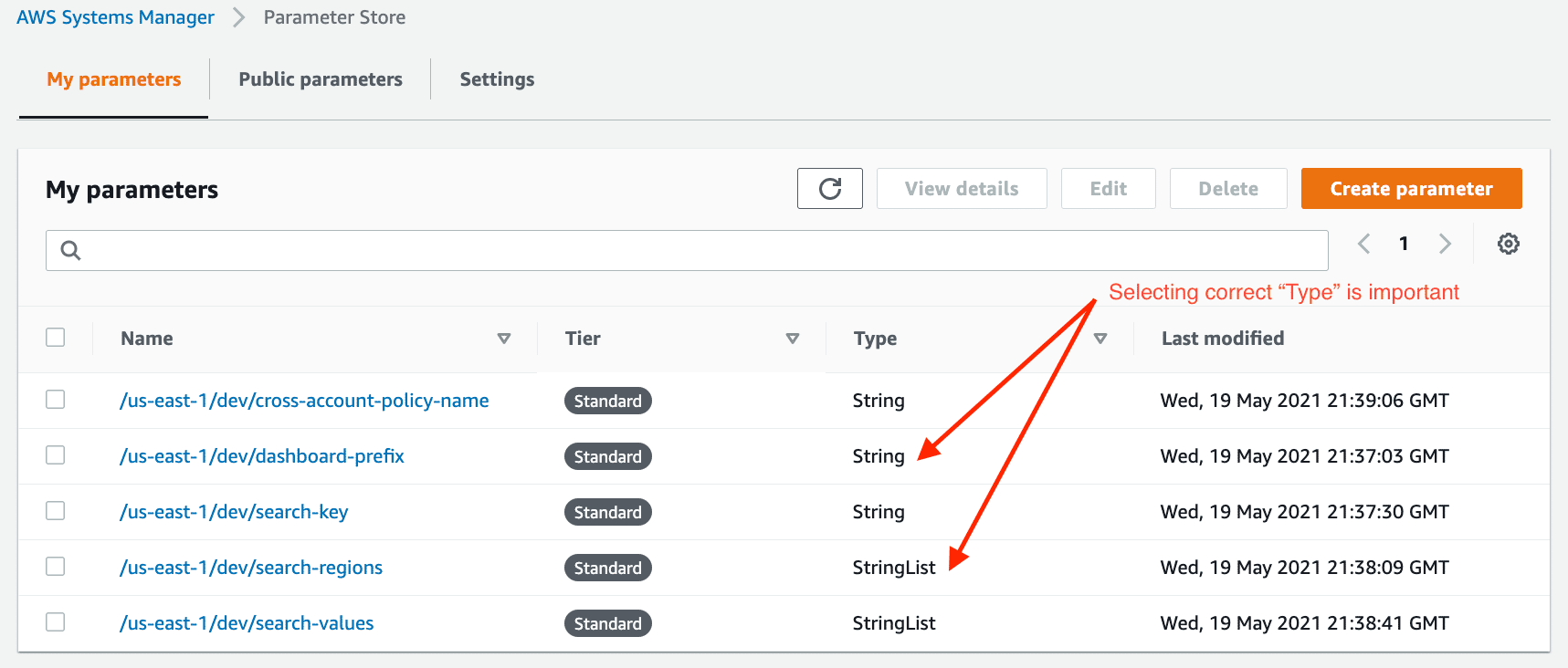
Source: AWS Blog.
The list is small enough to scan, but a filter makes your scope clearer. --parameter-filters asks the service to return matching records. Key=Name selects names, Option=BeginsWith matches their beginning, and Values=... supplies that beginning:
aws ssm describe-parameters --parameter-filters Key=Name,Option=BeginsWith,Values=/labex/inventory/finance/staging/
You should see three names: report-format, report-owner, and review-status. Their order may vary.
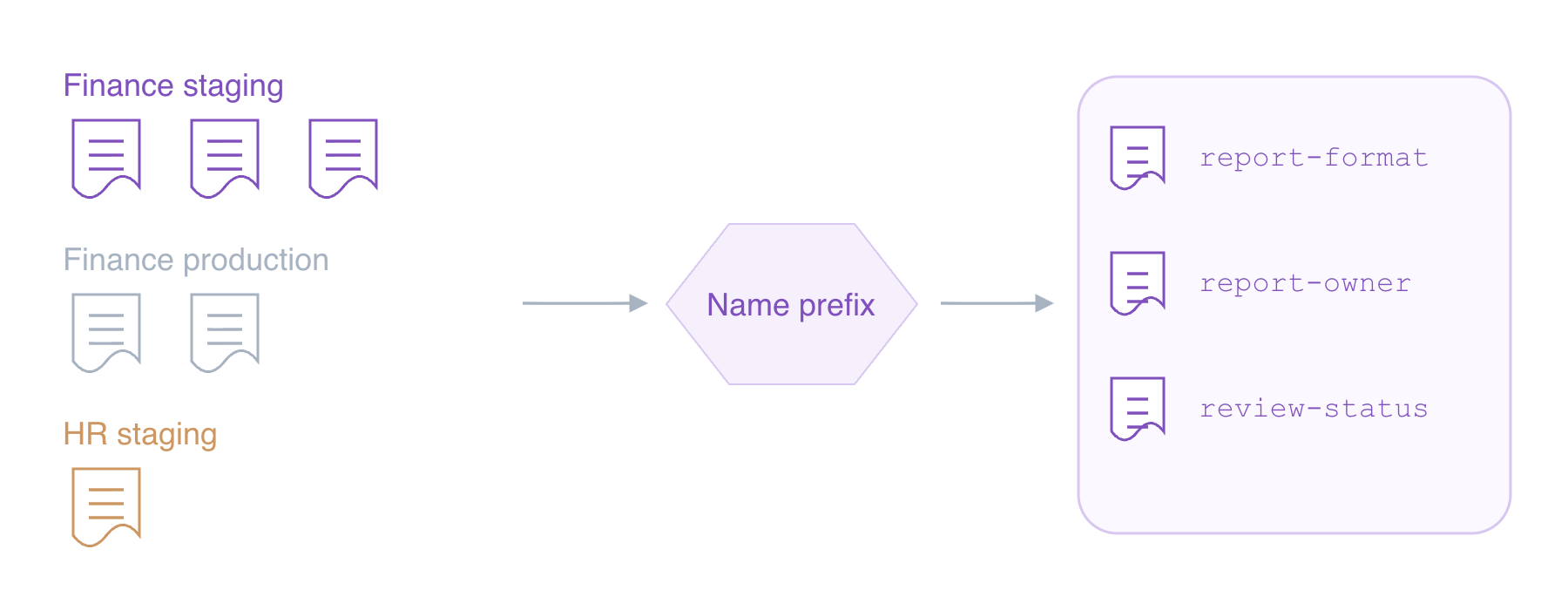
Concept diagram: a filter changes the returned list, not the resources. The other settings still exist.
Record that this configuration review has begun by updating its existing status:
aws ssm put-parameter --name /labex/inventory/finance/staging/review-status --type String --value in-review --overwrite
You learned put-parameter and --overwrite in the first lab. AWS View now shows in-review in finance staging. Leave finance production and HR unchanged.
Show Names and Update the Export Format
In this step, you will display just the matching names, then change the finance staging export format.
The response contains more fields than you currently need. --query selects parts of a response; it does not change stored data. In 'Parameters[].Name', Parameters[] means the returned records, and .Name selects their names. Keep the expression in single quotes.
Add that selection to your existing filter:
aws ssm describe-parameters --parameter-filters Key=Name,Option=BeginsWith,Values=/labex/inventory/finance/staging/ --query 'Parameters[].Name'
The answer is a JSON list of three names. Notice that the filter still chooses the resources; the query chooses which fields to show.
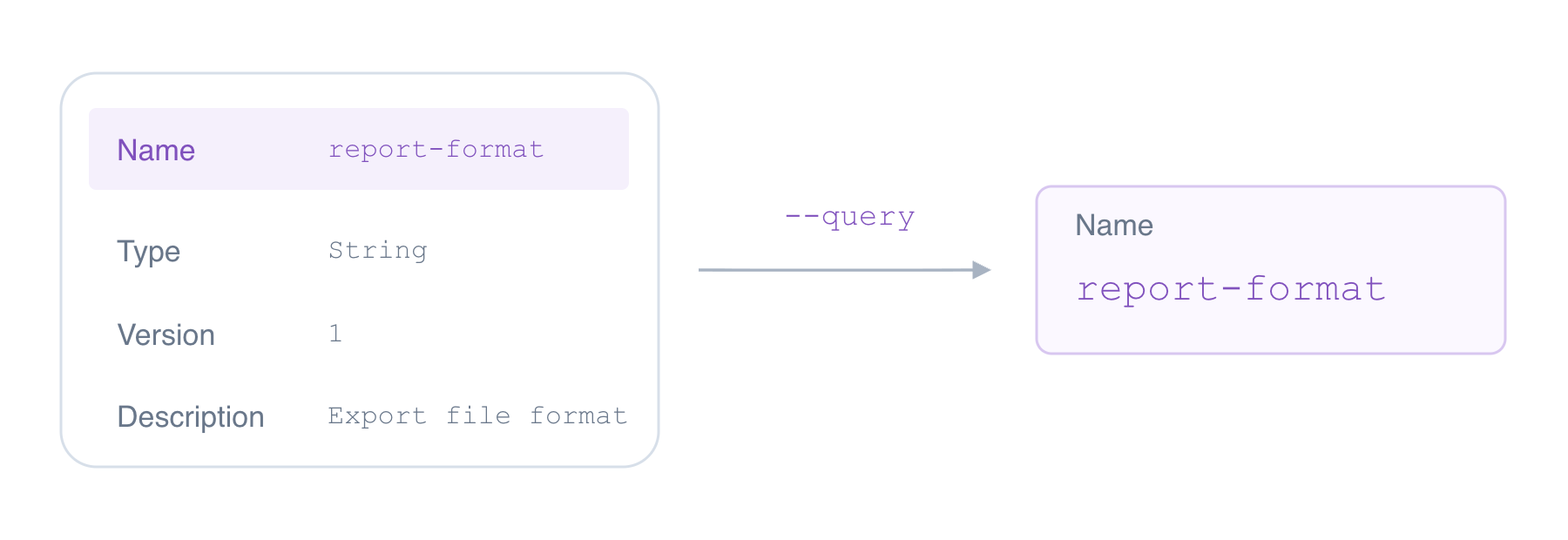
Concept diagram: selecting Name hides other fields from this response; it does not erase them.
For a more compact display, append --output table:
aws ssm describe-parameters --parameter-filters Key=Name,Option=BeginsWith,Values=/labex/inventory/finance/staging/ --query 'Parameters[].Name' --output table
The same three names appear in a table. Output format changes presentation only.
Read the exact staging format setting by name:
aws ssm get-parameter --name /labex/inventory/finance/staging/report-format
Find Value: it is json. This is the application's export format, separate from the CLI's JSON response format. The downstream report importer needs CSV, so update that setting:
aws ssm put-parameter --name /labex/inventory/finance/staging/report-format --type String --value csv --overwrite
Read it again:
aws ssm get-parameter --name /labex/inventory/finance/staging/report-format
Its value is now csv. In AWS View, compare finance staging with production and HR:
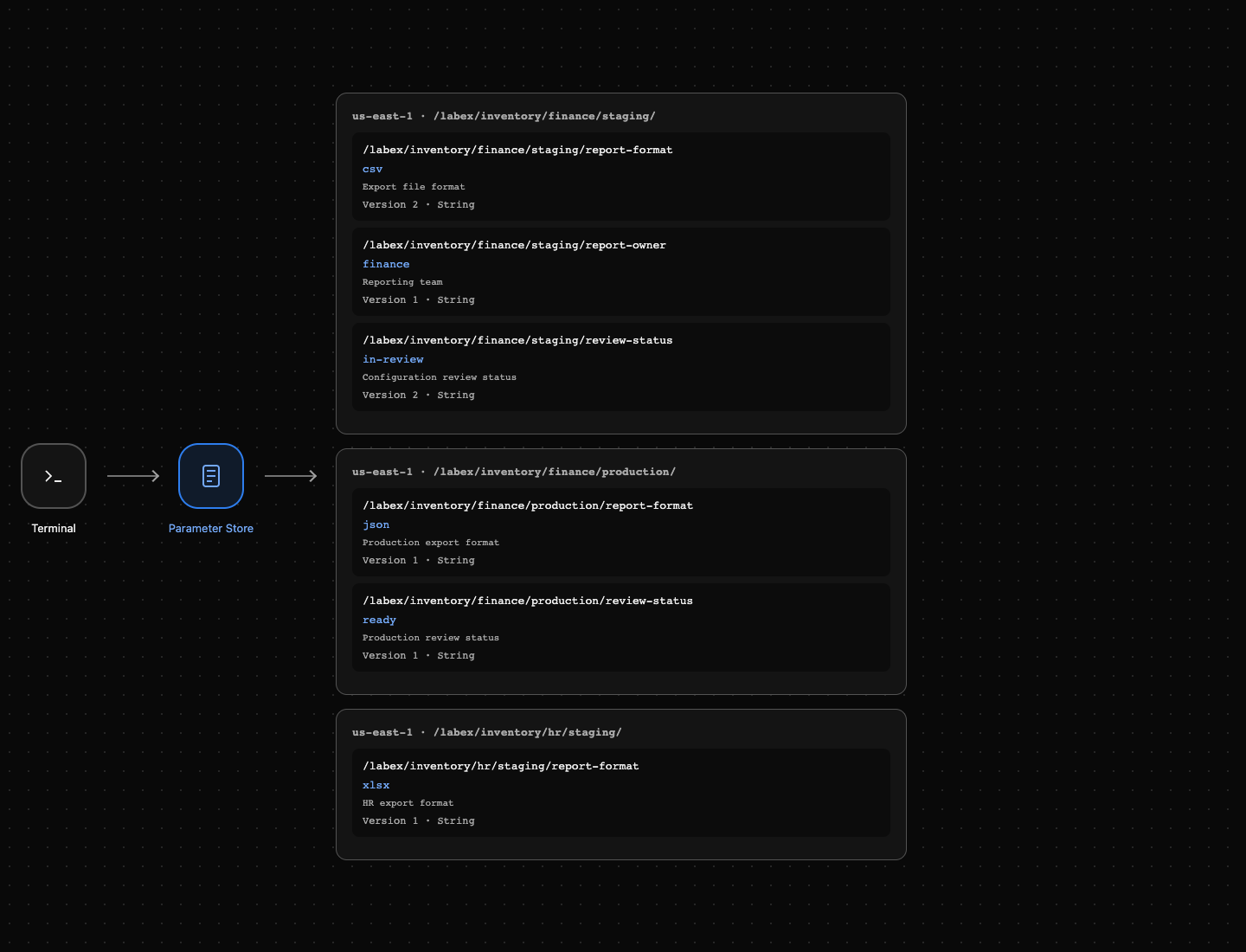
Example result: finance staging uses csv; production remains json and HR remains xlsx. Your review status is still in-review.
Confirm the Settings and Finish the Review
In this step, you will read the two reviewed values and mark the finance staging configuration ready.
You can also select one field from a single resource. 'Parameter.Value' reads the value inside Parameter; --output text displays it without JSON quotes:
aws ssm get-parameter --name /labex/inventory/finance/staging/report-format --query 'Parameter.Value' --output text
The answer is csv. Confirm who owns this reporting configuration:
aws ssm get-parameter --name /labex/inventory/finance/staging/report-owner --query 'Parameter.Value' --output text
The answer is finance. These are stored values; the earlier metadata listing showed names and descriptions instead.
Now mark the completed review ready:
aws ssm put-parameter --name /labex/inventory/finance/staging/review-status --type String --value ready --overwrite
Read back that result:
aws ssm get-parameter --name /labex/inventory/finance/staging/review-status --query 'Parameter.Value' --output text
The answer is ready. AWS View shows finance staging with format csv, owner finance, and status ready. You have reviewed settings, not deployed a reporting application.
Clean Up the Selected Namespace
In this step, you will delete only the finance staging resources after the review checks pass.
A CLI query only shapes a response; it is not a lasting safeguard for a later delete. Keep cleanup scope explicit. delete-parameters accepts a list of exact names with --names; these are the three resources owned by this exercise:
aws ssm delete-parameters --names /labex/inventory/finance/staging/report-format /labex/inventory/finance/staging/report-owner /labex/inventory/finance/staging/review-status
The response's DeletedParameters lists the names removed; InvalidParameters should be empty. Check the staging prefix with a successful service request:
aws ssm describe-parameters --parameter-filters Key=Name,Option=BeginsWith,Values=/labex/inventory/finance/staging/ --query 'Parameters[].Name' --output json
The result is []. A connection or authentication error is a failed observation, not proof of deletion.
Read the remaining inventory's names:
aws ssm describe-parameters --query 'Parameters[].Name' --output table
There are three remaining resources: finance production's format and review status, and HR staging's format. Check their values without modifying them:
aws ssm get-parameter --name /labex/inventory/finance/production/report-format --query 'Parameter.Value' --output text
aws ssm get-parameter --name /labex/inventory/finance/production/review-status --query 'Parameter.Value' --output text
aws ssm get-parameter --name /labex/inventory/hr/staging/report-format --query 'Parameter.Value' --output text
The values remain json, ready, and xlsx. AWS View shows finance staging as No parameters while the other groups remain populated. The independent cleanup check also verifies preservation of their original versions and descriptions.
Summary
You found finance staging with a name-prefix filter, selected names or a single value with --query, and used table or text output to improve readability. You updated only the assigned configuration and cleaned it up while preserving other teams' resources.
Next, Organize Resources with Tags adds team and environment labels, so resources can be grouped even when their names follow different patterns.