Introduction
A reporting team runs its application in two locations. Each location needs its own service label, even though the setting has the same name. You will create the two settings, compare them, change one value, and delete only your practice resources.
Complete Get Started with AWS on LabEx first. You will use its Terminal, AWS CLI, identity, parameter, and AWS View basics here. This lab starts independently: the tools and connection are ready, and no previous files, resources, or credentials are reused.
Parameter Store holds named settings. Your /labex/onboarding/service-label will be a plain String, not a secret. Each region already contains an unrelated /labex/reference/team parameter; preserve it. AWS View shows the same resources you query through the CLI.
Certification Relevance
This lab provides hands-on practice for the following exam topics.
- Cloud Practitioner (CLF-C02) · Task 3.2: Regions, regional resource scope, and resource identity.
- Solutions Architect – Associate (SAA-C03) · Task 1.1: Regions, regional resource scope, and resource identity.
Create Your First Regional Resource
In this step, you will create an application setting in the eastern Region and see it appear in AWS View.
Click Terminal and move to the prepared workspace:
cd /home/labex/project
In the previous lab, every request used one location. A team may run applications near users in different parts of the world, so you need to choose which location a command affects. An AWS Region is a geographic area where services run. us-east-1 is the code for US East (N. Virginia); us-west-2 is US West (Oregon). The --region option chooses where this request acts. Your first setting will be in us-east-1.
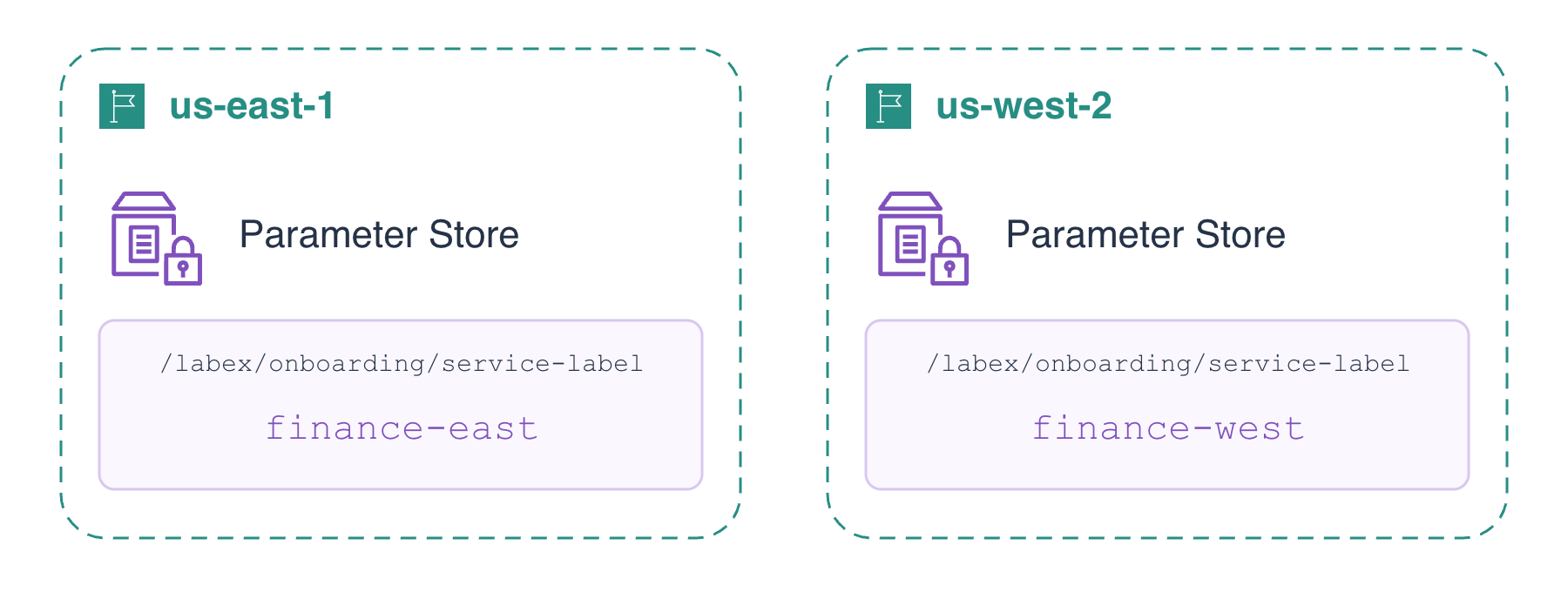
Concept diagram: the settings belong to different Regions. Creating one does not copy it to the other.
Create it:
aws ssm put-parameter --name /labex/onboarding/service-label --type String --value finance-east --region us-east-1
ssm selects Systems Manager, and put-parameter writes a setting. --name gives its resource name, --type String means plain text, and --value supplies that text. The slashes organize an AWS name; they do not create local folders.
The response includes "Version": 1. You created the first version. Read the setting back:
aws ssm get-parameter --name /labex/onboarding/service-label --region us-east-1
Find Name, Value, and Version in Parameter: the name ends in service-label, the value is finance-east, and the version is 1.
Click AWS View, next to Terminal. Follow Terminal → Parameter Store → the region cards. Under us-east-1, find the new parameter and compare its value with the CLI response. The us-west-2 card has only the reference parameter. This resource has been created in one region; it has not been copied to the other.
The completion check reads your eastern setting. Keep the reference parameters unchanged.
Create the Same Name in Another Region
In this step, you will create the same parameter name in a second Region and observe that the two resources remain independent.
In the official Console, the Region menu chooses which location you view. Its names and codes correspond to the CLI's --region option:
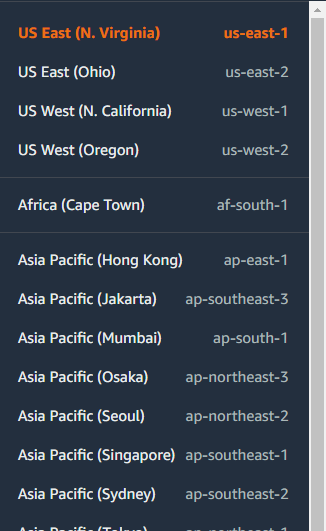
Source: AWS Console guide.
Now create the western application's label. This uses the same name as before but a different --region and value:
aws ssm put-parameter --name /labex/onboarding/service-label --type String --value finance-west --region us-west-2
The response again contains "Version": 1. This is a new resource in the west, not version 2 of the eastern resource.
Read each stored value. get-parameter asks the service for a named resource:
aws ssm get-parameter --name /labex/onboarding/service-label --region us-east-1
aws ssm get-parameter --name /labex/onboarding/service-label --region us-west-2
Both responses contain a Parameter object with Name, Type, Value, Version, and ARN. Compare the values: east returns finance-east, west returns finance-west. The name is the same. An ARN is a full resource identifier; for now, notice us-east-1 in one and us-west-2 in the other. The next step explains the remaining parts. AWS View shows the two separate region cards. A resource appearing in one Region does not mean it exists in another.
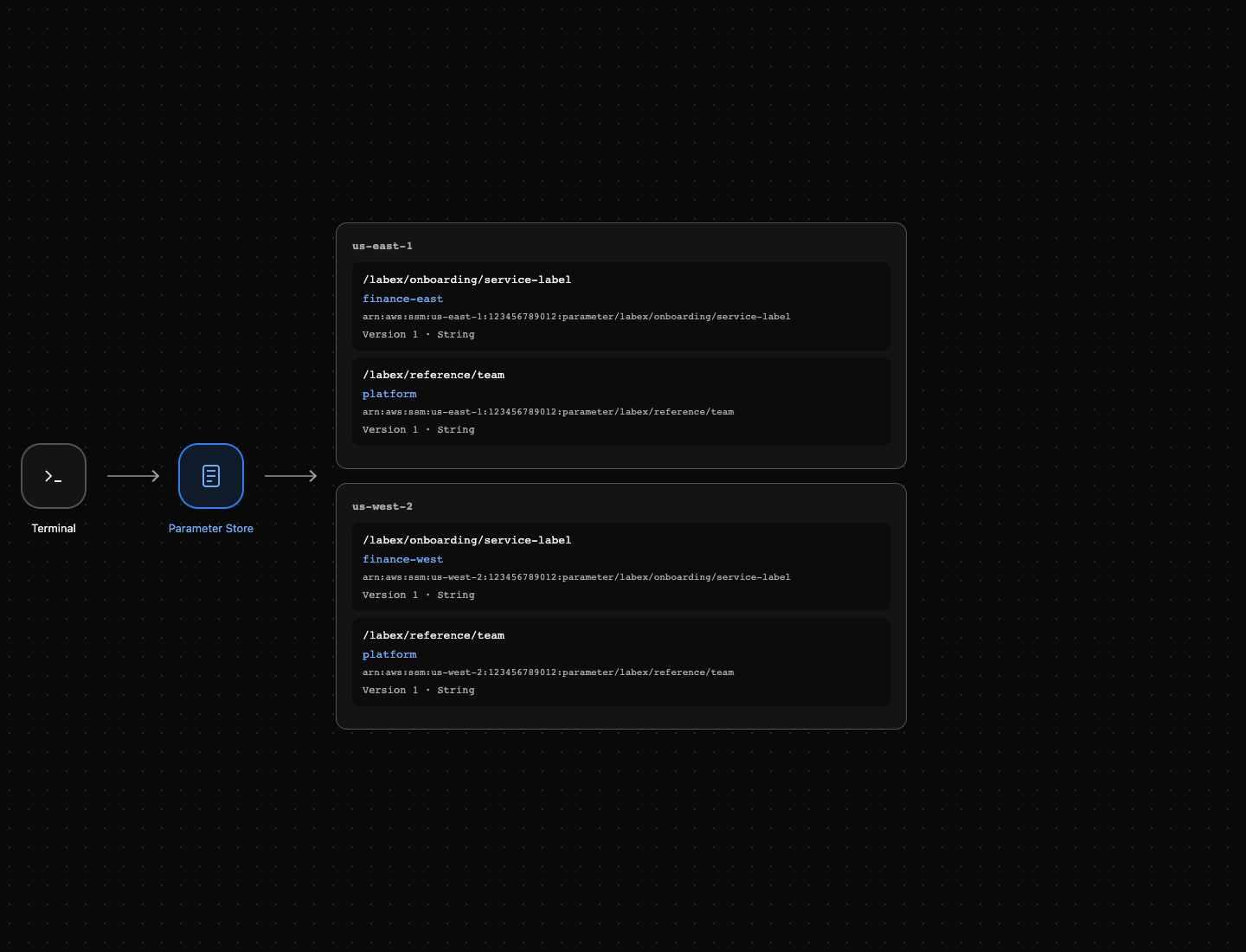
This example shows the eastern and western resources together. Account identifiers and values are examples; use the actual fields returned by your queries.
Read Resource Identity and Change Only the Value
In this step, you will interpret a resource ARN and update the eastern configuration without changing its identity or the western value.
An Amazon Resource Name (ARN) identifies a resource. In AWS View, find the ARN under your eastern setting. For this parameter it looks like:
arn:aws:ssm:us-east-1:ACCOUNT_ID:parameter/labex/onboarding/service-label
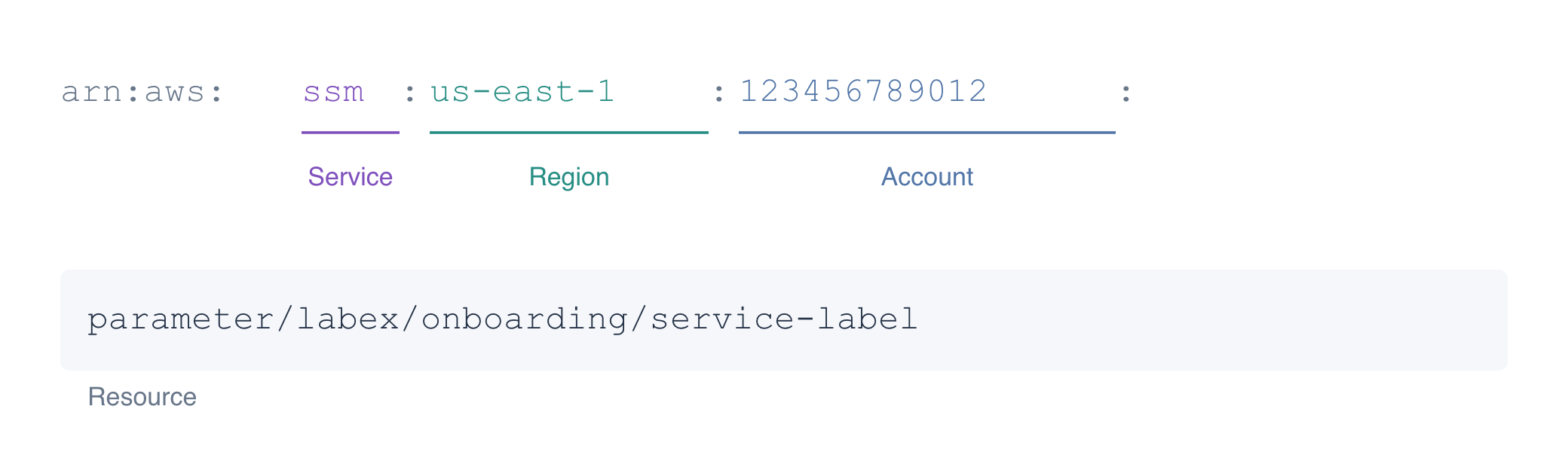
Read only the parts needed to identify this parameter; you do not need to memorize the format.
For now, find the service (ssm), region (us-east-1), account ID, and parameter name. Compare the western ARN: its region is different even though the name is the same. The caller ARN you saw in the preparation lab identifies a user; this ARN identifies a configuration resource. You do not need to memorize ARN formats.
Read the eastern setting before changing it:
aws ssm get-parameter --name /labex/onboarding/service-label --region us-east-1
The name is /labex/onboarding/service-label; the value is finance-east. They answer different questions: which setting are you reading, and what data does it hold? Changing data does not inherently rename or move the resource. put-parameter normally refuses to replace an existing parameter accidentally; adding --overwrite explicitly permits a value update. Update the east only:
aws ssm put-parameter --name /labex/onboarding/service-label --type String --value finance-east-reviewed --overwrite --region us-east-1
The response includes "Version": 2. Read both resources:
aws ssm get-parameter --name /labex/onboarding/service-label --region us-east-1
aws ssm get-parameter --name /labex/onboarding/service-label --region us-west-2
The eastern value is now finance-east-reviewed and its Version is 2, while its ARN is unchanged. The west still returns finance-west at Version 1. Verify these fields in both JSON responses and in AWS View. This distinction helps diagnose mistakes later: the right name in the wrong Region identifies a different resource, and an updated value can still belong to the same resource.
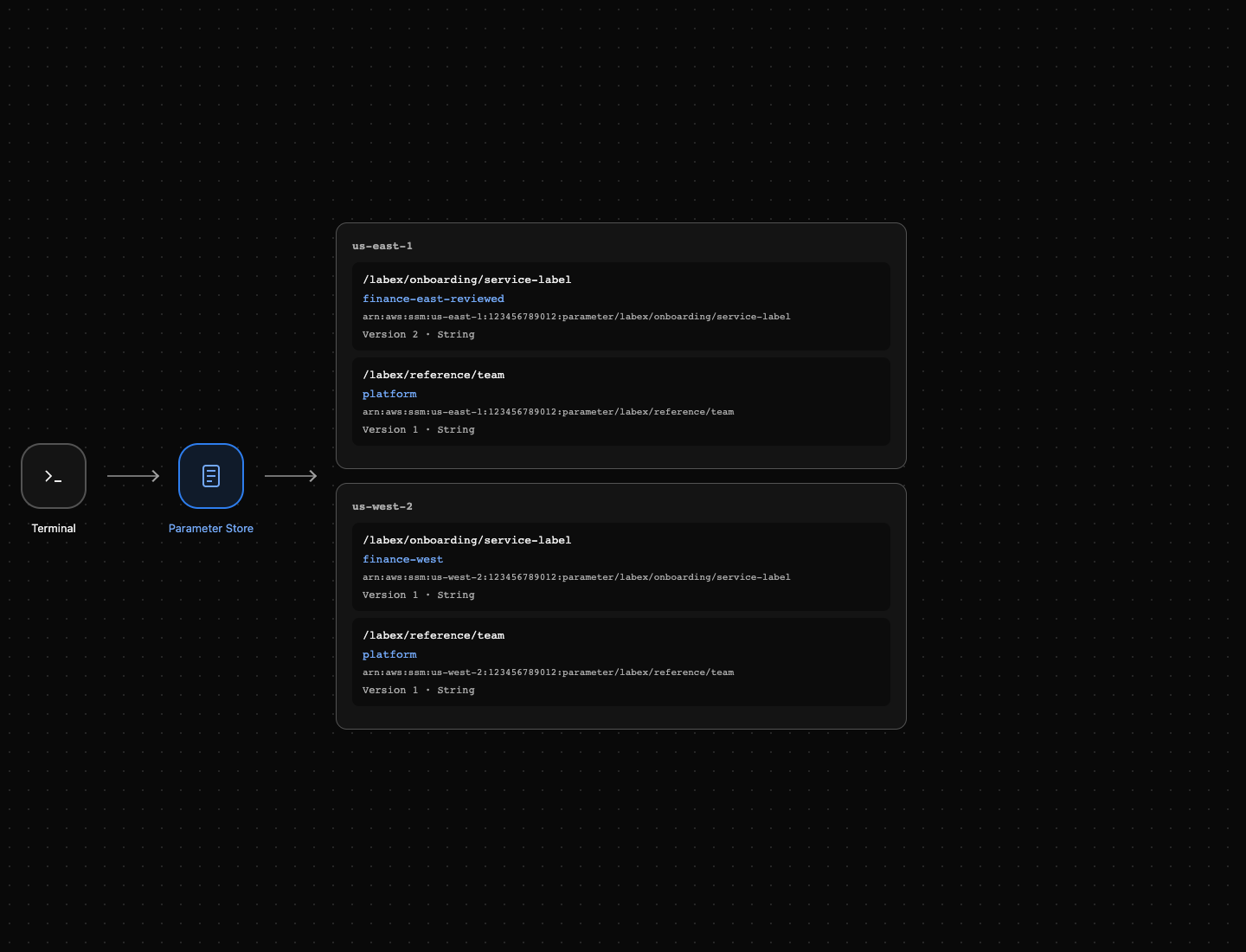
The eastern label is reviewed at Version 2, while the western label remains at Version 1. Both reference parameters remain present.
Clean Up Only the Onboarding Resources
In this step, you will remove the two parameters you created and confirm that the reference inventory remains intact.
Cleanup should use the names and Regions of your owned resources. delete-parameter removes the named parameter. A successful call may have no output; silence alone is not proof that you queried the correct Region afterward.
aws ssm delete-parameter --name /labex/onboarding/service-label --region us-east-1
aws ssm delete-parameter --name /labex/onboarding/service-label --region us-west-2
describe-parameters lists parameter metadata in the selected Region, including names and versions. It does not return their values. Query both Regions successfully:
aws ssm describe-parameters --region us-east-1
aws ssm describe-parameters --region us-west-2
Your /labex/onboarding/service-label is absent from both lists. The prepared /labex/reference/team still appears. Read that reference in both Regions to confirm its value remains unchanged:
aws ssm get-parameter --name /labex/reference/team --region us-east-1
aws ssm get-parameter --name /labex/reference/team --region us-west-2
Both return platform. AWS View now shows only the reference parameter in each Region. Do not delete the reference inventory. Connection or authentication errors do not prove cleanup; the completion check requires successful service queries and preserved reference data.
Summary
You created the same parameter name in two regions, read back different values and ARNs, changed only the eastern value, and cleaned up your two resources while preserving references. AWS View made those service changes visible alongside your CLI results. Next, use CLI queries to find the resources you need in a larger inventory.