Introduction
Your portfolio page runs, and its artwork is stored in private S3 storage. The website cannot read that artwork yet. Give the EC2 application a prepared role, observe the real images and detail panels appear and remove the authorization after testing.
Complete the first four portfolio labs first. This lab starts independently with its own website, private bucket, three images, project list and role. You will attach the role yourself; no previous bucket or credentials are needed.
Certification Relevance
| Certification | Exam task | Practice |
|---|---|---|
| AWS Certified Cloud Practitioner (CLF-C02) | Task 2.3 | Give an application a role with permission to read one private object. |
Lab Overview
Understand the Missing Read Permission
In this step, you will inspect the stored design assets and the website's prepared read permission before attaching it.
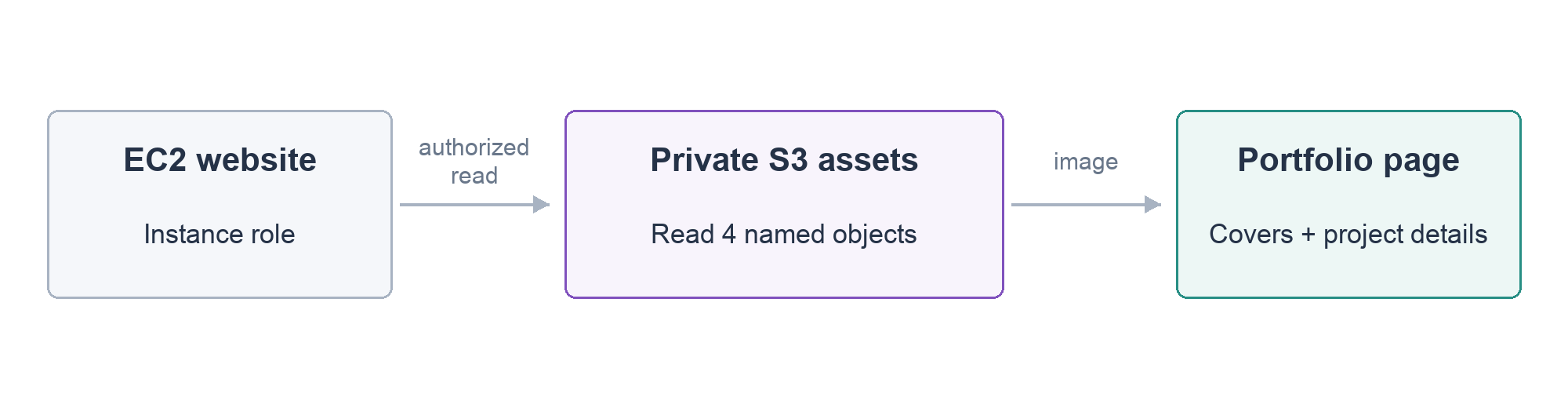
Open the website from AWS View. Its typography and profile appear, but the three project images cannot load and project details are not ready. The supplied website is configured to read the image objects and projects.json from a private S3 bucket. Your Terminal identity can inspect storage; the application is a different caller and does not inherit those permissions.
Load this lab's identifiers:
cd /home/labex/project
source website.env
echo "$PORTFOLIO_BUCKET"
Confirm all four objects exist:
aws s3api list-objects-v2 --bucket "$PORTFOLIO_BUCKET"
The keys are images/aura-brand.webp, images/forma-chair.webp, images/echo-record.webp and projects.json. Object existence and permission to read it are separate conditions.
An IAM role provides an identity and permissions that a workload can use through temporary credentials. An instance profile connects that role to an EC2 instance. Here both are named portfolio-reader, and the prepared trust policy permits EC2 to use the role.
Read the supplied role policy:
cat read-image-policy.json
Effect: Allow permits s3:GetObject. The Resource array lists exactly the four allowed object ARNs, full AWS resource identifiers. It does not grant writes or access to other objects. This is least privilege: give the application the reads it needs, rather than making the bucket public or granting all S3 actions.
You will attach the profile in the next step. The browser receives images from the website; it does not receive the application's credentials or direct public access to the bucket.
Give the Website Its Read Role
In this step, you will attach the prepared instance profile and confirm that the application can read its private S3 images and project list.
Display the server you will authorize:
echo "$INSTANCE_ID"
associate-iam-instance-profile attaches a profile to an EC2 instance. Name=portfolio-reader selects the prepared profile. Save the returned association ID so you can remove precisely this attachment later. As in the first lab, $(...) saves command output, --query selects one field and --output text returns it as a plain value:
ASSOCIATION_ID=$(aws ec2 associate-iam-instance-profile   --instance-id "$INSTANCE_ID"   --iam-instance-profile Name=portfolio-reader   --query 'IamInstanceProfileAssociation.AssociationId'   --output text)
echo "$ASSOCIATION_ID"
The value begins with iip-assoc-. It identifies the attachment, not the instance or role itself.
Refresh your portfolio tab. The AURA, FORMA and ECHO project images should now load. Click an image to open its project detail panel; its title and short description come from the S3 projects.json object. The website's AWS SDK discovers temporary credentials from its instance role and uses them to read the three images and the project list. You did not copy access keys into the application.
If the image does not appear immediately, allow the profile association to settle and refresh. Check that the association used this lab's instance and portfolio-reader. Keep the bucket private; broadening public access would bypass the lesson's intended permission.
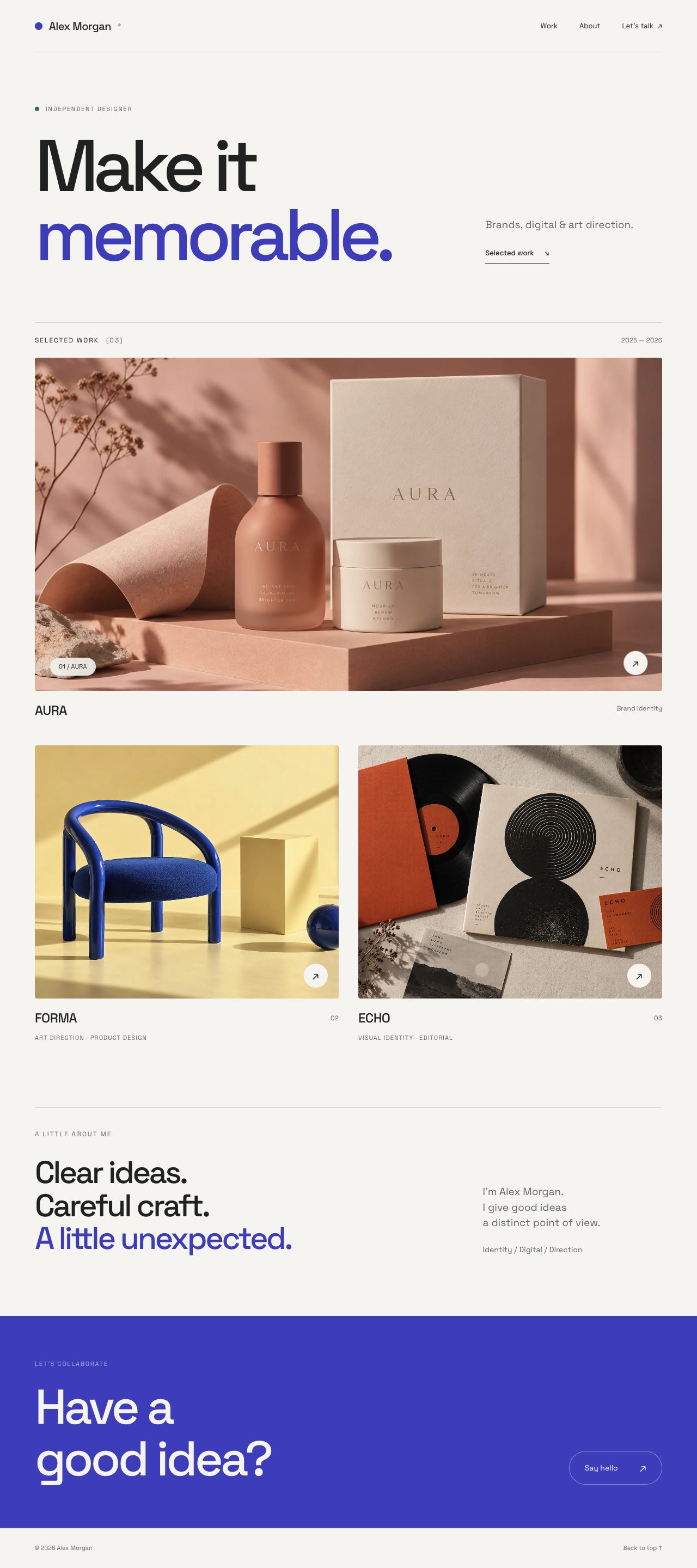
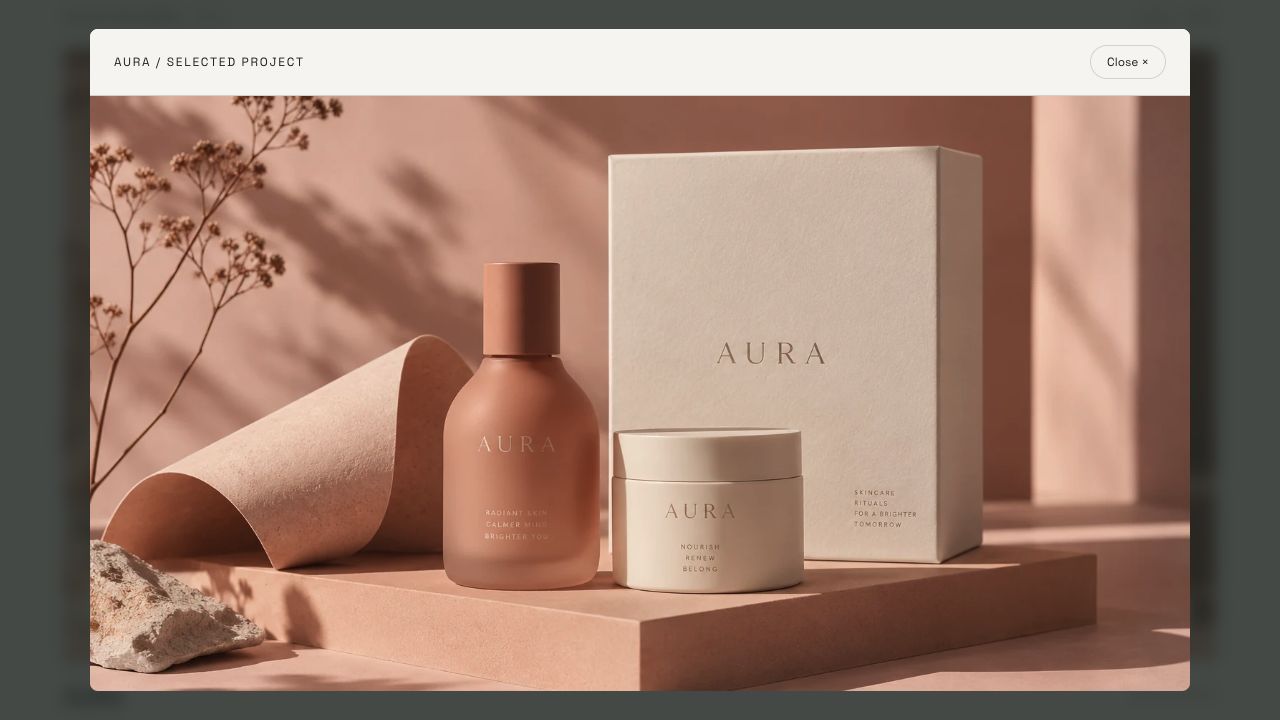
The page's actual image responses and working project panels demonstrate the connection: browser → website on EC2 → authorized S3 read → image returned to the browser.
Remove the Attachment and Server
In this step, you will remove the authorization you added and terminate the disposable website server.
Select the exact association you saved:
aws ec2 disassociate-iam-instance-profile --association-id "$ASSOCIATION_ID"
A role uses temporary credentials that may already be cached by an application. Detaching its profile is not a promise that every existing credential stops working instantly. Do not use an immediate broken-image test as proof of credential revocation. Here you remove the association, then terminate the workload so it cannot continue making requests.
aws ec2 terminate-instances --instance-ids "$INSTANCE_ID"
aws ec2 wait instance-terminated --instance-ids "$INSTANCE_ID"
Confirm terminated in AWS View and refresh the portfolio tab to see that the website is not running. The read role, private bucket and reference data were supplied fixtures; leave them intact. The automatic check verifies the association is gone and the workload is terminated.
Summary
You distinguished the Terminal's AWS identity from an EC2 application's identity, inspected a policy scoped to the four portfolio objects and attached a prepared role through an instance profile. The three portfolio covers and project details loaded through authorized S3 reads. You then removed the association and terminated the workload.
Official references: EC2 application roles and instance profiles.