Introduction
The Field Notes editor has two photo workstations with different selections to process. A contact sheet and its matching file list make the photographs useful for selection, but a started background job or an old same-name file is not a completed delivery. Build a small example, then use Ansible to wait for and collect each workstation's actual current results.
You need basic terminal navigation and practice with a small Ansible inventory, variables and command/file tasks. SSH access, licensed photographs and the image tool are prepared. This lab explains argument lists, loops, per-host job IDs, completion checks and fetch destinations before using them. Its duration is an author estimate including reading and ordinary corrections, not a measured novice completion time.
Build a Small Contact Sheet
In this step, you will run a small photo job through Ansible, collect its real image and file list, and use the results as a model for the larger job.
Open the Photo Desk Tab. In A previous walk, click Open contact sheet. A contact sheet puts small versions of several photographs on one page so an editor can compare frames without opening every original. This historical example is marked previous-walk; it is a reference, not today's completed work. On a narrow screen, scroll inside the image frame to read the filenames. Click Back to photo desk to return to the page in the same Tab.
The story and workstation assignments are fictional. The landscape photographs are a licensed teaching collection; Photo credits lists their actual photographers and sources. The prepared image tool reads real JPEG files and creates a PNG contact sheet plus a CSV file list. You will automate that tool rather than write image-processing code.
Switch to the Controller Tab. It starts in /home/labex/project. The controller runs Ansible. Its two SSH targets are containers sharing this training VM's kernel, not two independent VMs. Each target has its own files even where the path names are identical.
pwd prints the current directory, and cat prints a file. Read the prepared inventory and variables:
pwd
cat inventory.yml
cat group_vars/all.yml
cat host_vars/camera-north.yml
cat host_vars/camera-south.yml
The inventory's cameras group contains camera-north and camera-south with their real SSH connection settings. The project ansible.cfg selects this inventory.yml and the prepared host trust settings. The image's original inventory.ini is not the course inventory. Keep the configuration, inventory and variable files unchanged.
The JSON-style braces in these files are valid YAML. group_vars/all.yml supplies variables shared by the targets: input_root is /srv/photo-sheets/batches, output_root is /srv/photo-sheets/rendered, and collection_root is the controller's collected directory beside the playbook. A file in host_vars applies to its named host. Here, photo_batch selects morning-walk on the north workstation and afternoon-walk on the south workstation. Today's selections differ in content and size.
First use the prepared two-photo sample input on the north workstation. Ansible's command module runs the prepared program on that SSH target. Its argv list passes one argument per list item, without asking a shell to interpret a command string. The tool's --input option selects the source directory, --output selects the result directory, and --station labels the result with its workstation. No source photograph is edited.
{{ variable }} inserts an Ansible value. inventory_hostname is the current host's inventory name; playbook_dir is the directory containing the playbook on the controller. gather_facts: false skips machine facts that this photo job does not need.
The fetch module transfers a file from the SSH target to the controller, the reverse direction of copy. A loop repeats it for the two listed filenames; {{ item }} is the current filename. By default, fetch keeps a host-and-source-path directory tree. Here, flat: true removes the source path, so the destination explicitly includes inventory_hostname. That keeps identical filenames from different workstations separate. fetch creates the destination directories it needs.
Create sample.yml. cat > filename writes a file and replaces an existing file with the same name. <<'YAML' starts a here-document: paste through the final YAML on its own line. The quoted delimiter keeps the pasted text literal; Ansible processes the expressions when it runs the playbook. YAML indentation uses spaces:
cat > sample.yml <<'YAML'
- name: Build a small selection before scheduling both workstations
  hosts: camera-north
  gather_facts: false
  tasks:
    - name: Build the two-photo practice sheet
      ansible.builtin.command:
        argv:
          - /usr/local/bin/photo-sheet
          - --input
          - "{{ input_root }}/sample"
          - --output
          - "{{ output_root }}/sample"
          - --station
          - "{{ inventory_hostname }}"
    - name: Collect the practice image and file list
      ansible.builtin.fetch:
        src: "{{ output_root }}/sample/{{ item }}"
        dest: "{{ playbook_dir }}/sample/{{ inventory_hostname }}/"
        flat: true
      loop:
        - contact-sheet.png
        - files.csv
YAML
Check the syntax before running the job. --syntax-check checks the playbook structure; it does not process photographs:
ansible-playbook sample.yml --syntax-check
If there is a spelling or indentation error, copy the whole playbook again and repeat the syntax check. Now run it:
ansible-playbook sample.yml
The image task is synchronous by default: Ansible waits for the program to finish before fetching. The recap should show failed=0 and unreachable=0. A photo job performs work and may report changed; an image-processing run is not a promise of no changes on repetition.
Read the collected file list:
cat sample/camera-north/files.csv
The header names station,batch,position,filename,sha256,width,height. There should be two data rows for camera-north and sample, in the same left-to-right order as the pictures. The filenames are frame-01.jpg and frame-02.jpg. SHA256 is a fingerprint of each source file's contents; you do not need to memorize the long values. The dimensions describe the original photograph, not its small preview.
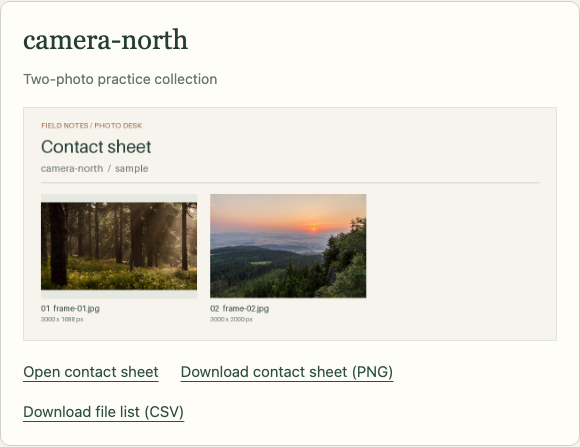
Switch to Photo Desk and reload. Under Small practice sheet, use Open contact sheet to inspect your actual two-photo result. Use Back to photo desk, then Download contact sheet (PNG) and Download file list (CSV) in that practice card. Open the downloaded image and CSV: the two pictures, filenames and row order must agree. A browser may add a number to a repeated download's filename.
The practice card below shows the actual two-photo image and both download links. Check the workstation and sample label before using the files.
If a command reports “No such file or directory”, ls lists the current directory so you can check the spelling. Use cd /home/labex/project to return to the workspace, then repeat the appropriate command. Keep all source photographs, historical reference files, editor notes and prepared connection settings. The larger current selections have not been built yet.
Wait for Each Job Before Collecting
In this step, you will start the current selections on both workstations, wait for each host's own successful result, and collect the matching files without collisions.
Remain in Controller, in /home/labex/project. The cameras group selects both targets; each target's photo_batch still selects its own prepared input. Use these variables so the same workflow can handle other members, batch names and directories without hardcoding the two workstation names or their input paths.
A synchronous task waits before Ansible advances to the next task. With async: 120, Ansible gives the remote operation a runtime budget of 120 seconds. poll: 0 starts it without waiting for completion in that task. Starting successfully is not the same as processing successfully: the remote job could still finish with an error.
register: photo_job saves the launch result separately for each inventory host. Its ansible_job_id identifies that job on that host. A JID from one workstation is not a result you can query on the other workstation. The debug module prints the saved observations so you can see the different assignments.
async_status asks the same host about its JID. It saves each response as photo_result. until: photo_result is finished repeats this status query until the native completion flag is true; retries: 60 bounds the retries and delay: 1 waits one second between them. These are status-query retries, not new photo jobs. Actual SSH and processing time add overhead. Small real batches can already be finished when the first status query arrives; no artificial delay is added to this exercise.
Completion alone does not establish success. The remote program's rc is its exit status: zero means success. async_status propagates a nonzero result as a failure by default. The additional assert makes the zero-exit requirement explicit; it does not turn an error into success. The following debug output lets you read the actual finished and rc values before fetching. An equivalent workflow can rely on the module's native failure propagation instead of this extra assertion.
Both hosts produce the same filenames, contact-sheet.png and files.csv, on their own filesystems. Fetch them only after successful completion and keep each pair under its own inventory-host directory on the controller. The Photo Desk can read either this explicit flat layout or the default host-and-source-path hierarchy inside the workstation's collection folder. It never fills a missing collection from the reference files.
Write process-photos.yml with the same quoted here-document method used in the previous step:
cat > process-photos.yml <<'YAML'
- name: Build and collect each workstation's current photo selection
  hosts: cameras
  gather_facts: false
  tasks:
    - name: Start this workstation's contact sheet
      ansible.builtin.command:
        argv:
          - /usr/local/bin/photo-sheet
          - --input
          - "{{ input_root }}/{{ photo_batch }}"
          - --output
          - "{{ output_root }}"
          - --station
          - "{{ inventory_hostname }}"
      async: 120
      poll: 0
      register: photo_job
    - name: Show the job assigned to this workstation
      ansible.builtin.debug:
        msg:
          workstation: "{{ inventory_hostname }}"
          job: "{{ photo_job.ansible_job_id }}"
    - name: Wait for this workstation's own job
      ansible.builtin.async_status:
        jid: "{{ photo_job.ansible_job_id }}"
      register: photo_result
      until: photo_result is finished
      retries: 60
      delay: 1
    - name: Require successful processing before collecting
      ansible.builtin.assert:
        that: photo_result.rc == 0
    - name: Read the actual completion result
      ansible.builtin.debug:
        msg:
          workstation: "{{ inventory_hostname }}"
          finished: "{{ photo_result.finished }}"
          rc: "{{ photo_result.rc }}"
    - name: Collect the image and its file list by workstation
      ansible.builtin.fetch:
        src: "{{ output_root }}/{{ item }}"
        dest: "{{ collection_root }}/{{ inventory_hostname }}/"
        flat: true
      loop:
        - contact-sheet.png
        - files.csv
YAML
Check the syntax:
ansible-playbook process-photos.yml --syntax-check
Then start the real work:
ansible-playbook process-photos.yml
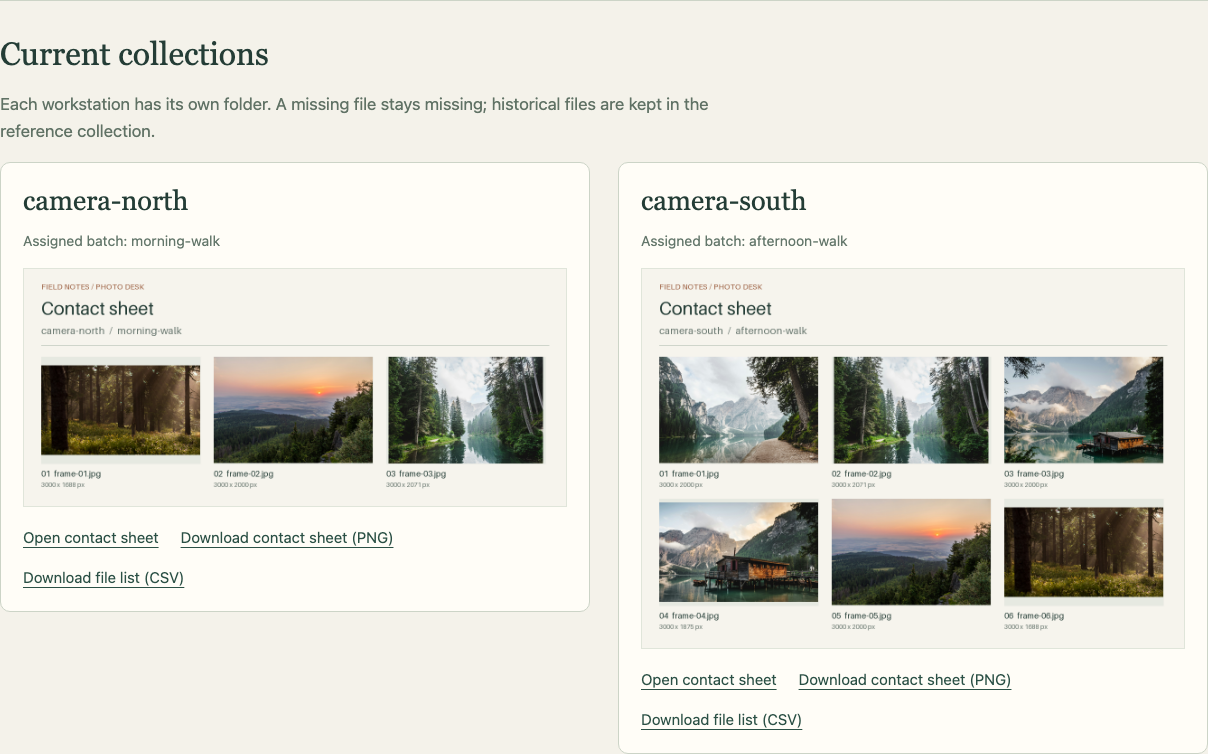
Each workstation should show its own job ID, then finished: true and rc: 0 in the completion message. The final recap should have failed=0 and unreachable=0 for both hosts. The north selection contains three photographs; the south selection contains six. The actual jobs can finish at different times. This run demonstrates real asynchronous scheduling, not a performance guarantee for larger workloads.
Read both collected lists:
cat collected/camera-north/files.csv
cat collected/camera-south/files.csv
The station and batch fields must match each host's assignment. Identical filenames do not mean identical source photographs. Each row's position, filename, fingerprint and dimensions describe one actual input picture, and the image uses that same order.
Switch to Photo Desk and reload. In Current collections, open each workstation's Open contact sheet link. Inspect the three-photo and six-photo sheets at full size; use Back to photo desk between them. Download each workstation's PNG and CSV, open both files, and confirm the pictures and complete rows agree. The reference and your small practice collection must remain available.
Compare the host and batch labels in the two cards. The north sheet has one row of three pictures; the south sheet has two rows of three, with different source selections.
A Finished Job Can Still Fail
Switch back to Controller. Now deliberately select a nonexistent input on just the north workstation. --limit camera-north limits the invocation to that inventory host. --extra-vars photo_batch=missing overrides the batch variable for this invocation only; it does not edit the prepared variable file. The job will start, then report a completed processing failure. The existing good files must not be treated as a fresh successful result.
This command is expected to fail:
ansible-playbook process-photos.yml --limit camera-north --extra-vars photo_batch=missing
Immediately print the previous command's status. $? stores the last command's exit status; echo prints it. Running another command first would replace that value:
echo $?
Expect a nonzero Ansible CLI status, normally 2. In the failure message, the remote result is finished, its program rc is 2, and its error names /srv/photo-sheets/batches/missing. The CLI status and the remote program's status are separate values; they happen to be 2 here. A completed failed job is not a successful collection. The fetch task must not run for this failed attempt. The south workstation is outside this invocation.
Correct the selection by returning to the prepared default, and rerun only the north workstation:
ansible-playbook process-photos.yml --limit camera-north
This run must succeed and collect the real morning-walk result. The south collection remains available from its successful job. Return to Photo Desk, reload, and download the north PNG and CSV again to confirm the correct three-photo selection. Keep process-photos.yml reusable, all source photographs and historical outputs intact, and the editor notes private.
For an ordinary YAML or filename mistake, use the same ls, directory recovery and full-block correction taught in the previous step, then repeat the syntax check. Do not reset the VM or modify a source photograph to hide an input error. Repeating a successful photo run performs the job again; an unchanged fetch checksum does not mean no processing occurred.
Ansible leaves a job's status cache after poll: 0. Once you have inspected a finished job, async_status with mode: cleanup and that host's jid can remove its cache entry. This is optional maintenance here. Cache cleanup does not cancel a running job or delete the contact sheet.
Summary
You built a real small contact sheet, then used Ansible to start and wait for two host-owned asynchronous jobs. You collected the complete image/CSV pair by workstation, distinguished finished failure from success, and corrected a missing input by retrying only the affected host.