Introduction
Alder says the Lantern Room booking page processed two attempts, but only one produced a reservation. The support team has an authorized HTTPS recording and its matching TLS key log. Both attempts use the same URI and TCP connection, and another visitor is present in the file.
You will use the real Wireshark interface to identify each application result and deliver a small evidence table plus a complete, independently readable capture bundle. You should have completed Read Your Authorized HTTPS Session, or already know TLS key-log configuration and Follow TLS Stream. Basic terminal input and paths are also required. This lab starts independently with its own controlled recordings; its estimated duration includes reading and ordinary errors.
Pair Each Attempt with Its Business Result
In this step, you will tie each original request frame to its own complete response and record both results.
Begin in Desktop → Applications → Terminal Emulator. Open the prepared input in the empty Booking profile:
wireshark -C Booking /home/labex/project/booking/input/casebook.pcapng
Maximize Wireshark. The two read-only input files are casebook.pcapng and casebook.keys; all deliverables belong under /home/labex/project/booking/output/. The data is synthetic, but each TLS handshake, HTTP exchange and TCP segment was generated by an actual controlled local application.
In Edit → Preferences → Protocols → TLS, set (Pre)-Master-Secret log filename to:
/home/labex/project/booking/input/casebook.keys
Keep both TLS reassembly options enabled and click OK. The key log authorizes decryption of these recorded sessions; it is not a general key for every HTTPS connection.
| Visitor | Client address | Scope |
|---|---|---|
| alder | 127.0.0.22 | Both paper-lantern booking attempts to explain |
| birch | 127.0.0.23 | Another visitor; exclude from your handover |
Apply this display filter and press Enter:
ip.addr == 127.0.0.22 && http
ip.addr matches either endpoint. && means both conditions must match, so the view contains Alder's decoded HTTP messages in both directions. Expect two POST requests and two 200 OK responses. A request's /api/bookings URI and its TCP stream are shared by both attempts; neither identifies one transaction on its own.
Select the first POST request. In the middle packet-details pane, expand Hypertext Transfer Protocol using its small triangle. Read [Response in frame: ...] near the bottom. This generated field links this request to the response Wireshark actually paired with it. In that response's protocol details, [Request in frame: ...] points back. Select the linked response through the packet list. The No. column gives the original frame number. Reassembled HTTP can be shown on the final segment, so use these parsing-frame references instead of guessing from adjacent TCP rows.
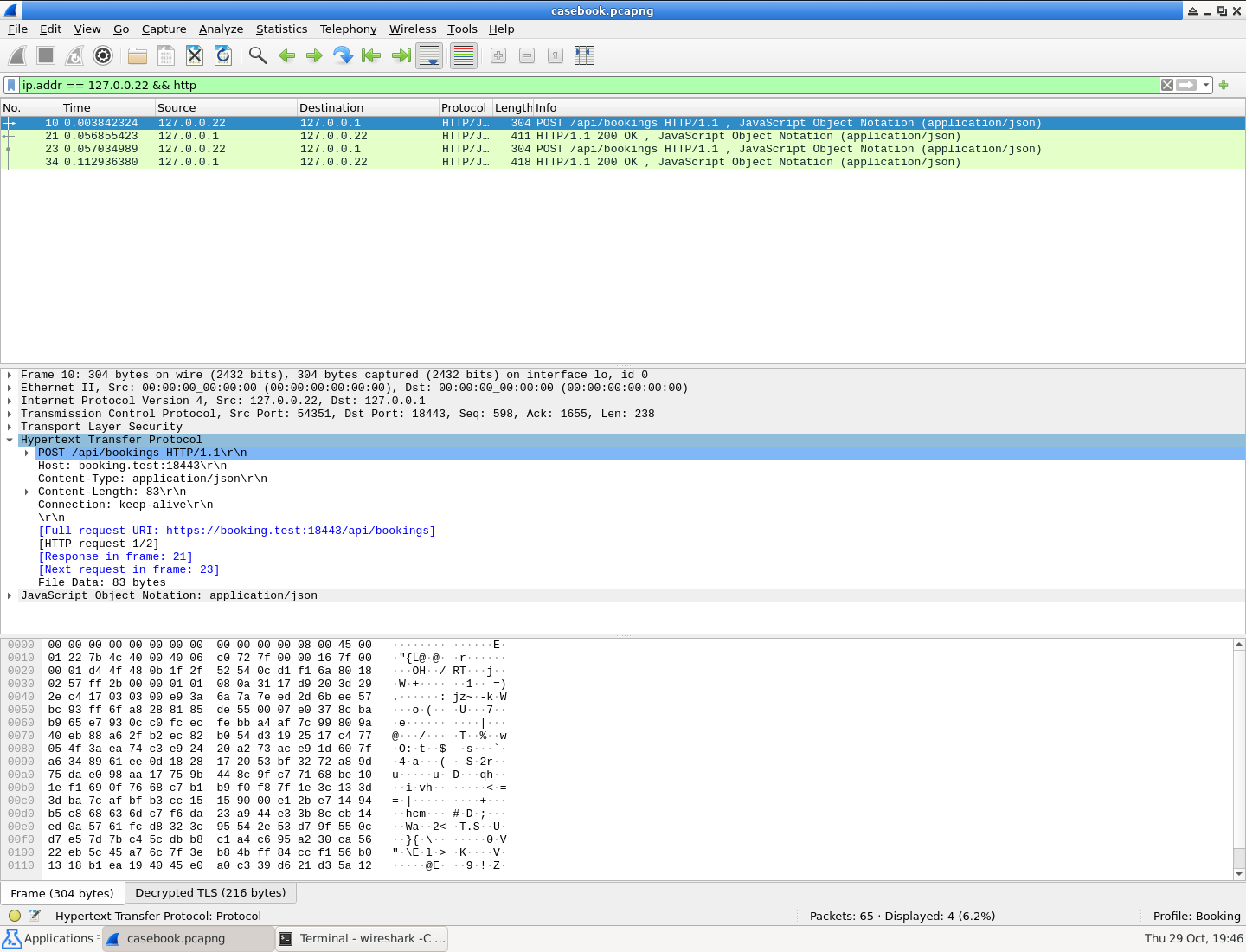
Look at [Response in frame: 21] in the expanded HTTP details. This link belongs to the selected first request; the second request has a different response.
Right-click the request and choose Follow → TLS Stream. Read the complete request and its response. The request JSON identifies attempt, workshop and slot. The response echoes those values. Read accepted, reason and confirmation together. Then read the second request and its response further down the same stream.
The first Alder attempt is refused because its session is full: accepted is false, reason is "session_full", and confirmation is null. The retry is accepted and has its own confirmation. Both HTTP status lines are 200 OK: the server processed both requests, while the business result differs. A confirmation seen elsewhere in this stream or in Birch's visit cannot be borrowed for a refused attempt.
Close Follow using Close. Its resulting stream filter includes the entire connection. Return to the original Alder-and-HTTP filter above to record the four original frame numbers. Work from this input file throughout the table exercise; an exported file renumbers its packets.
Prepare attempts.csv, a small handover index that another analyst can check against the capture. CSV means comma-separated values: one header line names the columns, and each following line represents one attempt. There are seven columns:
| Column | Meaning |
|---|---|
| attempt | The request's exact attempt value |
| request_frame | Its original input POST frame number |
| response_frame | Its own linked original input response frame number |
| slot | The requested slot, echoed by that response |
| accepted | true or false from the response JSON |
| reason | The response's exact reason text |
| confirmation | That attempt's confirmation, or an empty field for null |
Switch to the terminal through the bottom panel, or open another Terminal Emulator if the first remains occupied by Wireshark. Launch the prepared text editor:
mousepad /home/labex/project/booking/output/attempts.csv
Type the header exactly as shown below, followed by the two rows you read from the original capture. Do not copy the word null into the confirmation column: an empty final field is represented by ending the refusal row with a comma. None of these fixture values contains commas, so no quoted CSV fields are necessary. Row order and column order may vary if headers still match their values.
attempt,request_frame,response_frame,slot,accepted,reason,confirmation
Use File → Save, then close the editor. Check that there is one row for each different attempt and each points to its own response. If you mistype a value, reopen the same file with the command above, edit and save. A typo does not require a new capture or a VM reset. Keep Wireshark open for the next step.
Deliver an Independently Readable Evidence Bundle
In this step, you will export a complete target connection and reopen it using the delivered key log.
Begin in Desktop, with Wireshark on the original input/casebook.pcapng. Your table indexes the source, while the handover capture must contain the complete Alder TCP connection only. A TLS handshake and earlier segments are needed to decrypt and reassemble the application data.
Replace the display filter with:
ip.addr == 127.0.0.22
This keeps both directions and all protocol layers for Alder. Select one of its decoded POST requests, right-click, and choose Follow → TLS Stream. Confirm that both attempts belong to Alder, then close Follow with Close. Leave its tcp.stream eq ... filter in place. It includes the entire selected connection rather than only rows labeled HTTP.
Choose File → Export Specified Packets. Set file format pcapng, select packet range Displayed and All packets within that displayed set. Save to:
/home/labex/project/booking/output/evidence.pcapng
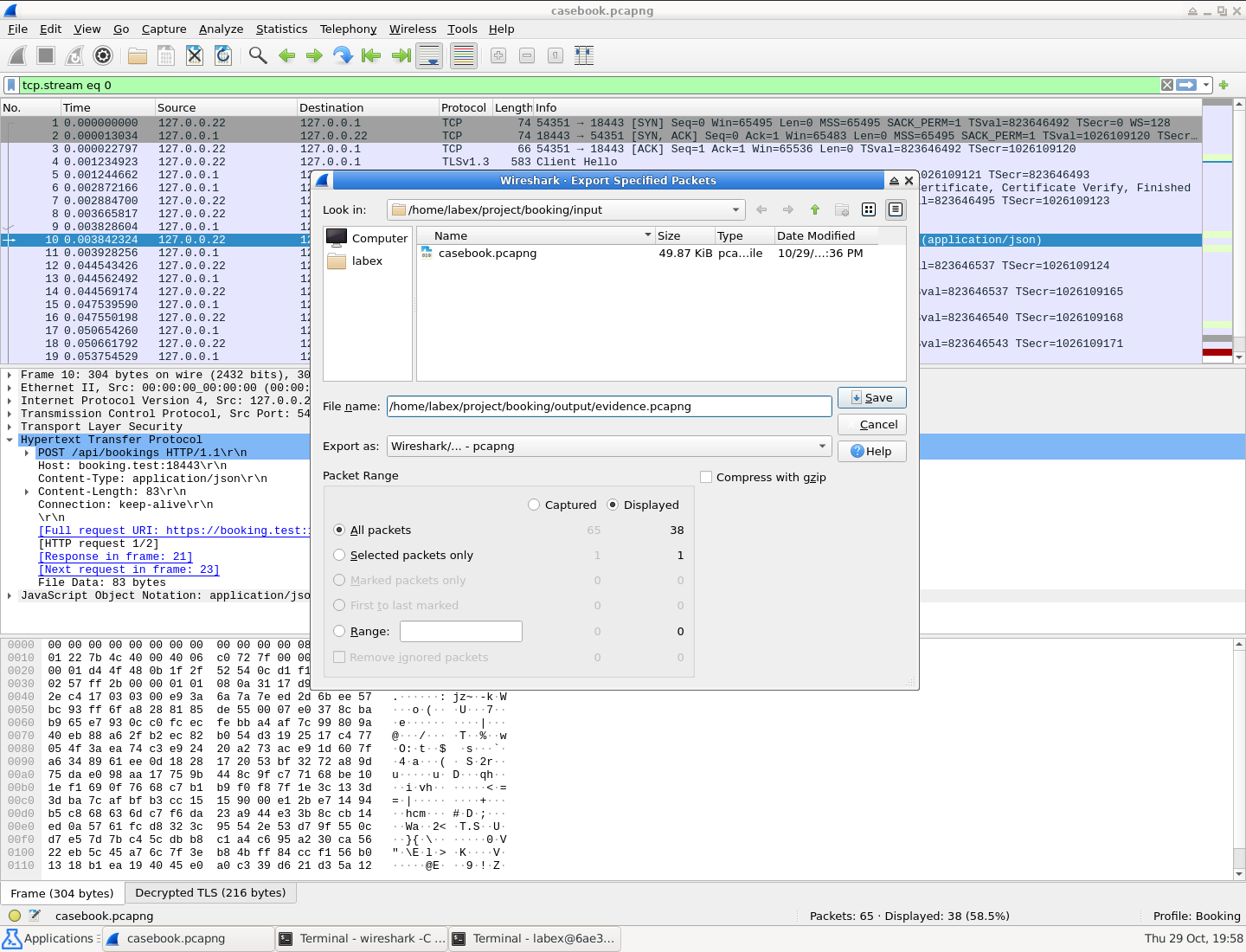
The dialog shows Displayed and All packets, with 38 target packets. The original file contains 65 packets, so choosing Captured would also include the other visitor.
Do not use Export Packet Dissections, which exports summaries. Do not export only the http rows: they can omit handshake or earlier TLS/TCP segments needed for decryption and reassembly. Do not embed secrets through Inject TLS Secrets; the bundle uses a separate key log.
Switch to a Terminal Emulator and copy the authorized key log alongside your output. cp copies the first path to the second; it preserves the original input rather than renaming it.
cp /home/labex/project/booking/input/casebook.keys /home/labex/project/booking/output/booking.keys
This training handover stays inside the same authorized analysis scope. The supplied log contains secrets for the synthetic sessions in the source recording; minimizing or redacting key-log entries is outside this exercise. The capture itself must still exclude Birch's packets. Equivalent matching key logs are accepted if they independently decrypt both target responses.
Close the main Wireshark window, then reopen your actual exported file in the initially empty BookingReview profile:
wireshark -C BookingReview /home/labex/project/booking/output/evidence.pcapng
In Edit → Preferences → Protocols → TLS, set (Pre)-Master-Secret log filename to the output key log below and click OK:
/home/labex/project/booking/output/booking.keys
Apply http, then follow a POST using Follow → TLS Stream. Read both complete request and response bodies again. The export must show Alder's refusal and confirmation with their own attempt references, and no Birch visit. It must work with the output key log, rather than silently depending on the original input key path.
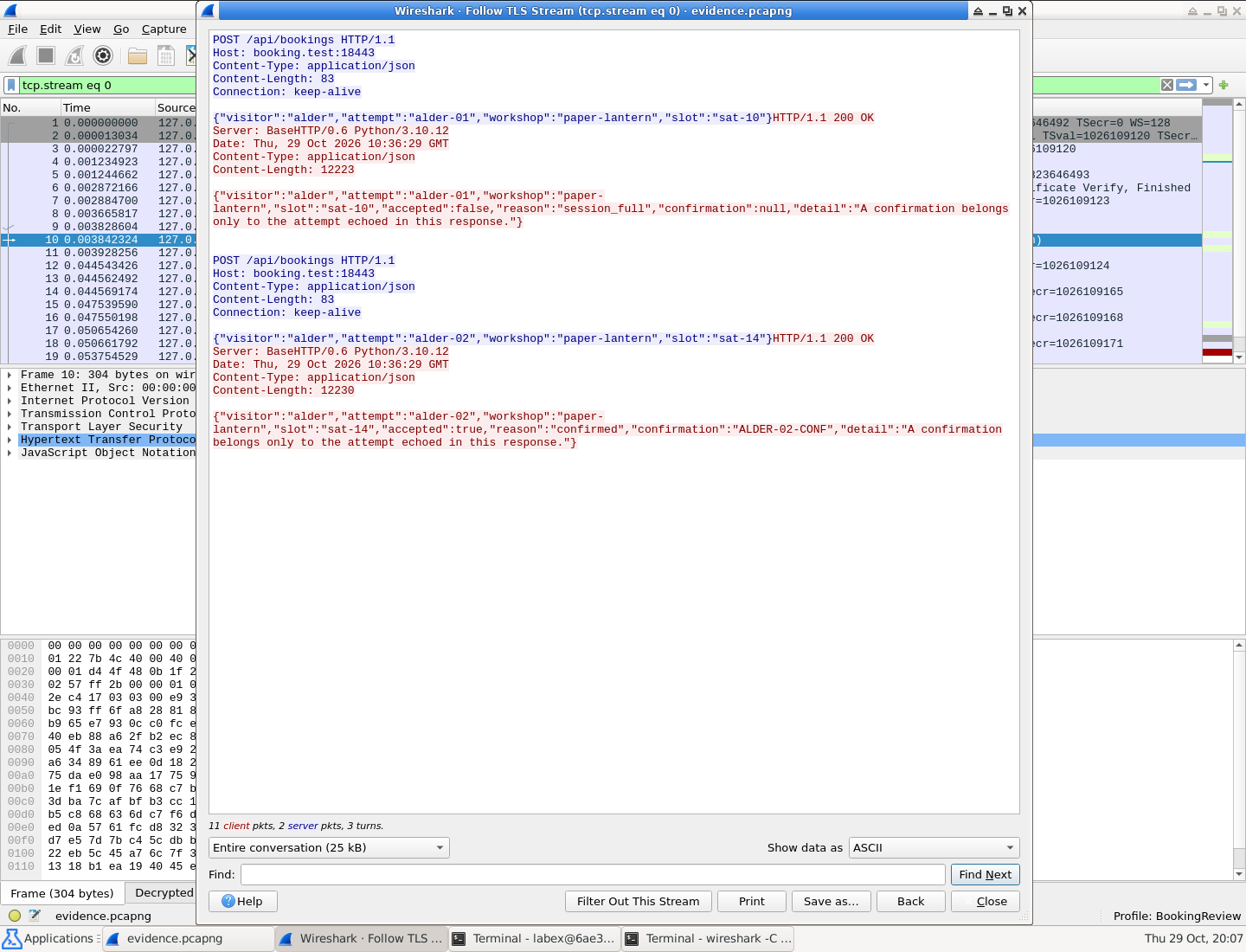
Read the echoed attempt beside each result: the refusal has no confirmation, and only the retry has ALDER-02-CONF. The title identifies the output file evidence.pcapng.
Close Follow, then clear the display filter to confirm the handshake and other TCP packets are also present. This file has its own frame numbering; keep attempts.csv pointed at the original input frames. Close the main window.
If the output is empty or a body is missing, reopen the input, restore the full Alder connection filter, and repeat Export Specified Packets with Displayed → All packets, replacing the incomplete output. If packets remain encrypted, correct the output key-log path in TLS preferences. These are different problems: a missing key log prevents decryption, while missing captured segments cannot be recreated by changing a preference.
Your handover consists of three real files: attempts.csv, evidence.pcapng and booking.keys. The capture and keys must independently support the table. A screenshot or a typed claim of success cannot replace the actual packet evidence.
Summary
You distinguished two business outcomes carried by identical HTTP status codes, paired each request with its own response, and recorded the original frame references in a concise evidence table. You exported the entire target TCP connection and reopened the actual output with its separate key log.
The resulting three-file handover can be checked without your Wireshark profile. It establishes what these controlled booking exchanges say; it does not prove a production payment, inventory update or internal server defect.