Introduction
The Lantern Room runs small paper-lantern workshops. Its booking application uses HTTPS, so an ordinary capture shows encrypted traffic rather than booking details. You have permission to analyze this controlled training service and its synthetic visitors. Start with a normal reference, then make and capture your own new visit.
You will produce a real PCAPNG capture and its separate TLS key log that another authorized analyst can reopen. You need basic Wireshark navigation and display filtering, simple terminal input and paths. No programming or certificate administration is required. Use Desktop, including its Terminal Emulator and Wireshark windows. This independent lab prepares its own files and local service; the duration is an author estimate including reading and ordinary mistakes.
Make the Normal Reference Readable
In this step, you will decode one normal booking and learn which fields establish its result.
Begin in Desktop. Open Applications → Terminal Emulator at the bottom left. Run this complete command; the terminal stays occupied until Wireshark closes.
wireshark -C Booking /home/labex/project/booking/input/casebook.pcapng
-C Booking selects the prepared, initially empty Booking configuration profile. A profile holds this analysis window's settings. Maximize Wireshark using its title-bar maximize button. The input capture and input/casebook.keys are read-only originals; save your work under output/.
HTTPS means HTTP carried inside TLS, the protocol that encrypts the application conversation. TCP carries those TLS records between endpoints. This recording uses TLS 1.3 and HTTP/1.1. Its local service is 127.0.0.1:18443; Hazel's local test identity is 127.0.0.21. These addresses share one training container; they are not separate physical machines.
In the display-filter bar, enter http and press Enter. Initially there are no decoded HTTP rows. Clear the bar to see the TLS handshake and encrypted Application Data. The handshake establishes the session, while Application Data carries the booking messages. A capture alone does not give you their plaintext.
A TLS key log contains secrets deliberately recorded by an authorized client for specific sessions. It is not a password list or the server's certificate. A server certificate or an RSA private key cannot replace these TLS 1.3 session secrets. In real work, handle captures and key logs as sensitive material and share them only within the authorized analysis scope. Here all identities, bookings and secrets belong to the local exercise.
Open Edit → Preferences. Expand Protocols, then click the protocol list and type tls to reach TLS. In (Pre)-Master-Secret log filename, enter the absolute path below. Keep Reassemble TLS records spanning multiple TCP segments and Reassemble TLS Application Data spanning multiple TLS records enabled, then click OK.
/home/labex/project/booking/input/casebook.keys
Apply the http display filter again. Expect one POST request and one HTTP response. If the list stays empty, clear the filter, check the filename for spelling and return to TLS preferences. An incorrect or unrelated key log is an expected cause of undecoded Application Data; it is not evidence that the capture contains no request.
Select the POST request. HTTP is a request-and-response protocol: POST submits data, and /api/bookings is the URI naming the booking resource. Right-click the request and choose Follow → TLS Stream. Follow TLS Stream shows decrypted application bytes; Follow TCP Stream still shows the encrypted transport bytes. Read the request and response, scrolling as necessary. Do not infer the sender from text color; read the request line and response status line.
The request body is JSON, a set of named values enclosed in braces. Read visitor, attempt, workshop and slot. The response echoes those values and adds accepted, reason and confirmation. Hazel's normal booking has accepted: true, reason: "confirmed" and a confirmation belonging to hazel-01. JSON true is a Boolean value; quotation marks surround text, while null means no value.
HTTP/1.1 200 OK means the server processed this HTTP request. The booking's application result still comes from the JSON fields. This distinction matters in the next lab. The large blank region after the JSON is intentional training padding. It makes the actual response span multiple TLS/TCP segments; it is not another booking.
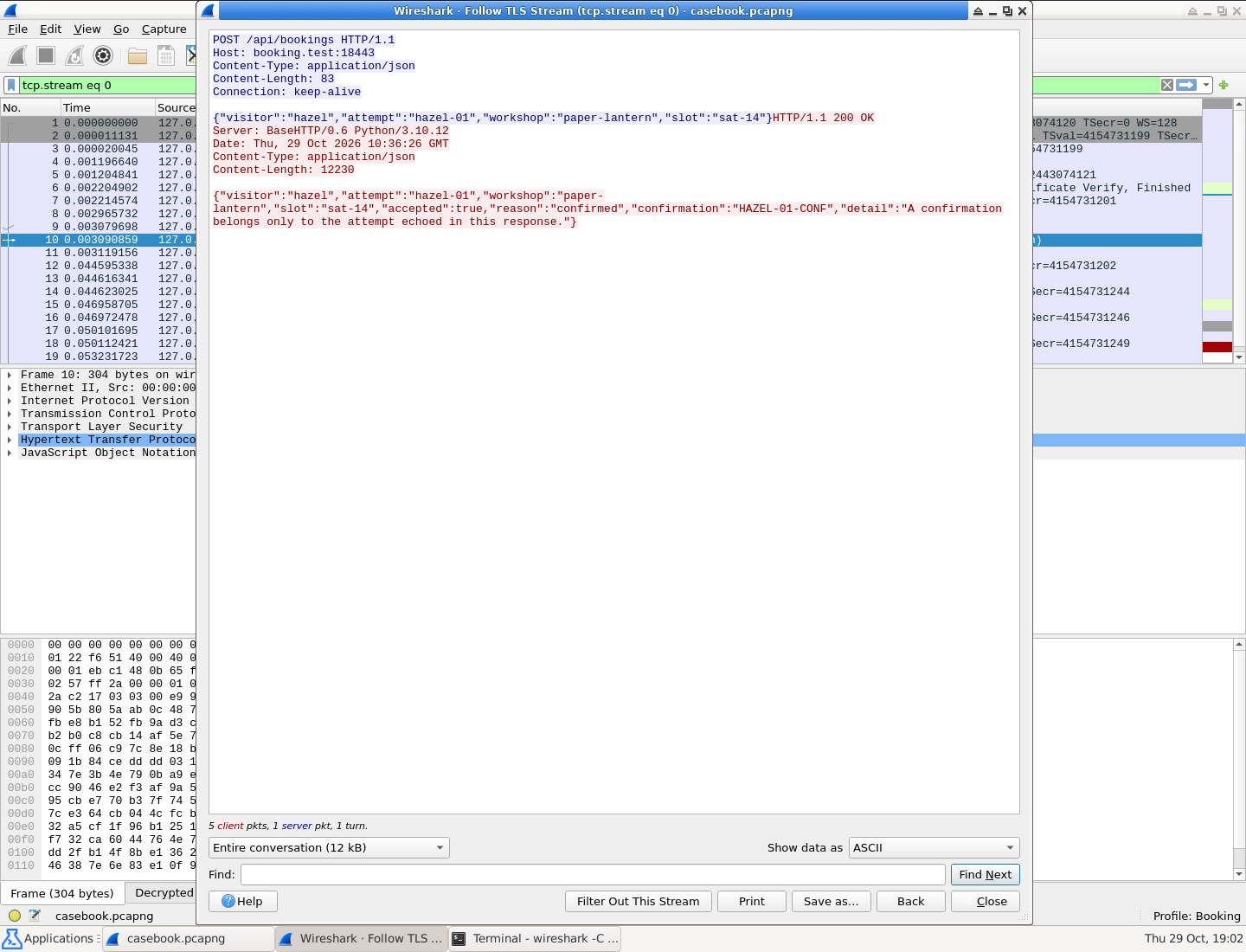
Read the echoed attempt and the accepted, reason and confirmation fields in the response. The HTTP status alone is insufficient.
Close the Follow window using Close. Wireshark leaves a tcp.stream eq ... filter that shows the entire selected TCP connection, including its handshake and segments. A display filter only changes the view. Close the main Wireshark window to save the profile setting and release the terminal. You have configured the reference successfully when the Booking profile decodes its complete request and response.
Capture and Reopen Your Own Visit
In this step, you will capture a new authorized visit and independently reopen its actual saved packets.
Begin in Desktop, at the Terminal Emulator prompt after closing the reference window. A key log from the reference does not unlock a different TLS session. You will capture a new visit and keep its own secrets beside the capture.
Run the prepared capture launcher:
python3 /opt/labex/booking/capture.py
This launches the real Wireshark live-capture interface in the separate BookingLive profile. The fixed packet feed captures only loopback TCP traffic on the course port 18443, with a 15-minute and 4 MB bound. It uses a pipe, a live byte channel into Wireshark, rather than a replay. It does not grant general capture privileges or change your login settings. Keep this terminal and Wireshark open. Wait for Live packet feed ready in the terminal and the active capture window before sending traffic.
Open a second Terminal Emulator using Applications → Terminal Emulator. The bottom panel lets you switch between the two terminals and Wireshark. In the new terminal, run the authorized client:
python3 /opt/labex/booking/booking.py client
The prepared client verifies the local service's certificate and hostname, makes one real booking request, and writes this new session's secrets to /home/labex/project/booking/output/live.keys. It prints that the visit completed without printing the answer. Its fresh attempt value will differ on each run. The your-visit client uses 127.0.0.26.
Return to Wireshark through the bottom panel. Wait until the packets are actually visible, including the final TCP connection-ending packet, before clicking the red Stop square in the toolbar. A client finishing does not mean the capture interface has delivered every packet yet. You should see the handshake, encrypted application traffic and the closing FIN or RST packet. FIN closes a TCP direction; RST ends a connection immediately. This controlled client's closing RST is not the application's booking result.
Choose File → Save As (or Ctrl+S for the unsaved capture), keep format pcapng, and save:
/home/labex/project/booking/output/live.pcapng
Save the actual capture, not packet-list text or a screenshot. Keep the key log separate; do not use Inject TLS Secrets. Close the main capture window after saving. In the first terminal, the launcher should finish with native dumpcap status: 0, and the prompt should return. Closing the window also closes the course feed; reconnecting a terminal does not reset the booking service.
In either terminal, open your saved file in the initially empty review profile:
wireshark -C BookingReview /home/labex/project/booking/output/live.pcapng
Apply http: it is initially empty again. In Edit → Preferences → Protocols → TLS, first try the reference key log input/casebook.keys using its full absolute path from step 1. Apply it with OK. It still cannot decode this new session. Now replace that setting with the matching new key log:
/home/labex/project/booking/output/live.keys
Click OK and apply http. You should now see one POST and its response. Right-click the POST and choose Follow → TLS Stream. Read your new attempt, check that the response echoes it, and check accepted, reason and its own confirmation. The valid result is a confirmed paper-lantern booking for sat-14. Close Follow and the main window. You have independently reopened the actual saved capture, without borrowing the reference session's secrets.
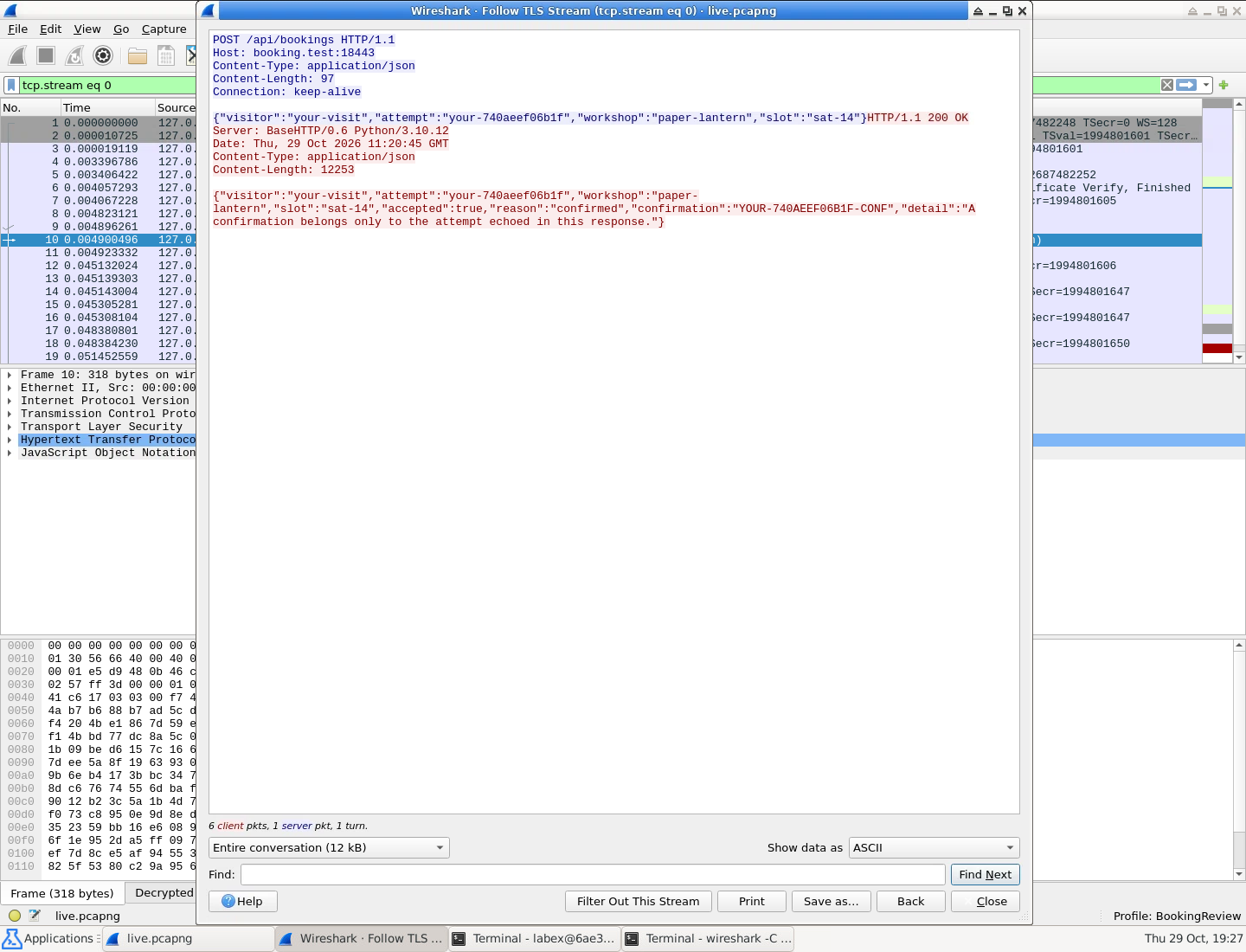
The request and response show the same fresh attempt. Your generated value will differ from this example; the matching relationship is what matters.
If you stopped too early, preserve the incomplete attempt before retrying. In a terminal, run the two commands below only if both earlier output files exist. mv renames each file. These paths contain no spaces, so quotation marks are unnecessary. Neither command changes the input files or service.
mv /home/labex/project/booking/output/live.pcapng /home/labex/project/booking/output/live-previous.pcapng
mv /home/labex/project/booking/output/live.keys /home/labex/project/booking/output/live-previous.keys
Then repeat the capture-launcher → second-terminal client → visible final packets → Stop → Save → Close → reopen sequence. If a live-previous file already exists, choose another unused backup name first. The client deliberately refuses to overwrite live.keys; this protects a capture from losing its matching secrets. A wrong save path can be corrected with File → Save As without making another visit. For a mistyped filter, clear it and re-enter http; do not reset the environment.
Summary
You used Wireshark to decrypt an authorized reference, captured a real new HTTPS visit, and reopened the saved PCAPNG with that visit's own key log. The wrong reference secrets did not unlock the new session. Your reusable result is output/live.pcapng together with output/live.keys.
You also separated the HTTP status from the booking result and read the attempt echoed by its response. The next lab applies that distinction to a failed booking and a retry on one persistent connection.