Introduction
The Grove events team needs a reliable example of a visitor opening the Night Garden Walk details. You will use real recorded HTTP traffic to find the right visit, pair its requests with their responses, and prepare a capture another analyst can reopen.
You should already be able to open files, enter simple terminal commands, and apply a basic Wireshark display filter. No programming is required. Use Desktop throughout this lab; its terminal, Wireshark and text editor share this training container. These are controlled recordings, not live visitor traffic. This lab starts independently, and the estimated time includes reading and ordinary mistakes.
Isolate a Complete Visit
In this step, you will find Cedar's normal visit and export its complete conversation. Begin in Desktop. Open Applications → Terminal Emulator from the bottom-left desktop menu. The prepared capture is an input file; keep it unchanged. Run the following command to start Wireshark and open it. The terminal remains occupied while Wireshark runs; continue in the Wireshark window.
wireshark /home/labex/project/event-page/input/casebook.pcapng
Maximize the window using its title-bar maximize button. The top pane lists packets, the middle pane explains the selected packet, and the bottom pane shows its bytes. This file records three separate visits to a local event service. The service address is 127.0.0.1; the client addresses are distinct local test identities, not physical machines.
| Visit | Client | Use in this lab |
|---|---|---|
| cedar | 127.0.0.2 | The normal visit to hand over |
| willow | 127.0.0.3 | Another visitor, outside this handover |
| birch | 127.0.0.4 | Another visitor, outside this handover |
Click the display-filter bar above the packet list, enter the expression below, then press Enter. ip.addr matches either endpoint, so it keeps both directions. == means equals. A display filter changes the view; it does not remove packets from the input file.
ip.addr == 127.0.0.2
Open Statistics → Conversations, select the TCP tab and enable Limit to display filter if necessary. A TCP conversation includes the two addresses and two ports. Its Duration includes idle time, so it is not a measurement of one HTTP response. Confirm the selected conversation connects Cedar to the event service, then close the dialog.
Select a request packet whose Info begins with GET. HTTP is the application's request-and-response protocol. A URI identifies the requested resource: here the view value selects list, details, or programme. Right-click the request and choose Follow → TCP Stream. Read both directions in the conversation, scrolling as necessary. Cedar requests details twice on the same connection. The same URI and stream therefore do not uniquely identify one request.
Close the Follow window using Close. Wireshark leaves a stream filter in effect. Keep it: this view includes the connection's TCP segments, not only packets labeled HTTP. If you selected another visit by mistake, replace the filter with Cedar's address expression and repeat Follow on a Cedar request.
Choose File → Export Specified Packets. Save as /home/labex/project/event-page/output/evidence.pcapng, with format pcapng, packet range Displayed and All packets within that displayed set. Keep the input file separate. If you used a wrong output name, repeat this export with the required name. Do not use Export Packet Dissections: it produces summaries rather than a reusable capture.
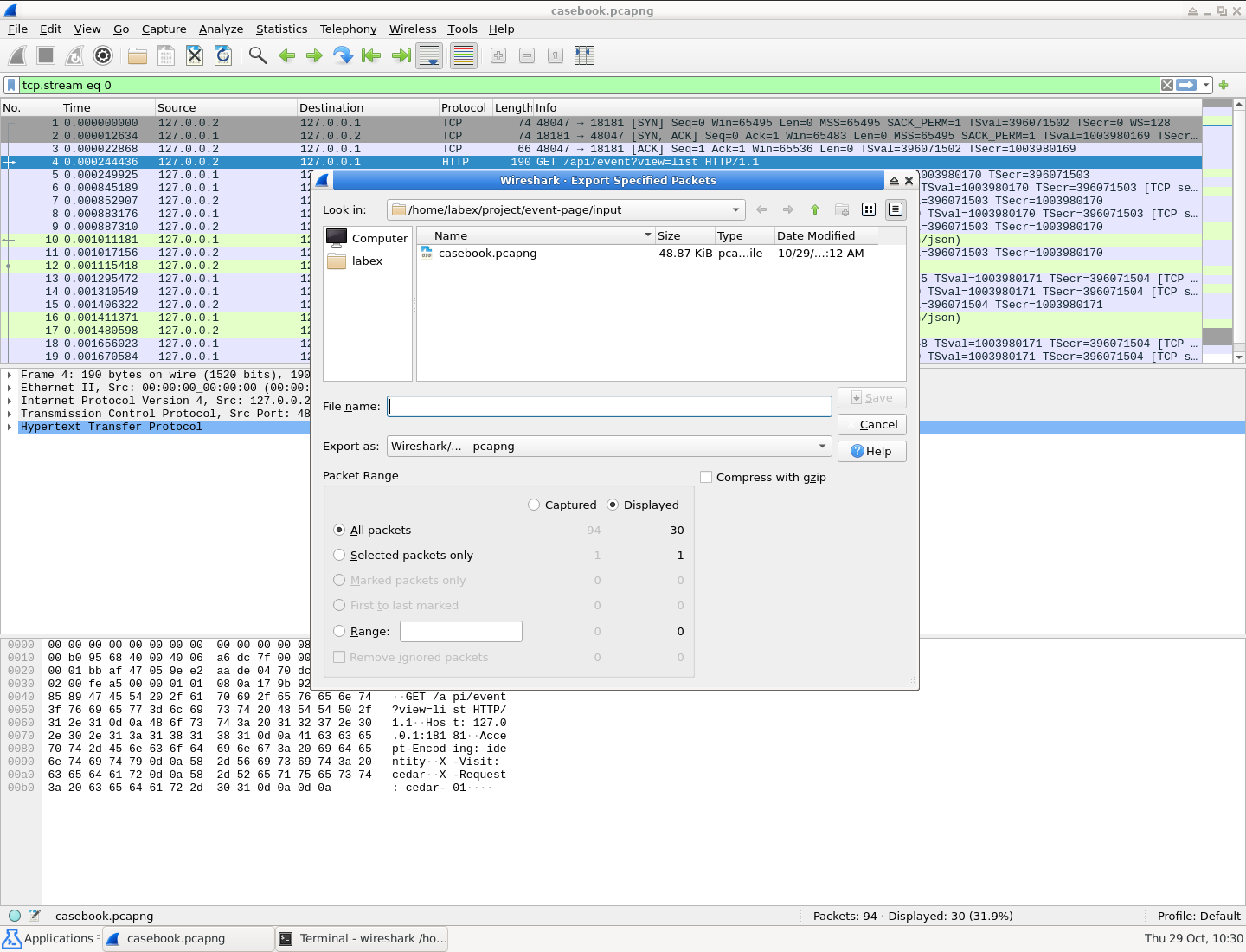
In this dialog, check the Displayed column and All packets option before saving. The example has 30 displayed packets belonging to Cedar.
Choose File → Open and open the new evidence.pcapng. Apply http in the display-filter bar. Expect four GET requests and four HTTP responses; inspect their content as well as their count. A response can span several TCP segments. Exporting only the rows labeled HTTP can discard those earlier segments, even when the original window showed a complete response. Reopening the exported file catches that mistake.
If a response is missing or cannot be reassembled, reopen the original input, restore the Cedar address filter, and export the complete connection again. Never fill missing response content by typing it into another file.
Pair Requests with Their Actual Responses
In this step, you will distinguish the two details requests and record all four correct pairs. Begin in Desktop, with Wireshark open. Use File → Open to return to /home/labex/project/event-page/input/casebook.pcapng. All frame numbers in the following table refer to this original input, not the renumbered export.
Combine two conditions with &&, meaning both must match. http selects decoded HTTP messages.
ip.addr == 127.0.0.2 && http
Select the first GET. Expand Hypertext Transfer Protocol in the middle pane using its triangle or by selecting that row and pressing Right Arrow. Read the URI and the X-Request header. This synthetic application gives each request its own reference, such as cedar-01.
Find Response in frame. Right-click that field and choose Go to Linked Packet. In the response's HTTP section, Request in frame points back to the original request. Both links matter: the last response in a stream is not automatically the response to the first request.
Expand the response's JavaScript Object Notation → Object → Member: title section, scrolling the middle pane if needed, or use Follow → TCP Stream to read the complete application conversation. The event title is Night Garden Walk. JSON represents labeled application values; title is the label and the quoted words after it are the value. Read the actual value, not merely the 200 response code. If the JSON section is below the visible area, scroll the middle pane.
Repeat for each Cedar request, including both details requests. You should find these pairs in this fixed recording:
| Request frame in input | Corresponding response | Event title |
|---|---|---|
| 4 | 10 | Night Garden Walk |
| 12 | 16 | Night Garden Walk |
| 17 | 21 | Night Garden Walk |
| 23 | 27 | Night Garden Walk |
To make response links easier to compare, right-click Response in frame on a request and choose Apply as Column. Blank cells on response rows are expected: those rows have a Request in frame field instead. This column is an aid, not a required profile setting. Use it to verify that the repeated details requests point to different responses.
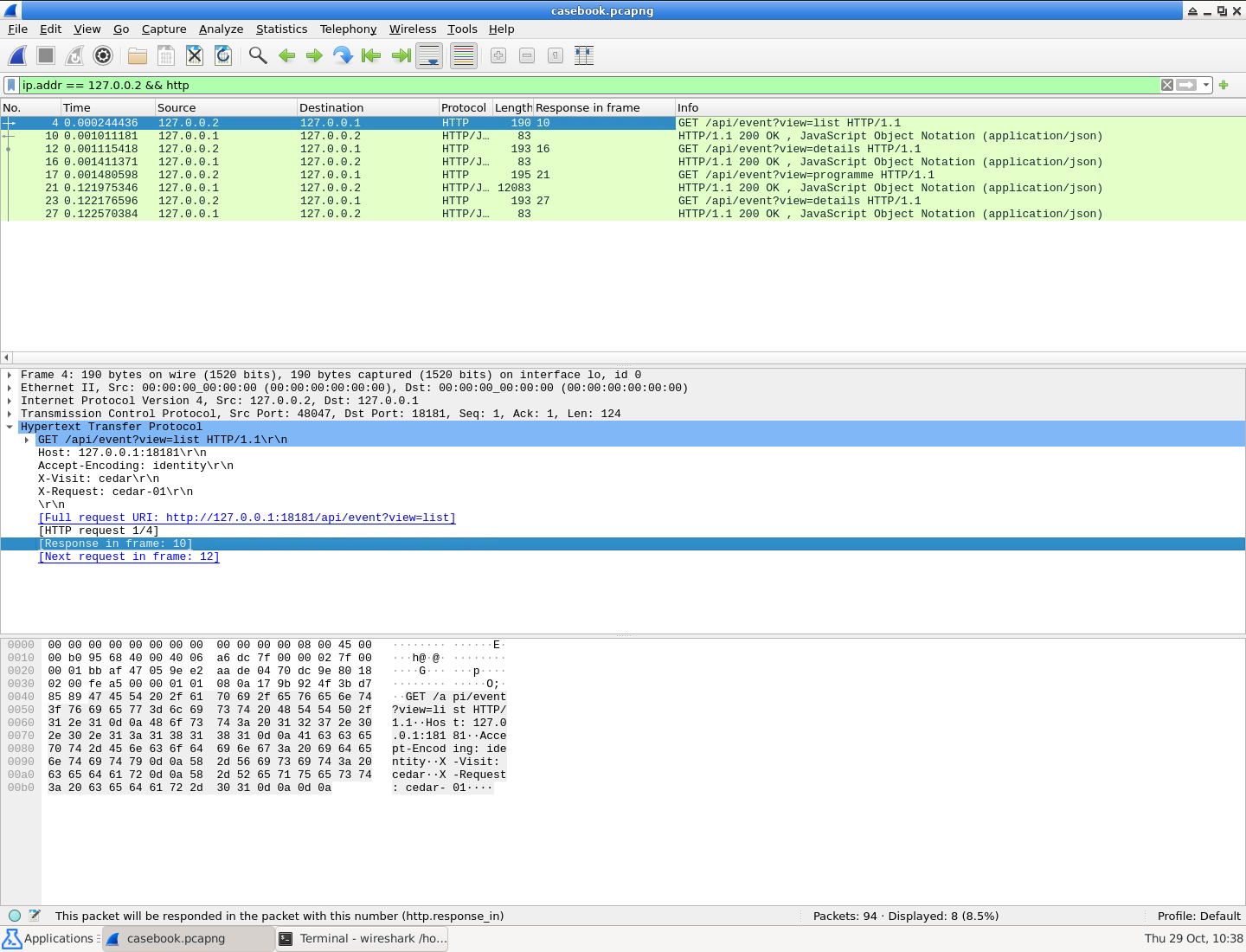
Read the original frame number at the left and Response in frame beside it. The two details requests lead to frames 16 and 27.
Create the small handover table in the graphical text editor. Open Applications → Terminal Emulator again to create another terminal in Desktop. mousepad opens the supplied text editor; the absolute path names the output file.
mousepad /home/labex/project/event-page/output/pairs.csv
Enter the following complete CSV. CSV uses commas between fields and one record per line. Its header names the columns. These titles contain no comma, so they need no extra quotation marks.
request_frame,response_frame,title
4,10,Night Garden Walk
12,16,Night Garden Walk
17,21,Night Garden Walk
23,27,Night Garden Walk
Save with Ctrl+S. If a Save dialog appears, confirm the exact output directory and pairs.csv filename. Return to Wireshark using its window or bottom panel button. Compare every CSV row with the actual request/response links in the input. The table documents the investigation; it does not substitute for your complete evidence.pcapng.
Summary
You used Wireshark conversations and Follow TCP Stream to isolate a visit, reopened a complete exported capture, and paired repeated HTTP requests with their own responses. Your original input remains unchanged; the exported packets and short pair table can be checked independently.